...
| Panel | ||||||
|---|---|---|---|---|---|---|
| ||||||
|
Allocation - global algorithms
"24. MultiDiamond" and "24. MultiNext" new algorithms.
Include Page Video | Algorithms "24. MultiDiamond" and "24. MultiNext" Video | Algorithms
...
"24. MultiDiamond" and "24. MultiNext"
24. MultiDiamond
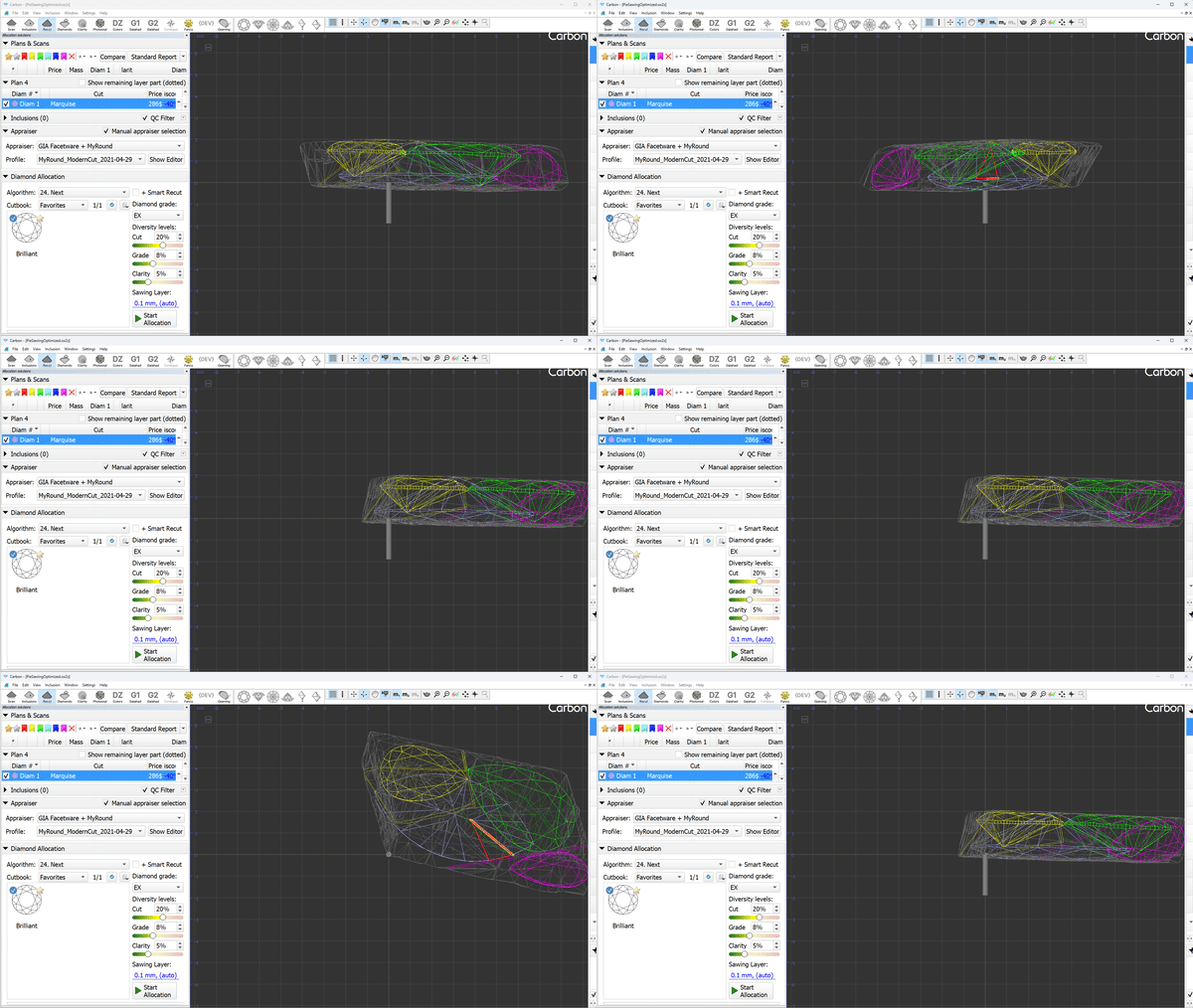
Allocation of 3 or more diamonds has become the standard for all sizes and types of rough stones. On average, a solution contains 5 diamonds. An important question when allocating multiple diamonds is "How to perform Sawing?" Not all solutions with 4 or more diamonds can be sawn using modern sawing technologies. The picture shows an example that cannot be sawn.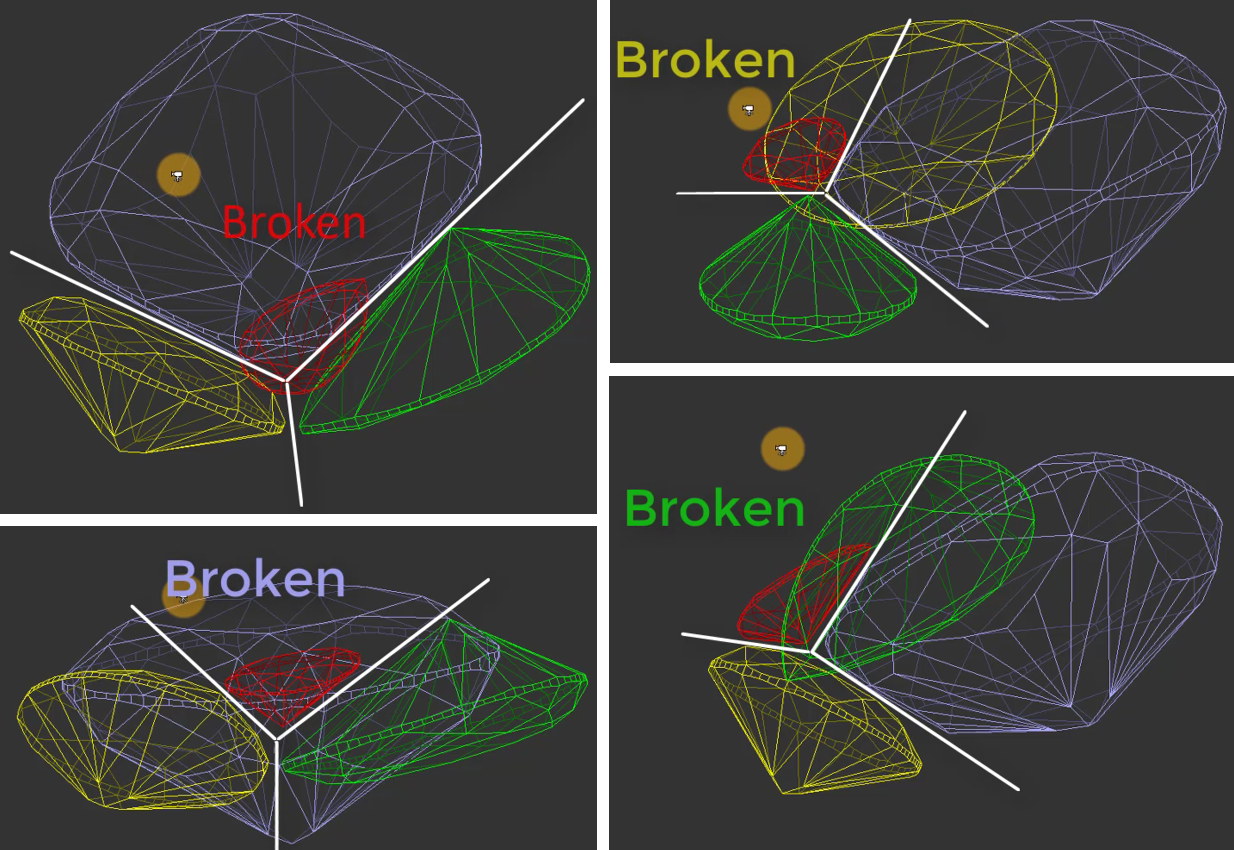
Introducing our new algorithm "24. MultiDiamond."
Solutions from the "24. MultiDiamond" algorithm can always be sawn, and we provide a sequence of sawing layers and pies to guide this process.
Users can specify the number of diamonds they want in a solution and the algorithm will find that many diamonds in the scan model.
When searching for the three largest diamonds, the algorithm prioritizes maximizing price. From 4 diamonds onwards, the algorithm also considers the need for existing sawing.
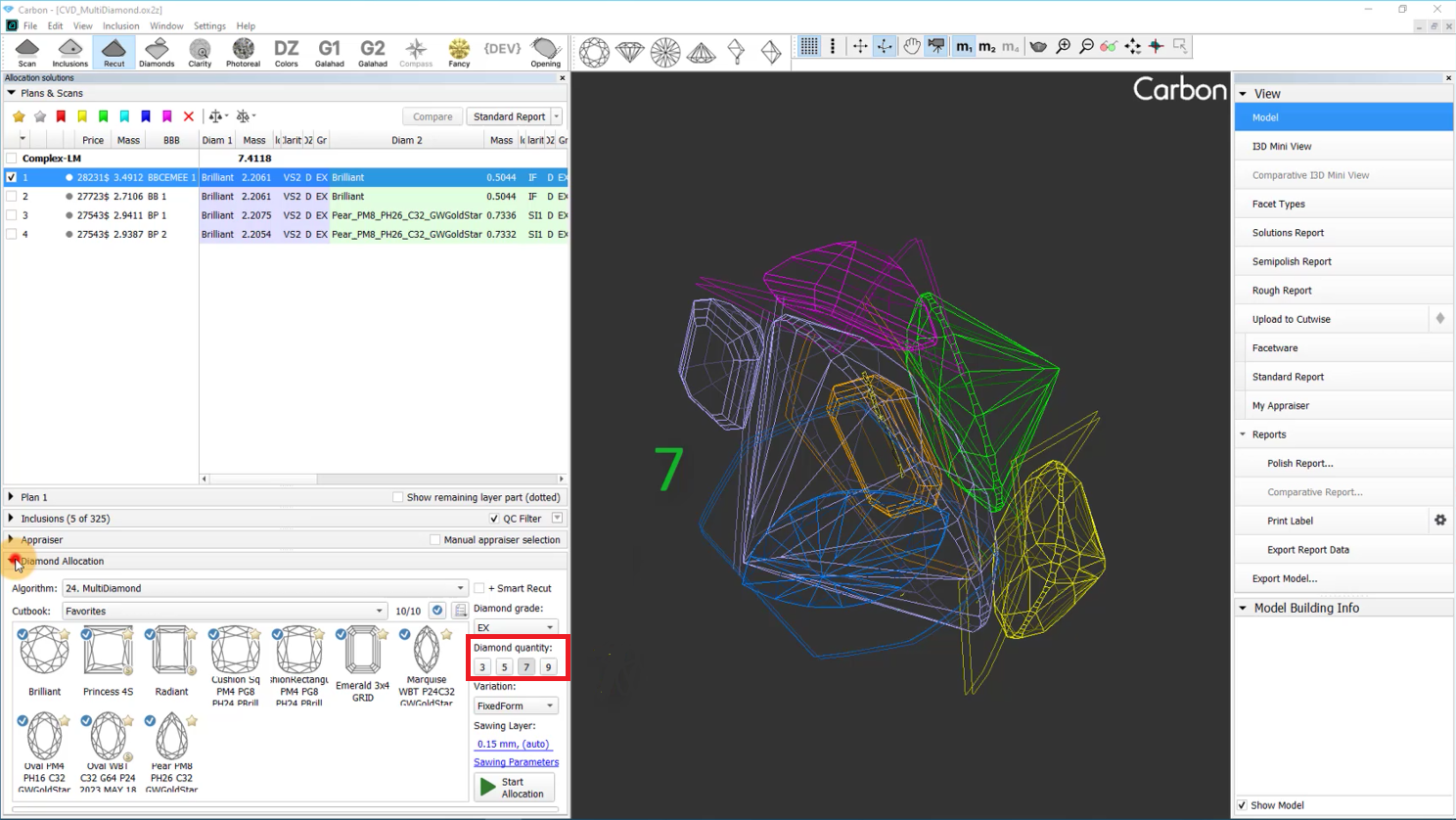
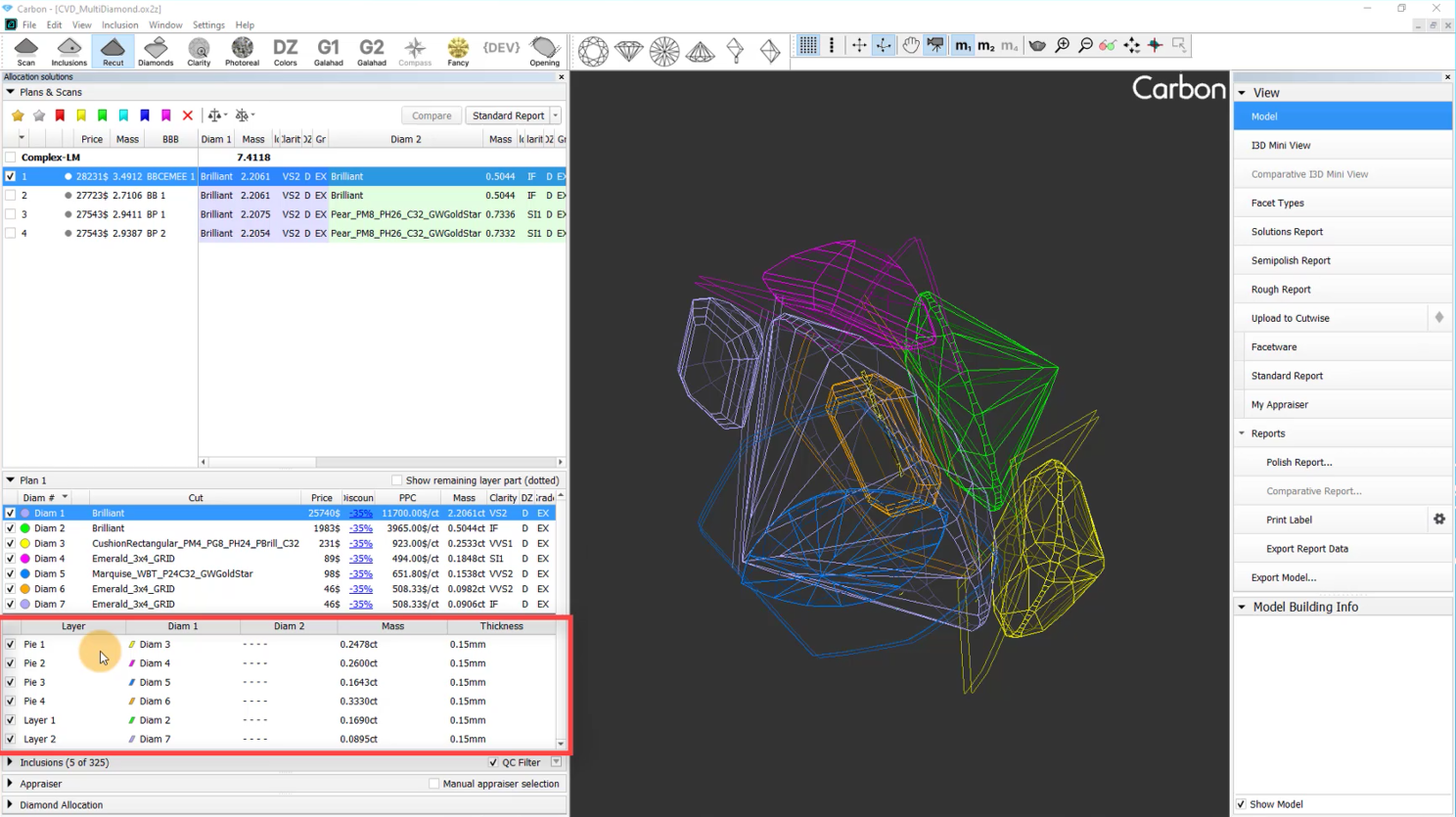
Furthermore, users can adjust the thickness of sawing planes used in the optimization process, and choose the "Variation" mode. Currently, two options are available:
"FixedForm" to produce solutions exactly of the same form as the allocation forms registered within the cut. Only scale or position may be changed
"FlexibleForm" to produce solutions in the limits specified by the appraiser.
24. MultiNext
The algorithm "24. Multinext" has also been added. It operates on one or multiple selected solutions. The user chooses how many extra diamonds need to be added to the selected solutions. In the case of multiple selected solutions, the algorithm will work independently and in parallel on each of them. "24. MultiNext" uses a allocation method identical to "24. MultiDiamond" starting from third solutions. The result of "24. MultiNext" can always be sawn with pie sawing.
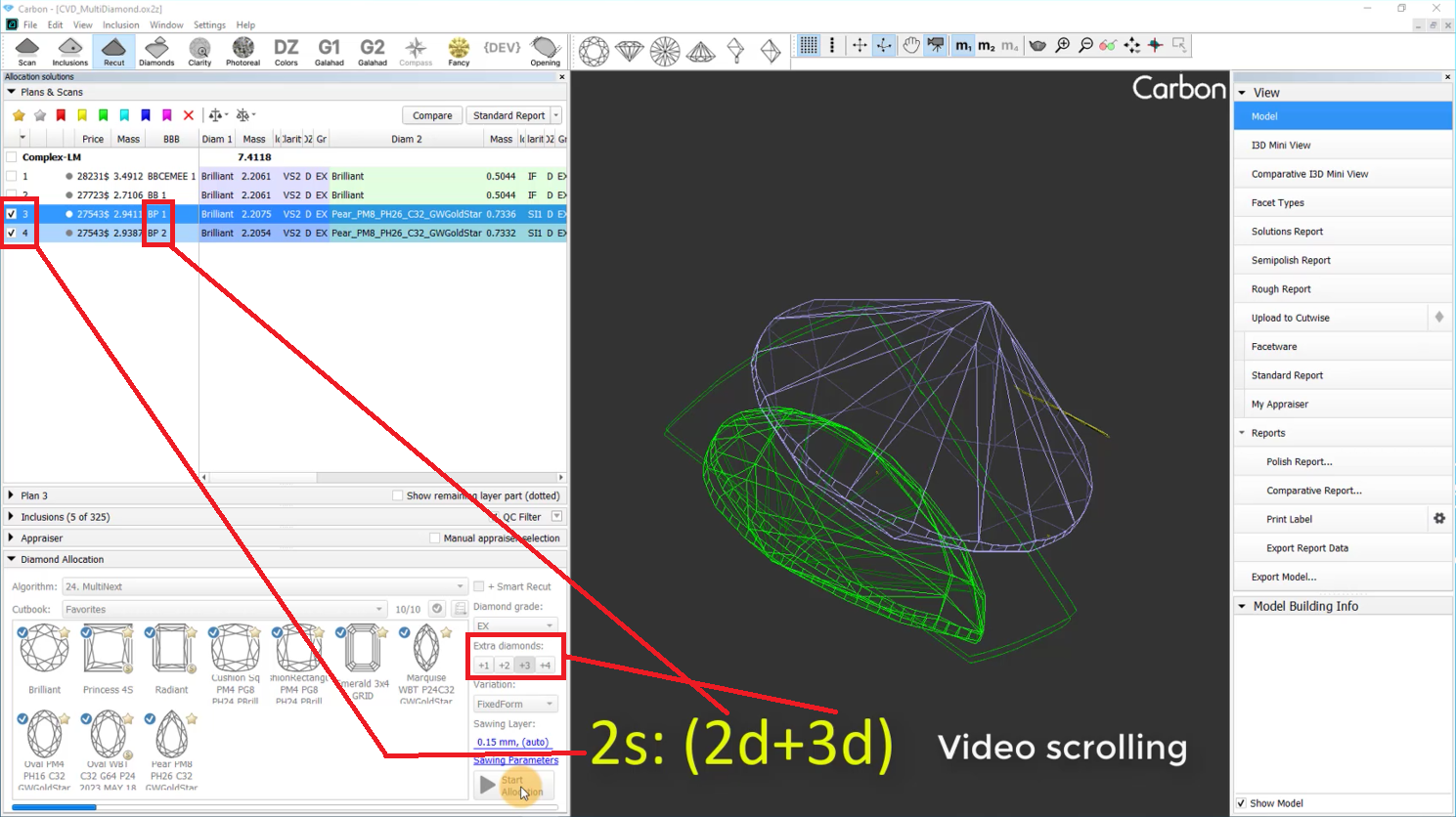
The algorithm "24. MultiNext" with FixedForm Variation, compared to "24. MultiNext (FixedForm, BasicSawing)":
1) Is faster
2) In most cases provides higher solution price
3) Frequently cannot be sawn without using Pie Sawing.
Recognition updates
Import-Recognition
- The "Surface" recognition now provides consistent results, regardless of the order in which models are opened or imported.
- A bug affecting recognition has been fixed; it occurred that an imported model was a preplan instead of a scan (this issue raised after unchecking the "Recognition" option).
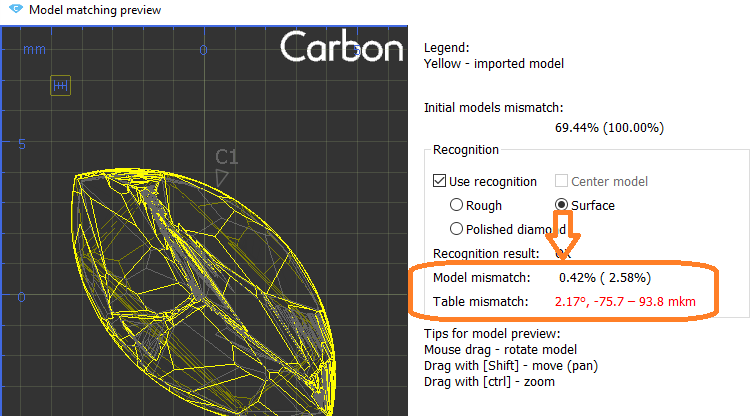
- Mismatch data for "Surface" recognition is displayed:
Allocation - manual tools
Fast Swim
Operators use manual tools during planning after getting the initial solution of global allocation. One of them is a movement of layer and recalculation of diamonds allocation.
This operation is required both for natural rough diamonds and grown CVD diamonds to get symmetrical solutions, or fixed mass solutions (such as 1ct+1ct, 1ct+2ct). Current algorithms may not provide that kind of solution.
However, you can achieve the desired result manually by using the movement panel for the layer and applying the Swim algorithm to each diamond individually. It takes time.
We have developed an autoswim mode that eliminates the need for manual use of the Swim algorithm, saving you valuable time.
Include Page Video | Fast Swim - manual allocation tool by layer or pie movement Video | Fast Swim - manual allocation tool by layer or pie movement
User interface updates
Scene rotation
...
tool (OX/OY/OZ)
You can navigate the scene using your mouse. However, for more precise adjustments, you'll need to use the movement panel, which can sometimes be inconvenient.
We'd like to introduce OX/OY/OZ rotation modificators.
| Video | Axes rotation modificator - rotation along OX/OY/OZ axes | ||||||||||
|---|---|---|---|---|---|---|---|---|---|---|
| Published: | 2024, December 13 | Last Updated: | 2024, December 13 | v.1.0 | ||||||
| ||||||||||
Video summary: To rotate along those axes, simply press the X, Y or Z button respectively and rotate the scene
| ||||||||||
| Video keywords: rotation, scene, axes | ||||||||||
Data | ||||||||||
| Published in: | Release Notes | 2025-08-27 - HP Carbon 2.2.16 | ||||||||
| Documentation | NA | |||||||||
| Playlists | NA | |||||||||
Additionally, the glue point orientation button now puts the glue point not only in vertical position, but exactly at the scene center.
Sample Facet Types
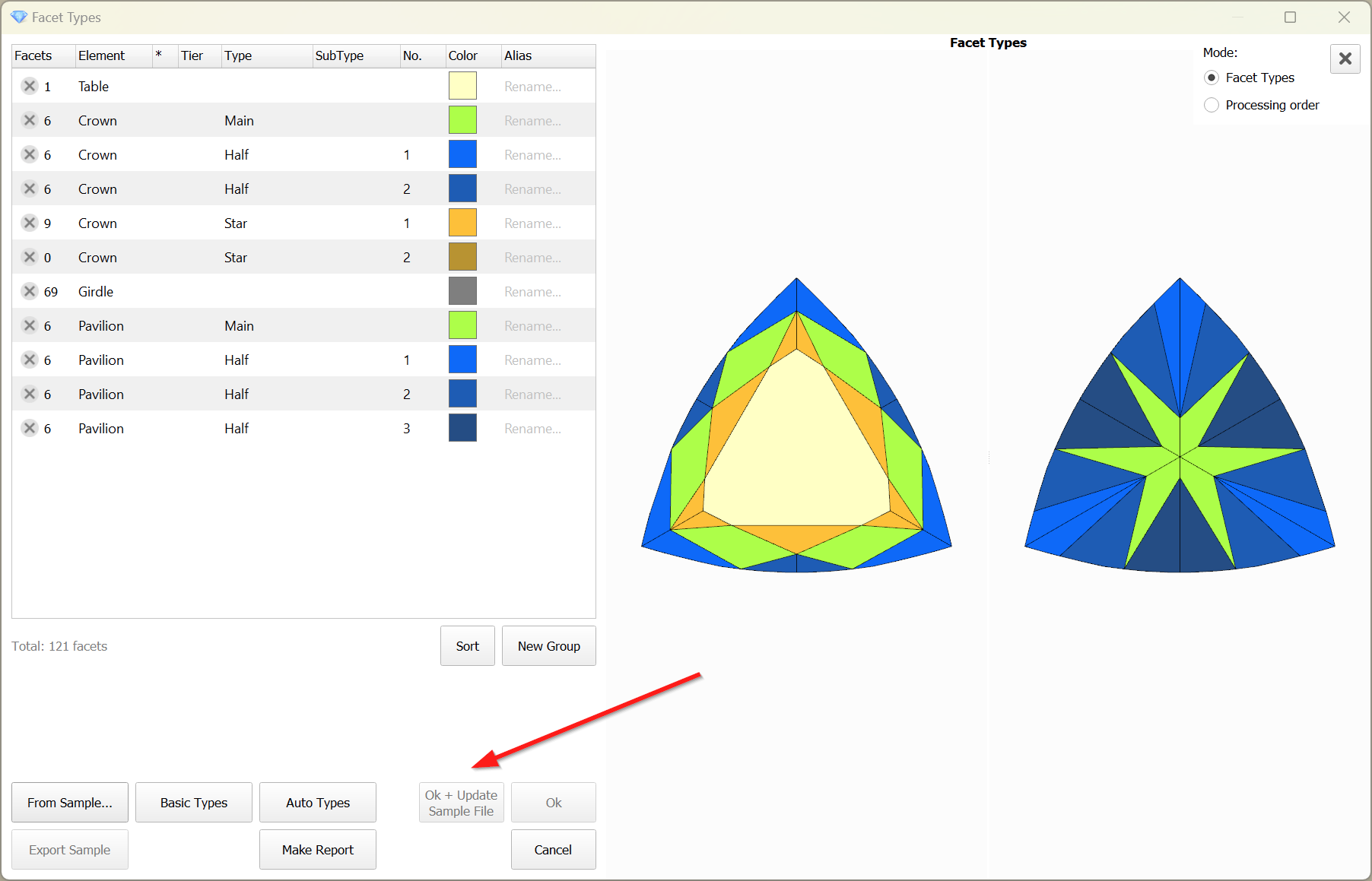
When editing the Facet Types of a sample, the modified types are not saved to the sample file by default. However, this feature proves to be quite useful and convenient. Therefore, this functionality has been implemented.
To save the modified Facet Types to the sample file, the 'Ok + Update Sample File' button is provided.
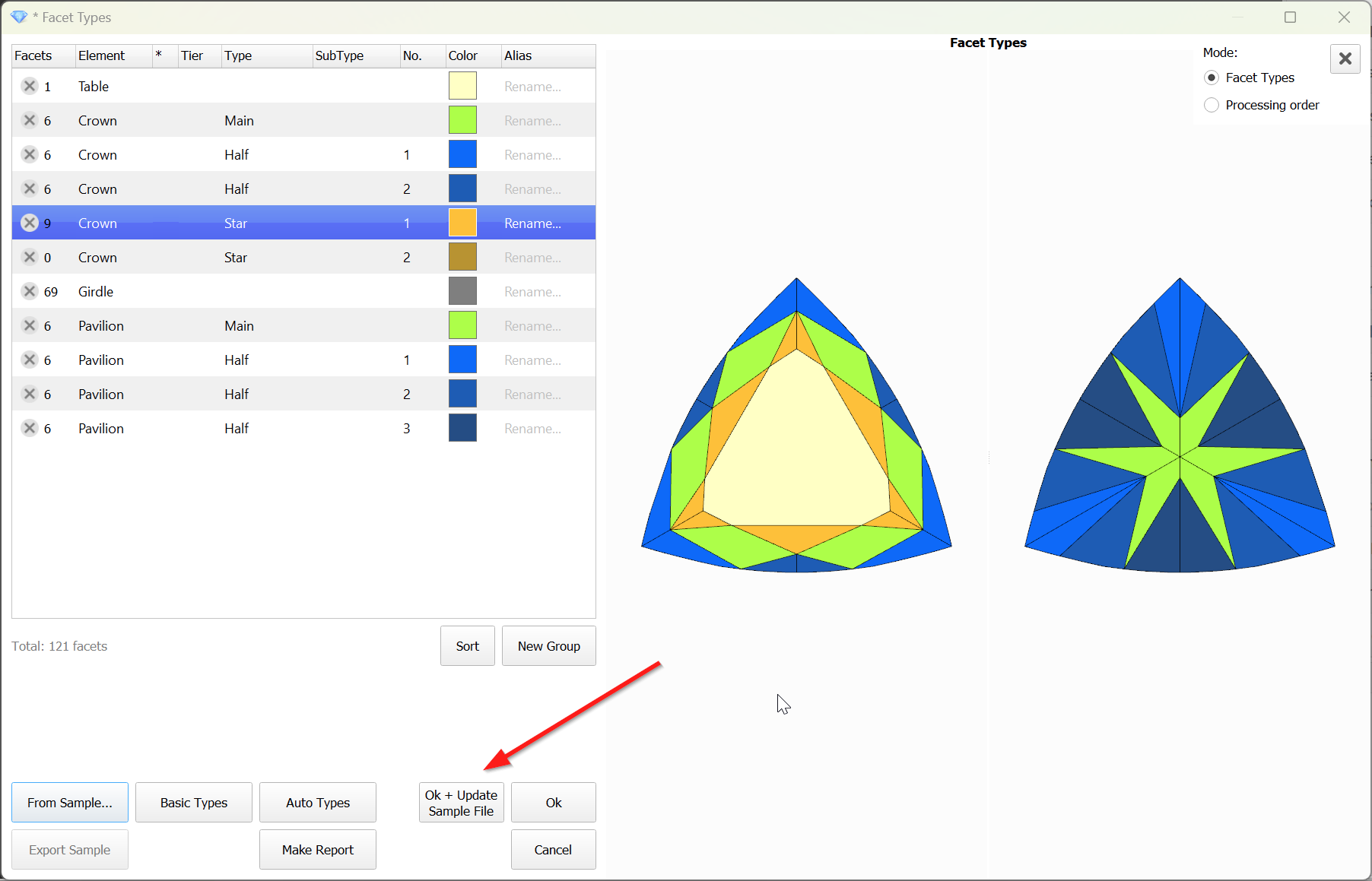
The button is disabled when the file is unavailable:
Reports Improvements
Shape Deviation - new parameter
...
| Warning |
|---|
You can read the full article about choosing an appraiser: Which appraiser template to choose? |
Remaining depth mode changes for I3D reports
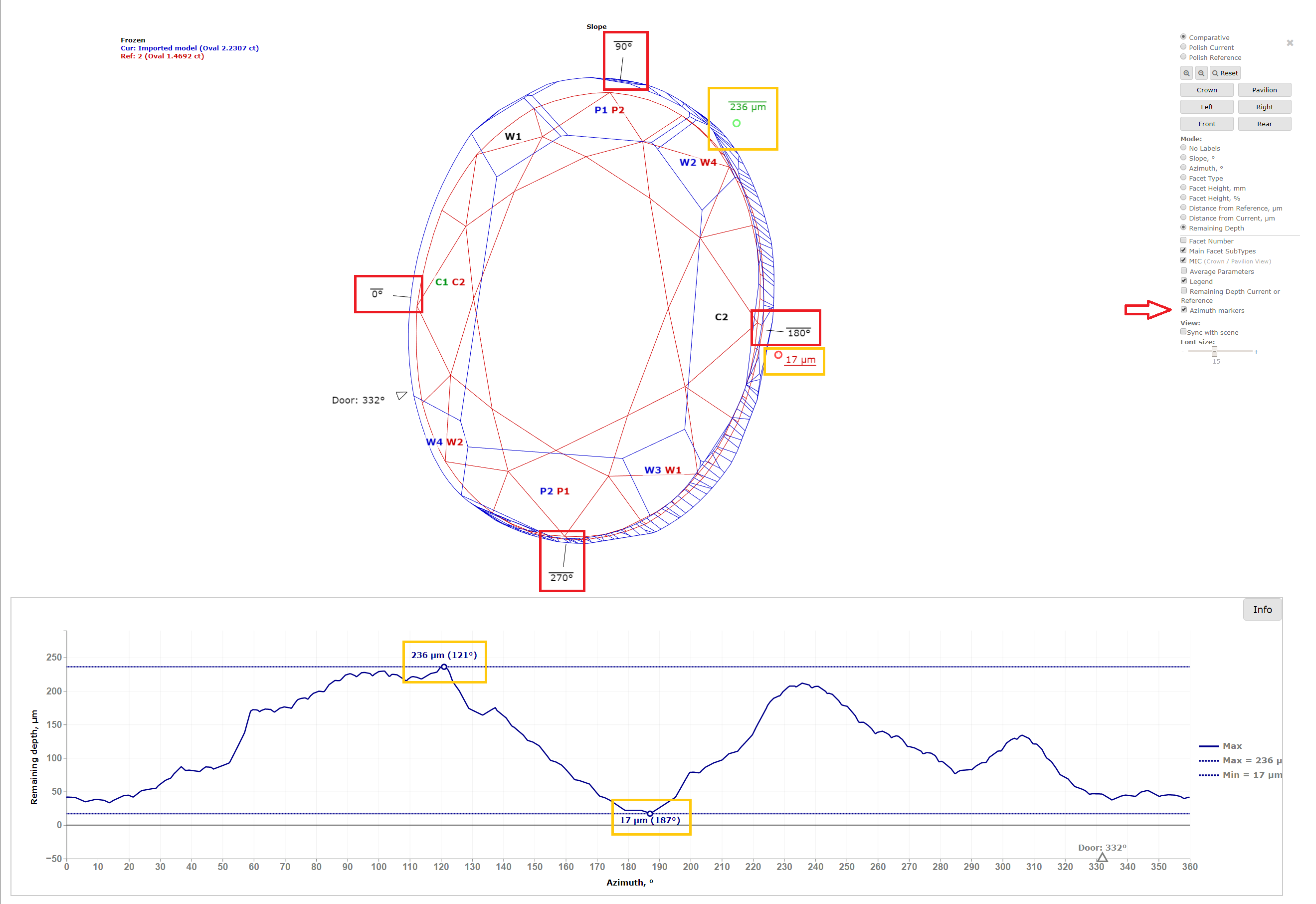
In I3D Comparative Remaining Depth mode, min/max indiaction added to the graph plot and 3D scene.
Azimuth markers were added to the 3D scene to make a more convenient navigation between the graph plot and the scene.
Facets Edge With for Princess cut
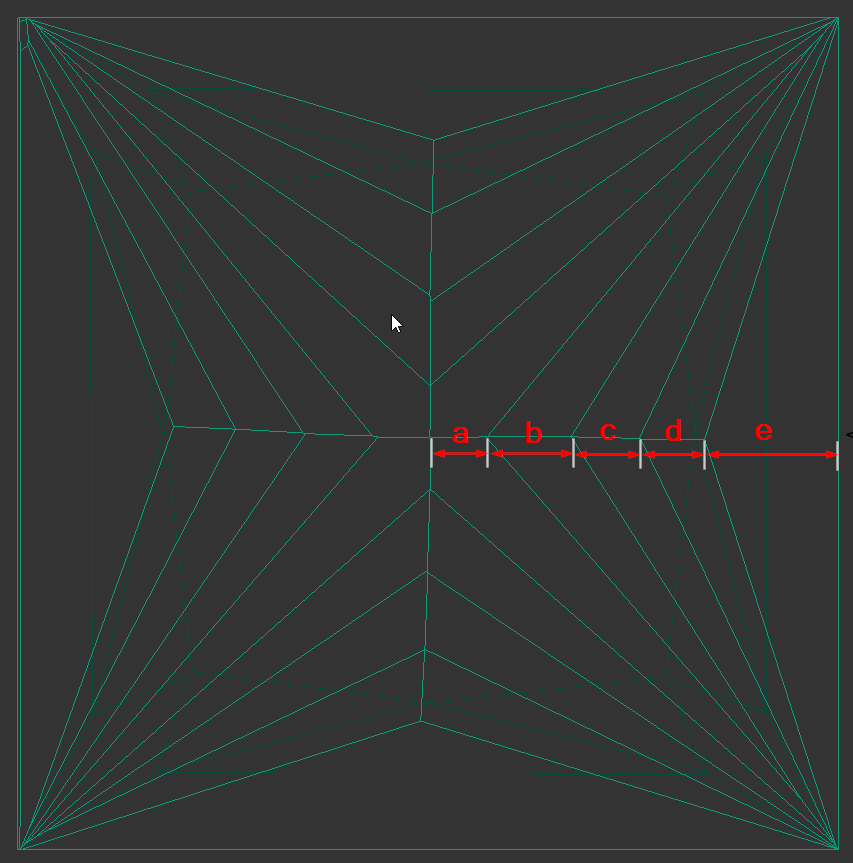
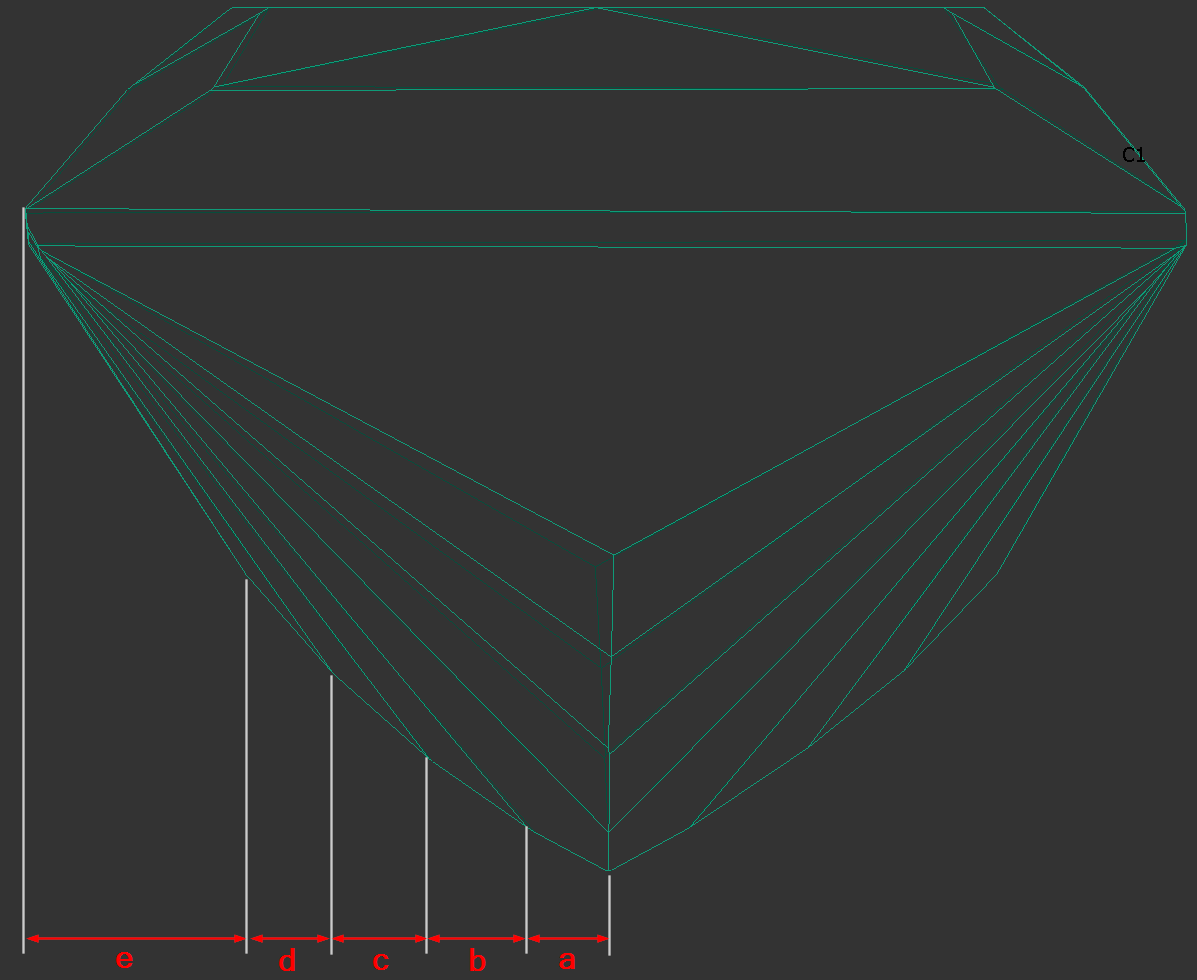
The parameters are calculated in mm and %. If Princess Cut has RT <= 1.05, then the parameters in % are calculated in relation to the width, and if more than 1.05, then the parameters in relation to the length are also added. The distances are calculated in projection on the plane of the table.
|
|
|---|
The bookmarks follow.
"a":
"PAV_MAIN_FACET_EDGE_WIDTH_MM",
"PAV_MAIN_FACET_EDGE_WIDTH_PC",
"PAV_MAIN_FACET_EDGE_LENGTH_MM",
"PAV_MAIN_FACET_EDGE_LENGTH_PC".
"d", "c", "b" ( numbering i comes from the girdle - that's how it was decided to number the chevrons ):
"CHEVRONi_EDGE_WIDTH_MM",
"CHEVRONi_EDGE_WIDTH_PC",
"CHEVRONi_EDGE_LENGTH_MM",
"CHEVRONi_EDGE_LENGTH_PC",
"e":
"PAV1_MAIN_FACET_EDGE_WIDTH_MM",
"PAV1_MAIN_FACET_EDGE_WIDTH_PC",
"PAV1_MAIN_FACET_EDGE_LENGTH_MM",
"PAV1_MAIN_FACET_EDGE_LENGTH_PC",
Heart Groove measurements
We added the following dimensions (in mm and as a percentage with respect to width).
See new bookmarks:
- Dimension “A” - "HEART_GROOVE_WIDTH_MM", "HEART_GROOVE_WIDTH_PC"
- Dimension “B” - "HEART_GROOVE_DEPTH_CRN_MM", "HEART_GROOVE_DEPTH_CRN_PC"

- Dimension “C” - "HEART_GROOVE_DEPTH_PAV_MM", "HEART_GROOVE_DEPTH_PAV_PC"

- Dimension “D” - "HEART_GROOVE_HEIGHT_MM", "HEART_GROOVE_HEIGHT_PAV_PC"

Fixed problems and improvements
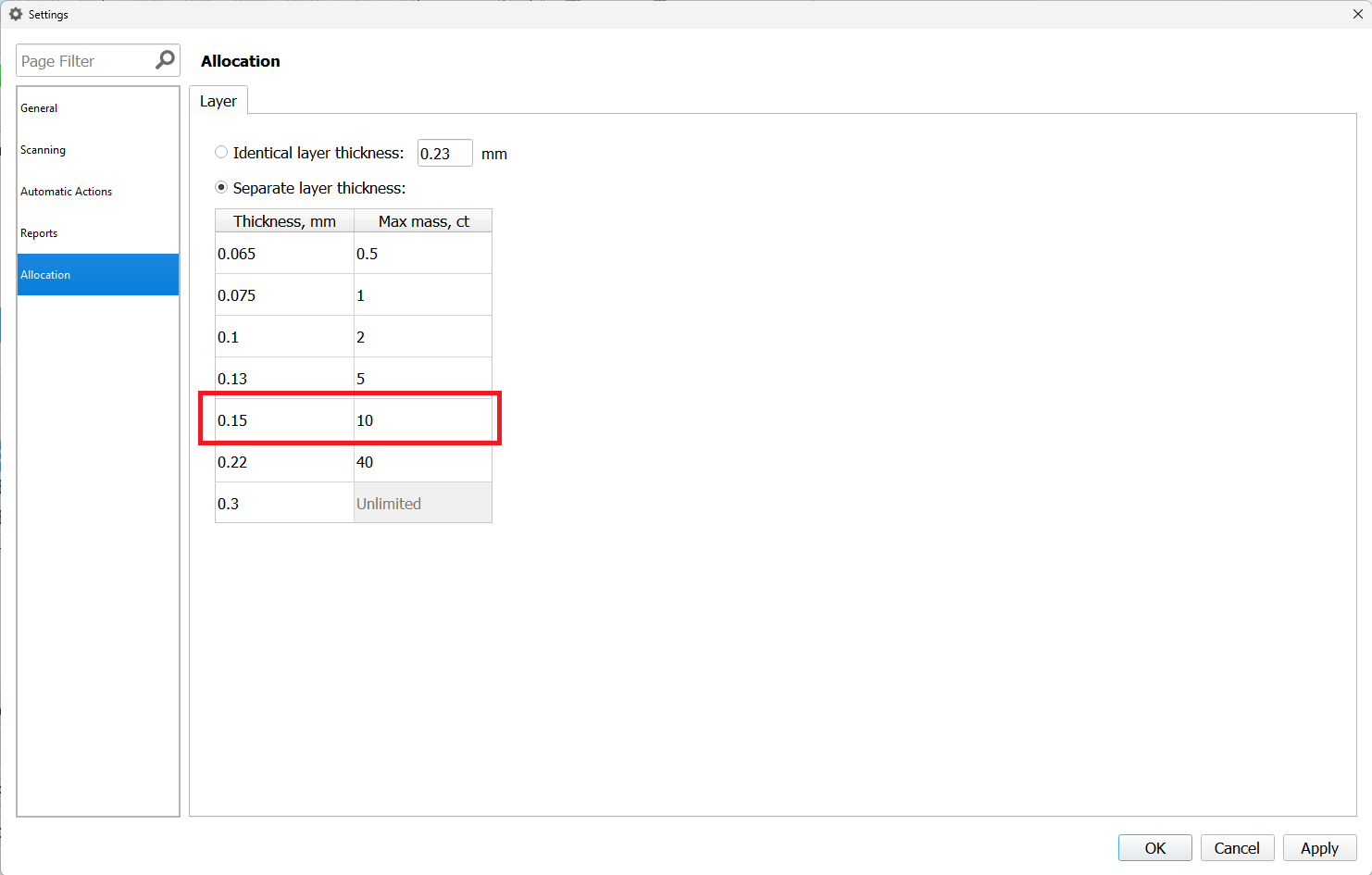
- Swim, Ballon and Change Cut algorithms now use correct sawing thickness according to layer general settings.
For instance, diamonds perfectly alligned to the layer with a thickness of 0.15 mm, corresponding to a rough weighing 8.84ct(between 5-10 ct interval).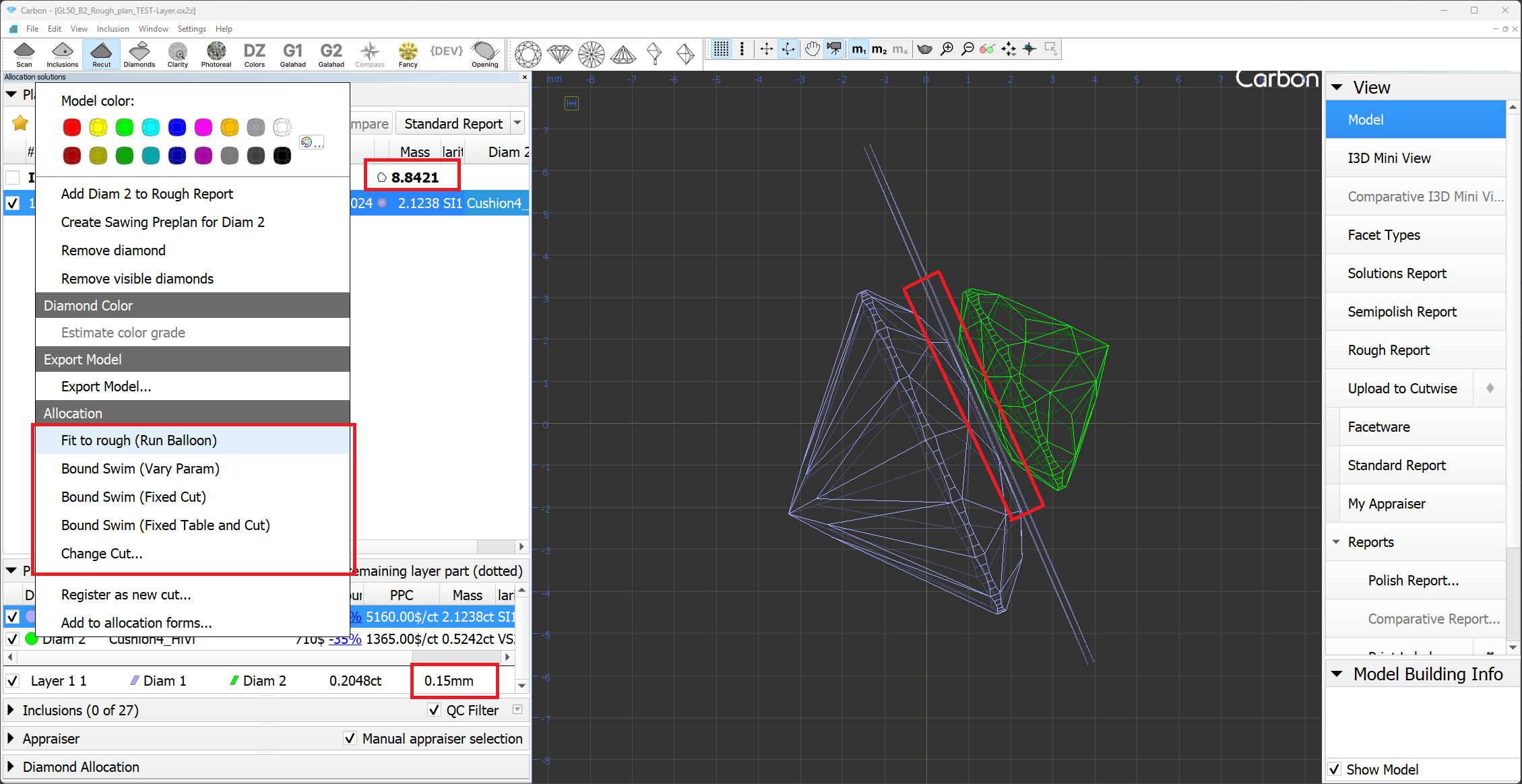
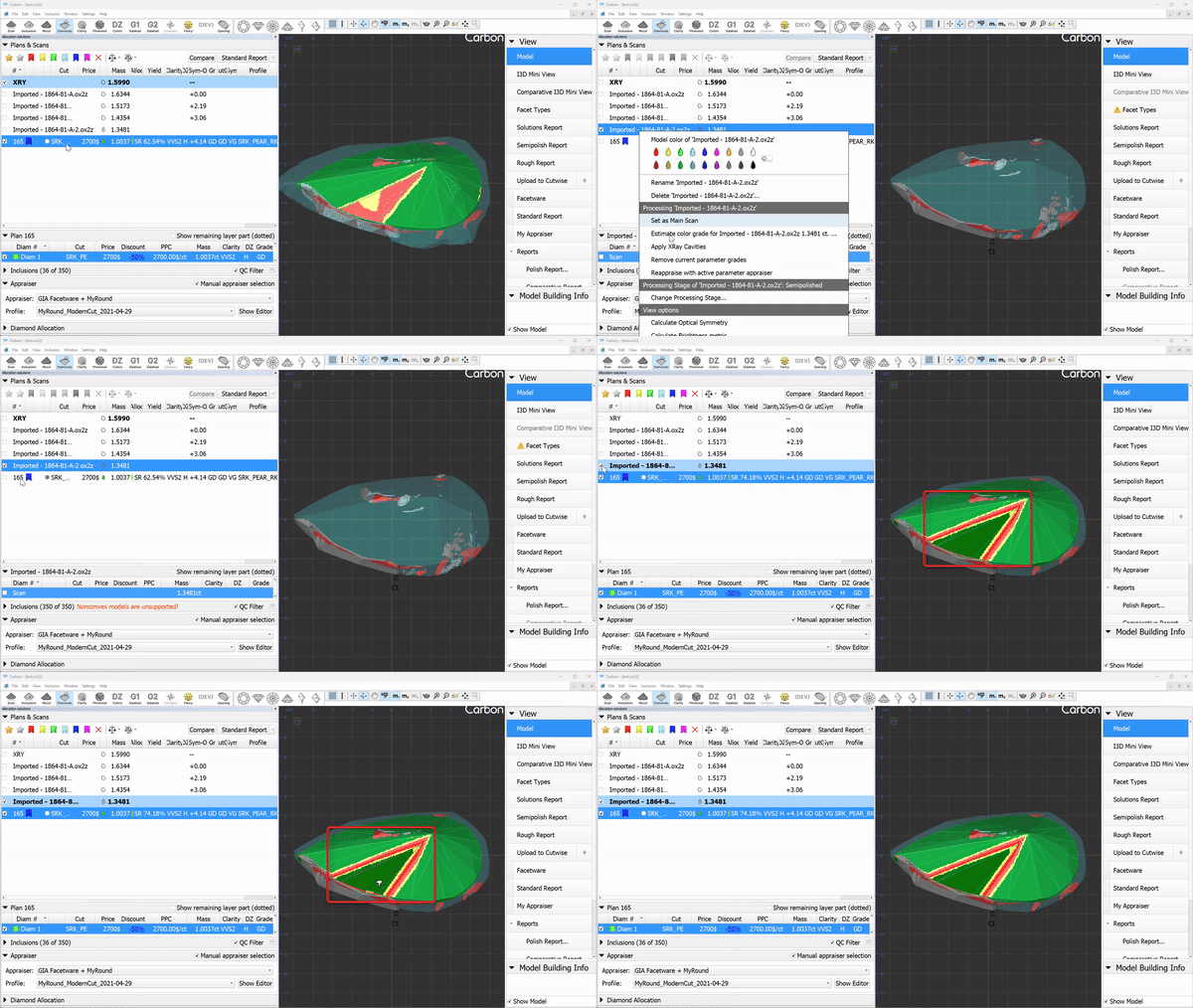
- Contact zone indication now updates, when the main scan changed.
- Layer weight/width display is fixed for some extraordinary layers with more than 2 cutting edges.
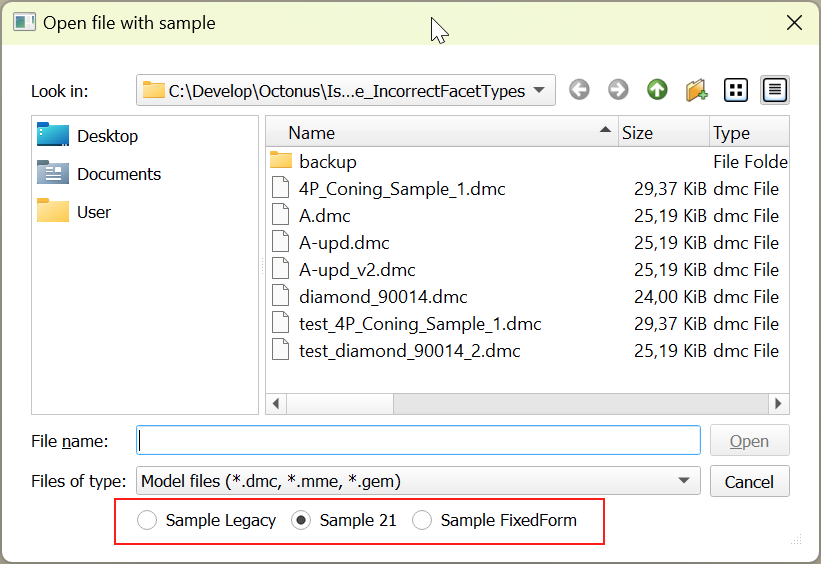
- Now the "Open Sample" dialog remembers the selected method, and the next time the dialog is opened, it will be automatically selected.
- Allocation. Resolved a minor bug related to the 'Based on Brilliance' feature.
Solution list. Restored cell background colors in multi-diamond mode.
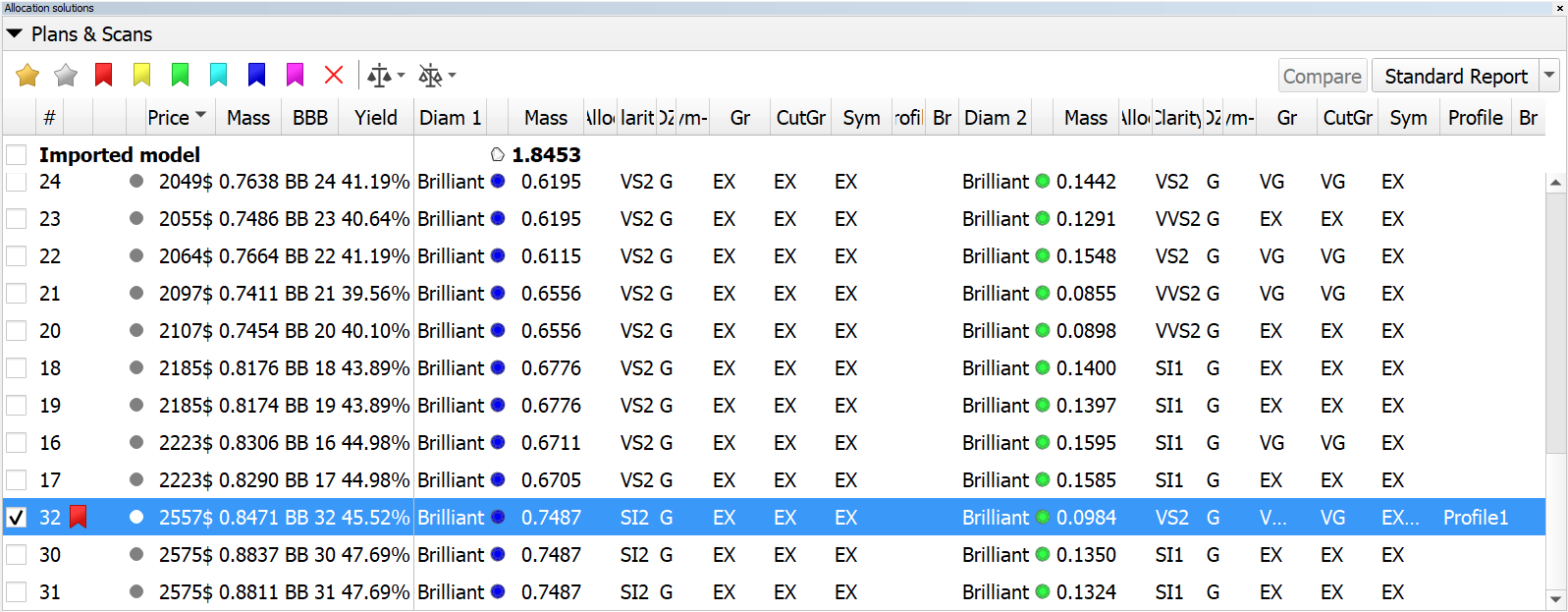
now 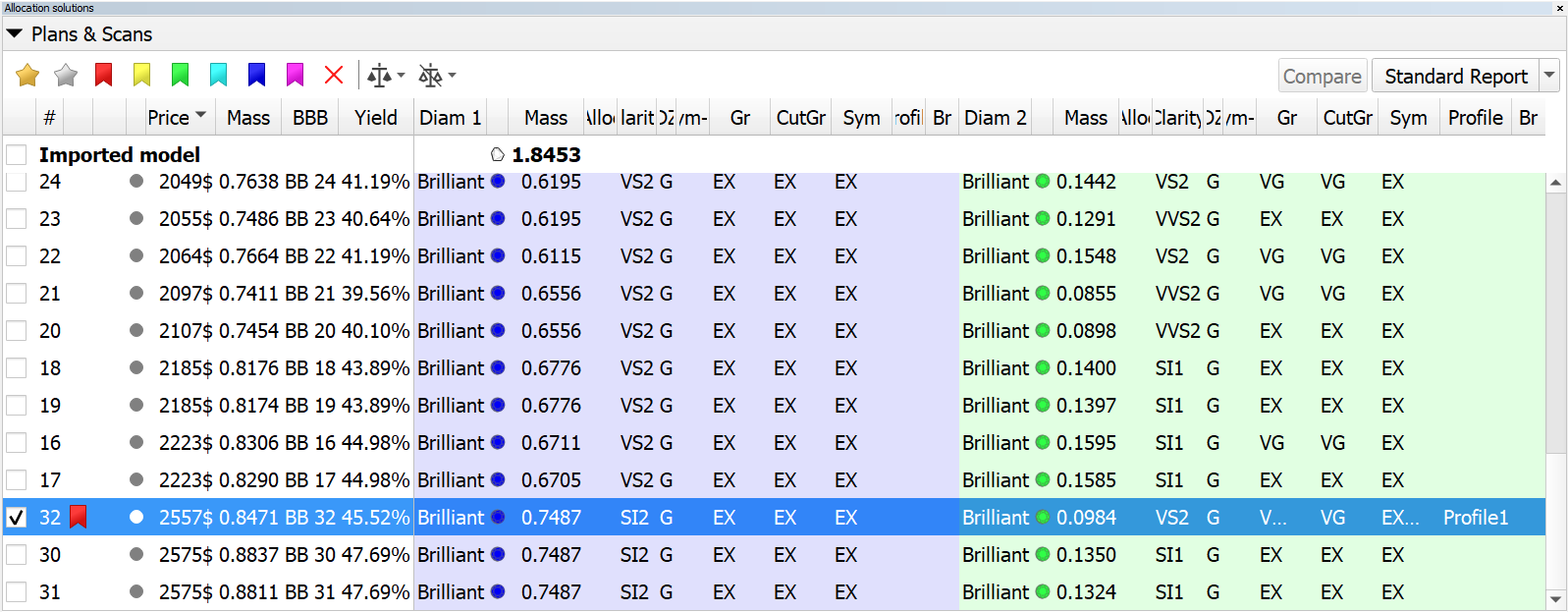
- Inclusion list:
- batch removal of inclusions has been accelerated;
- batch set of inclusion status has been accelerated;
- the "Select All Inclusions" context menu operation has been accelerated;
- fix: the inclusion color status was not updating properly in the right pane of the Inclusion tab;
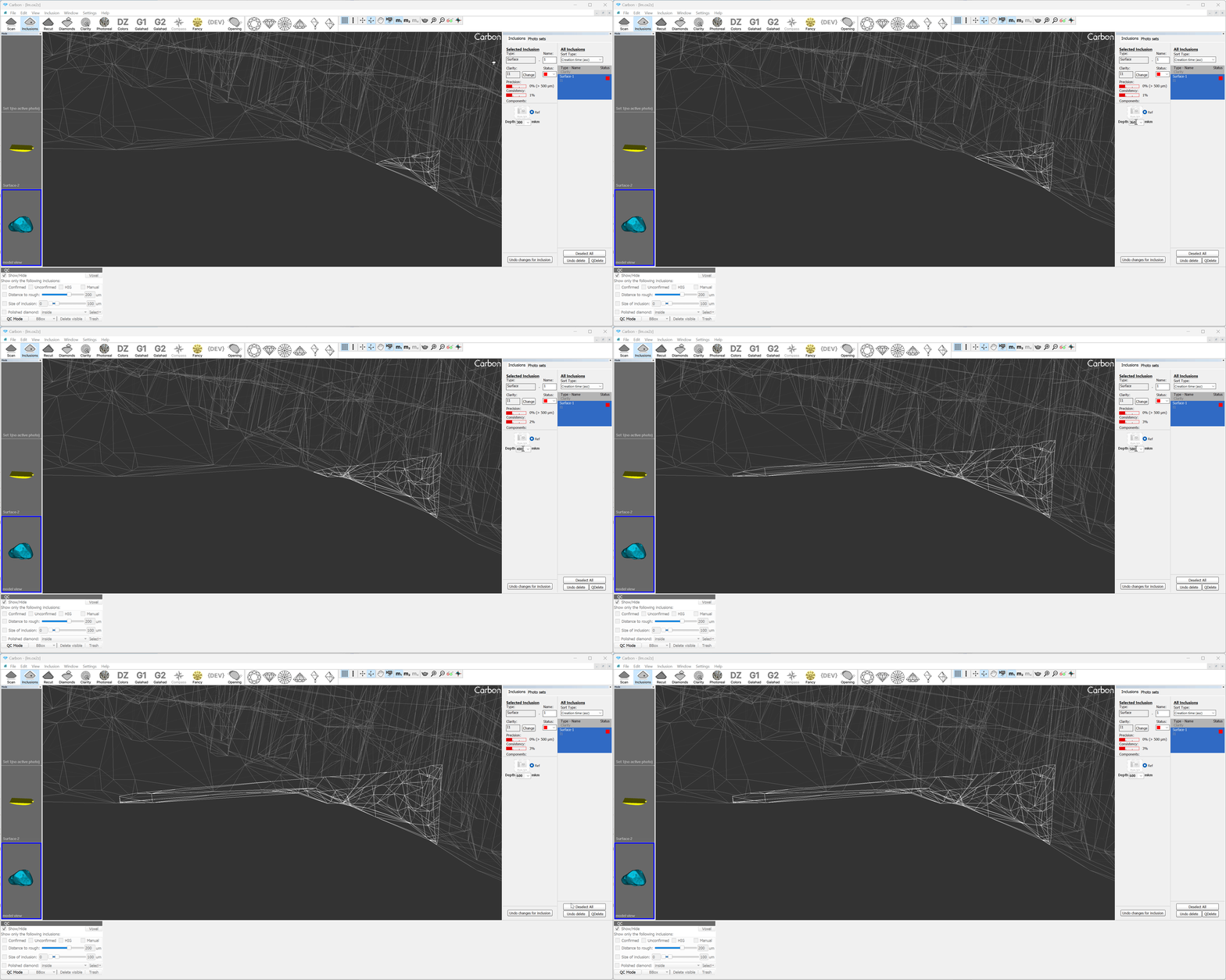
- surface inclusions: depth combo box was updated. Now the depth value can be changed using the mouse wheel (like in spin boxes), as well as edited manually.