
...
Include Page Video | Fast Swim - manual allocation tool by layer or pie movement Video | Fast Swim - manual allocation tool by layer or pie movement
User interface updates
Scene rotation tool (OX/OY/OZ)
You can navigate the scene using your mouse. However, for more precise adjustments, you'll need to use the movement panel, which can sometimes be inconvenient.
We'd like to introduce OX/OY/OZ rotation modificators.
...
| Multimedia | ||||
|---|---|---|---|---|
|
...
Video summary:
To rotate along those axes, simply press the X, Y or Z button respectively and rotate the scene
This tool is particularly useful in several situations, such as:
- Working alongside orientation buttons
- Integrating with context menu orientation options
- Facilitating object rotation.
...
Data
...
...
Support for Solutions with Arbitrary Numbers of Polished Diamonds
The Fast Swim processes solutions containing any number of polished diamonds. The order of layers in the solution defines the working zone for each polished diamond, where the Bound Swim algorithm is executed.
When the first layer is moved, Bound Swim runs for all polished diamonds in the solution.
Typically, each layer isolates one polished diamond from the remaining ones.
For subsequent planes (second, third, etc.), the working zone remains unchanged for previously isolated polished diamonds, and the algorithm is not triggered for them.
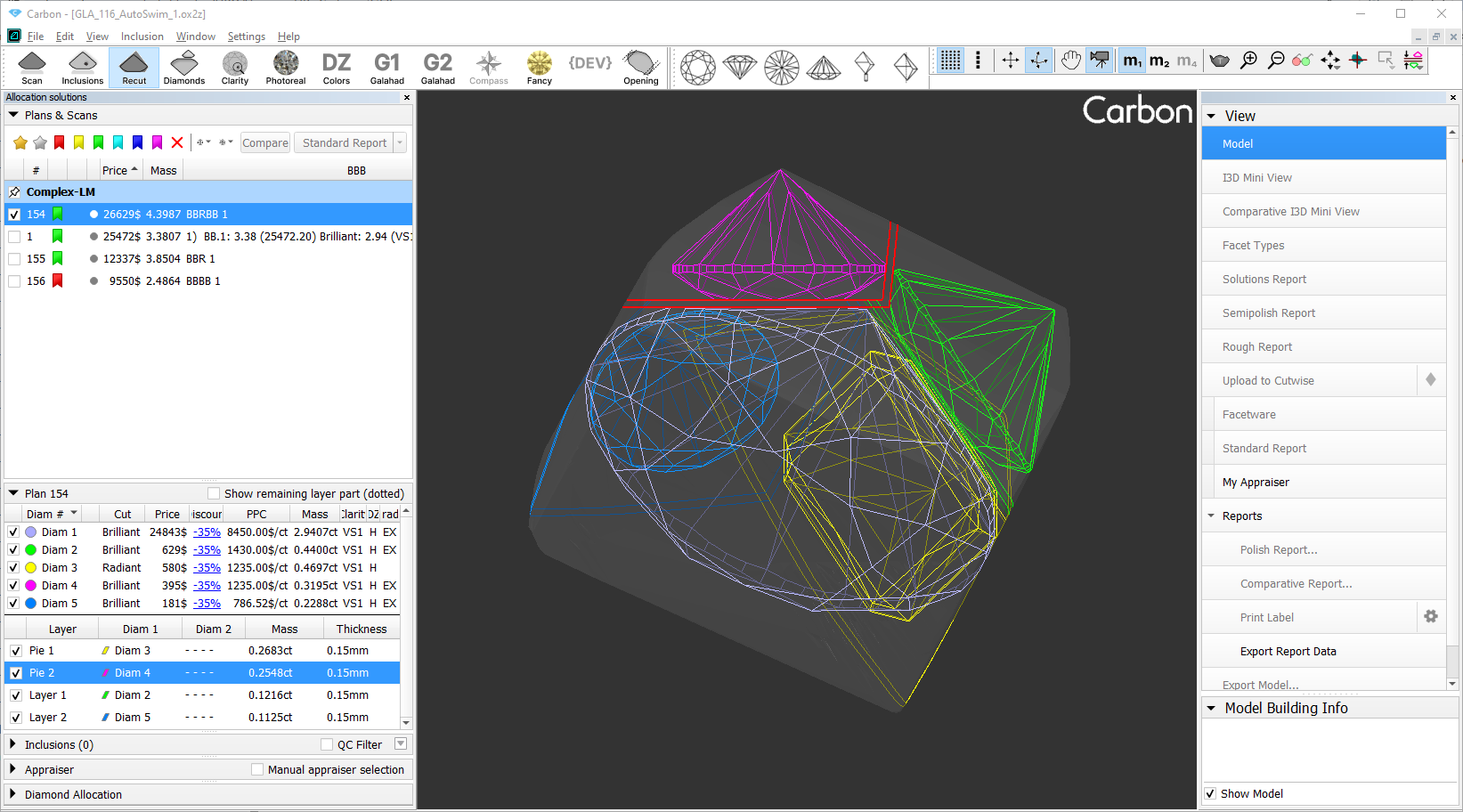
Compatibility with Different Section Types (Layer, Pie)
The algorithm now supports all section types, including:
Layer: Traditional planar sections.
Pie: Two planes in one section (newly supported).
Operational Notes:
Pie sections can only be moved or rotated as a single unit.
Adjustment methods:
Direct manipulation in the 3D scene (mouse controls).
Precision editing via the Movement panel.
Restriction: Angle adjustment between planes within a single Pie section is currently unavailable.
Algorithm Selection Integrated into Main Toolbar
The AutoSwim algorithm settings (activated after plane adjustment) are now accessible in the main toolbar.
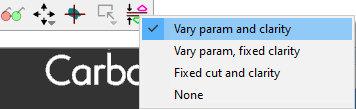
Available modes:
| Vary param and clarity | Maximizes solution value by optimizing polished diamond parameters and evaluating multiple clarity groups (inclusion sets). Default mode. |
| Vary param, fixed clarity | Optimizes solutions by adjusting polished diamond parameters only (current clarity group remains unchanged). |
| Fixed cut and clarity | Uses predefined fixed polished diamond parameters and the current clarity group. |
| None | No automatic optimization after plane movement. |
Detailed solution information in the Scene
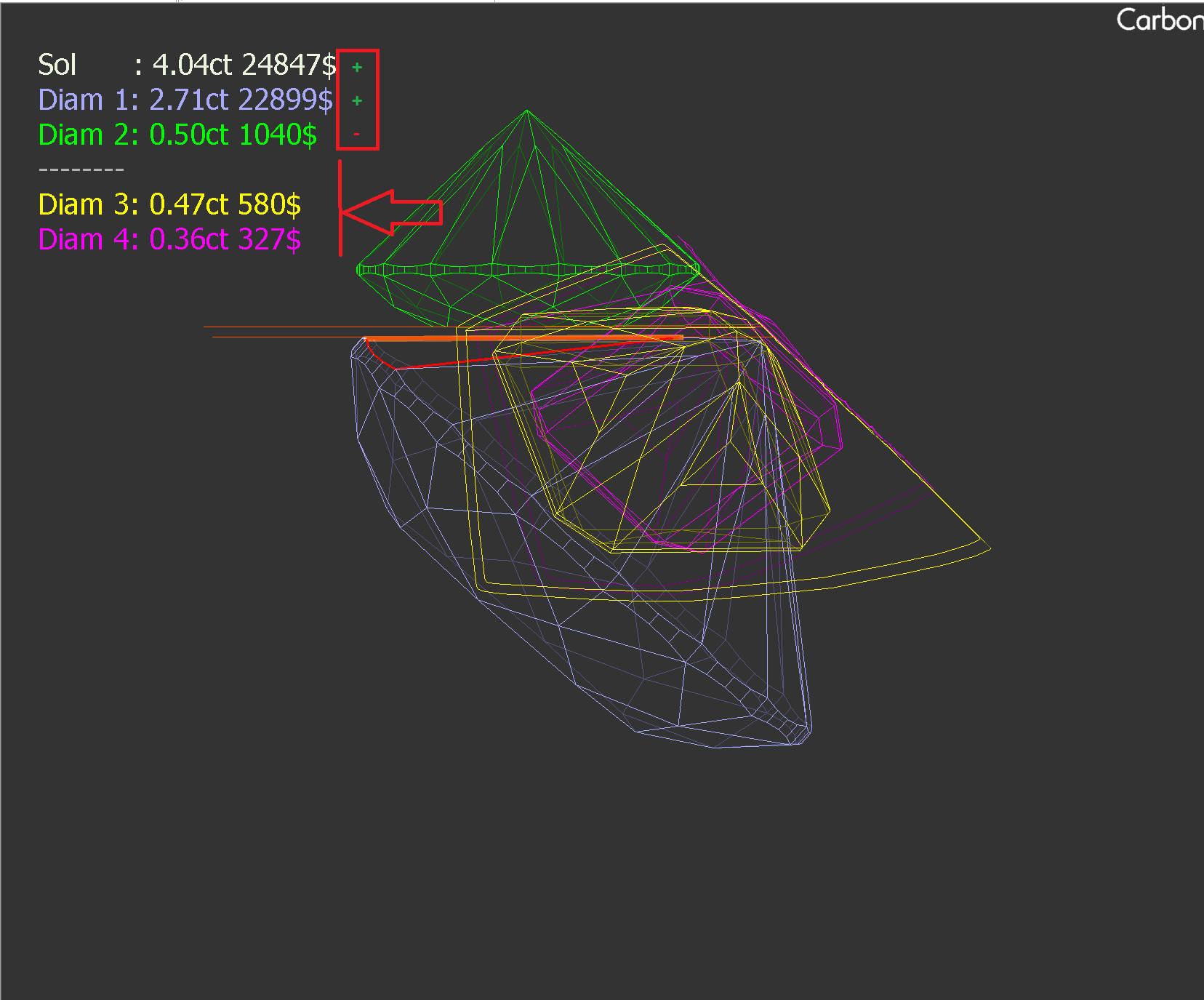
- In Fast Swim, extended solution details have been moved to the top-left corner.
- Price changes for diamonds and the solution itself are now marked with +/- signs.
- Below a dotted line in the table, you’ll see information about diamonds that cannot be modified when adjusting the current saw.
- This compact summary automatically disappears after 30 seconds.
User interface updates
Scene rotation tool (OX/OY/OZ)
You can navigate the scene using your mouse. However, for more precise adjustments, you'll need to use the movement panel, which can sometimes be inconvenient.
We'd like to introduce OX/OY/OZ rotation modificators.
| Video | Axes rotation modificator - rotation along OX/OY/OZ axes | ||||||||||
|---|---|---|---|---|---|---|---|---|---|---|
| Published: | 2024, December 13 | Last Updated: | 2024, December 13 | v.1.0 | ||||||
| ||||||||||
Video summary: To rotate along those axes, simply press the X, Y or Z button respectively and rotate the scene
| ||||||||||
| Video keywords: rotation, scene, axes | ||||||||||
Data | ||||||||||
| Published in: | Release Notes | 2025-08-27 - HP Carbon 2.2.16 | ||||||||
| Documentation | NA | |||||||||
| Playlists | NA | |||||||||
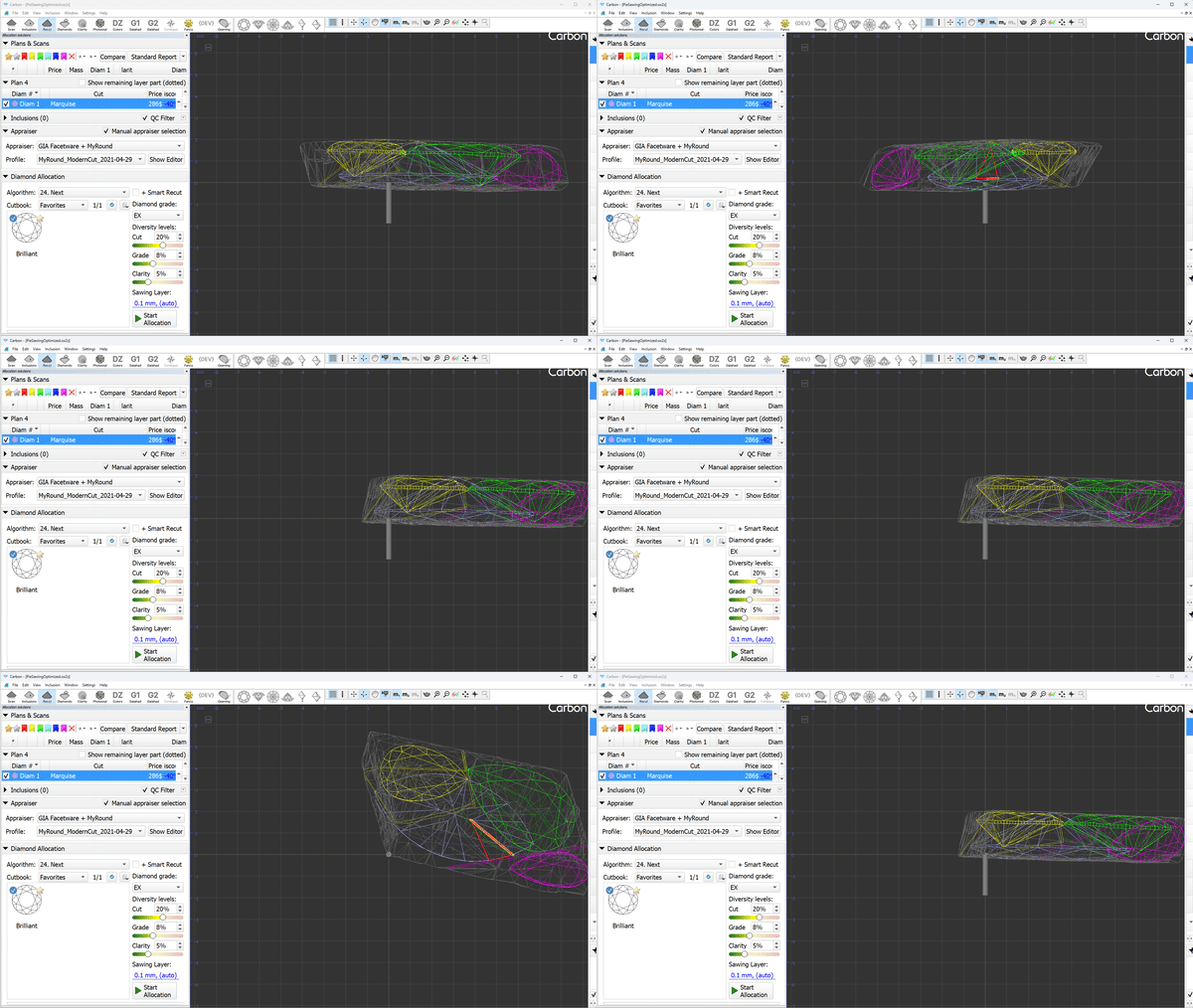
Additionally, the glue point orientation button now puts the glue point not only in vertical position, but exactly at the scene center.
Scene context menu improvement
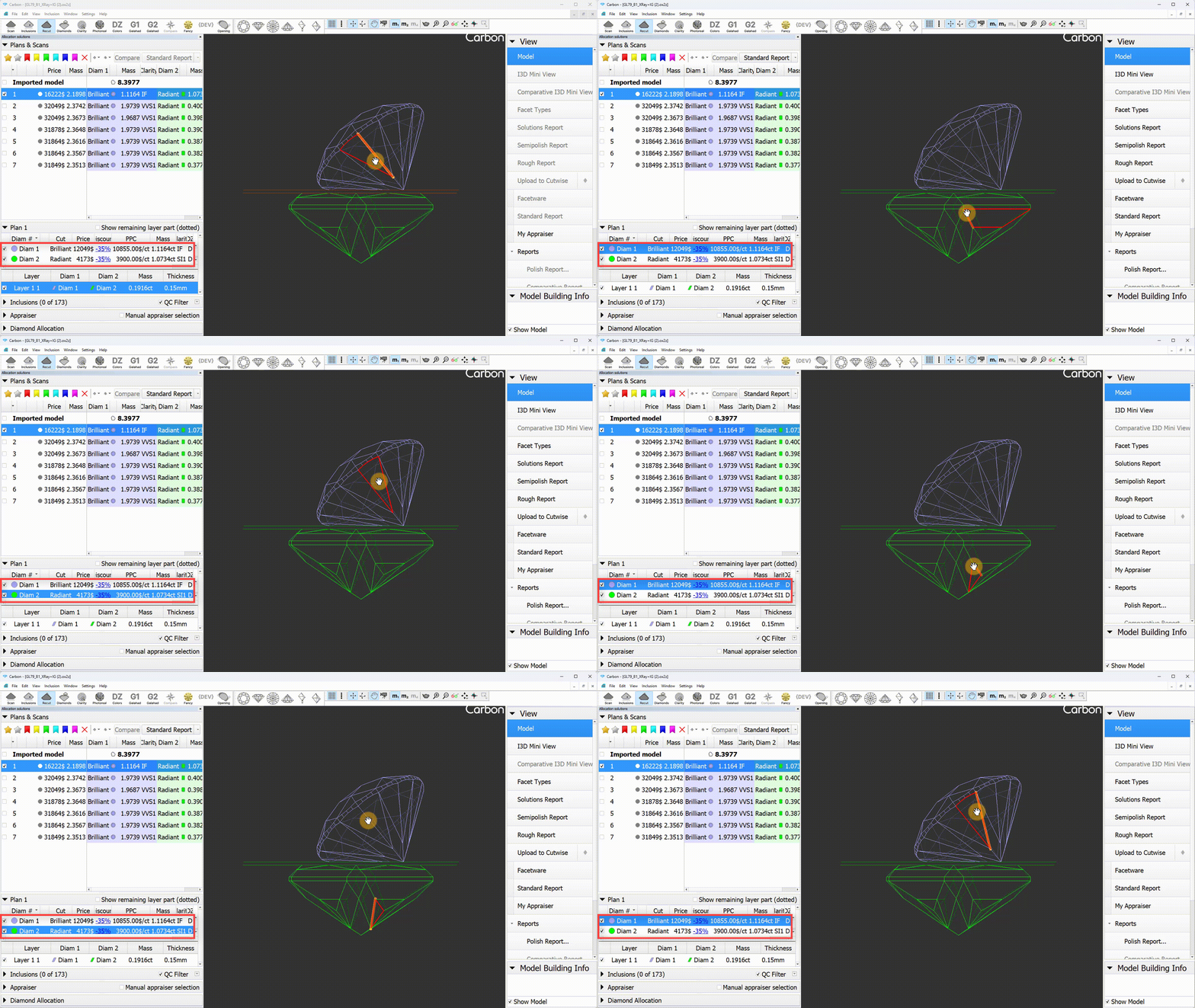
Context menu appears for the currently selected diamond, but now you to click on the diamond directly in the scene to make it active, without needing to select it from the diamonds panel first.
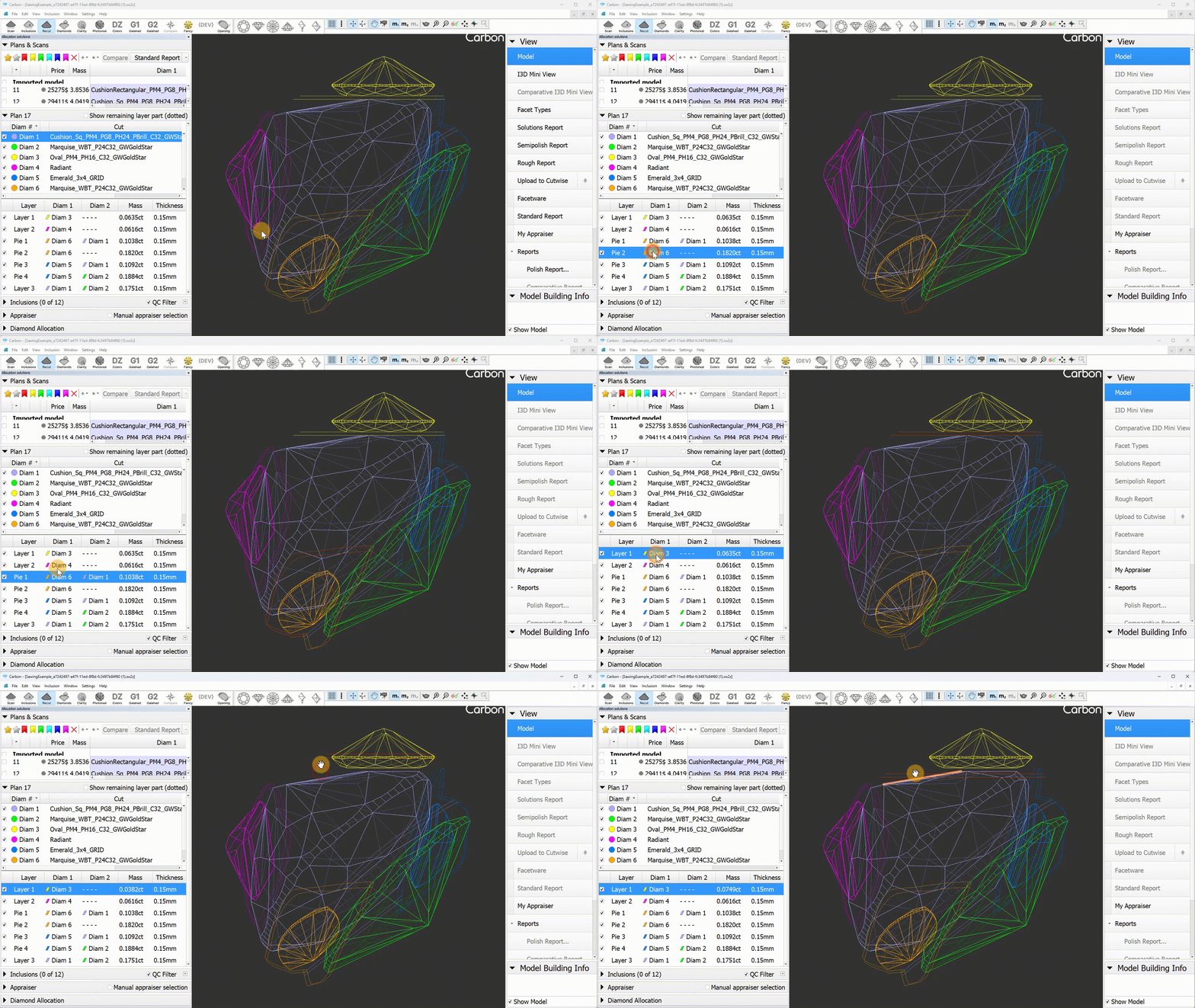
Layer selectable from the panel
Layers are now selectable like diamonds, enabling the use of object movement tools on the selected layer.
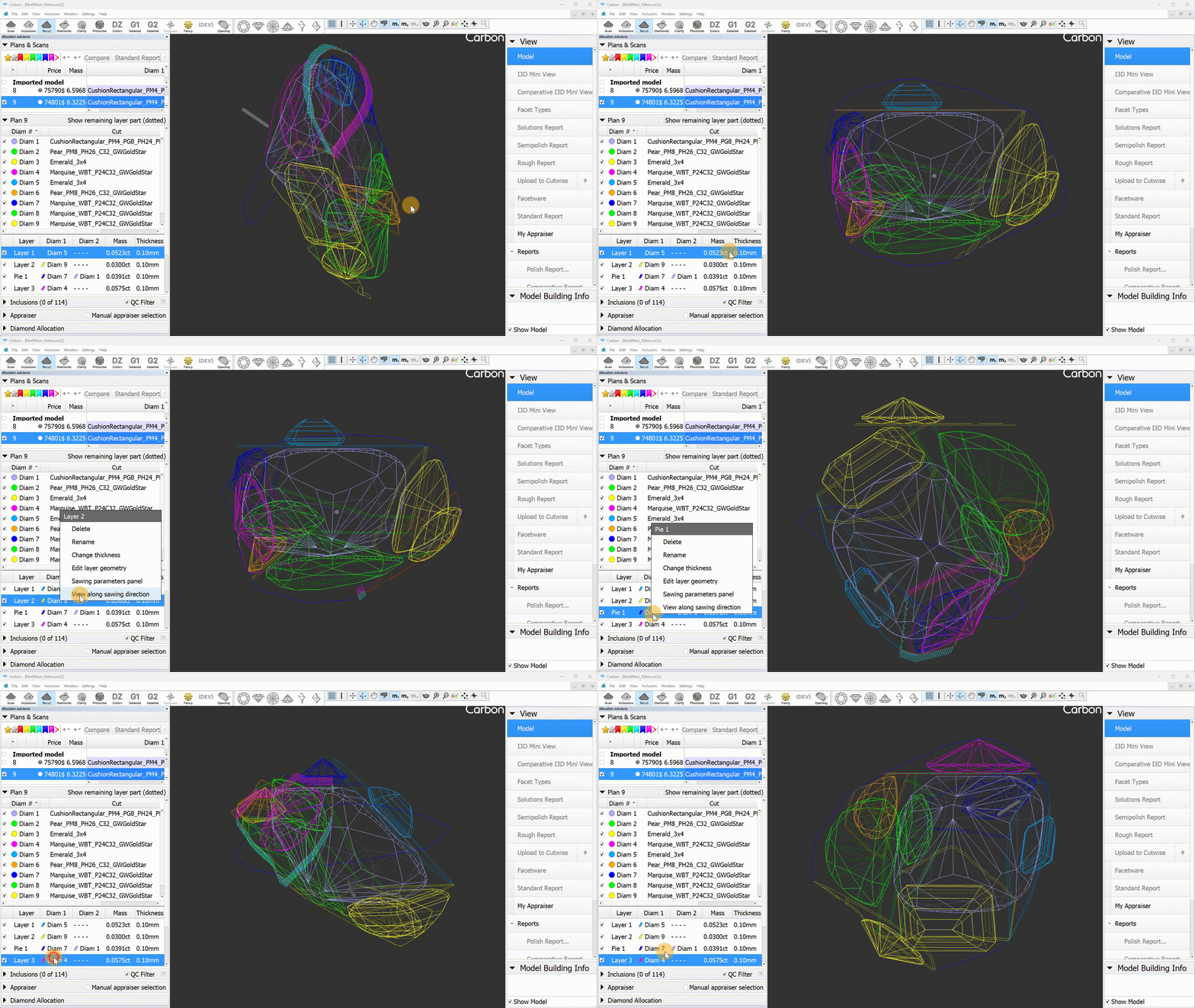
Operation "View along sawing direction"
A new context menu item, "View along sawing direction," has been introduced for layers. This command arranges the scene so that the layer becomes horizontal.
Scene objects - layers
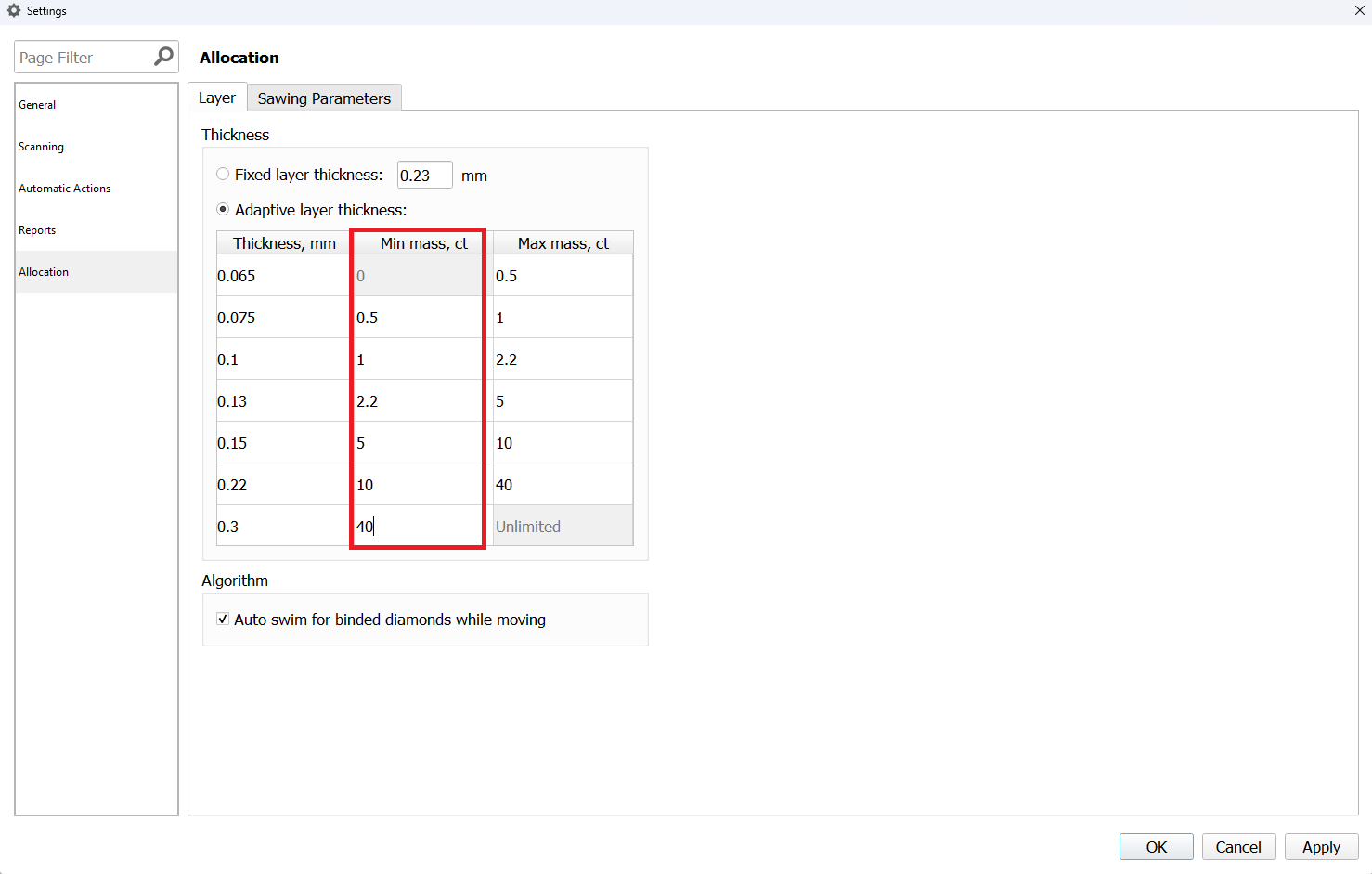
Sawing layers thickness settings
An additional column has been added to the sawing thickness table to display the minimum mass value, indicating the interval for the corresponding thickness value.
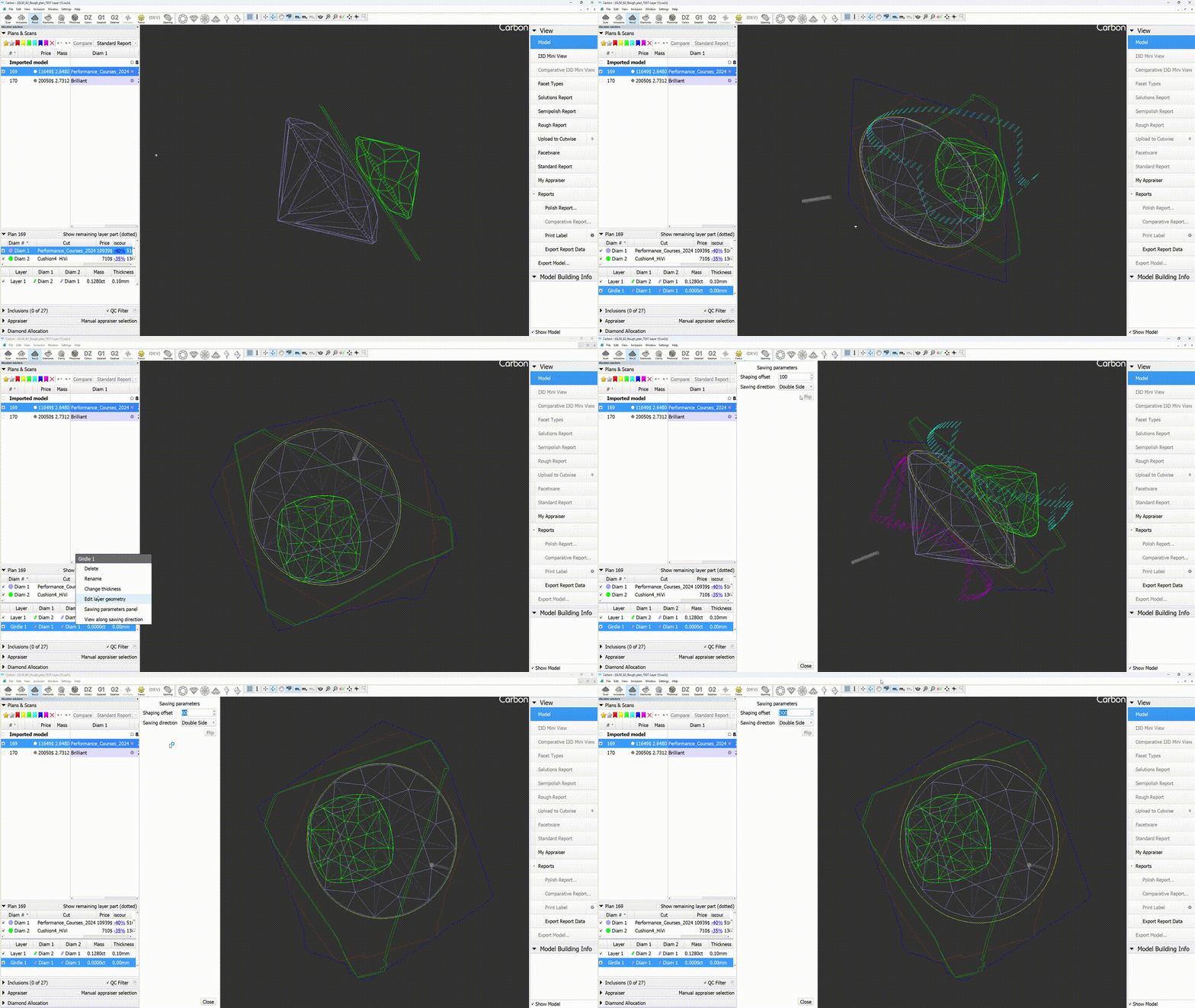
Sawing parameters
The sawing layers have been upgraded with new data and an improved interface. The "Create sawing data" command in the solutions context menu has been replaced by two distinct commands: "Create sawing layers" and "Generate sawing data."
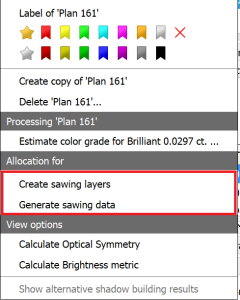
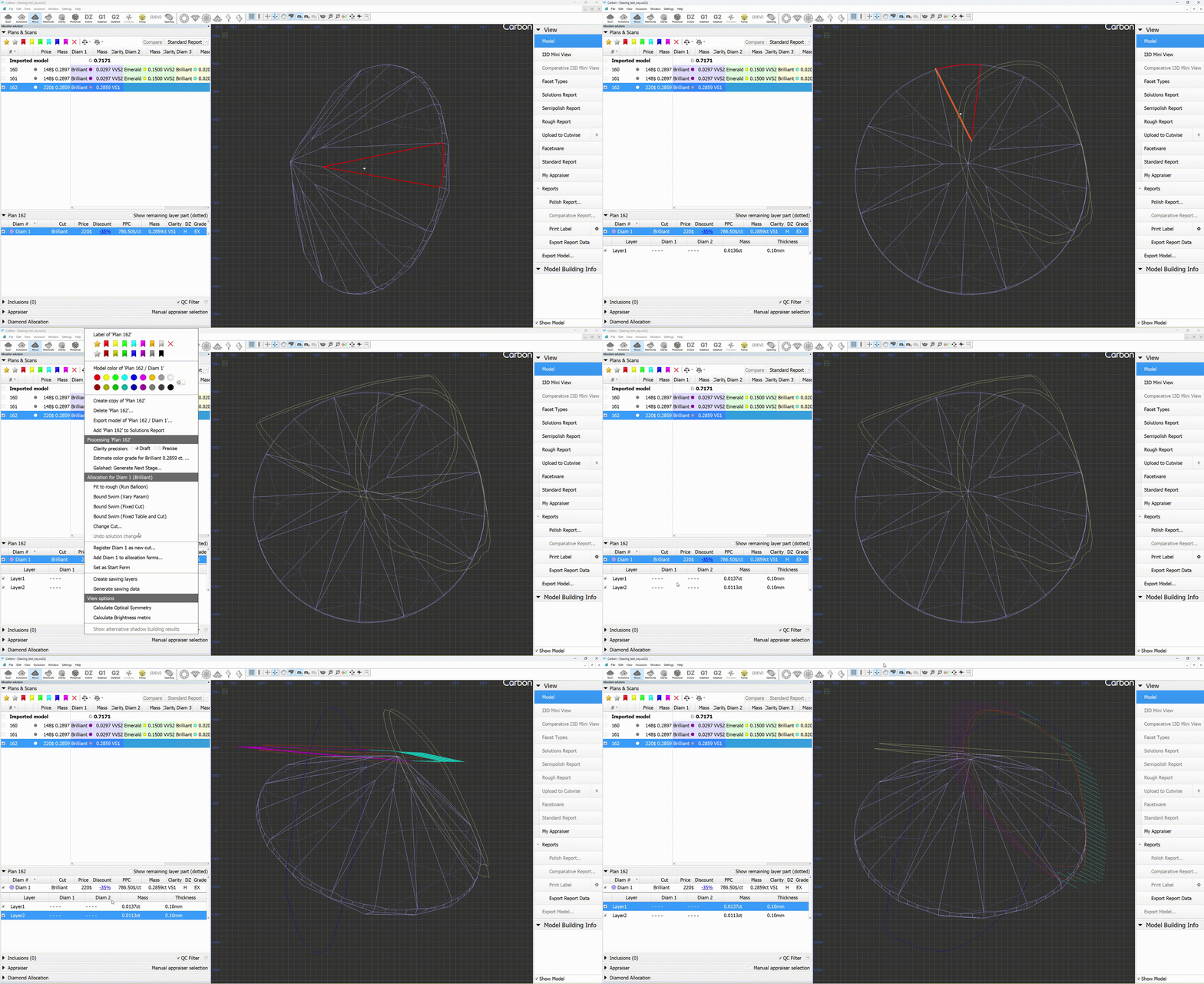
Here’s the key difference: "Create sawing layers" removes all existing layers and populates the solution with appropriate new layers (similar to the previous "Create sawing data" command). In contrast, "Generate sawing data" simply adds additional data to the already existing layers.
This additional data includes the following: generating half-planes where necessary, creating a glue point, establishing sawing directions for each layer, and developing a rough projection contour (blue line).
The parameters for sawing directions can be defined in "General Settings -> Allocation -> Sawing Parameters."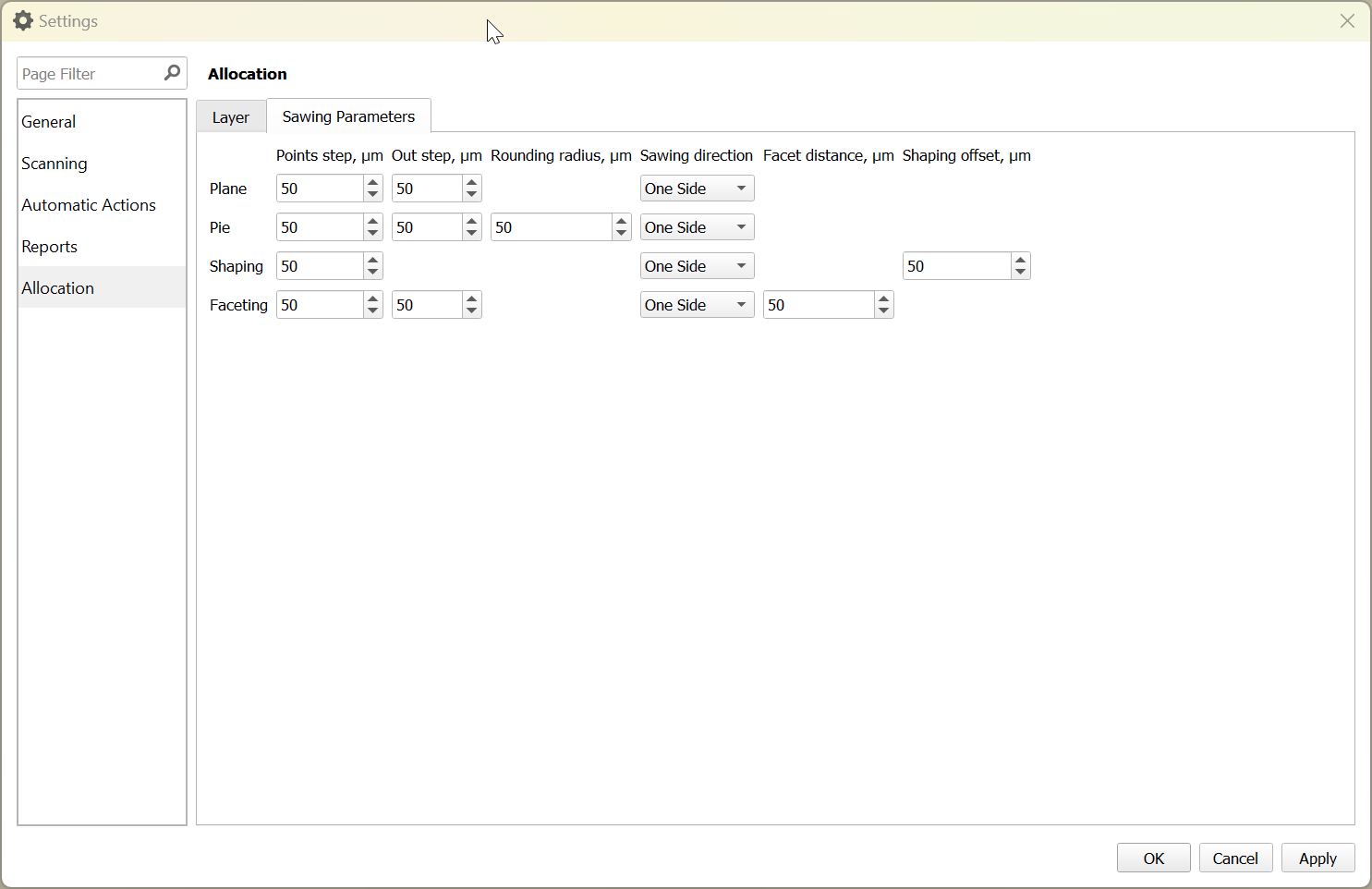
You can also set parameters for each layer individually by clicking on the "Sawing parameters panel" in the layer context menu.
The available parameters are:
For Plane:
- Points step
- Out step
- Sawing angle
- Sawing direction
For Pie:
- Points step
- Out step
- Sawing direction
For Shaping:
- Shaping offset
- Sawing direction
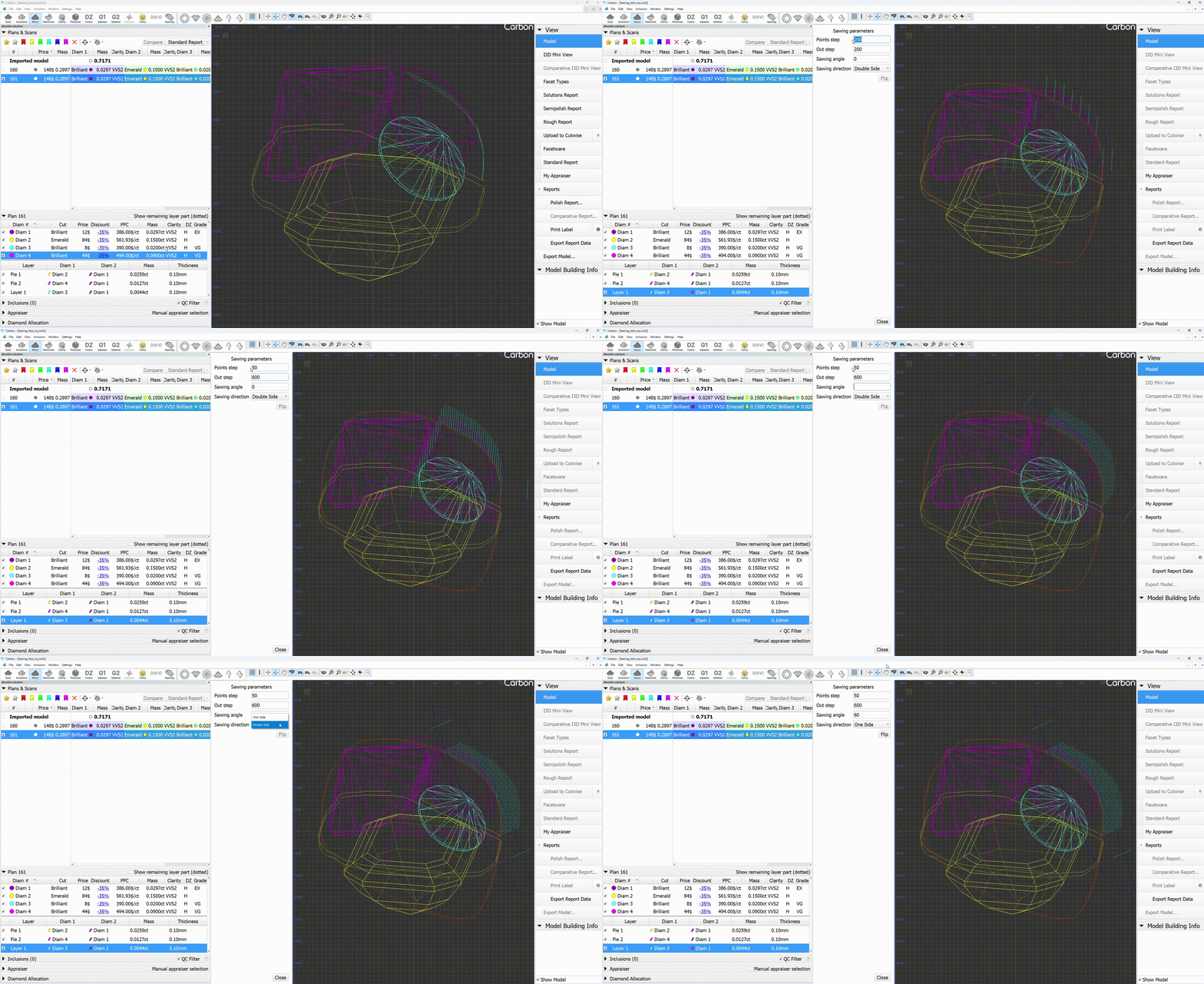
Here is a brief description of each parameter:
- Points step: The distance between key points along the rough diamond for laser sawing.
- Out step: An additional key point located outside the rough diamond for laser sawing.
- Sawing angle: Controls the sawing direction vector for individual layers.
- Sawing direction: Determines whether the sawing is done on one side or both sides.
- Shaping offset: The distance to the girdle for laser sawing.
To create a shaping, you can use the "Generate girdle shaping" command from the diamond context menu. For shaping sawings, there is additional data provided: a shaping contour around the girdle (yellow line).
Blocking layers
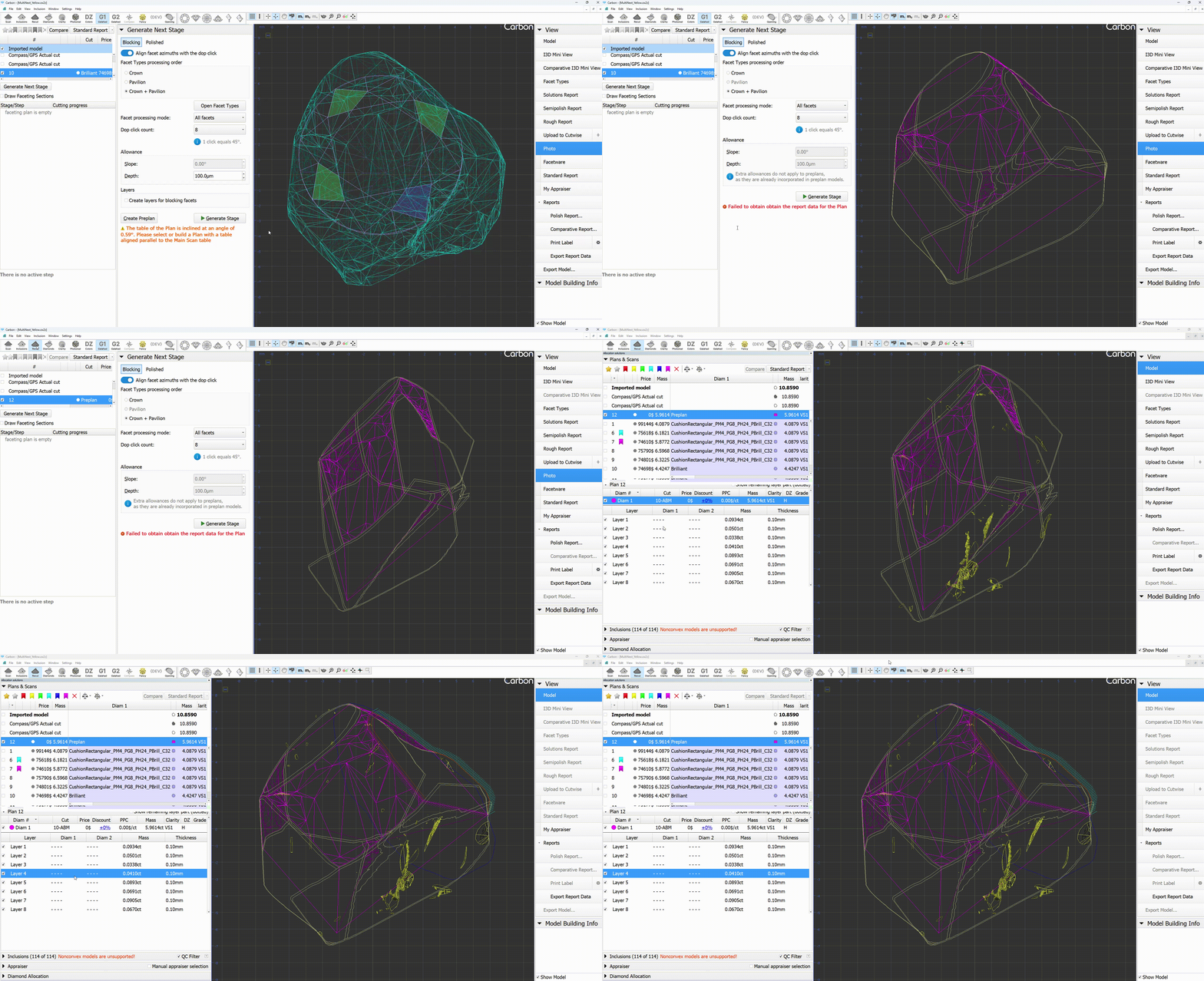
You now have the option to create blocking layers when generating a preplan. To do this, simply check the "Create layers for blocking facets" checkbox and click the "Create preplan" button.
The sawings will be positioned with an offset from the facets. You can modify the offset value in "General Settings -> Allocation -> Sawing Parameters -> Facet Distance".
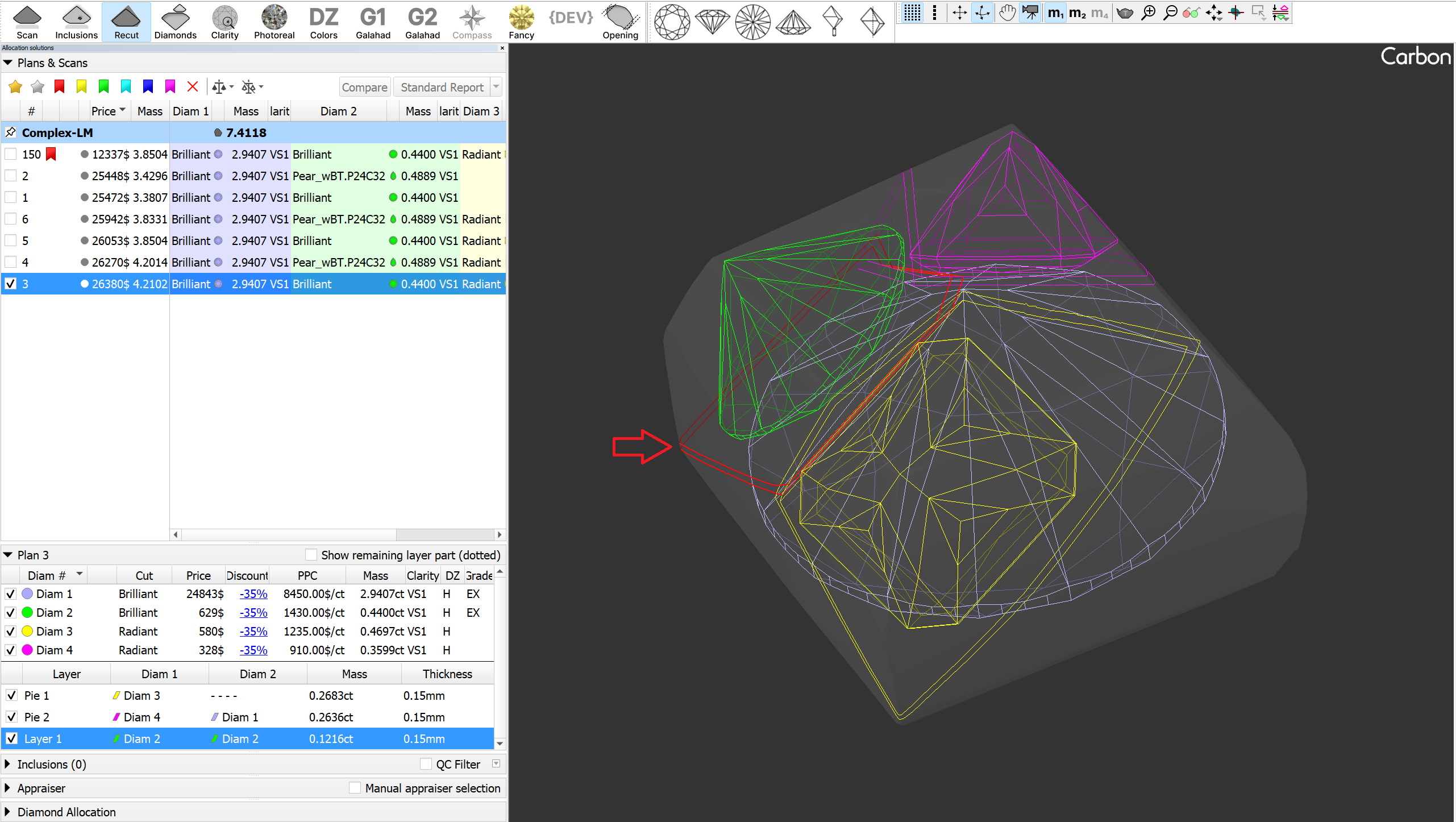
Pinning Solutions in the Solution List. Rendering upgrades.
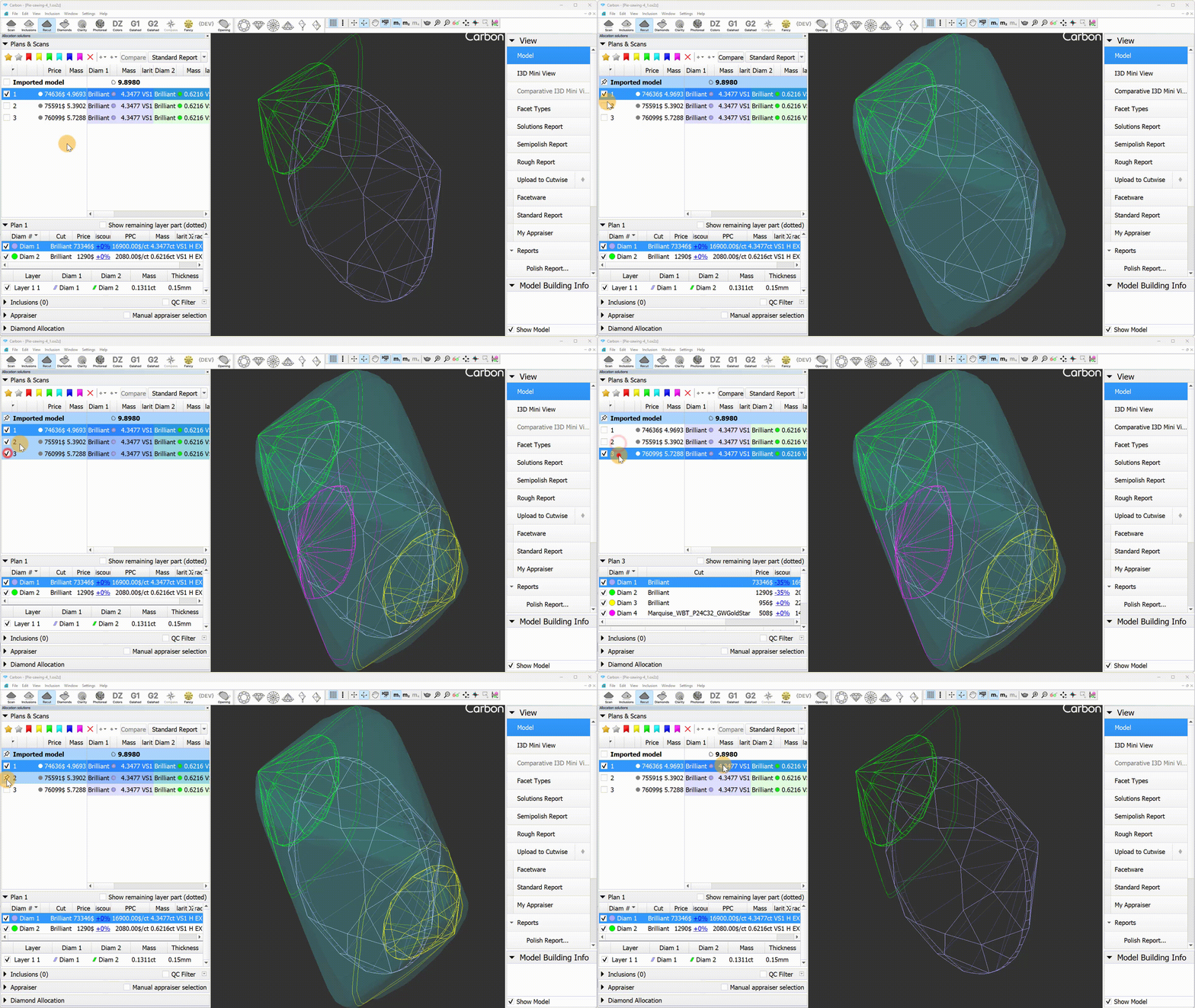
We have added the ability to pin solutions in the solution list. To pin a solution, right-click its checkbox; click the same area again to unpin it. The pinned solution remains visible on the scene at all times, regardless of your selection from the list. This is particularly useful for keeping scans (like the main scan) permanently displayed.
When loading a project, the Main Scan is automatically pinned if its processing stage is Rough, Saw, or Bruted. In Recut mode, scans with these stages appear transparently instead of in lines mode—this can be adjusted in the rendering settings, where separate display modes for Rough and Polished scans are now available.
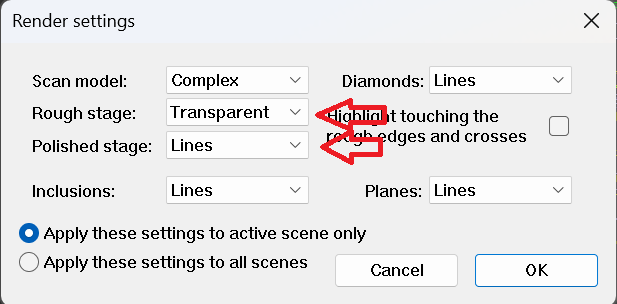
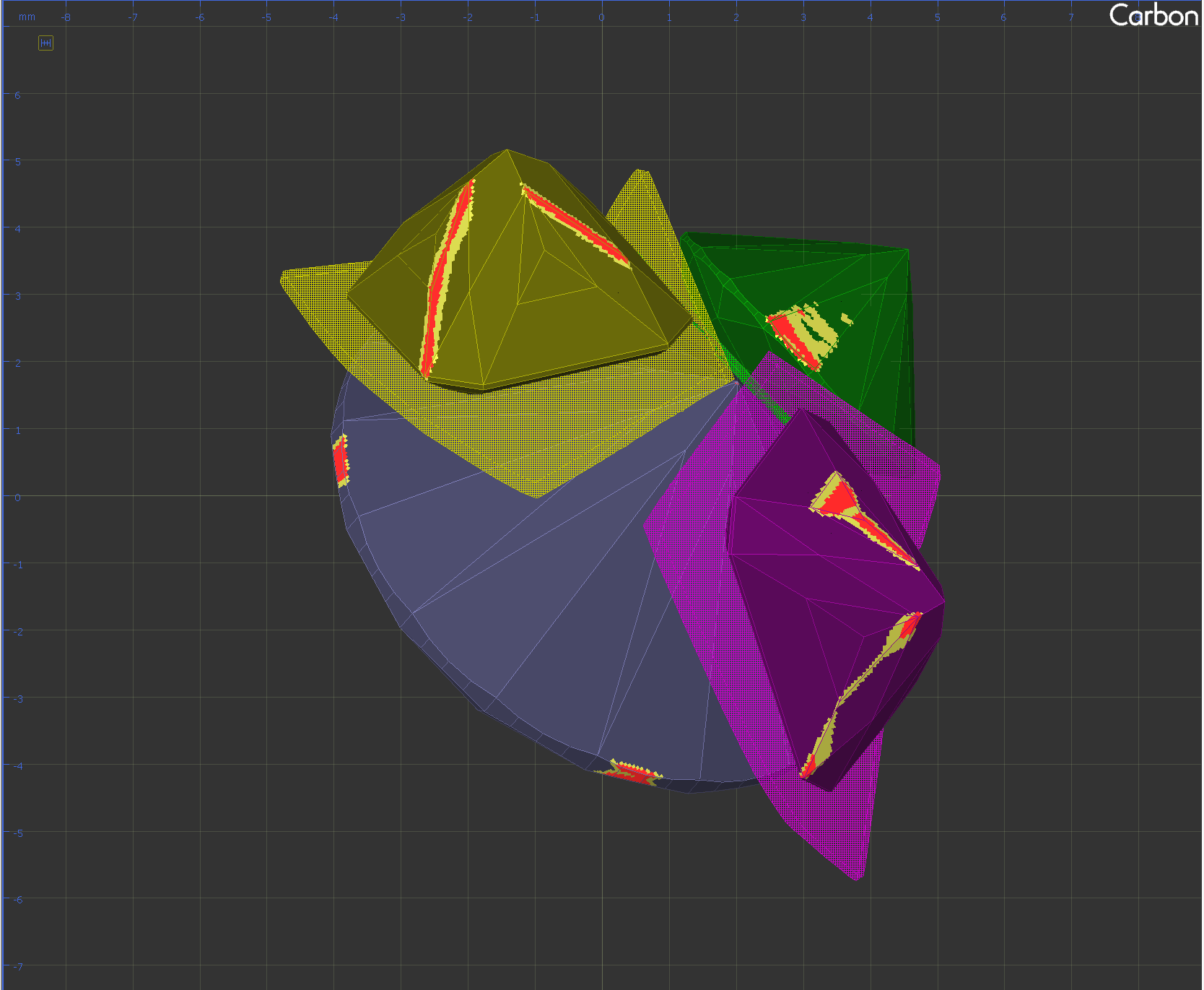
Saw rendering has been improved: non-visible parts are now shaded, and the active layer is highlighted in red with thicker lines. For users who prefer solid mode, this option can now be applied to layers(planes) in the Rendering Settings.
Sample Facet Types
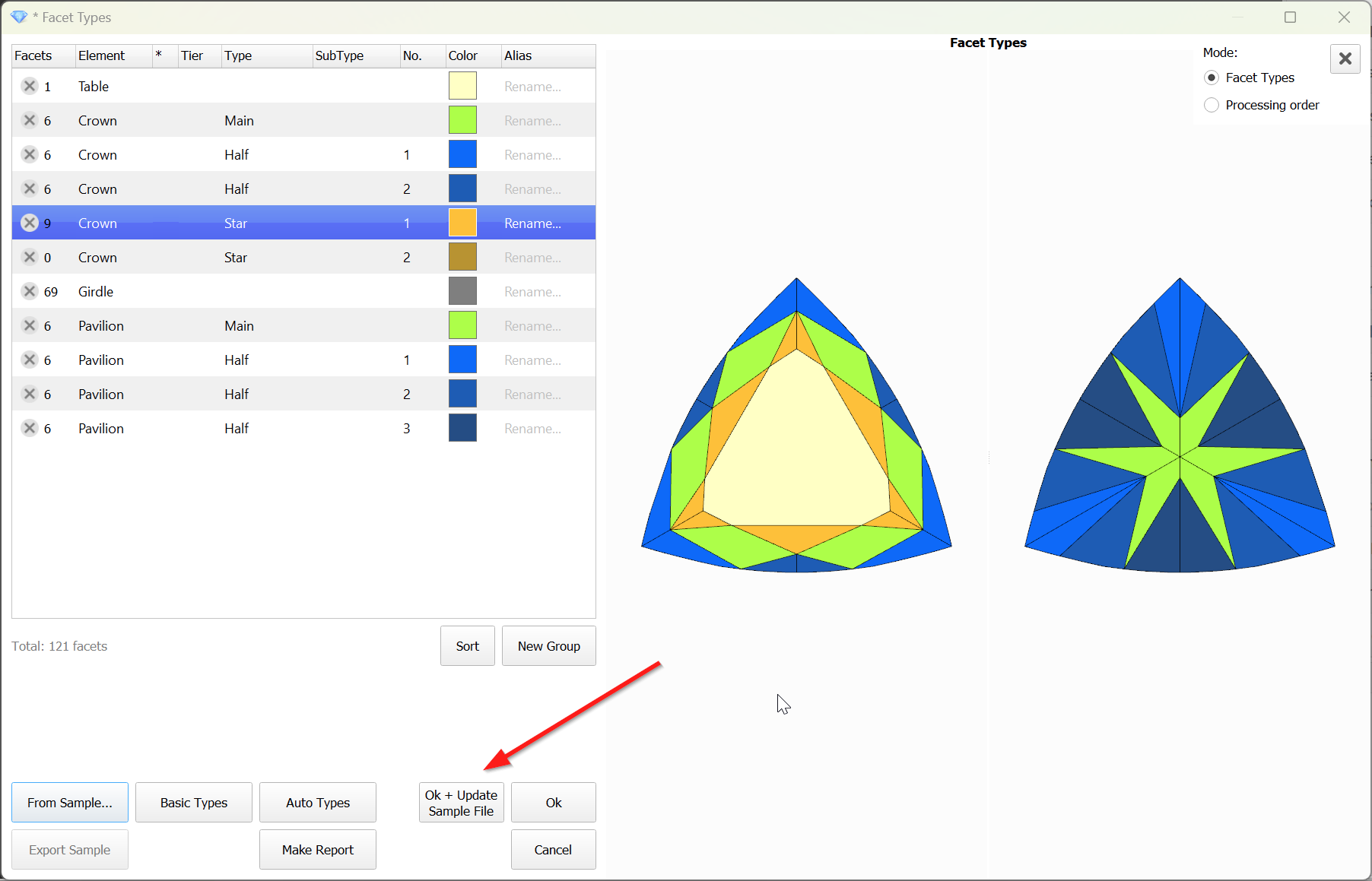
When editing the Facet Types of a sample, the modified types are not saved to the sample file by default. However, this feature proves to be quite useful and convenient. Therefore, this functionality has been implemented.
To save the modified Facet Types to the sample file, the 'Ok + Update Sample File' button is provided.
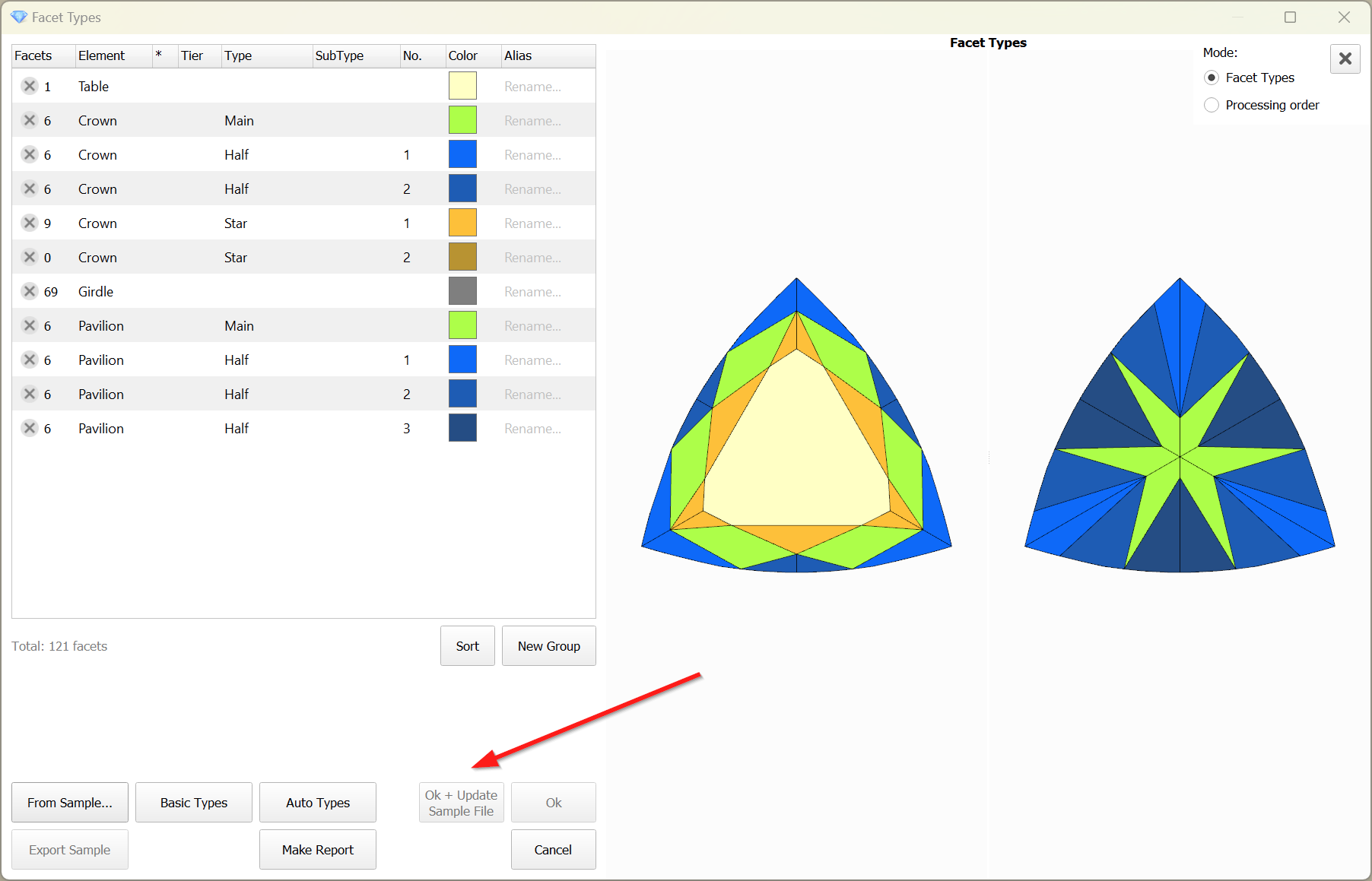
The button is disabled when the file is unavailable:
Reports Improvements
Shape Deviation - new parameter
Include Page Video | Shape Deviation parameter Video | Shape Deviation parameter
The realization of an unattractive girdle shape in a Fancy diamond often comes too late, after the stone has been cut and fails to attract buyers. Operators aiming to increase carat weight may enlarge the girdle shape without having the necessary knowledge and tools to assess its beauty.
To address this issue
Additionally, the glue point orientation button now puts the glue point not only in vertical position, but exactly at the scene center.
Sample Facet Types
When editing the Facet Types of a sample, the modified types are not saved to the sample file by default. However, this feature proves to be quite useful and convenient. Therefore, this functionality has been implemented.
To save the modified Facet Types to the sample file, the 'Ok + Update Sample File' button is provided.
The button is disabled when the file is unavailable:
Reports Improvements
Shape Deviation - new parameter
...
The realization of an unattractive girdle shape in a Fancy diamond often comes too late, after the stone has been cut and fails to attract buyers. Operators aiming to increase carat weight may enlarge the girdle shape without having the necessary knowledge and tools to assess its beauty.
To address this issue, we have developed the Shape Deviation parameters. These parameters help to compare how the girdle shape differs from the ideal shape, just like the 2RRoundness parameter does for the Brilliant cut. The Shape Deviation Grade enables operators to easily reject unacceptable girdle shapes.
...
"d", "c", "b" ( numbering i comes from the girdle - that's how it was decided to number the chevrons ):
decided to number the chevrons ):
"CHEVRONi_EDGE_WIDTH_MM",
"CHEVRONi_EDGE_WIDTH_PC",
"CHEVRONi_EDGE_LENGTH_MM",
"CHEVRONi_EDGE_LENGTH_PC",
"e":
"PAV1_MAIN_FACET"CHEVRONi_EDGE_WIDTH_MM",
"CHEVRONiPAV1_MAIN_FACET_EDGE_WIDTH_PC",
"CHEVRONiPAV1_MAIN_FACET_EDGE_LENGTH_MM",
"CHEVRONi_EDGE_LENGTH_PC","e":
"PAV1_MAIN_FACET_EDGEPAV1_MAIN_FACET_EDGE_LENGTH_PC",
Heart Groove measurements
We added the following dimensions (in mm and as a percentage with respect to width).
See new bookmarks:
- Dimension “A” - "HEART_GROOVE_WIDTH_MM",
...
- "
...
- HEART_
...
- GROOVE_
...
- WIDTH_PC"
...
- Dimension “B” - "
...
- HEART_
...
- GROOVE_
...
- DEPTH_
...
- CRN_
...
- MM",
...
- "
...
- HEART_
...
- GROOVE_
...
- DEPTH_
...
- CRN_PC"
...

- Dimension “C”
Heart Groove measurements
We added the following dimensions (in mm and as a percentage with respect to width).
See new bookmarks:
- Dimension “A” - "HEART_GROOVE_WIDTHDEPTH_PAV_MM", "HEART_GROOVE_WIDTHDEPTH_PAV_PC"

- Dimension “B” - “D” - "HEART_GROOVE_HEIGHT_MM", "HEART_GROOVE_DEPTHHEIGHT_CRN_MM", "HEART_GROOVE_DEPTH_CRN_PC"
- Dimension “C” - "HEART_GROOVE_DEPTH_PAV_MM", "HEART_GROOVE_DEPTH_PAV_PC"
- Dimension “D” - "HEART_GROOVE_HEIGHT_MM", "HEART_GROOVE_HEIGHT_PAV_PC"

Fixed problems and improvements
- Swim, Ballon and Change Cut algorithms now use correct sawing thickness according to layer general settings.
For instance, diamonds perfectly alligned to the layer with a thickness of 0.15 mm, corresponding to a rough weighing 8.84ct(between 5-10 ct interval).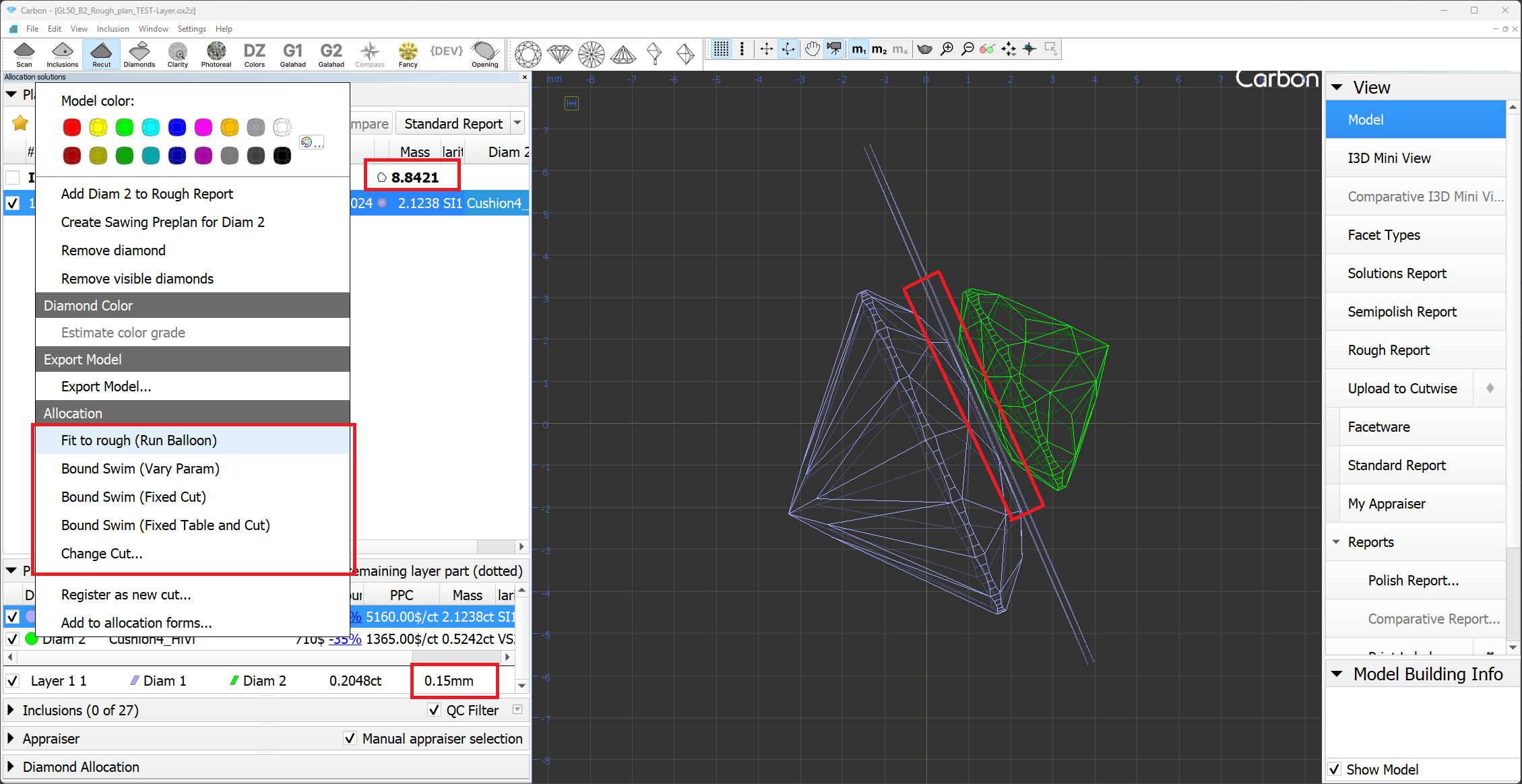
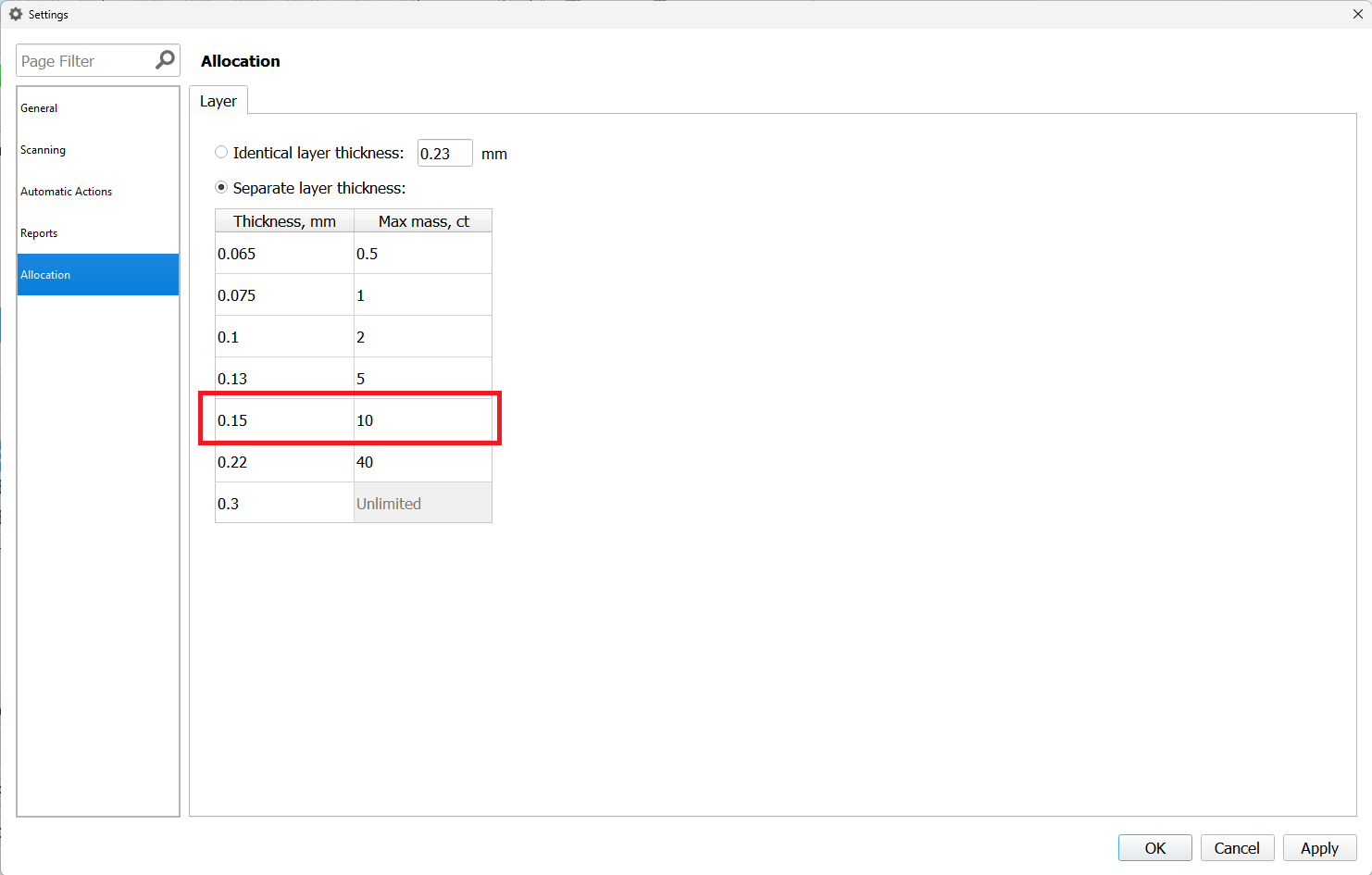
- Contact zone indication now updates, when the main scan changed.
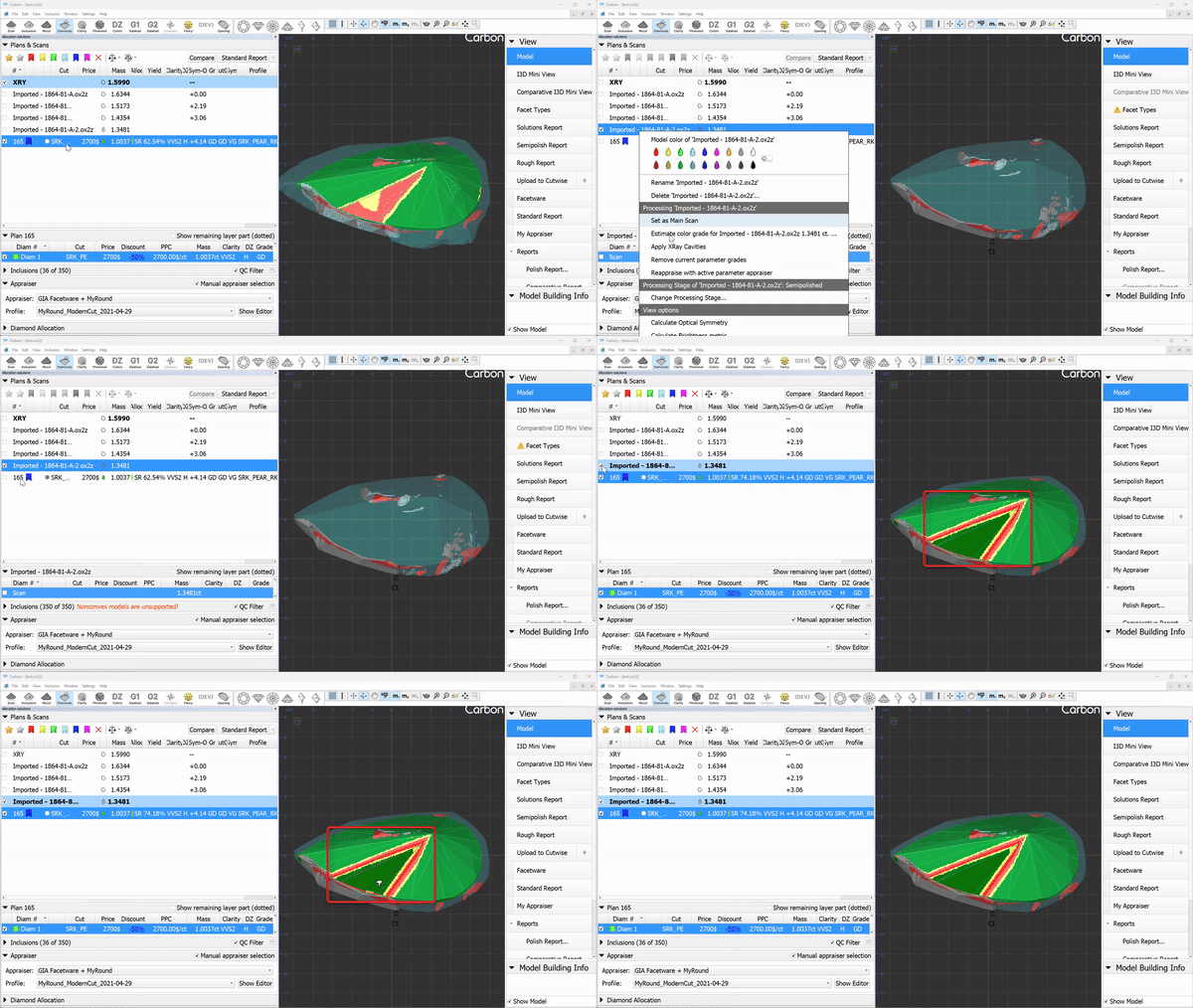
- Layer weight/width display is fixed for some extraordinary layers with more than 2 cutting edges.
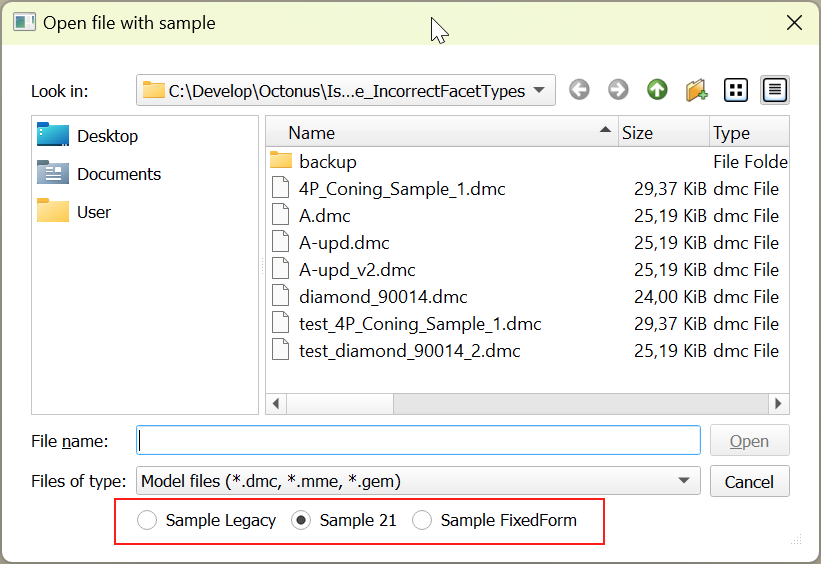
- Now the "Open Sample" dialog remembers the selected method, and the next time the dialog is opened, it will be automatically selected.
...
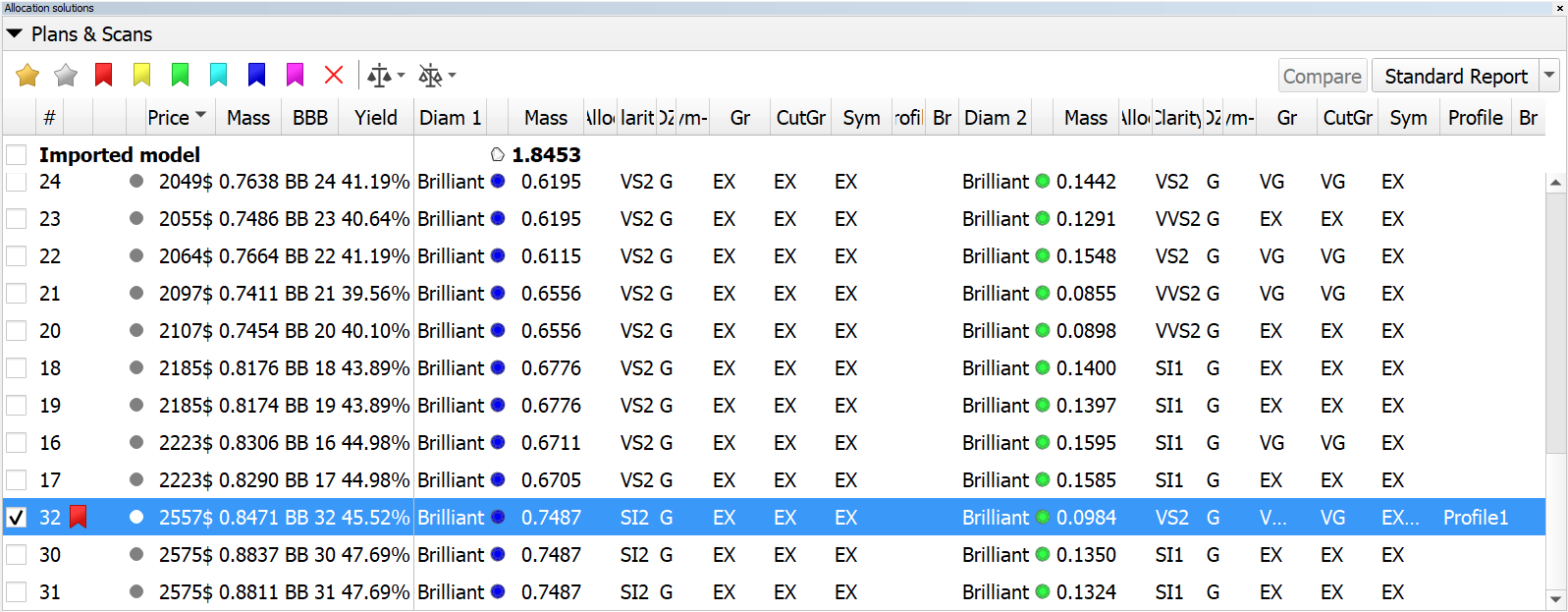
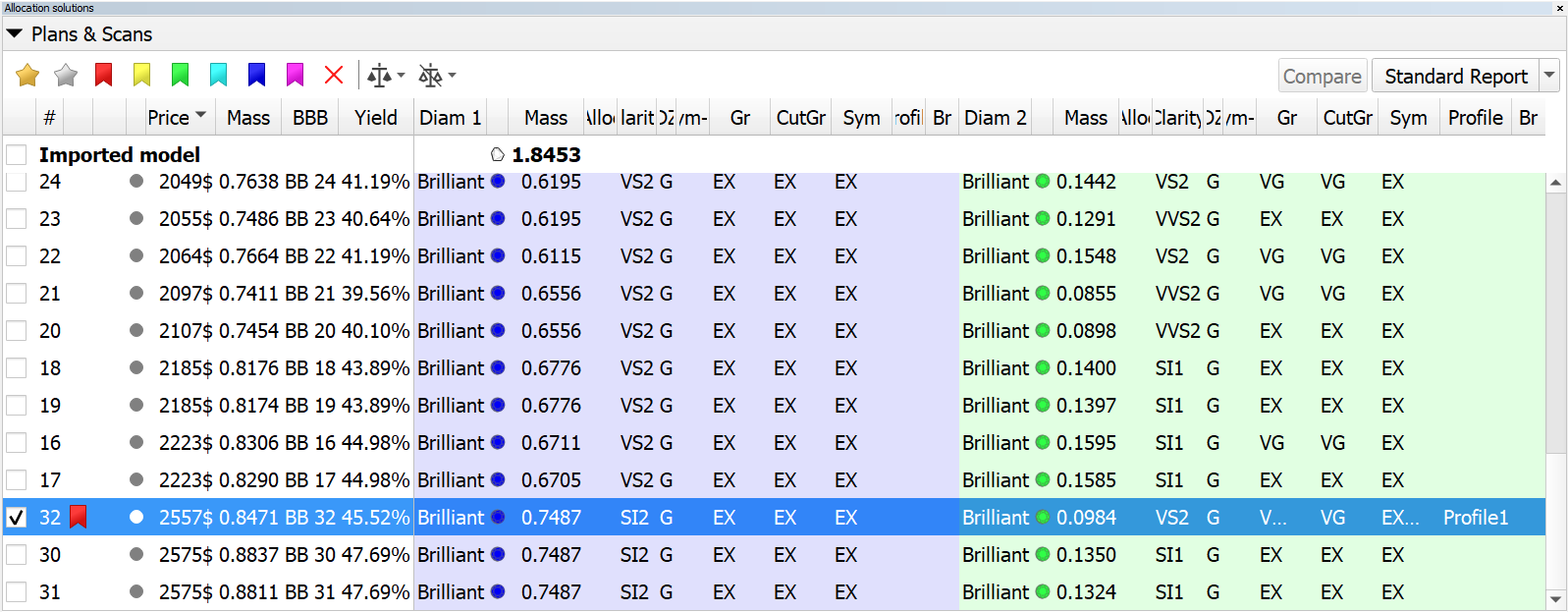
Solution list. Restored cell background colors in multi-diamond mode.
...
...
...
- batch removal of inclusions has been accelerated;
- batch set of inclusion status has been accelerated;
- the "Select All Inclusions" context menu operation has been accelerated;
- fix: the inclusion color status was not updating properly in the right pane of the Inclusion tab;
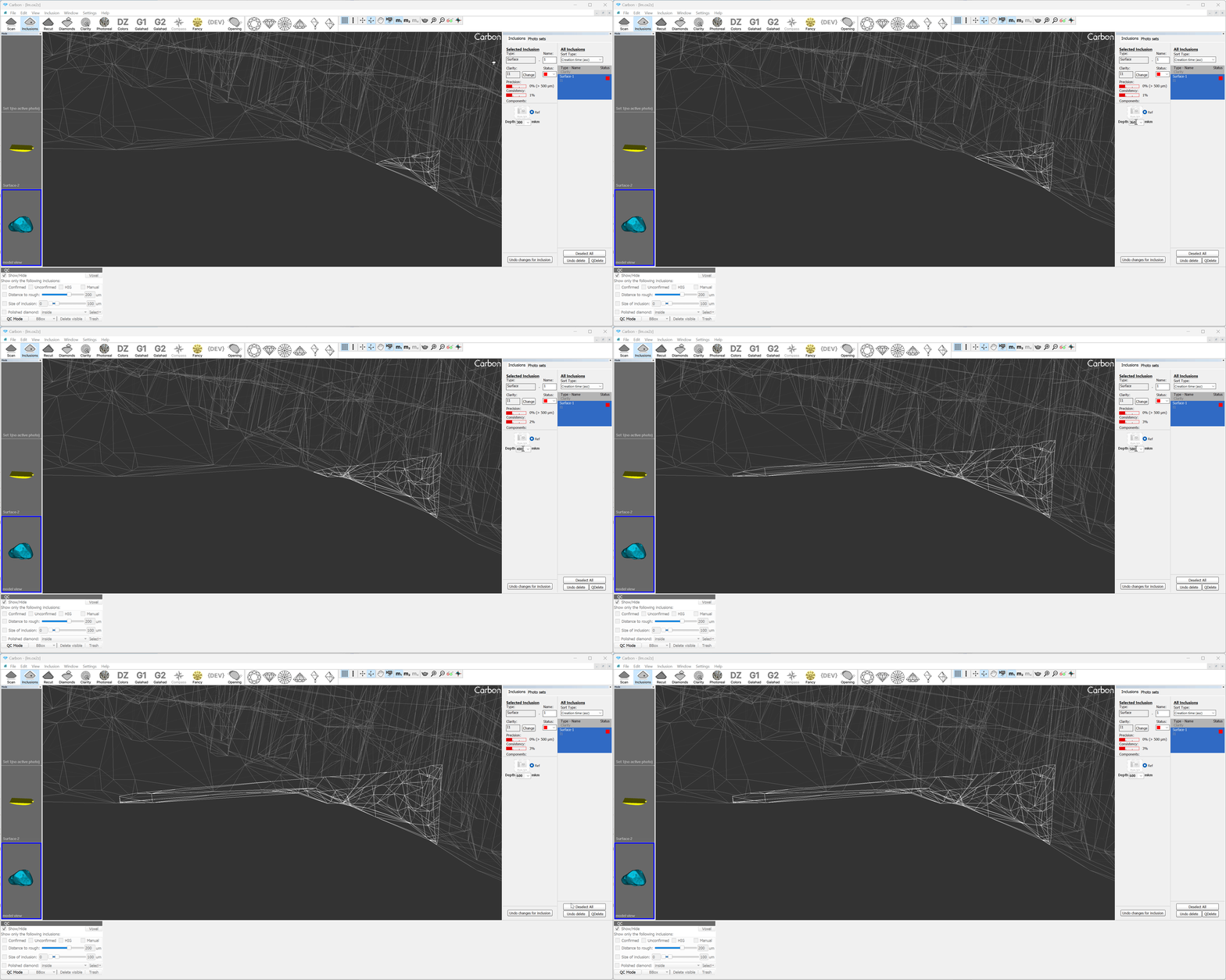
- surface inclusions: depth combo box was updated. Now the depth value can be changed using the mouse wheel (like in spin boxes), as well as edited manually.
- PAV_PC"
Fixed problems and improvements
- Swim, Ballon and Change Cut algorithms now use correct sawing thickness according to layer general settings.
For instance, diamonds perfectly alligned to the layer with a thickness of 0.15 mm, corresponding to a rough weighing 8.84ct(between 5-10 ct interval). - Contact zone indication now updates, when the main scan changed.
- Layer weight/width display is fixed for some extraordinary layers with more than 2 cutting edges.
- Now the "Open Sample" dialog remembers the selected method, and the next time the dialog is opened, it will be automatically selected.
- Allocation. Resolved a minor bug related to the 'Based on Brilliance' feature.
Solution list. Restored cell background colors in multi-diamond mode.
now - Inclusion list:
- batch removal of inclusions has been accelerated;
- batch set of inclusion status has been accelerated;
- the "Select All Inclusions" context menu operation has been accelerated;
- fix: the inclusion color status was not updating properly in the right pane of the Inclusion tab;
- surface inclusions: depth combo box was updated. Now the depth value can be changed using the mouse wheel (like in spin boxes), as well as edited manually.
- Fixed the incorrect layer indication on the layer panel.
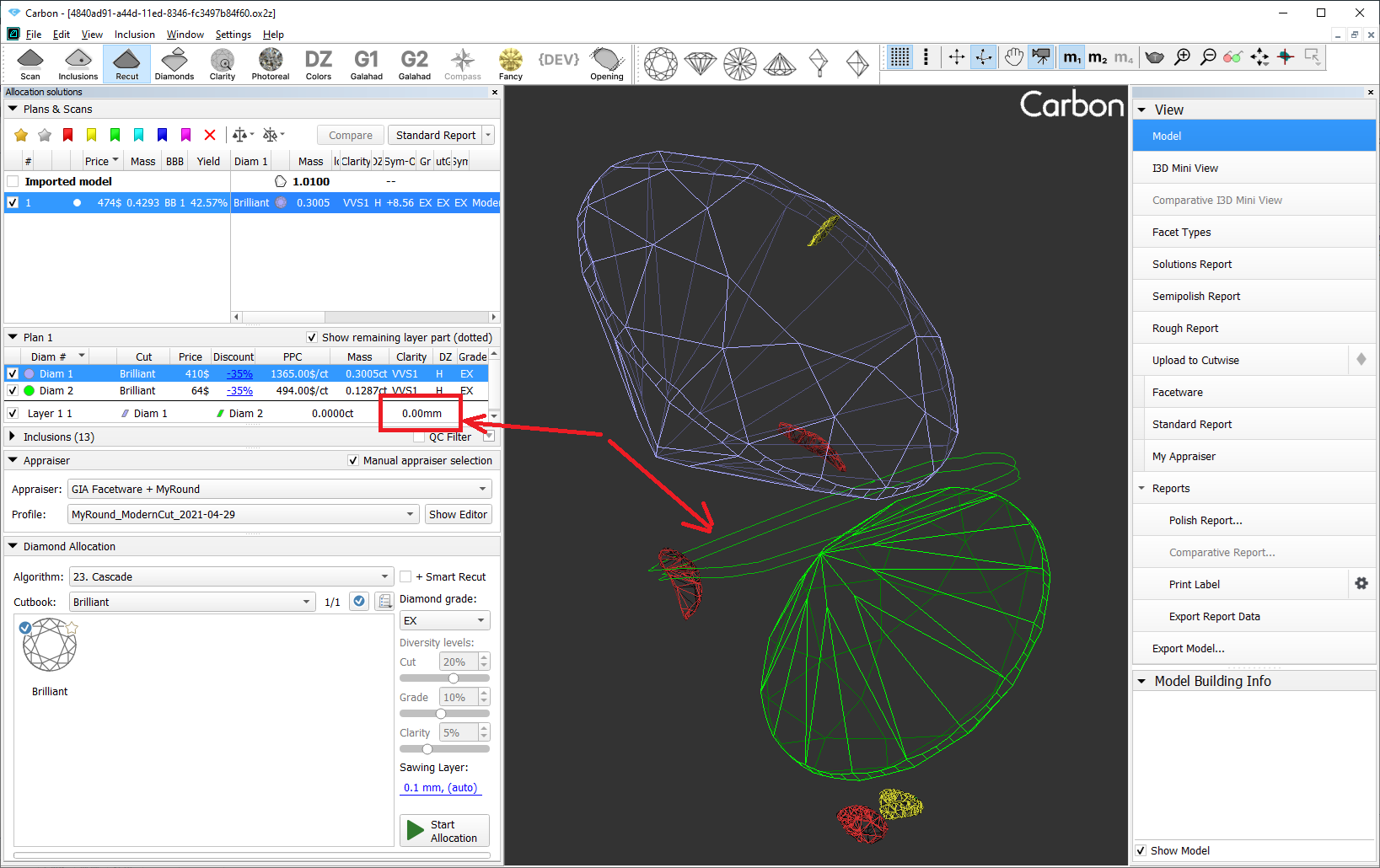
- The contact zone now updates correctly when the main scan changes.
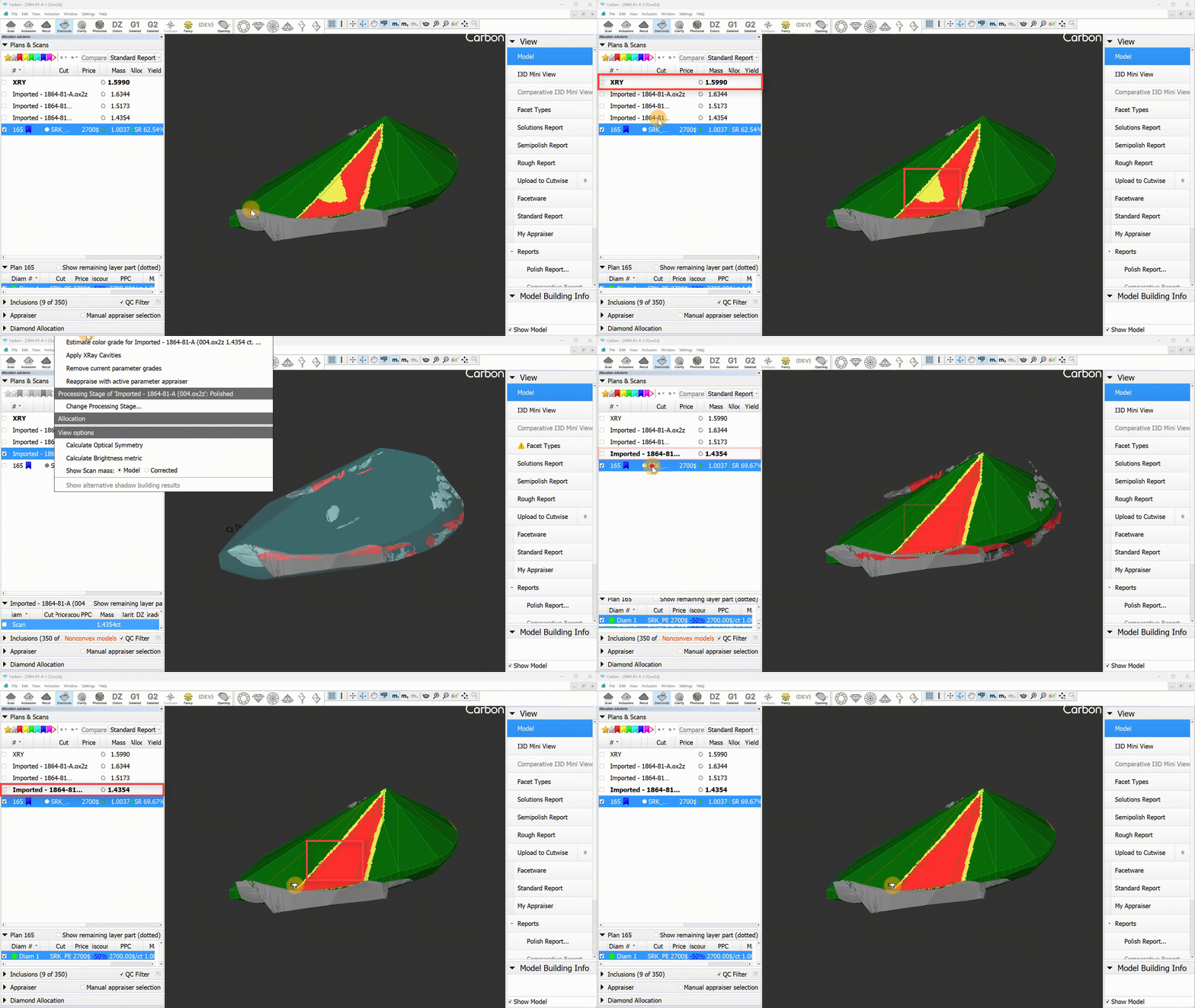
- Layer movements will no longer reset the layer thickness.
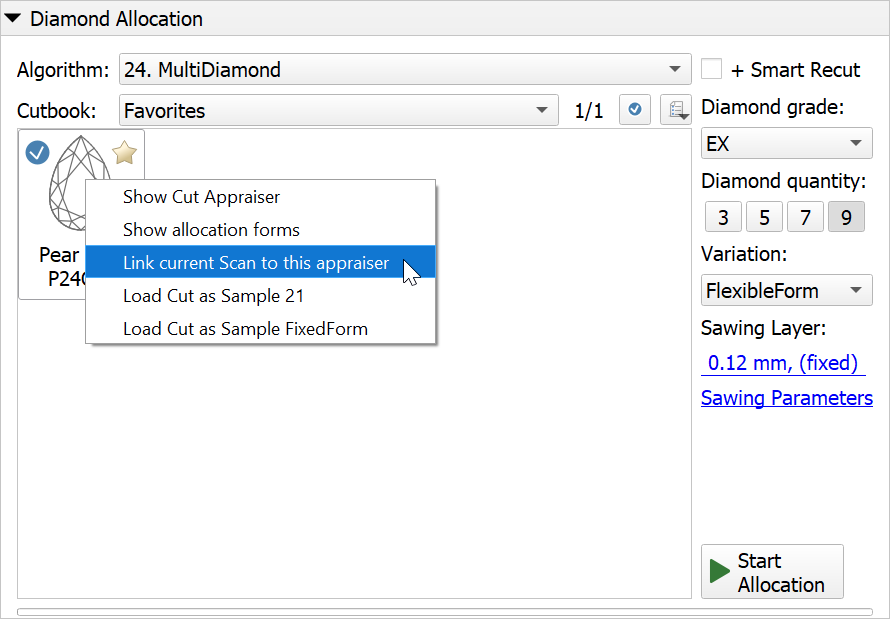
- The cut name set using "Link current Scan to this appraiser" was overwritten by the automatically defined name after changing the Facet Types.
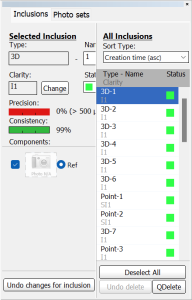
- In the Inclusions mode, the inclusion color statuses were not updating correctly in the list.
...