
...
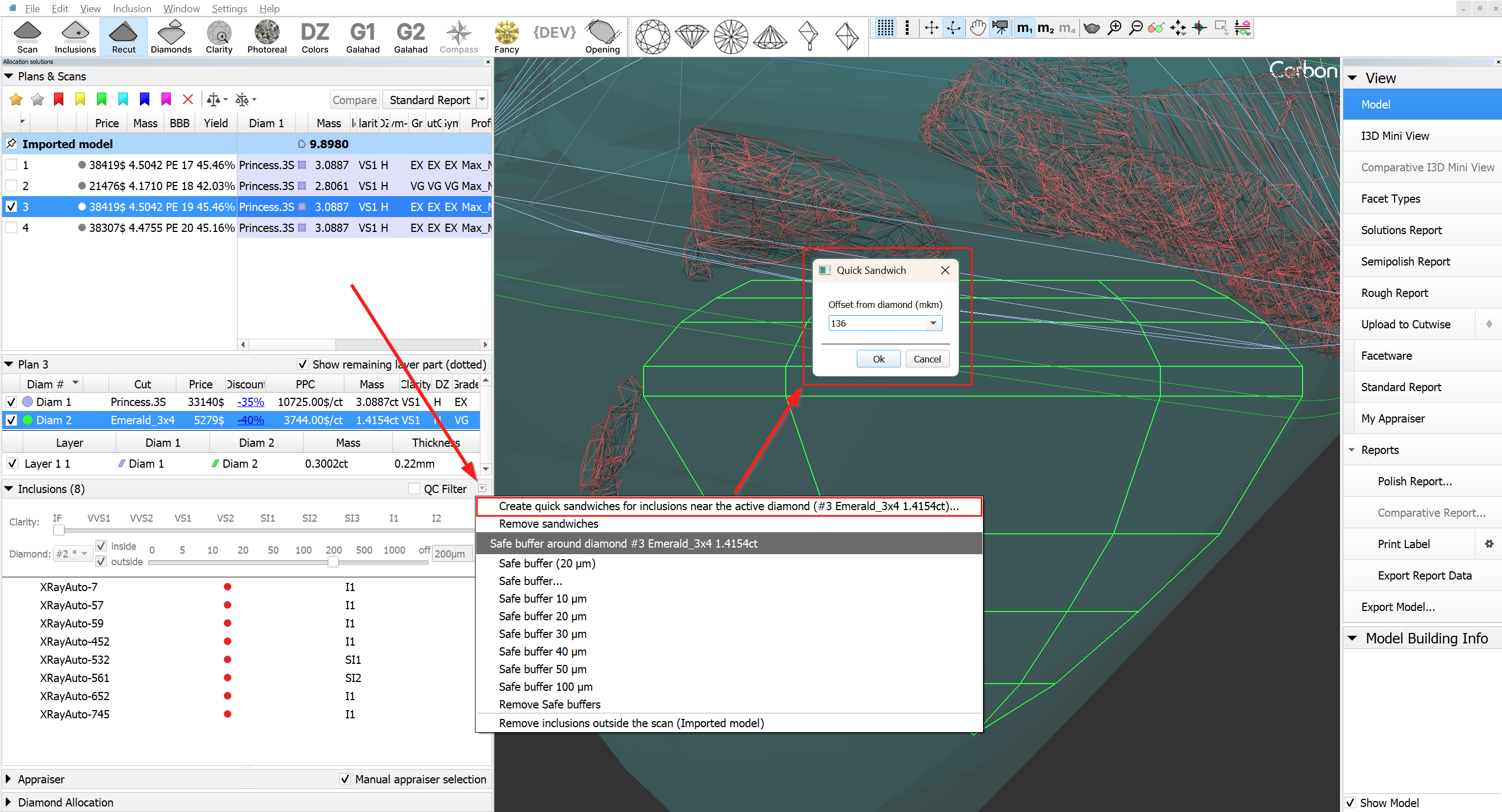
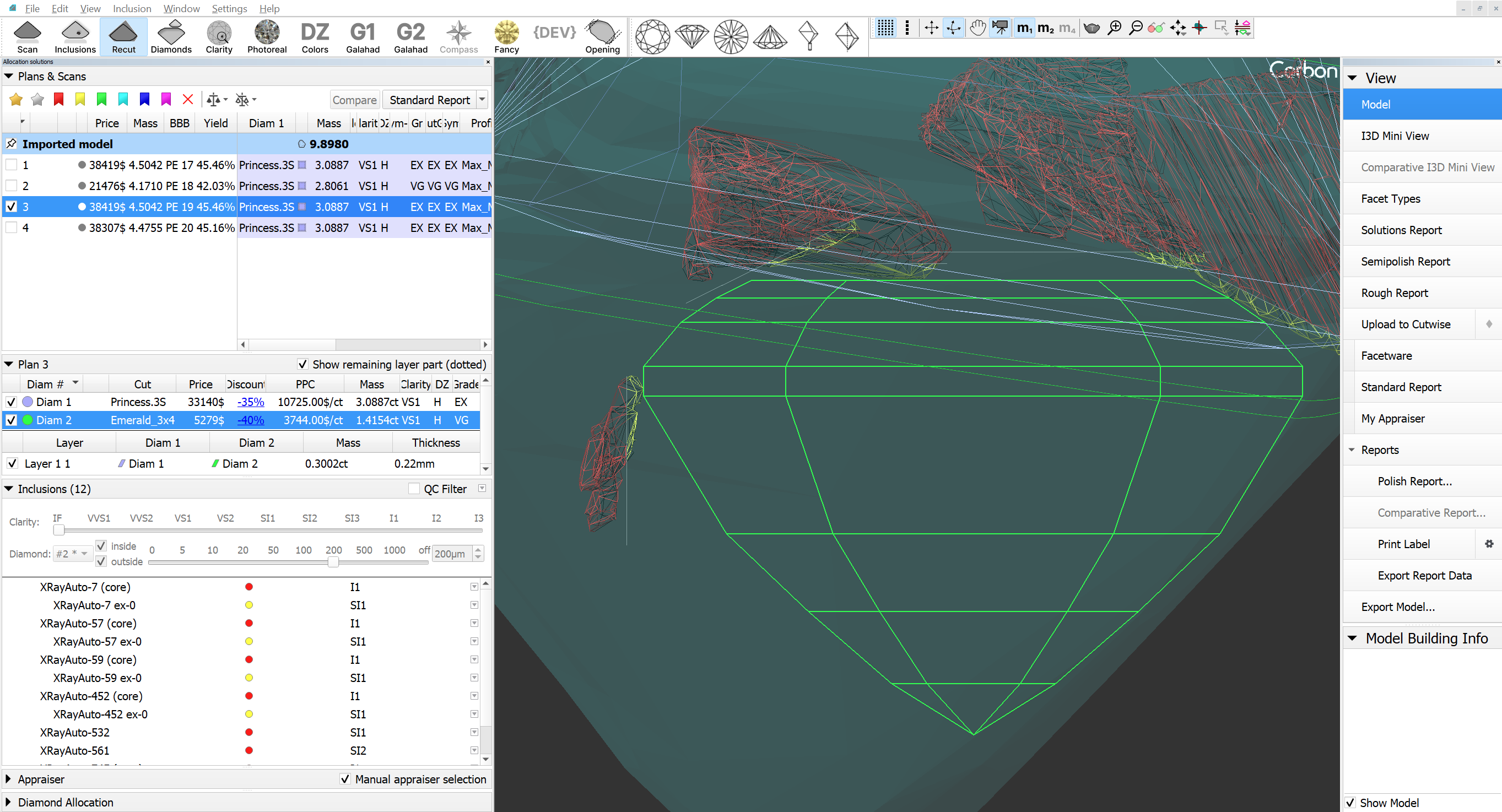
3. Additionally, there is an option to apply the Quick Sandwich to all inclusions near the active diamond.
|
|
User interface updates
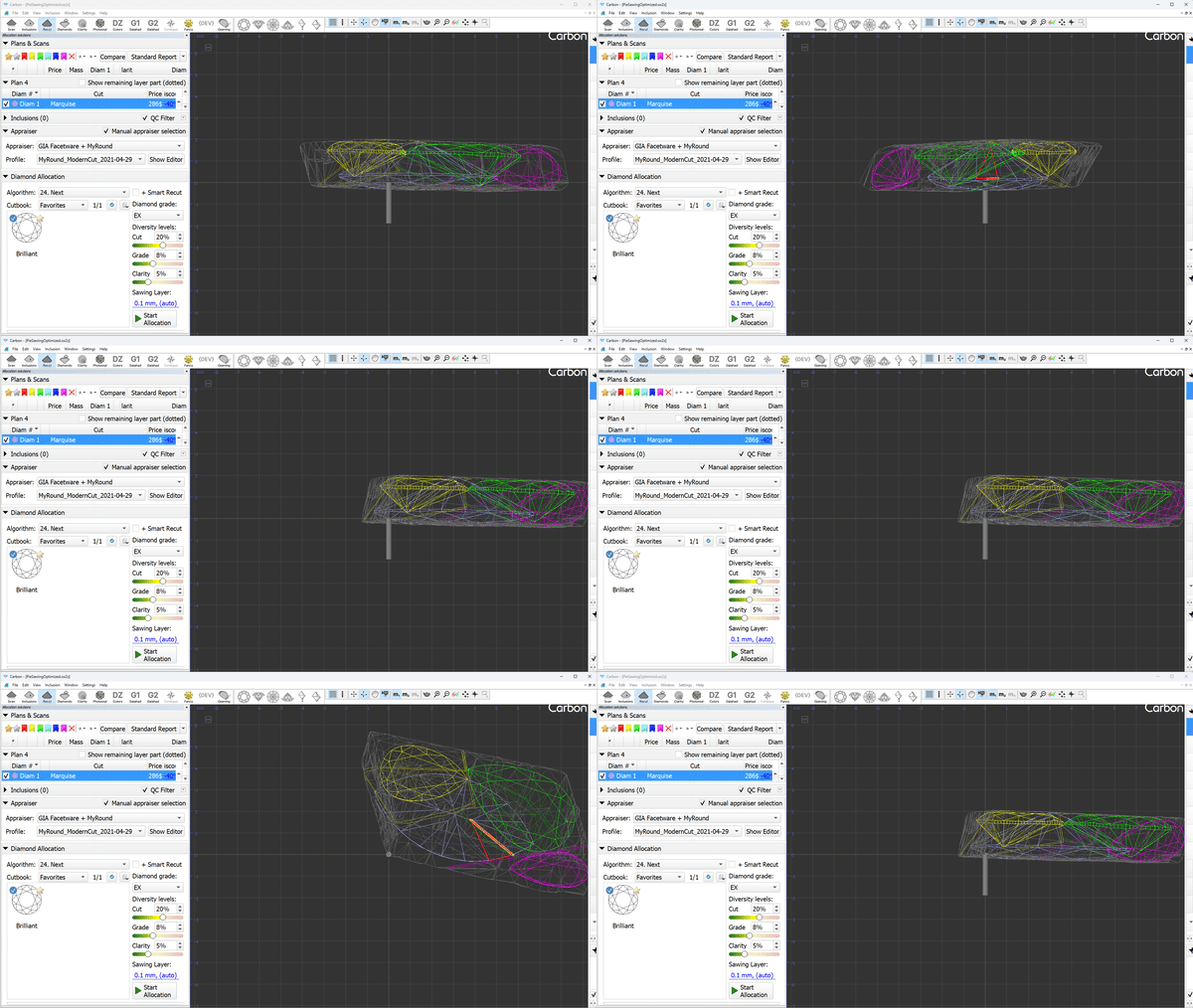
Scene rotation tool (Ox/Oy/Oz)
You can navigate the scene using your mouse. However, for more precise adjustments, you'll need to use the movement panel, which can sometimes be inconvenient.
We'd like to introduce Ox/Oy/Oz rotation modificators.
...
| Multimedia | ||||
|---|---|---|---|---|
|
...
Video summary:
To rotate along those axes, simply press the H (Horizontal), V (Vertical) or С (Center) keyboard button respectively and rotate the scene
This tool is particularly useful in several situations, such as:
- Working alongside orientation buttons
- Integrating with context menu orientation options
- Facilitating object rotation.
...
Data
...
Additionally, the glue point orientation button now puts the glue point not only in vertical position, but exactly at the scene center.
Objects selection tool
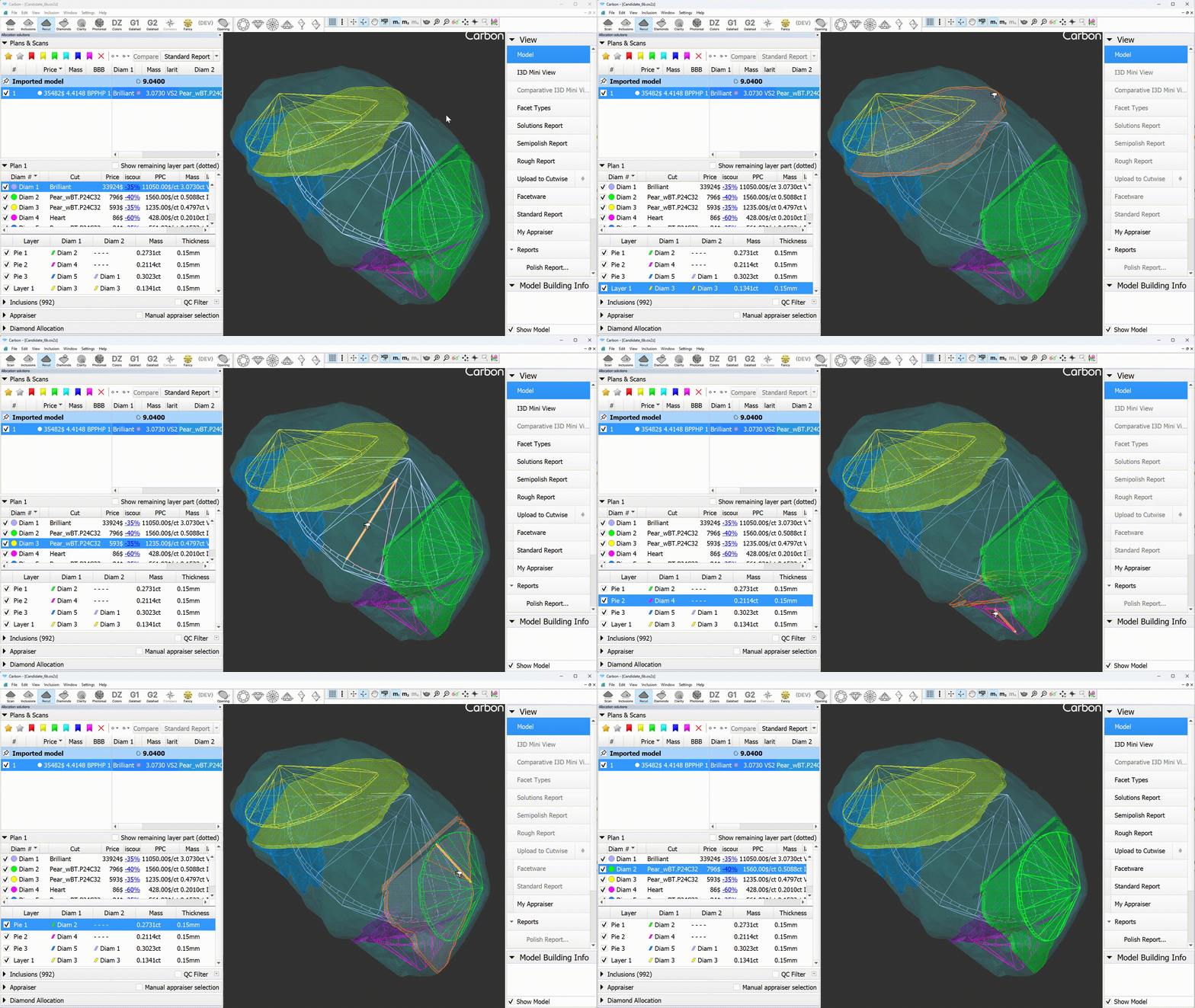
You can now select sawings directly on the scene with a simple click, just like diamonds. In Lines mode, the active diamond is now visually distinguished on the scene with thicker lines.
Scene context menu improvement
Context menu appears for the currently selected diamond, but now you to click on the diamond directly in the scene to make it active, without needing to select it from the diamonds panel first.
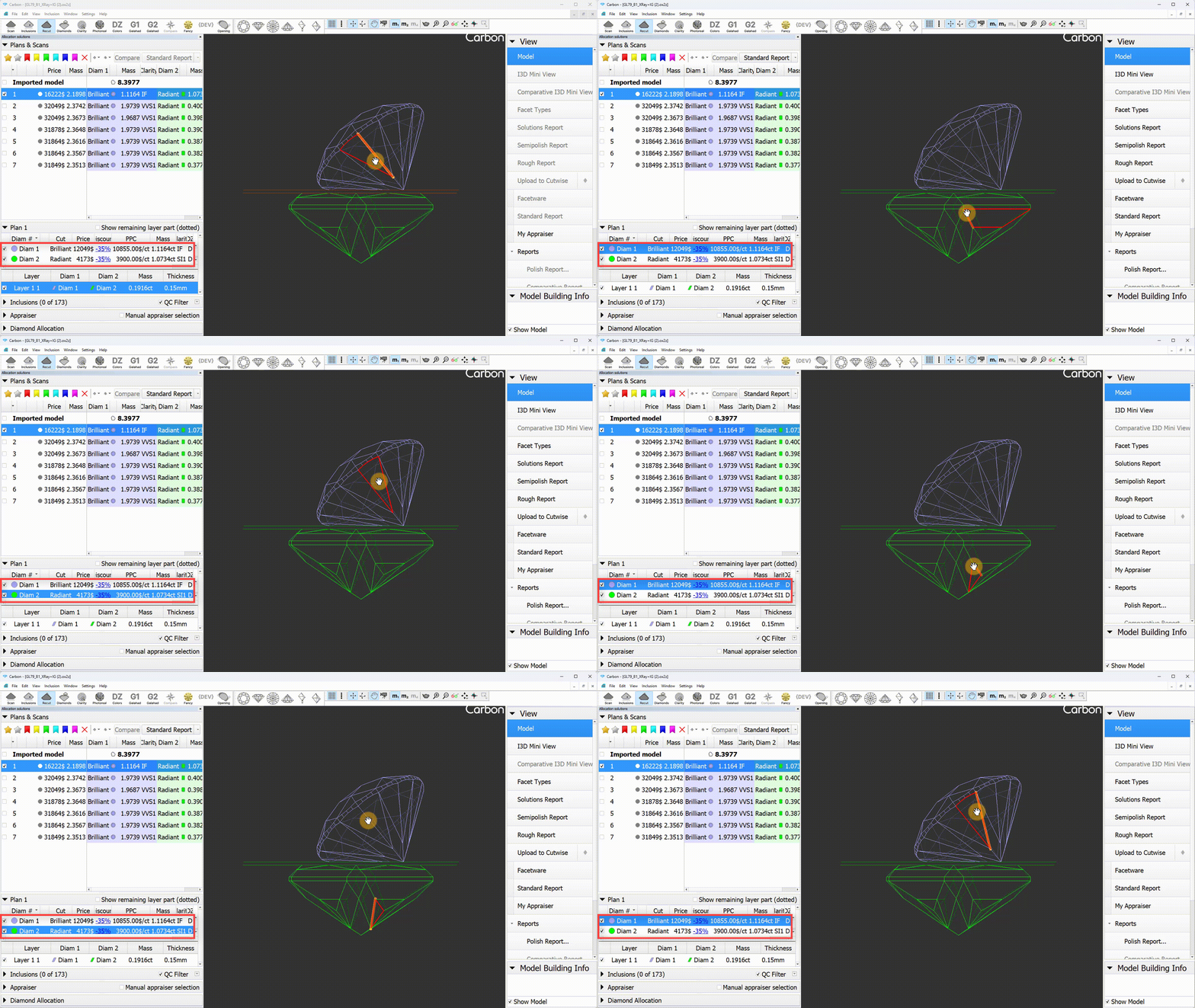
Layer selectable from the panel
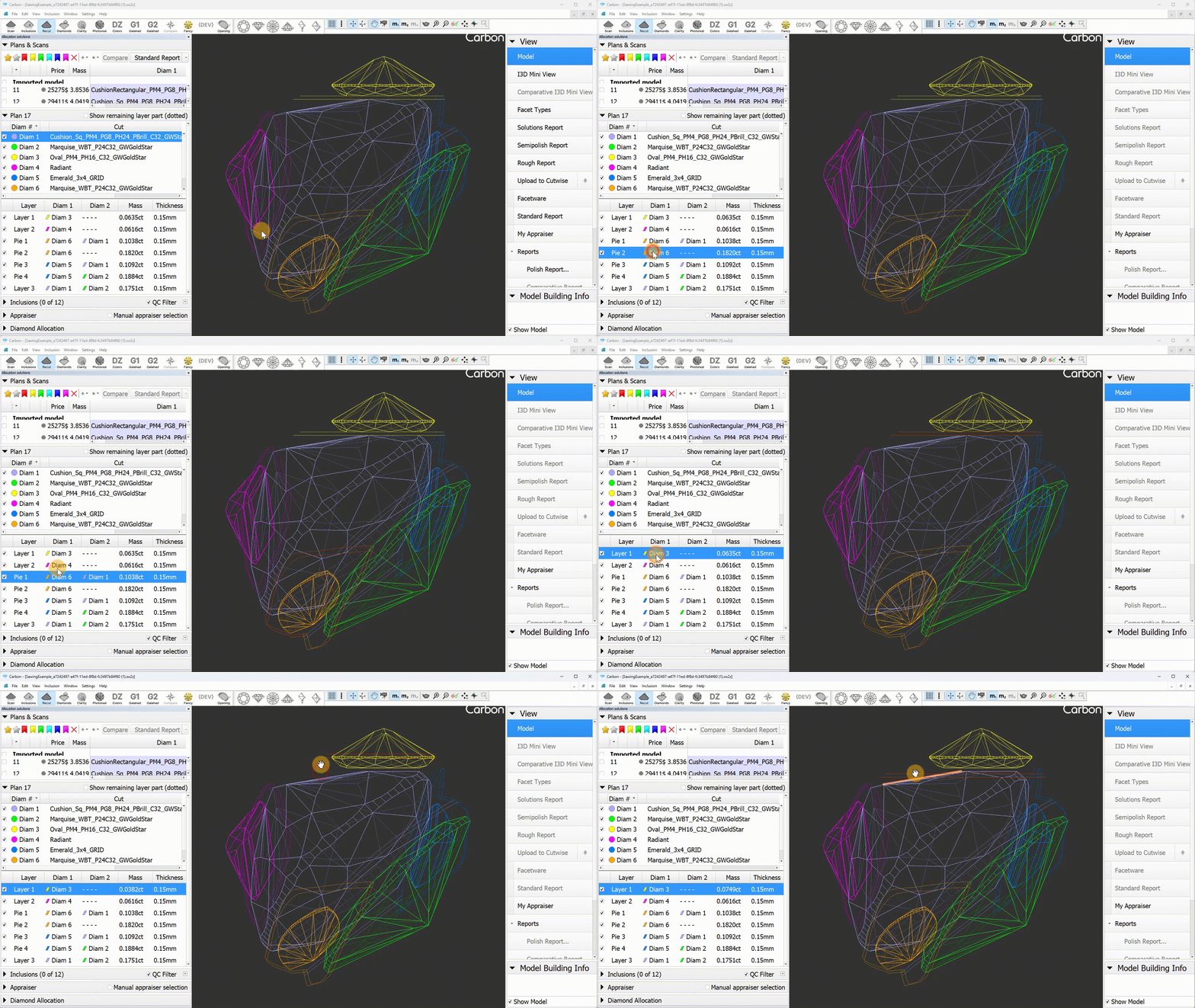
Layers are now selectable like diamonds, enabling the use of object movement tools on the selected layer.
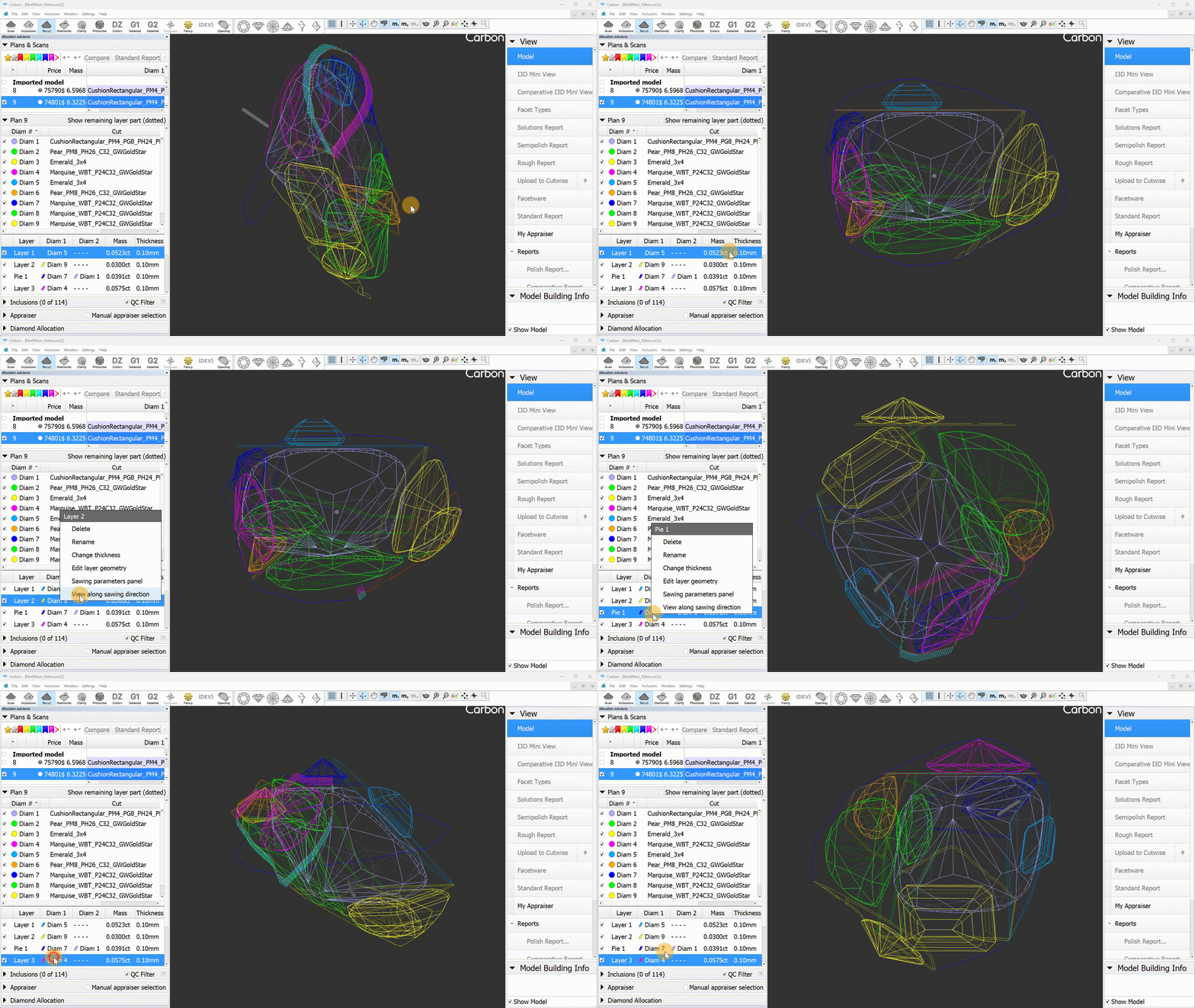
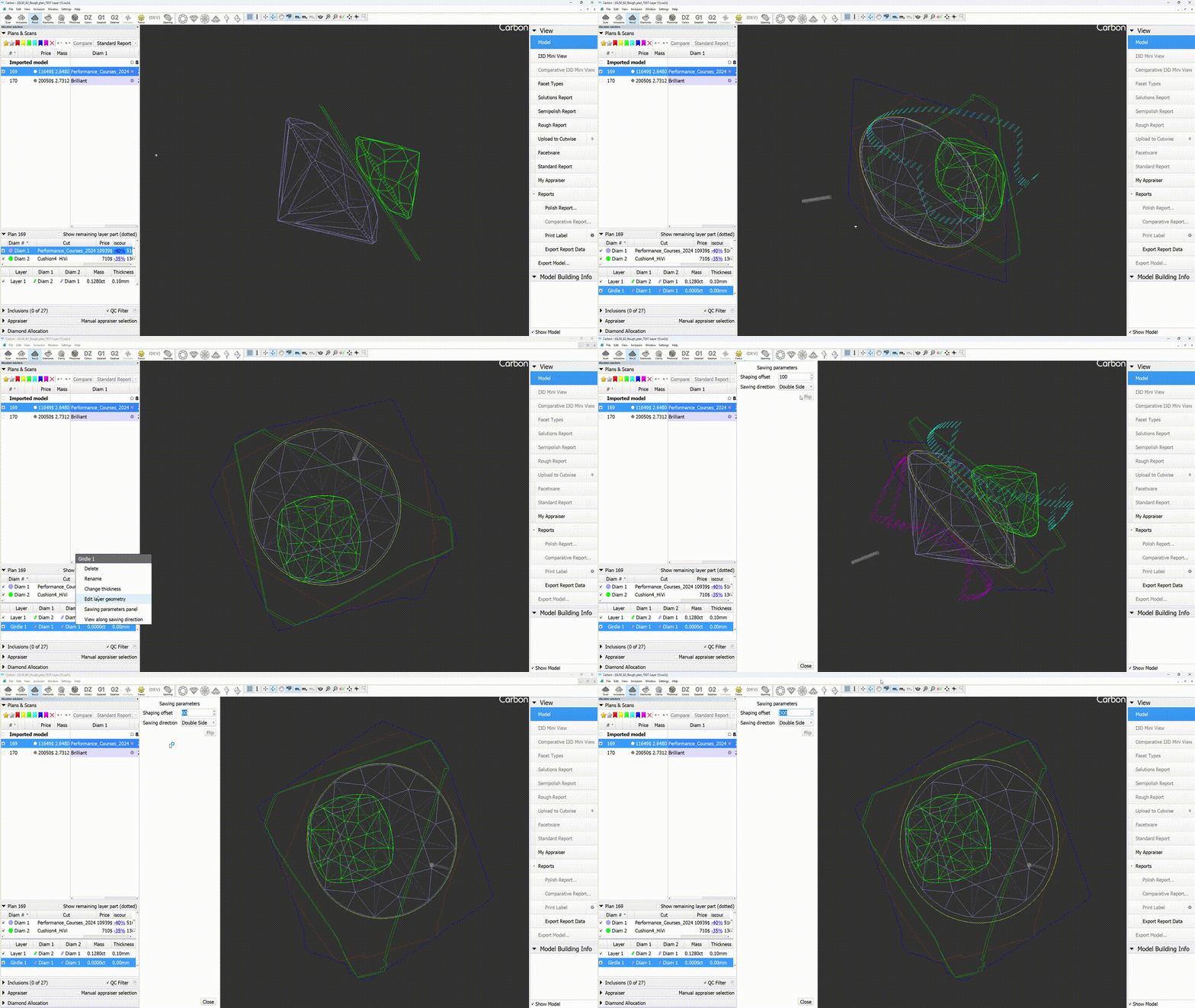
Operation "View along sawing direction"
A new context menu item, "View along sawing direction," has been introduced for layers. This command arranges the scene so that the layer becomes horizontal.
Scene objects - layers
Sawing layers thickness settings
An additional column has been added to the sawing thickness table to display the minimum mass value, indicating the interval for the corresponding thickness value.
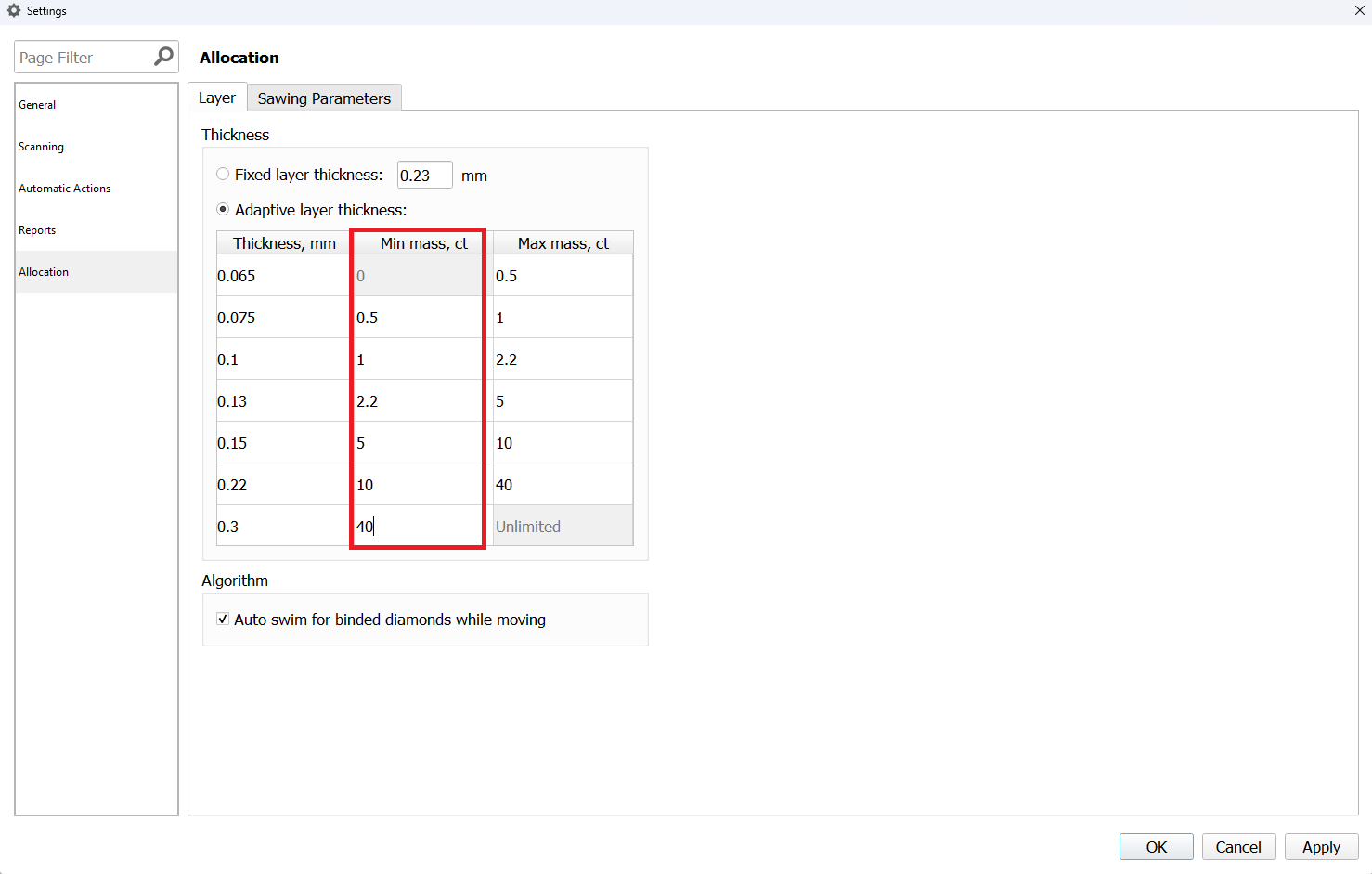
Sawing parameters
The sawing layers have been upgraded with new data and an improved interface. The "Create sawing data" command in the solutions context menu has been replaced by two distinct commands: "Create sawing layers" and "Generate sawing data."
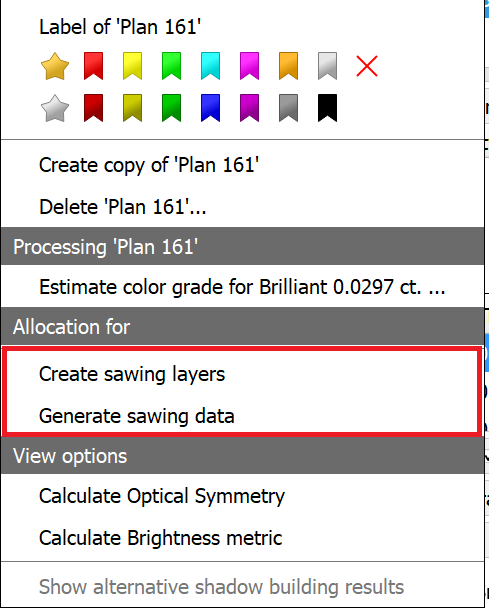
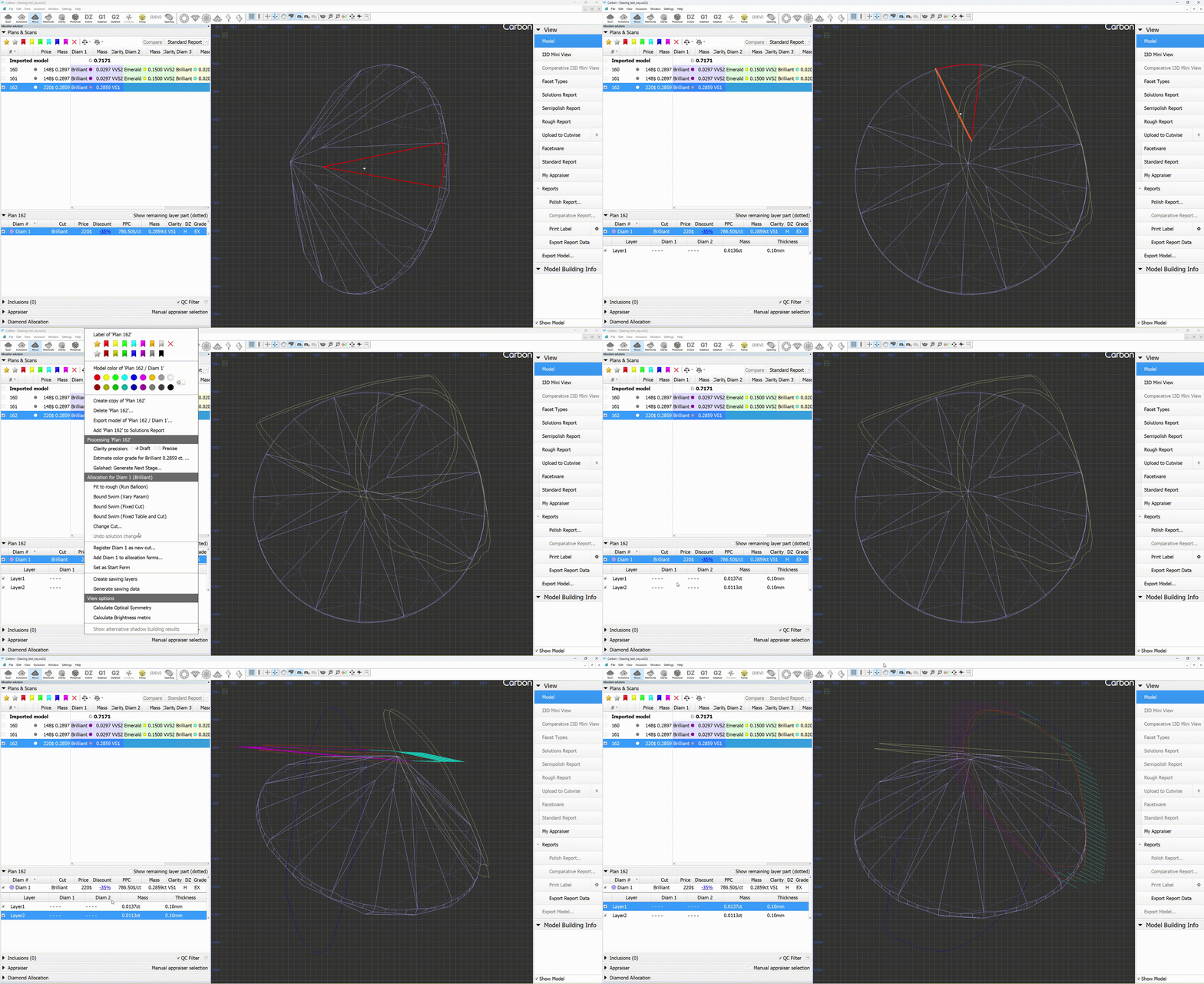
Here’s the key difference: "Create sawing layers" removes all existing layers and populates the solution with appropriate new layers (similar to the previous "Create sawing data" command). In contrast, "Generate sawing data" simply adds additional data to the already existing layers.
This additional data includes the following: generating half-planes where necessary, creating a glue point, establishing sawing directions for each layer, and developing a rough projection contour (blue line).
The parameters for sawing directions can be defined in "General Settings -> Allocation -> Sawing Parameters."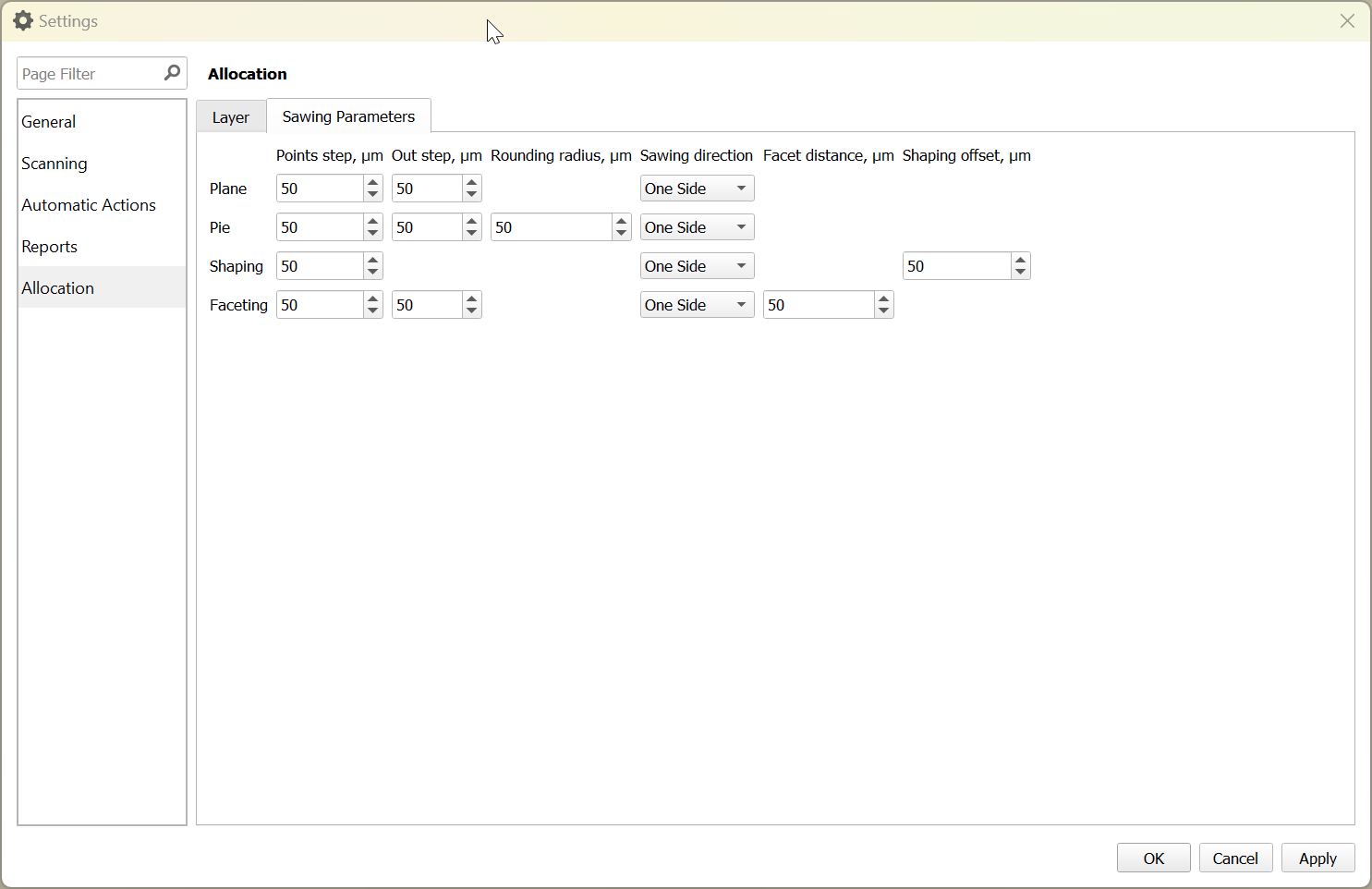
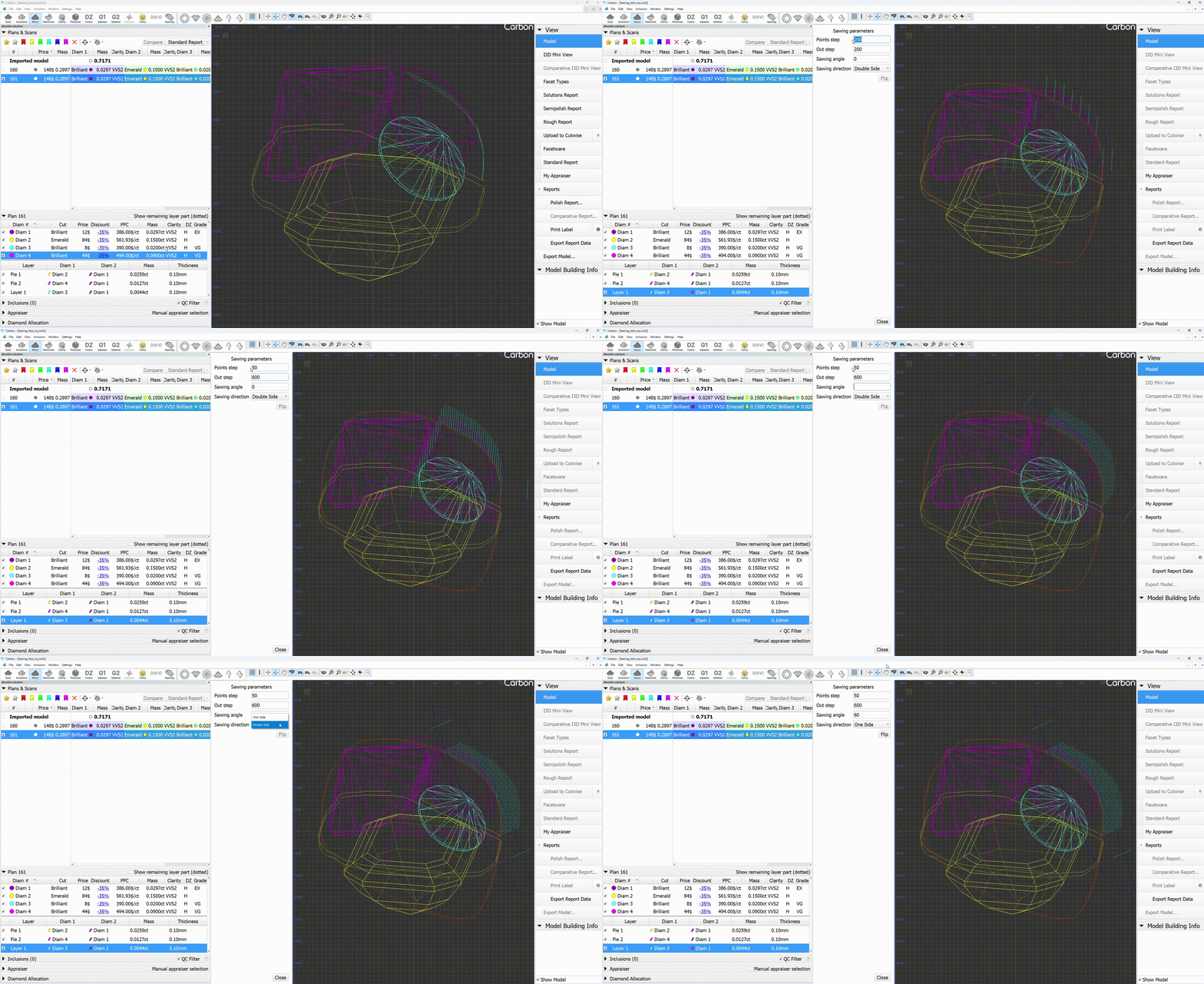
You can also set parameters for each layer individually by clicking on the "Sawing parameters panel" in the layer context menu.
The available parameters are:
For Plane:
- Points step
- Out step
- Sawing angle
- Sawing direction
For Pie:
- Points step
- Out step
- Sawing direction
For Shaping:
- Shaping offset
- Sawing direction
...
- Points step: The distance between key points along the rough diamond for laser sawing.
- Out step: An additional key point located outside the rough diamond for laser sawing.
- Sawing angle: Controls the sawing direction vector for individual layers.
- Sawing direction: Determines whether the sawing is done on one side or both sides.
- Shaping offset: The distance to the girdle for laser sawing.
To create a shaping, you can use the "Generate girdle shaping" command from the diamond context menu. For shaping sawings, there is additional data provided: a shaping contour around the girdle (yellow line).
Blocking layers
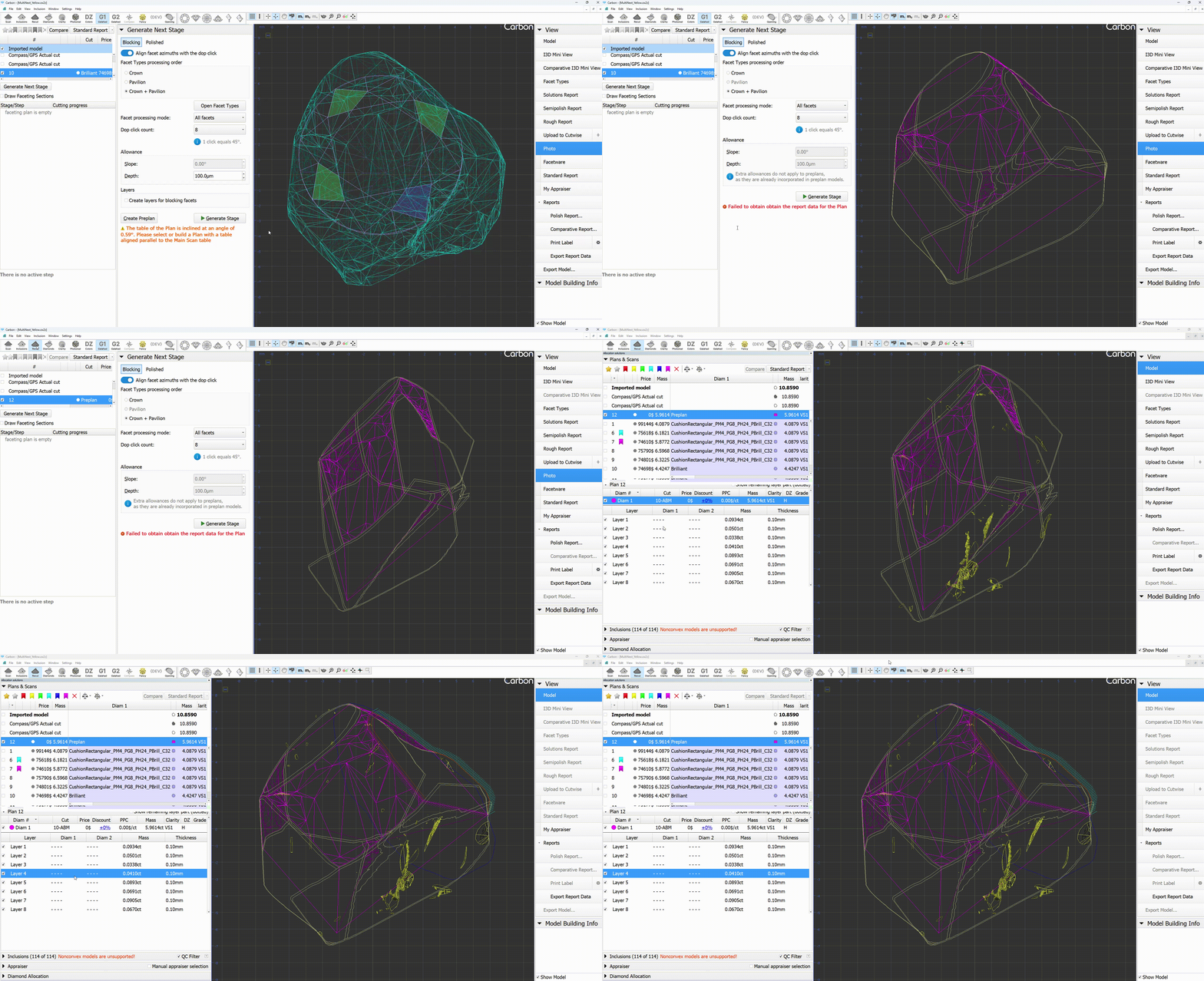
You now have the option to create blocking layers when generating a preplan. To do this, simply check the "Create layers for blocking facets" checkbox and click the "Create preplan" button.
The sawings will be positioned with an offset from the facets. You can modify the offset value in "General Settings -> Allocation -> Sawing Parameters -> Facet Distance".
Pinning Solutions in the Solution List. Rendering upgrades.
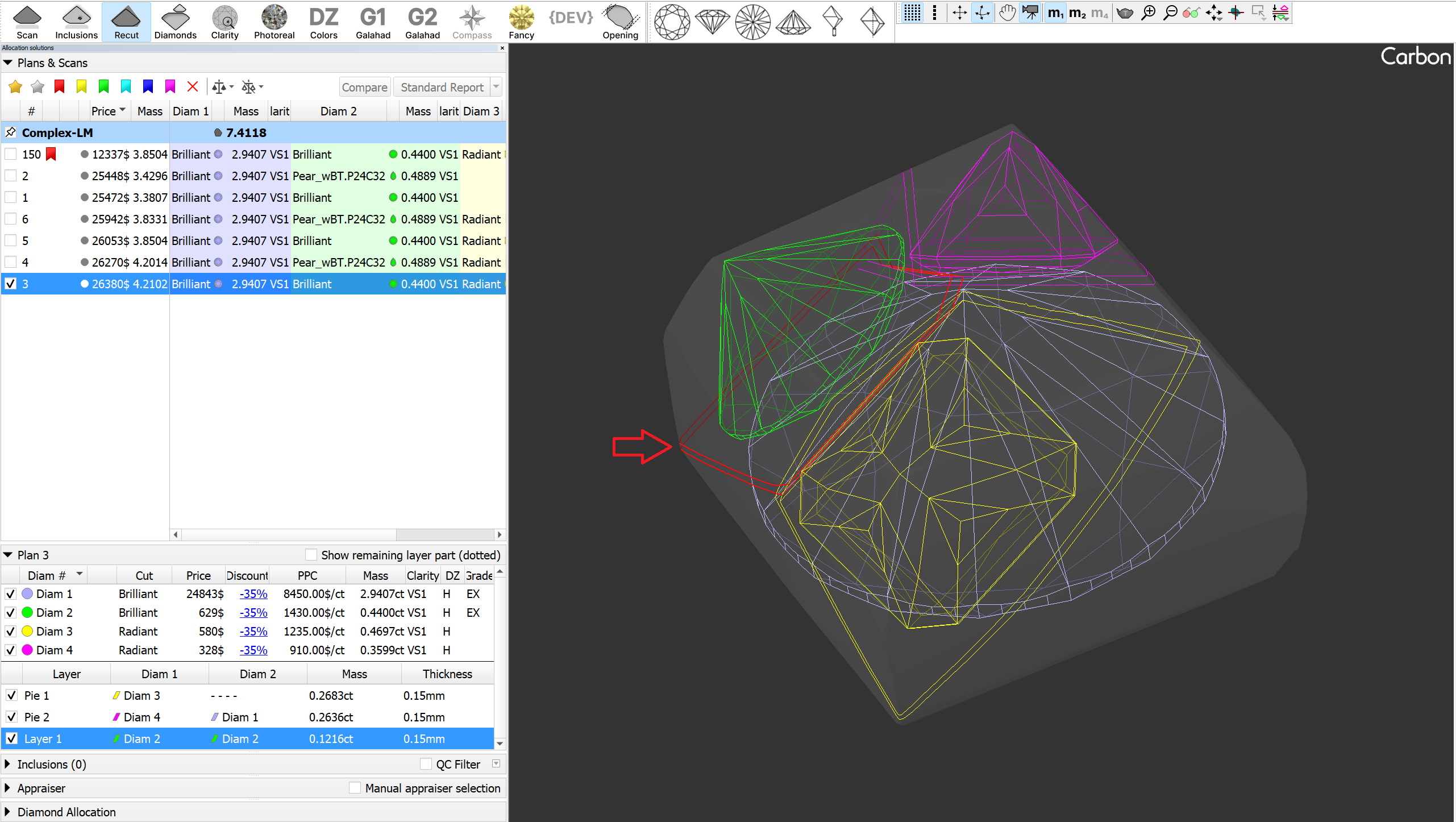
We have added the ability to pin solutions in the solution list. To pin a solution, right-click its checkbox; click the same area again to unpin it. The pinned solution remains visible on the scene at all times, regardless of your selection from the list. This is particularly useful for keeping scans (like the main scan) permanently displayed.
When loading a project, the Main Scan is automatically pinned if its processing stage is Rough, Saw, or Bruted. In Recut mode, scans with these stages appear transparently instead of in lines mode—this can be adjusted in the rendering settings, where separate display modes for Rough and Polished scans are now available.
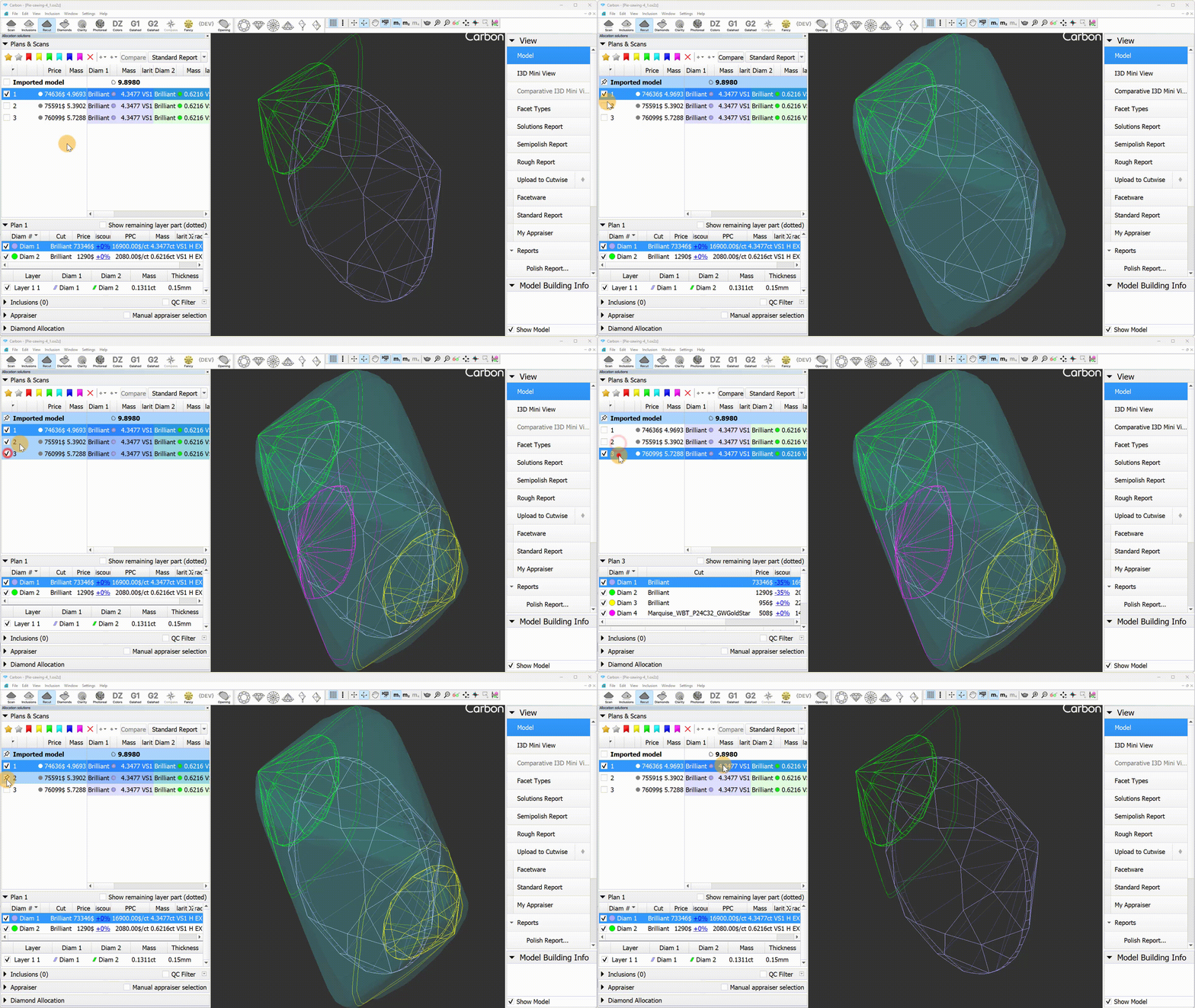
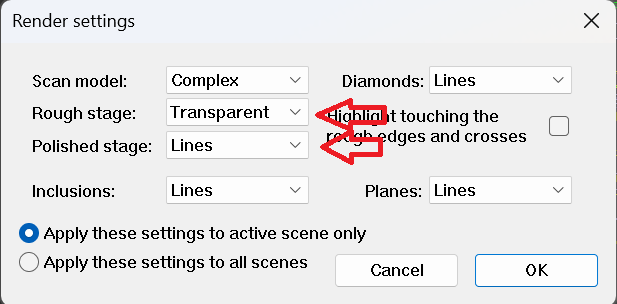
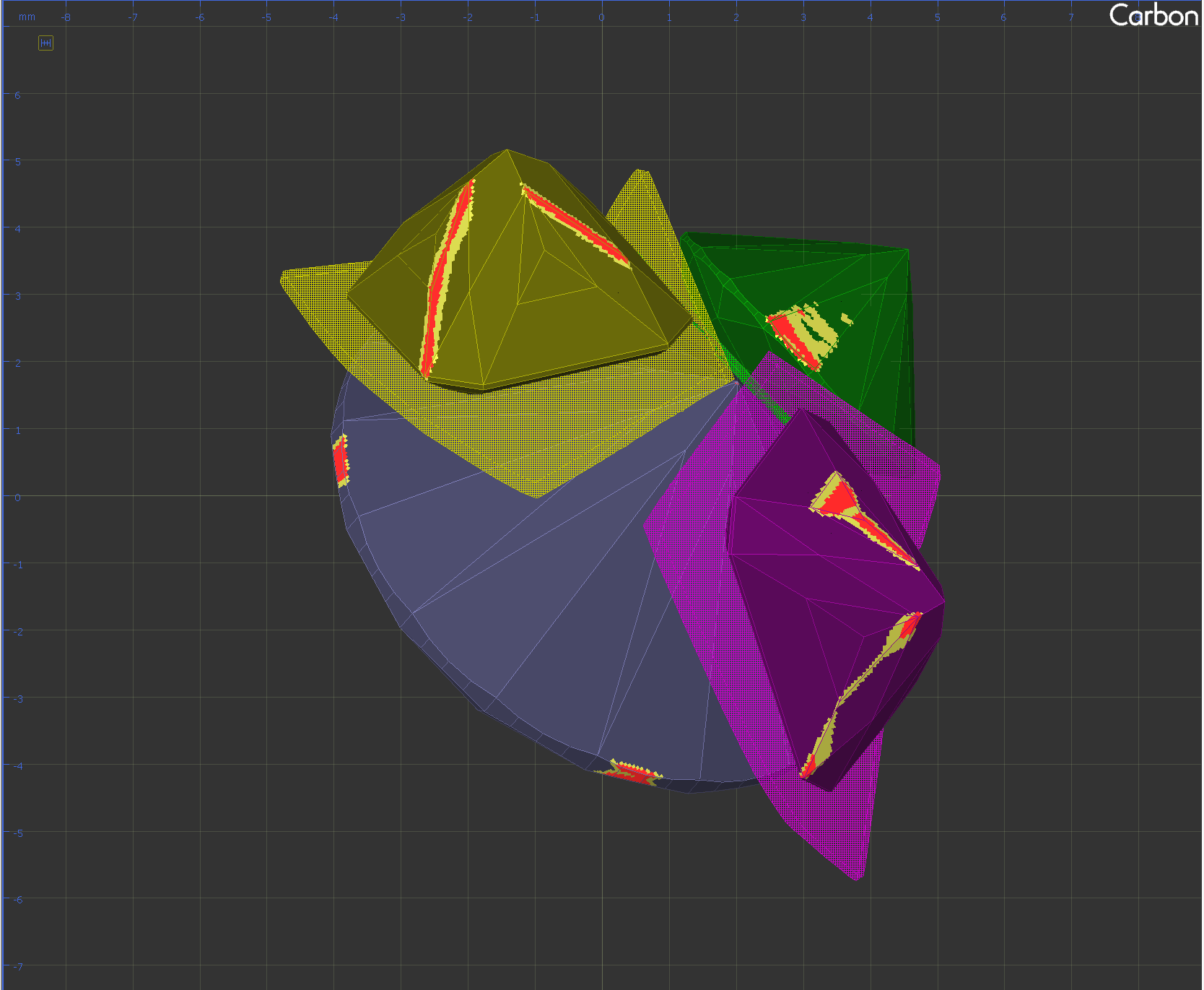
Saw rendering has been improved: non-visible parts are now shaded, and the active layer is highlighted in red with thicker lines. For users who prefer solid mode, this option can now be applied to layers(planes) in the Rendering Settings.
Sample Facet Types
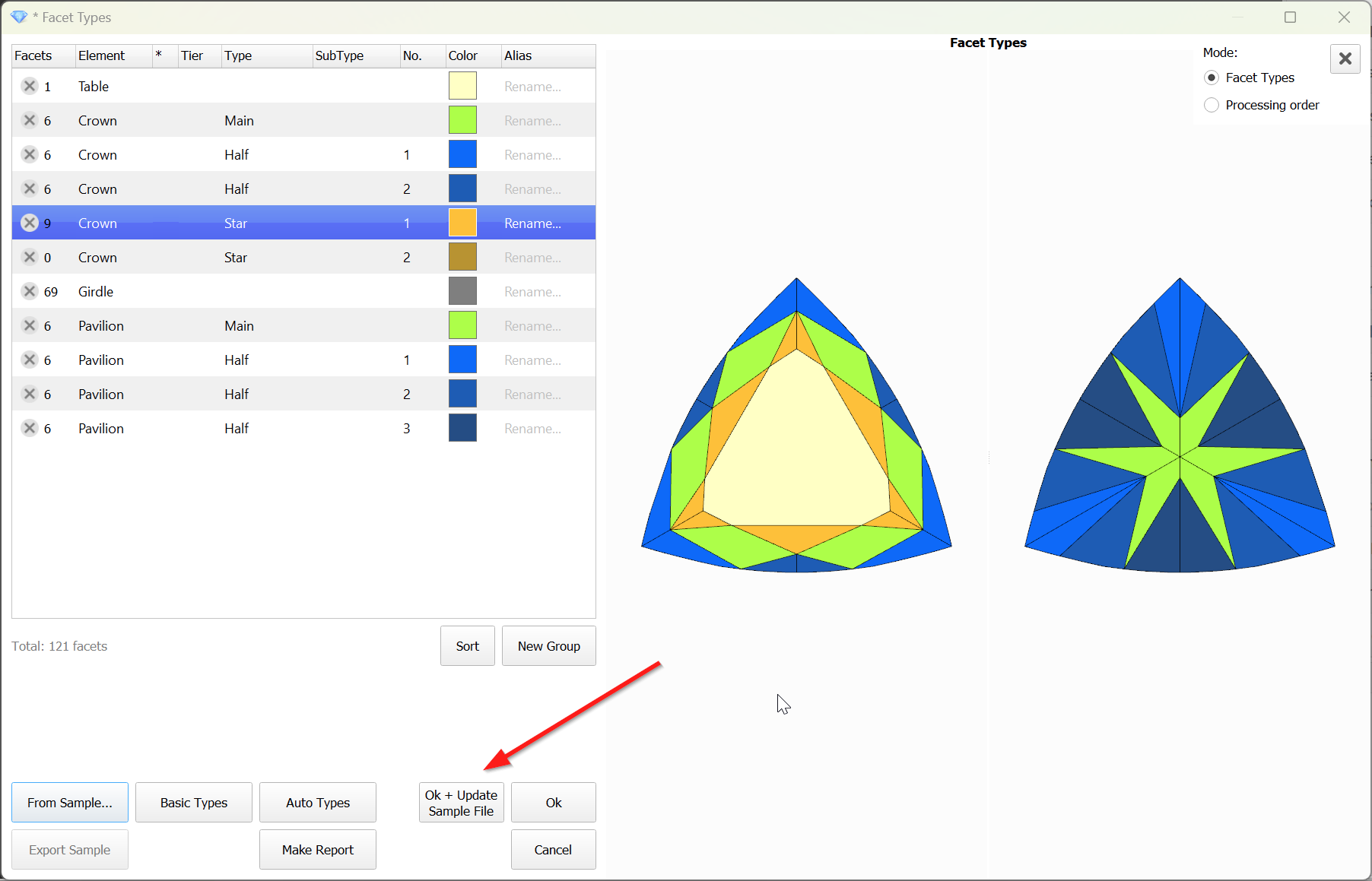
When editing the Facet Types of a sample, the modified types are not saved to the sample file by default. However, this feature proves to be quite useful and convenient. Therefore, this functionality has been implemented.
To save the modified Facet Types to the sample file, the 'Ok + Update Sample File' button is provided.
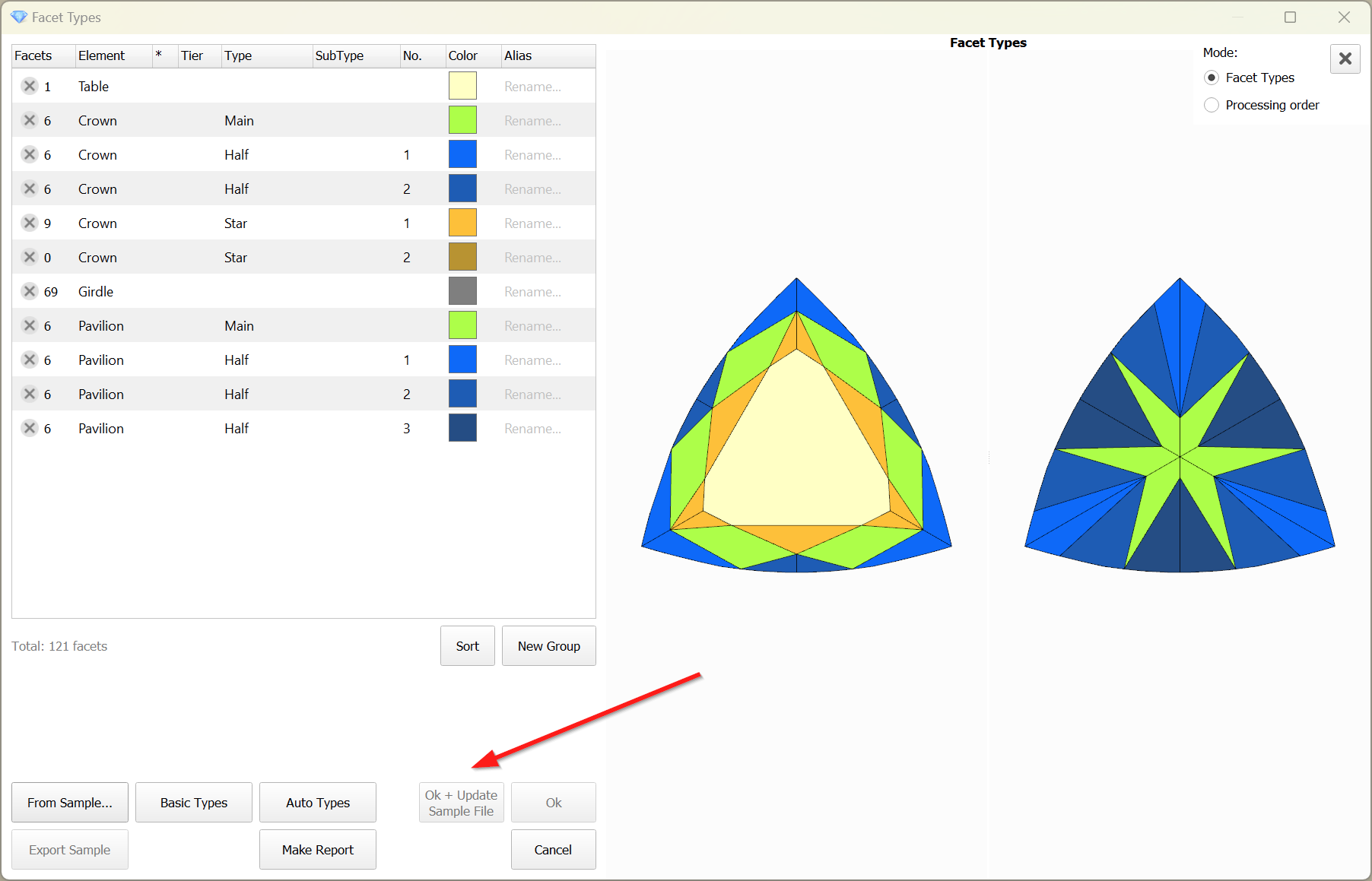
The button is disabled when the file is unavailable:
Reports Improvements
Shape Deviation - new parameter
...
The realization of an unattractive girdle shape in a Fancy diamond often comes too late, after the stone has been cut and fails to attract buyers. Operators aiming to increase carat weight may enlarge the girdle shape without having the necessary knowledge and tools to assess its beauty.
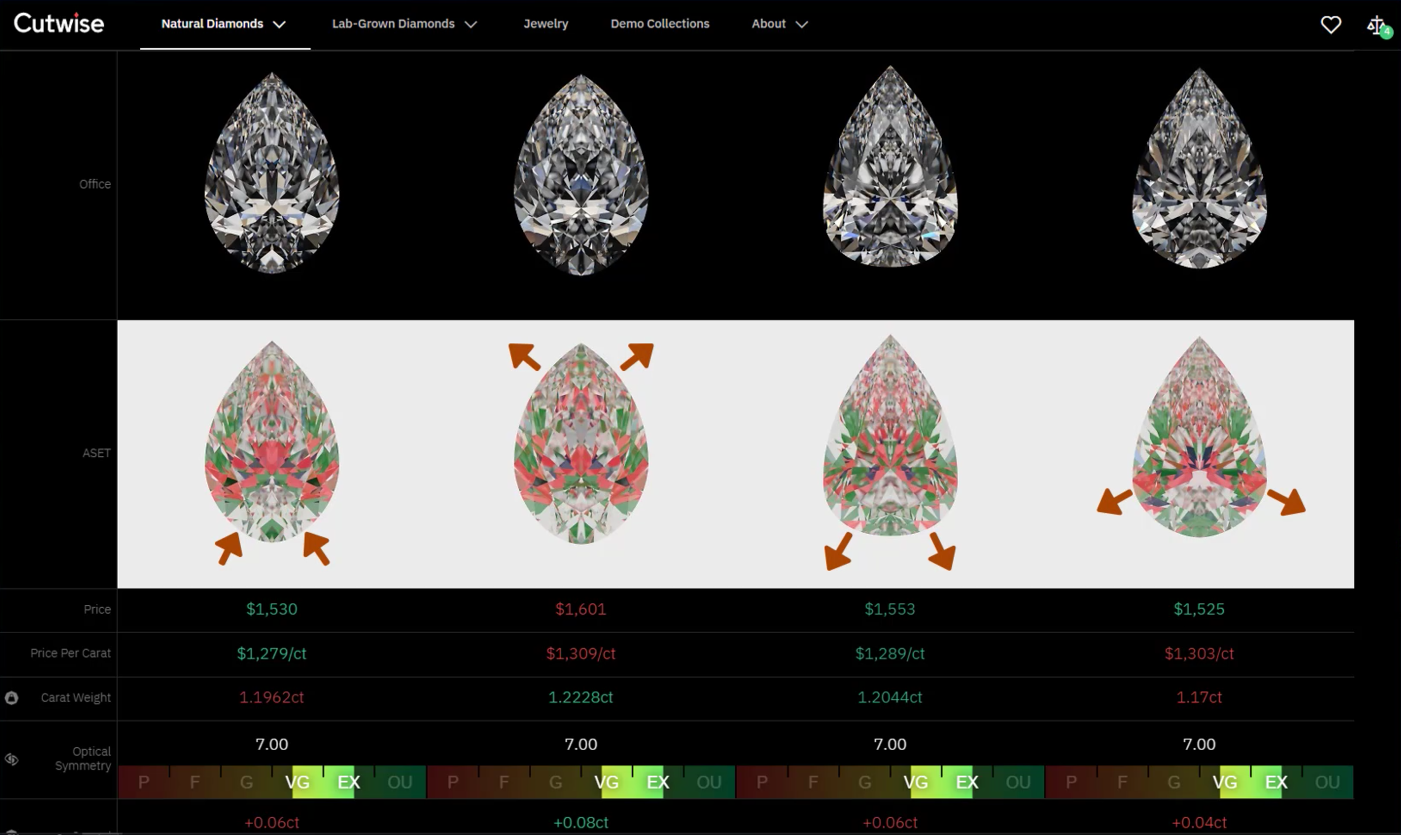
To address this issue, we have developed the Shape Deviation parameters. These parameters help to compare how the girdle shape differs from the ideal shape, just like the 2RRoundness parameter does for the Brilliant cut. The Shape Deviation Grade enables operators to easily reject unacceptable girdle shapes.
What is Shape Deviation?
...
Reports Improvements
Shape Deviation - new parameter
Include Page Video | Shape Deviation parameter Video | Shape Deviation parameter
The realization of an unattractive girdle shape in a Fancy diamond often comes too late, after the stone has been cut and fails to attract buyers. Operators aiming to increase carat weight may enlarge the girdle shape without having the necessary knowledge and tools to assess its beauty.
To address this issue, we have developed the Shape Deviation parameters. These parameters help to compare how the girdle shape differs from the ideal shape, just like the 2RRoundness parameter does for the Brilliant cut. The Shape Deviation Grade enables operators to easily reject unacceptable girdle shapes.
What is Shape Deviation?
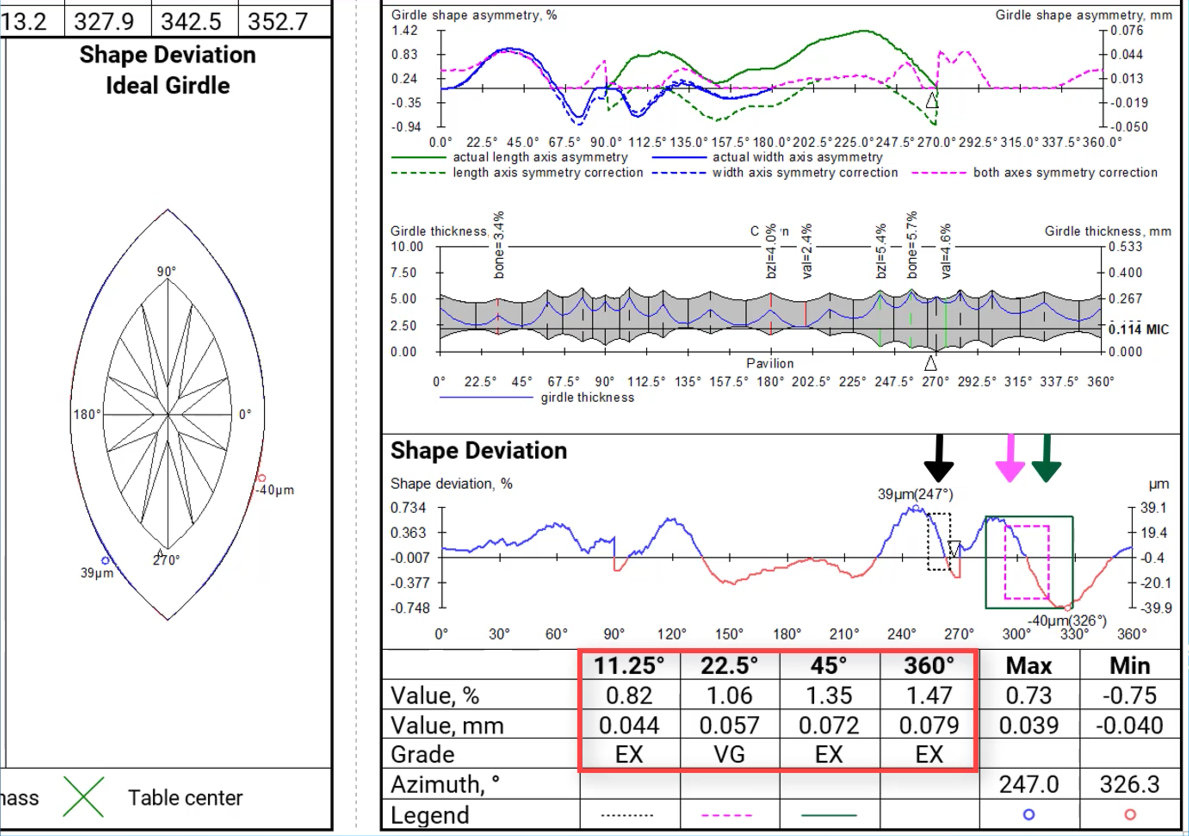
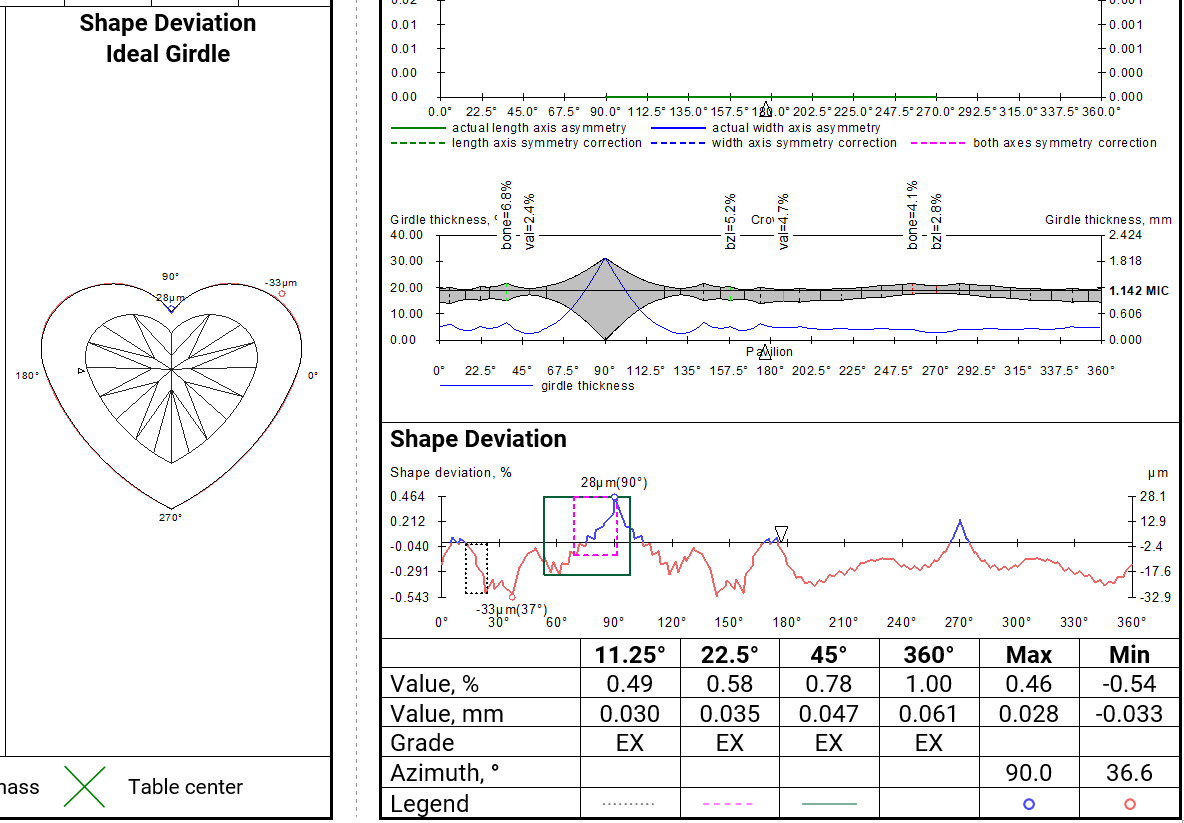
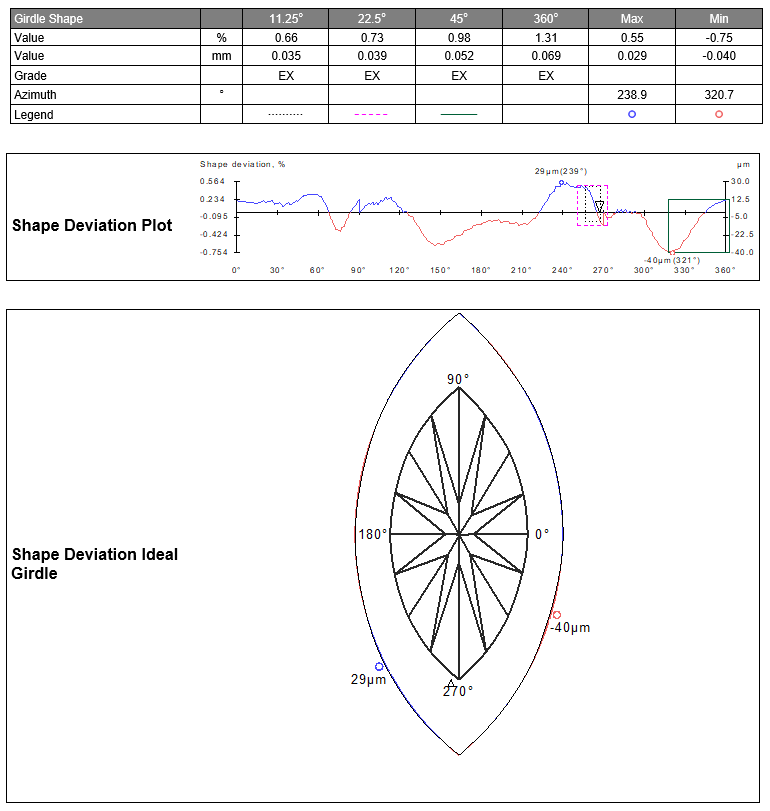
After aligning the girdle shape of the current model with the ideal girdle shape linked to the current cut, we calculate the distances between the two curves. These distances are presented as the Shape Deviation Plot and Shape Deviation Ideal Girdle. Next, we identify azimuth intervals of 11.25, 22.5, 45, and 360 degrees where maximum difference in distances between shapes are observed, and estimate these values. It is in these locations where the imperfections in the girdle shape are most noticeable. The Shape Deviation Plot highlights these areas with rectangular windows, along with indications of global maximum and minimum values.
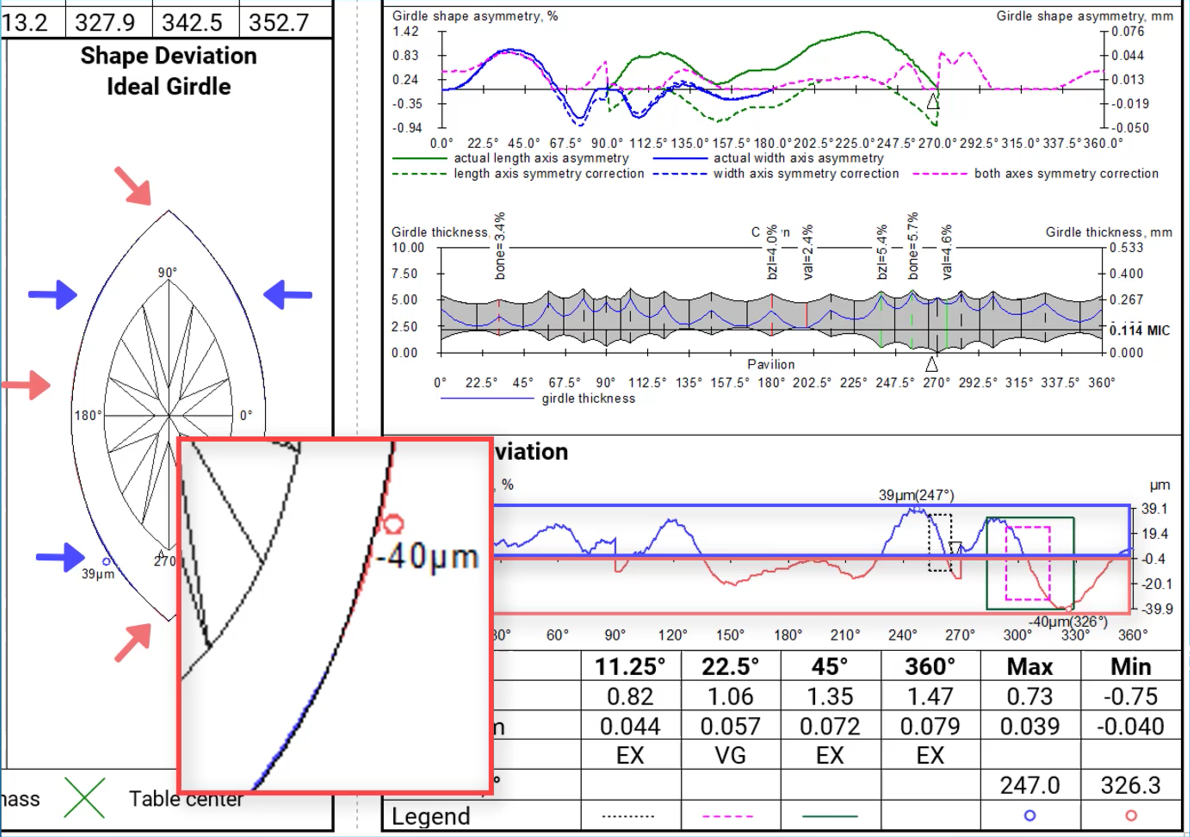
Deviations where the current girdle shape is wider or narrower than the ideal shape are color-coded. This information is also depicted in the Shape Deviation Ideal Girdle image. Here, the current model is outlined in black, with areas highlighted in blue and red denoting the extent to which the girdle shape of the current cut deviates in width from the ideal girdle.
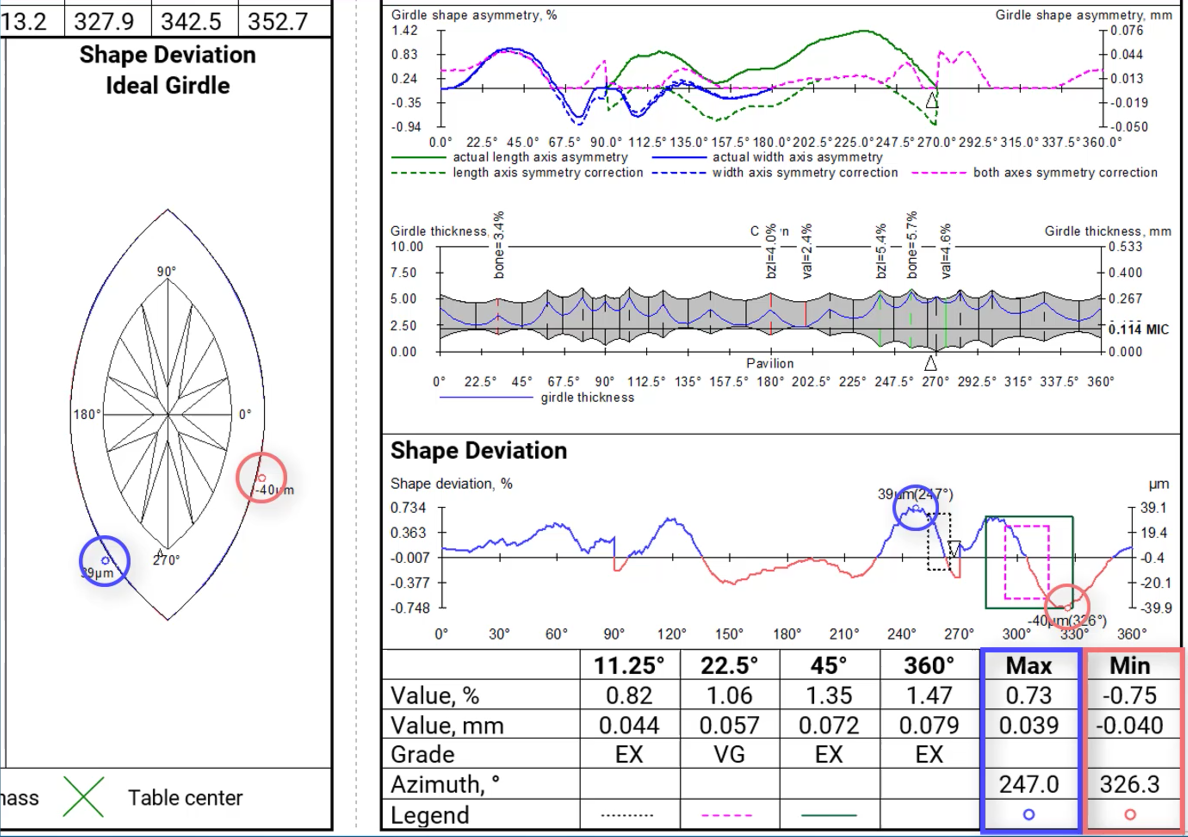
Global maximum and minimum values are also represented in both pictures.
Shape Deviation in appraisers
The parameter is currently available for the following Octonus cuts:
- Pear_wBT.P24C32
- Pear_PM8_PH26_C32_GWGoldStar
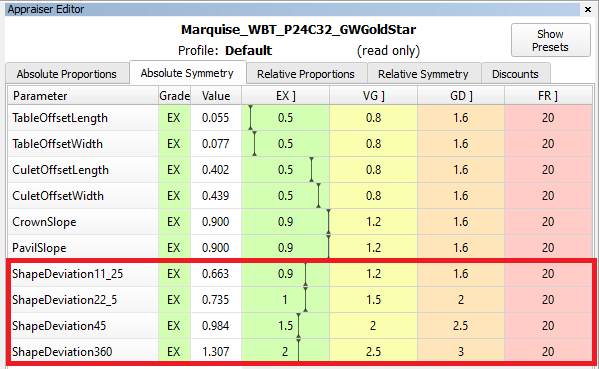
- Marquise_WBT_P24C32_GWGoldStar
- Oval_PM4_PH16_C32_GWGoldStar
- Oval_WBT_PM8_PH16_C32_GWGoldStar
- Heart_PM8_PH18_C35_GWGoldStar
We use classic shapes with different Girdle Ratios as shape references for these cuts. The classic marquise shape consists of two circle arcs. The classic pear shape consists of three circle arcs. The parameter has been integrated into these cuts appraisers in the Absolute Symmetry tab.
In the reports an ideal ellipse is used as a reference for any сuts recognized as oval and lacking own reference shapes.
Shape deviation now works on non-convex faces
Shape Deviation in SmartRecut
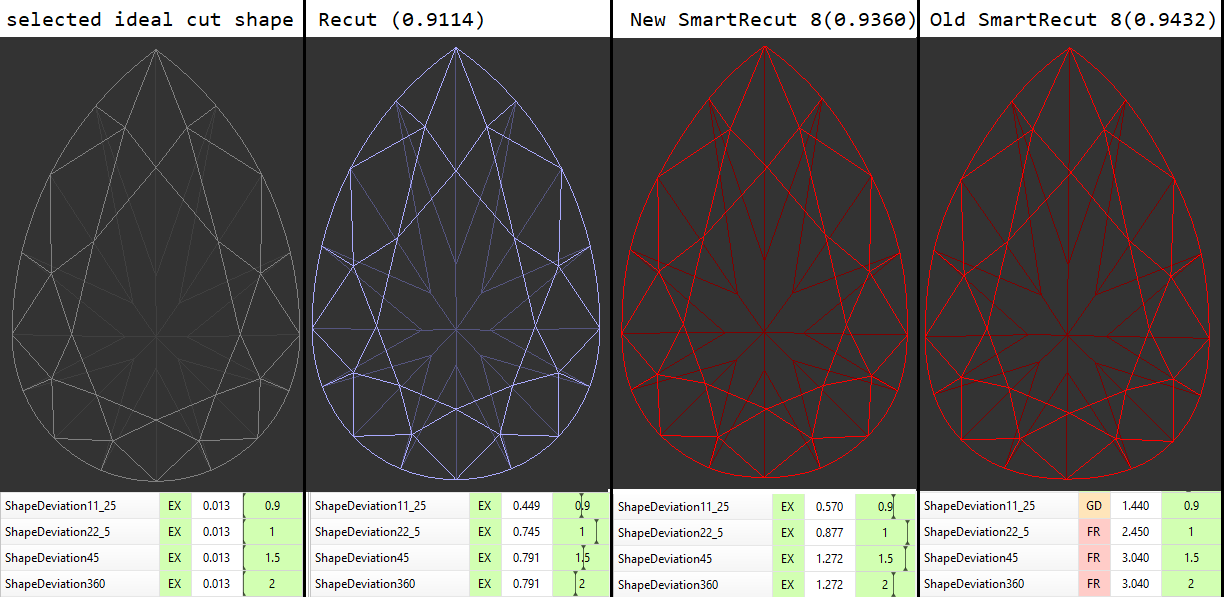
SmartRecut controls the new parameter if they are present in the appraiser. There is a comparison of SmartRecut solution with and without using this parameter on the picture. It is important to note that this parameter prevents the continuous deterioration of the girdle shape in the SmartRecut on SmartRecut scenario.
Shape Deviation in reports
The parameter has been included into reports:
- RTF Full report for rounded fancies
- RTF Illustrated report for oval and marquise
- RTF Illustrated report for rounded fancies
- HTML Illustrated report for oval and marquise
- HTML Illustrated report for rounded fancies
- Export Report Data, Color
In the illustrated reports, the Shape Deviation is located in the bottom right corner.
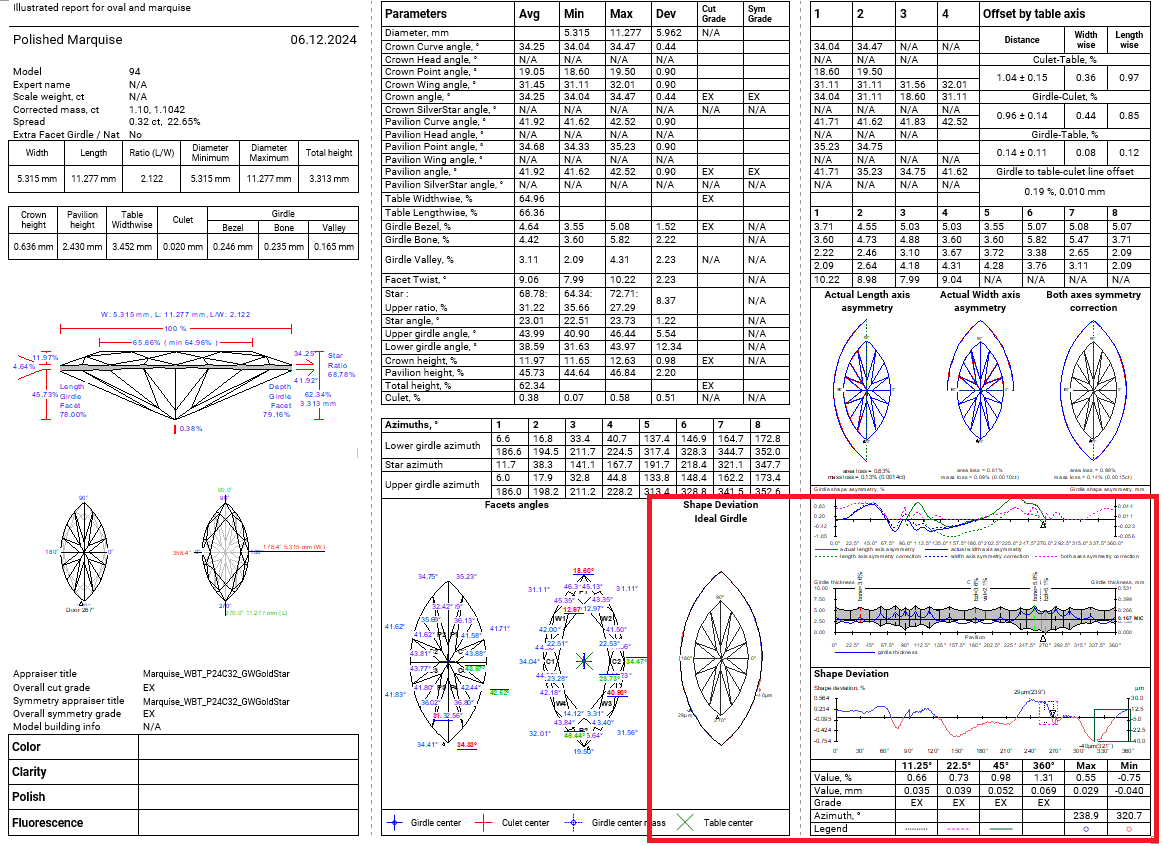
In the full report, this parameter is placed on a separate page.
The description of Shape deviation parameter and corresponding bookmarks are availbale in Shape Deviation.
Shape Deviation for scans
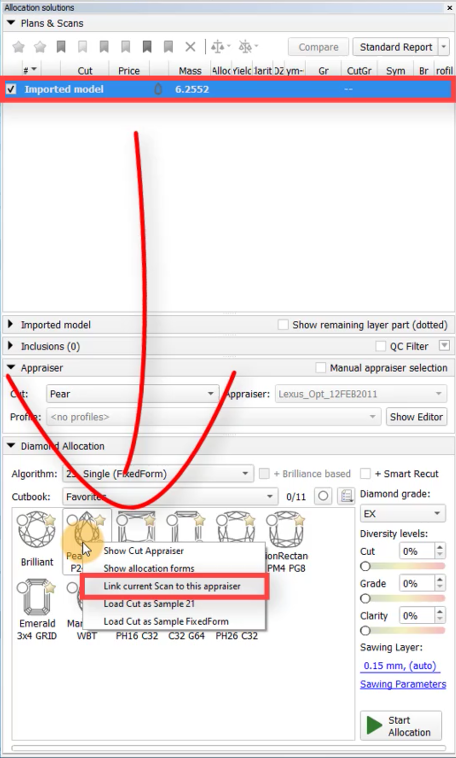
The Shape Deviation parameter can be utilized not only for solutions but also for scans of finished diamonds. To do this, select the scan, right-click on the corresponding cut in the "Cut Book," and choose "Link current scan to this appraiser." The scan can then be evaluated in the Appraiser Editor or Polish Report can be built.

The green option is recommended for rounded fancy cuts. The necessity and usefulness of the green option for step cuts are still under question, so both green and yellow options are possible for them.
 AnycutBasic : Goodwin type cuts support AnycutBasic appraiser as well, but with the lack of important advantage of having slope angles in the appraiser.
 Goodwin* : The appraiser control Crown and Pavilion Slopes. The selection of the most important cut facets is performed automatically. The only advantage of this type of templates over other options is the 2C3P version, which is well suited for rectangular cushions with a two-tier pavilion.
 Goodwin_Starts* : The appraiser control Crown and Pavilion Slopes. The selection of the most important cut facets is done by the user using gold and silver stars. This prevents the desynchronization of values at all stages of the diamond's life cycle.
 Goodwin_GirdleShape_Starts* : The appraiser additionally control the Shape Deviation parameter, responsible for the beauty of the girdle shape.
| Warning |
|---|
You can read the full article about choosing an appraiser: Which appraiser template to choose? |
Add allocation forms with Shape Deviation
Include Page Video | Add allocation forms with Shape Deviation Video | Add allocation forms with Shape Deviation
To make the allocation algorithms work correctly, we recommend using allocation forms with an EX grade by Shape Deviation parameter. How to get them? To solve this, we added the option “Use ideal girdle shape” in the SmartNormalize algorithm. How to achieve this? When working with the new cut, you will automatically get EX-grade solutions. The best of these can be normalized and added as forms. But if you've been using our products for a while, you already have a collection of good allocation forms for your cuts. These need to be transferred to the new versions of the cuts registered with the "Goodwin_GirdleShape_*" templates.
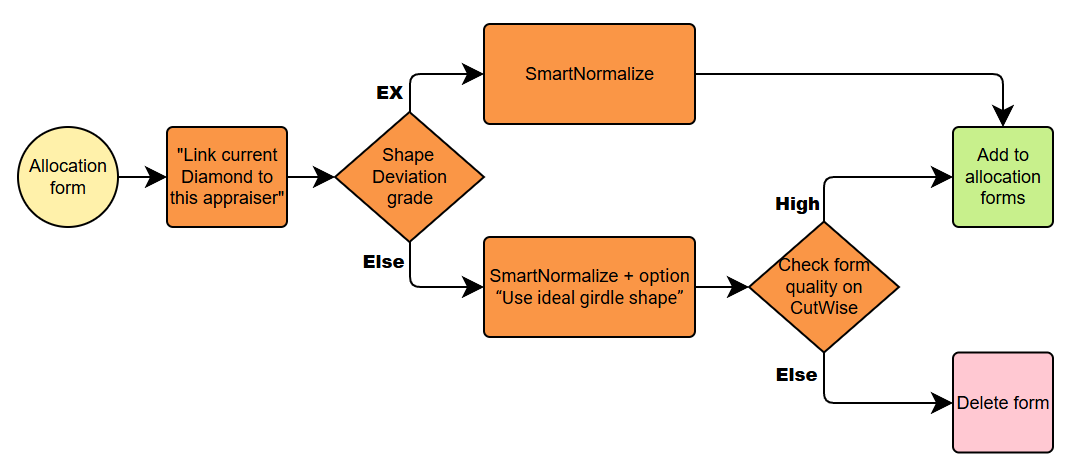
Scheme for one form or solution without Shape Deviation
Your old preforms must be evaluated for Shape Deviation of the new cut using the “Link current Diamond to this appraiser” feature. If the preform has an EX grade by Shape Deviation, you can normalize it as usual with minimal changes and register it in the new cut. If the old preform has not EX Shape Deviation grade, the girdle shape must be corrected using SmartNormalize with the new option “Use ideal girdle shape”. Before registering this form, check in CutWise that the girdle shape change did not harm the optical properties of the preform.
Scheme for many forms transit
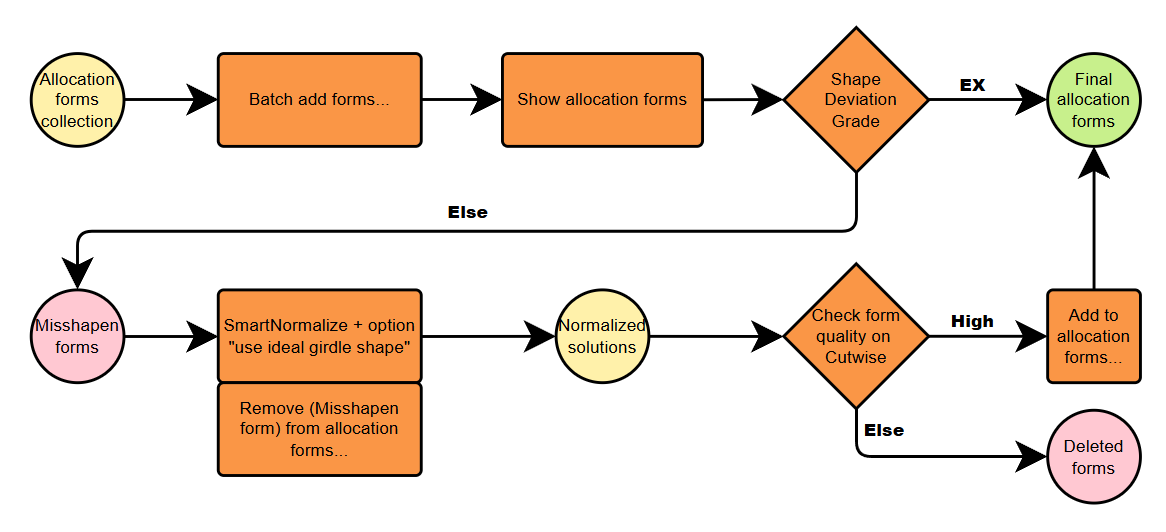
If you have many forms in your collection, we recommend using the “Batch Add Forms” command to speed up the process. This command automatically transfers the forms without checking for Shape Deviation. So you’ll only need to fix the “Misshapen Forms”. To view these, use the “Show Allocation Forms” command. Then, apply the previously described procedure to correct Shape Deviation for the “Misshapen Forms”. Finally, don’t forget to remove the “Misshapen Forms” from your new cut, since they have already been added.
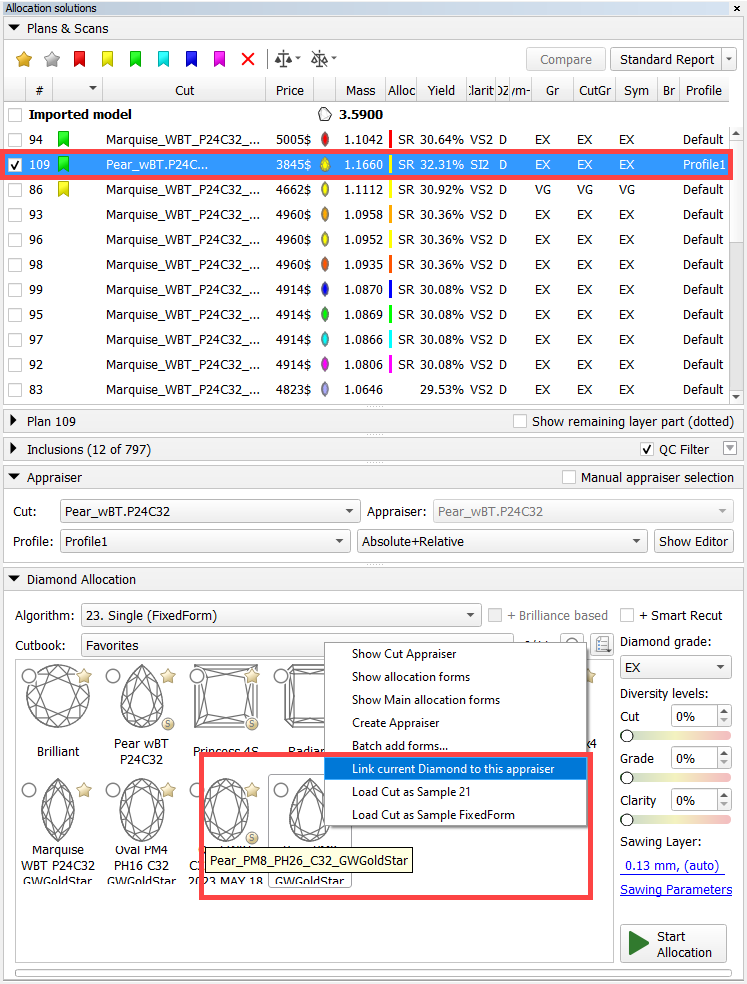
Link current Diamond to this appraiser
Now you can evaluate your solutions, made by any method, using any appraiser you want. For example, this helps you find shape deviation values based on the ideal girdle shape from another appraiser. This is especially useful if your current solution was made with an old appraiser and will be used as the allocation form for cutting with shape deviation.
How to do it:
- Select your solution.
- Find the cut whose appraiser you want to use for viewing.
- In the cut’s context menu, select the command “Link current Diamond to this appraiser.”
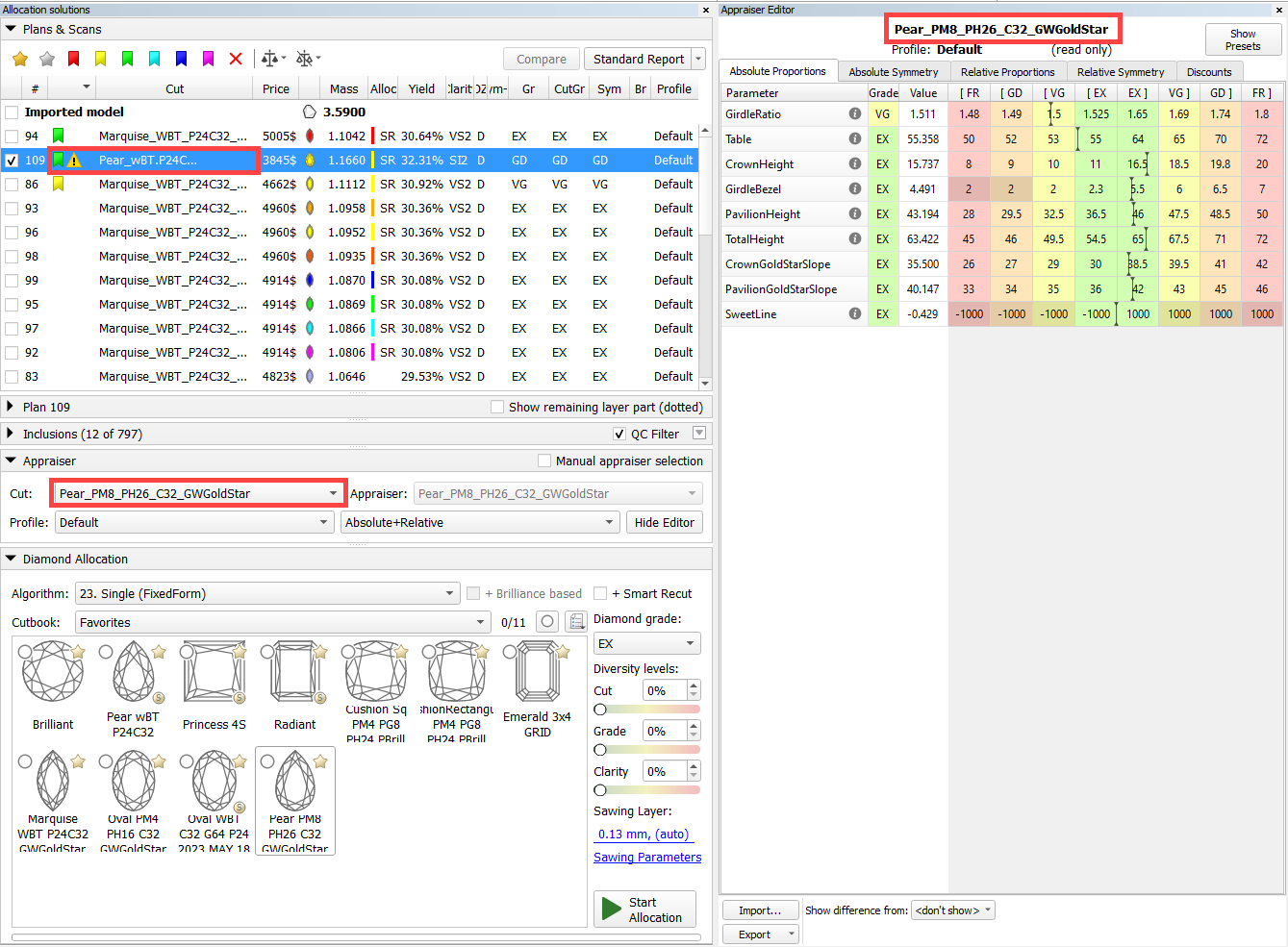
After that, fields related to the appraiser will show the linked appraiser’s name, with a warning symbol next to the label. Reports will also be built using the linked appraiser.
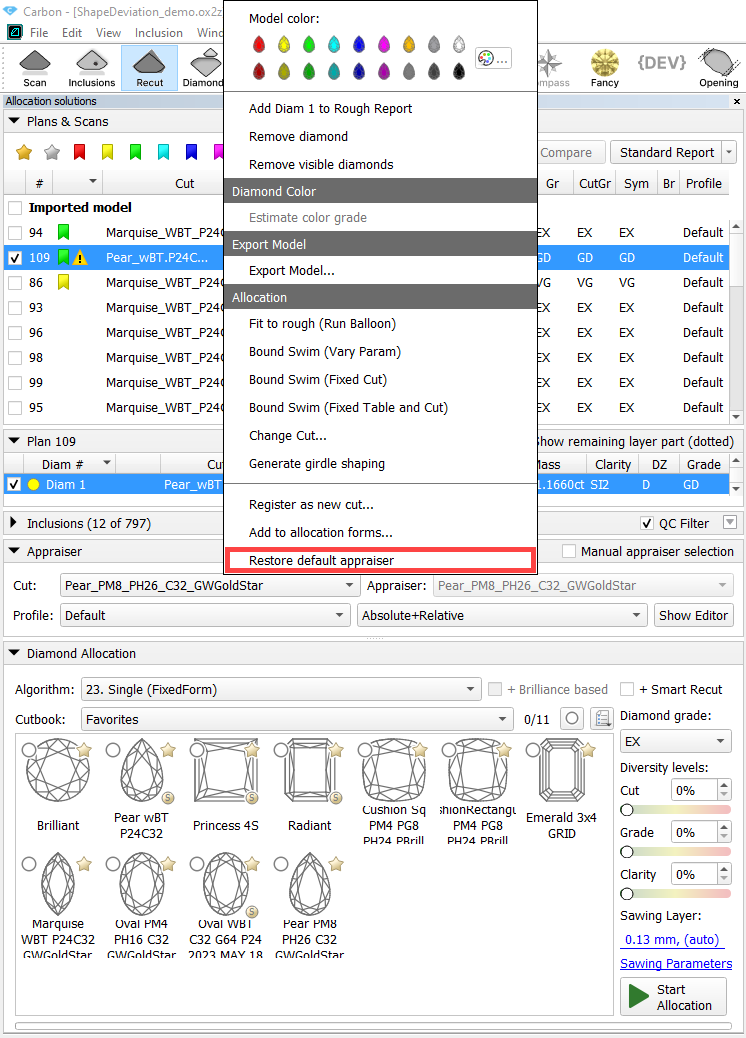
To go back to the default appraiser, use the command “Restore default appraiser” in the diamond’s context menu.
Option “Use ideal girdle shape” during SmartNormalize
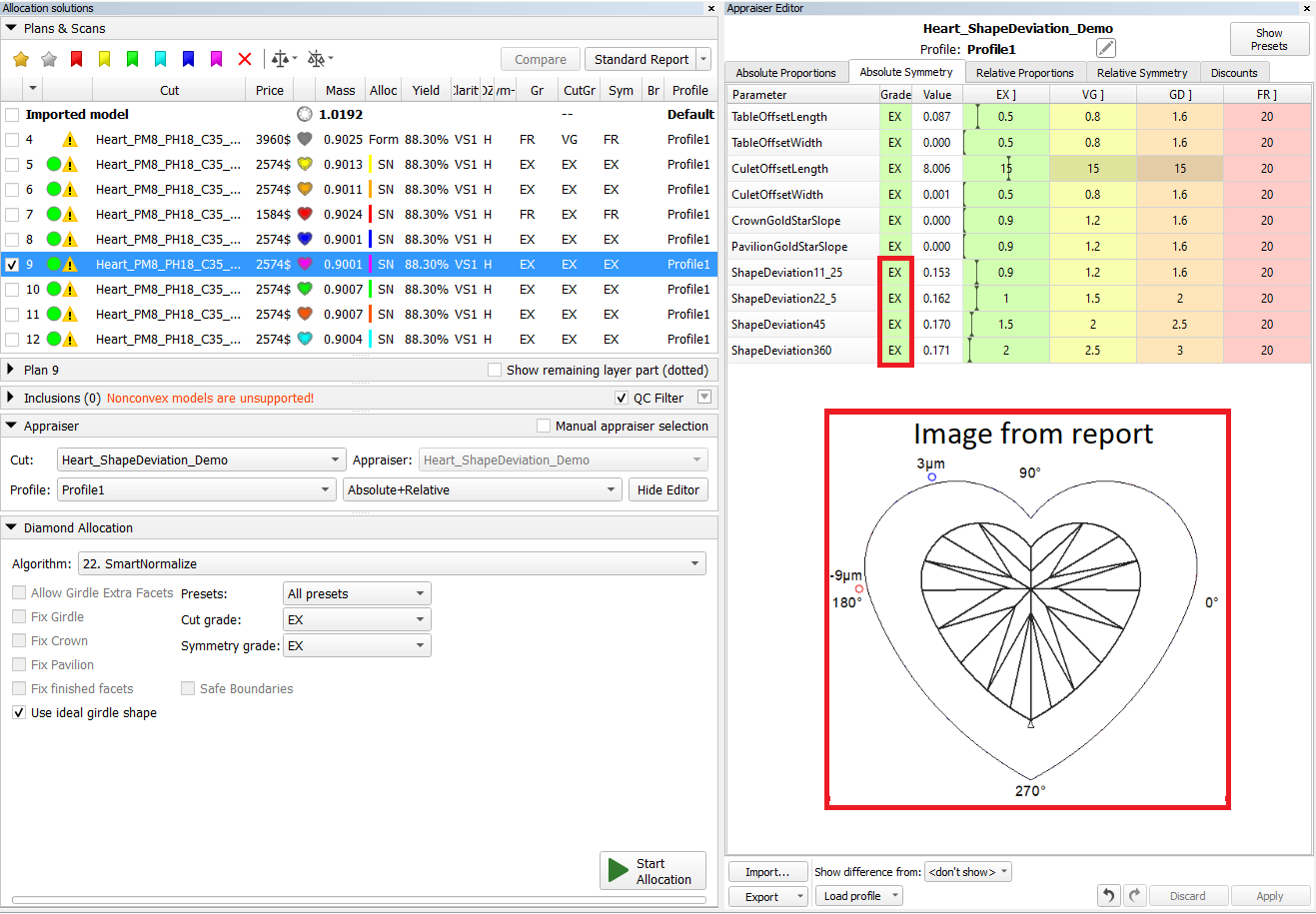
Suppose we have a solution that we want to use as allocation forms for the Heart_ShapeDeviation_Demo cut. We apply the command “Link current Diamond to this appraiser” to the solution. In the appraiser and report, we see poor Shape Deviation by appraiser Heart_ShapeDeviation_Demo.
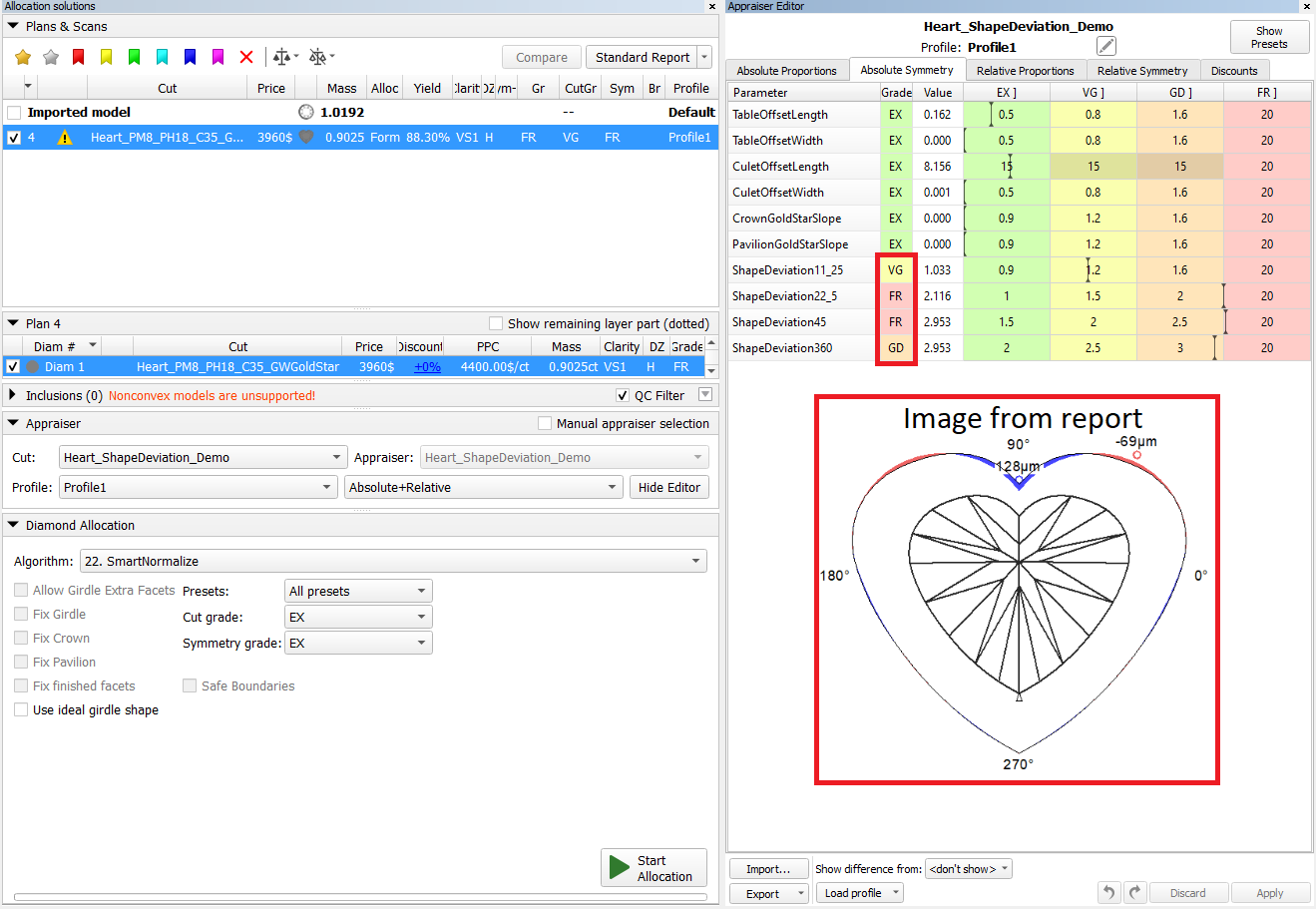
This means we need to run SmartNormalize with the “Use ideal girdle shape” option.
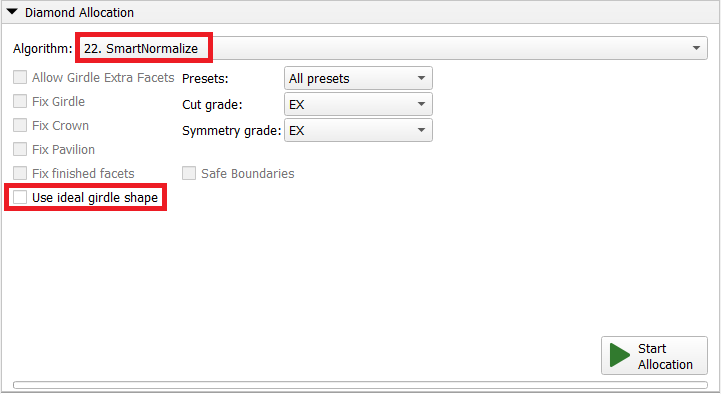
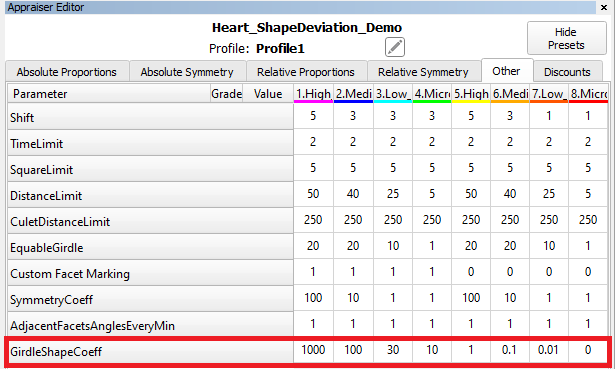
As a result, we get a range of solutions with Shape Deviation values from near zero up to the original value in one preset. The SmartNormalize results automatically use the same linked appraiser as the input solution, so you can evaluate the results with it.
The parameter controlling this range is GirdleShapeCoeff in the SmartNormalize presets.
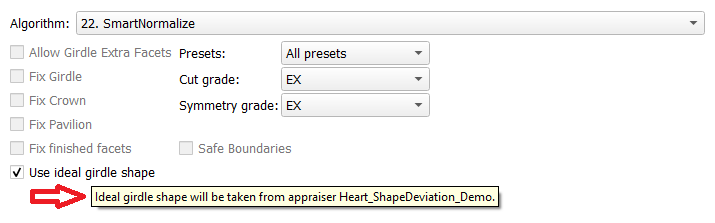
The tooltip for the “Use ideal girdle shape” checkbox provides helpful information to understand how it works.
Remaining depth mode changes for I3D reports
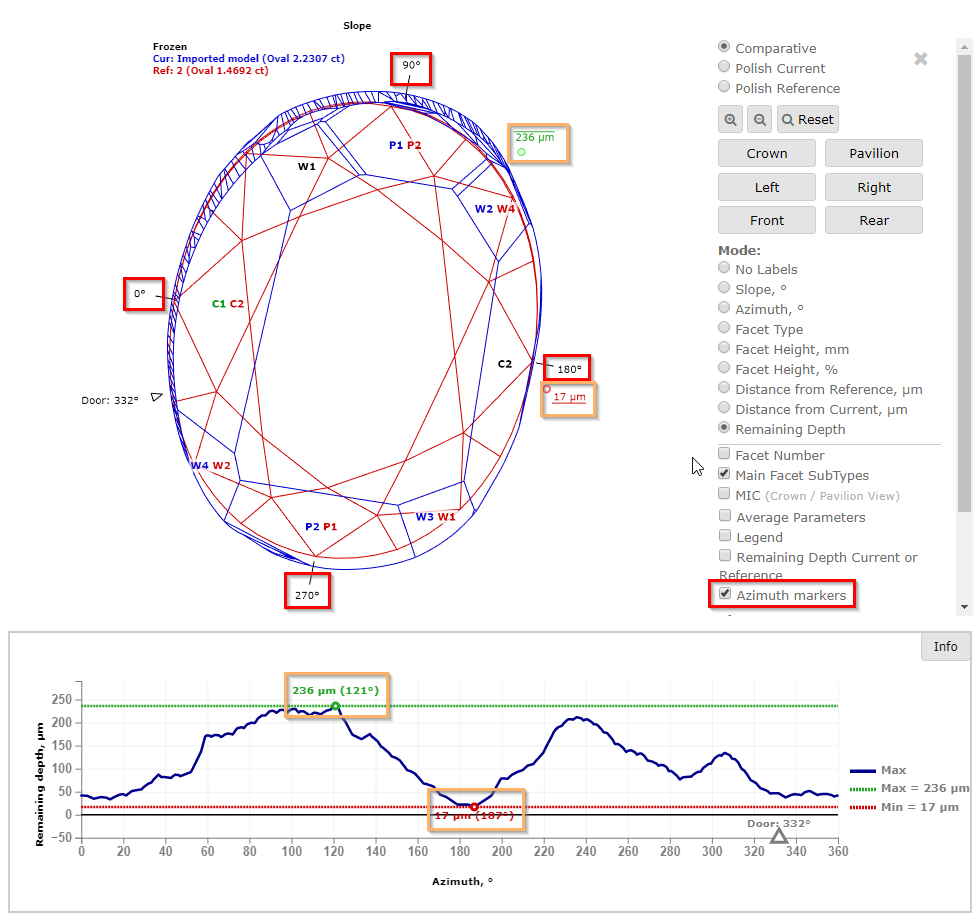
In I3D Comparative Remaining Depth mode, min/max indiaction added to the graph plot and 3D scene.
Azimuth markers were added to the 3D scene to make a more convenient navigation between the graph plot and the scene.
Facets Edge With for Princess cut
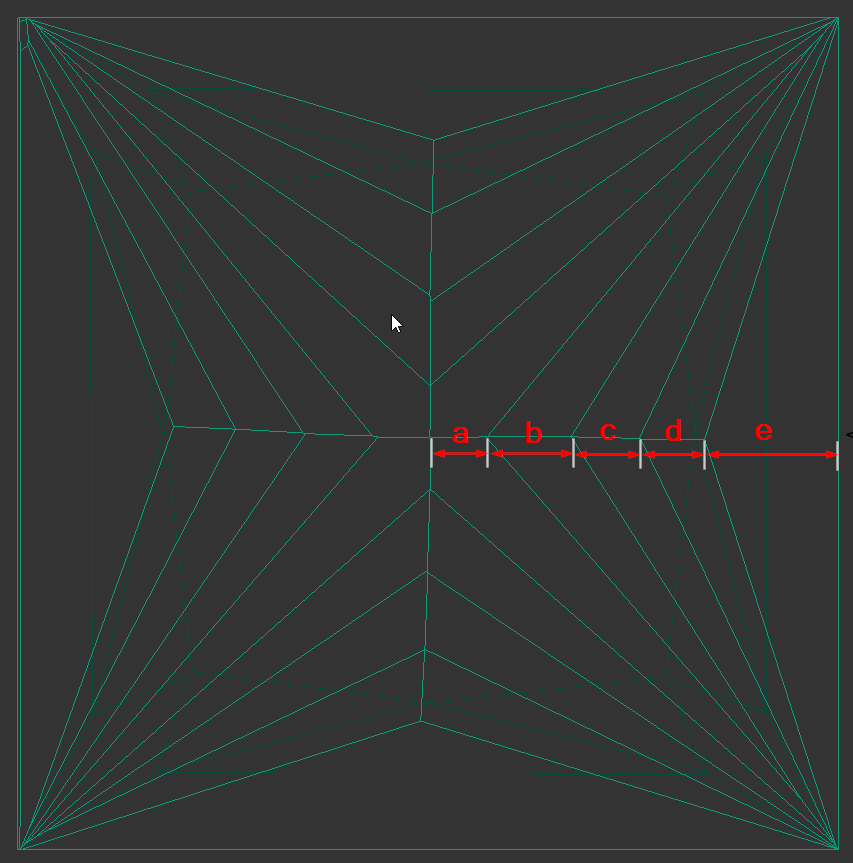
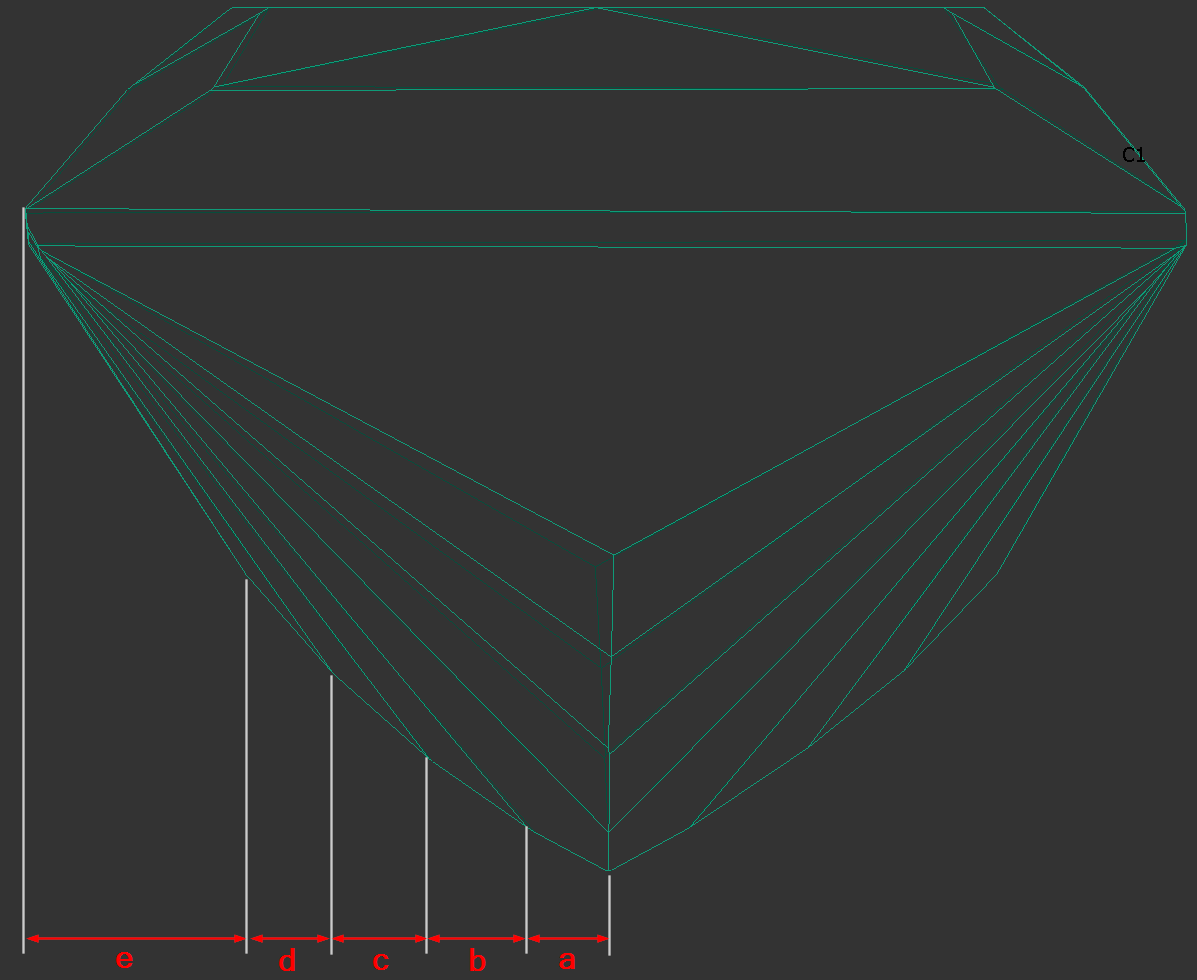
The parameters are calculated in mm and %. If Princess Cut has RT <= 1.05, then the parameters in % are calculated in relation to the width, and if more than 1.05, then the parameters in relation to the length are also added. The distances are calculated in projection on the plane of the table.
|
|
|---|
The bookmarks follow.
"a":
"PAV_MAIN_FACET_EDGE_WIDTH_MM",
"PAV_MAIN_FACET_EDGE_WIDTH_PC",
"PAV_MAIN_FACET_EDGE_LENGTH_MM",
"PAV_MAIN_FACET_EDGE_LENGTH_PC".
"d", "c", "b" ( numbering i comes from the girdle - that's how it was decided to number the chevrons ):
"CHEVRONi_EDGE_WIDTH_MM",
"CHEVRONi_EDGE_WIDTH_PC",
"CHEVRONi_EDGE_LENGTH_MM",
"CHEVRONi_EDGE_LENGTH_PC",
"e":
"PAV1_MAIN_FACET_EDGE_WIDTH_MM",
"PAV1_MAIN_FACET_EDGE_WIDTH_PC",
"PAV1_MAIN_FACET_EDGE_LENGTH_MM",
"PAV1_MAIN_FACET_EDGE_LENGTH_PC",
Heart Groove measurements
We added the following dimensions (in mm and as a percentage with respect to width).
See new bookmarks:
- Dimension “A” - "HEART_GROOVE_WIDTH_MM", "HEART_GROOVE_WIDTH_PC"
- Dimension “B” - "HEART_GROOVE_DEPTH_CRN_MM", "HEART_GROOVE_DEPTH_CRN_PC"

- Dimension “C” - "HEART_GROOVE_DEPTH_PAV_MM", "HEART_GROOVE_DEPTH_PAV_PC"

- Dimension “D” - "HEART_GROOVE_HEIGHT_MM", "HEART_GROOVE_HEIGHT_PAV_PC"

User interface updates
Scene rotation tool (Ox/Oy/Oz)
You can navigate the scene using your mouse. However, for more precise adjustments, you'll need to use the movement panel, which can sometimes be inconvenient.
We'd like to introduce Ox/Oy/Oz rotation modificators.
| Video | Axes rotation modificator - rotation along Ox/Oy/Oz axes | ||||||||||
|---|---|---|---|---|---|---|---|---|---|---|
| Published: | 2024, December 13 | Last Updated: | 2025, September 03 | v.1.3 | ||||||
| ||||||||||
Video summary: To rotate along those axes, simply press the H (Horizontal), V (Vertical) or С (Center) keyboard button respectively and rotate the scene
| ||||||||||
| Video keywords: rotation, scene, axes | ||||||||||
Data | ||||||||||
Additionally, the glue point orientation button now puts the glue point not only in vertical position, but exactly at the scene center.
Objects selection tool
You can now select sawings directly on the scene with a simple click, just like diamonds. In Lines mode, the active diamond is now visually distinguished on the scene with thicker lines.
Scene context menu improvement
Context menu appears for the currently selected diamond, but now you to click on the diamond directly in the scene to make it active, without needing to select it from the diamonds panel first.
Layer selectable from the panel
Layers are now selectable like diamonds, enabling the use of object movement tools on the selected layer.
Operation "View along sawing direction"
A new context menu item, "View along sawing direction," has been introduced for layers. This command arranges the scene so that the layer becomes horizontal.
Scene objects - layers
Sawing layers thickness settings
An additional column has been added to the sawing thickness table to display the minimum mass value, indicating the interval for the corresponding thickness value.
Sawing parameters
The sawing layers have been upgraded with new data and an improved interface. The "Create sawing data" command in the solutions context menu has been replaced by two distinct commands: "Create sawing layers" and "Generate sawing data."
Here’s the key difference: "Create sawing layers" removes all existing layers and populates the solution with appropriate new layers (similar to the previous "Create sawing data" command). In contrast, "Generate sawing data" simply adds additional data to the already existing layers.
This additional data includes the following: generating half-planes where necessary, creating a glue point, establishing sawing directions for each layer, and developing a rough projection contour (blue line).
The parameters for sawing directions can be defined in "General Settings -> Allocation -> Sawing Parameters."
You can also set parameters for each layer individually by clicking on the "Sawing parameters panel" in the layer context menu.
The available parameters are:
For Plane:
- Points step
- Out step
- Sawing angle
- Sawing direction
For Pie:
- Points step
- Out step
- Sawing direction
For Shaping:
- Shaping offset
- Sawing direction
Here is a brief description of each parameter:
- Points step: The distance between key points along the rough diamond for laser sawing.
- Out step: An additional key point located outside the rough diamond for laser sawing.
- Sawing angle: Controls the sawing direction vector for individual layers.
- Sawing direction: Determines whether the sawing is done on one side or both sides.
- Shaping offset: The distance to the girdle for laser sawing.
To create a shaping, you can use the "Generate girdle shaping" command from the diamond context menu. For shaping sawings, there is additional data provided: a shaping contour around the girdle (yellow line).
Blocking layers
You now have the option to create blocking layers when generating a preplan. To do this, simply check the "Create layers for blocking facets" checkbox and click the "Create preplan" button.
The sawings will be positioned with an offset from the facets. You can modify the offset value in "General Settings -> Allocation -> Sawing Parameters -> Facet Distance".
Pinning Solutions in the Solution List. Rendering upgrades.
We have added the ability to pin solutions in the solution list. To pin a solution, right-click its checkbox; click the same area again to unpin it. The pinned solution remains visible on the scene at all times, regardless of your selection from the list. This is particularly useful for keeping scans (like the main scan) permanently displayed.
When loading a project, the Main Scan is automatically pinned if its processing stage is Rough, Saw, or Bruted. In Recut mode, scans with these stages appear transparently instead of in lines mode—this can be adjusted in the rendering settings, where separate display modes for Rough and Polished scans are now available.
Saw rendering has been improved: non-visible parts are now shaded, and the active layer is highlighted in red with thicker lines. For users who prefer solid mode, this option can now be applied to layers(planes) in the Rendering Settings.
Sample Facet Types
When editing the Facet Types of a sample, the modified types are not saved to the sample file by default. However, this feature proves to be quite useful and convenient. Therefore, this functionality has been implemented.
To save the modified Facet Types to the sample file, the 'Ok + Update Sample File' button is provided.
The button is disabled when the file is unavailable:
Deviations where the current girdle shape is wider or narrower than the ideal shape are color-coded. This information is also depicted in the Shape Deviation Ideal Girdle image. Here, the current model is outlined in black, with areas highlighted in blue and red denoting the extent to which the girdle shape of the current cut deviates in width from the ideal girdle.
Global maximum and minimum values are also represented in both pictures.
Shape Deviation in appraisers
The parameter is currently available for the following Octonus cuts:
- Pear_wBT.P24C32
- Pear_PM8_PH26_C32_GWGoldStar
- Marquise_WBT_P24C32_GWGoldStar
- Oval_PM4_PH16_C32_GWGoldStar
- Oval_WBT_PM8_PH16_C32_GWGoldStar
- Heart_PM8_PH18_C35_GWGoldStar
We use classic shapes with different Girdle Ratios as shape references for these cuts. The classic marquise shape consists of two circle arcs. The classic pear shape consists of three circle arcs. The parameter has been integrated into these cuts appraisers in the Absolute Symmetry tab.
In the reports an ideal ellipse is used as a reference for any сuts recognized as oval and lacking own reference shapes.
Shape deviation now works on non-convex faces
Shape Deviation in SmartRecut
SmartRecut controls the new parameter if they are present in the appraiser. There is a comparison of SmartRecut solution with and without using this parameter on the picture. It is important to note that this parameter prevents the continuous deterioration of the girdle shape in the SmartRecut on SmartRecut scenario.
Shape Deviation in reports
The parameter has been included into reports:
- RTF Full report for rounded fancies
- RTF Illustrated report for oval and marquise
- RTF Illustrated report for rounded fancies
- HTML Illustrated report for oval and marquise
- HTML Illustrated report for rounded fancies
- Export Report Data, Color
In the illustrated reports, the Shape Deviation is located in the bottom right corner.
In the full report, this parameter is placed on a separate page.
The description of Shape deviation parameter and corresponding bookmarks are availbale in Shape Deviation.
Shape Deviation for scans
The Shape Deviation parameter can be utilized not only for solutions but also for scans of finished diamonds. To do this, select the scan, right-click on the corresponding cut in the "Cut Book," and choose "Link current scan to this appraiser." The scan can then be evaluated in the Appraiser Editor or Polish Report can be built.
...
The green option is recommended for rounded fancy cuts. The necessity and usefulness of the green option for step cuts are still under question, so both green and yellow options are possible for them.
AnycutBasic : Goodwin type cuts support AnycutBasic appraiser as well, but with the lack of important advantage of having slope angles in the appraiser.
Goodwin* : The appraiser control Crown and Pavilion Slopes. The selection of the most important cut facets is performed automatically. The only advantage of this type of templates over other options is the 2C3P version, which is well suited for rectangular cushions with a two-tier pavilion.
Goodwin_Starts* : The appraiser control Crown and Pavilion Slopes. The selection of the most important cut facets is done by the user using gold and silver stars. This prevents the desynchronization of values at all stages of the diamond's life cycle.
Goodwin_GirdleShape_Starts* : The appraiser additionally control the Shape Deviation parameter, responsible for the beauty of the girdle shape.
| Warning |
|---|
You can read the full article about choosing an appraiser: Which appraiser template to choose? |
Add allocation forms with Shape Deviation
...
To make the allocation algorithms work correctly, we recommend using allocation forms with an EX grade by Shape Deviation parameter. How to get them? To solve this, we added the option “Use ideal girdle shape” in the SmartNormalize algorithm. How to achieve this? When working with the new cut, you will automatically get EX-grade solutions. The best of these can be normalized and added as forms. But if you've been using our products for a while, you already have a collection of good allocation forms for your cuts. These need to be transferred to the new versions of the cuts registered with the "Goodwin_GirdleShape_*" templates.
Scheme for one form or solution without Shape Deviation
Your old preforms must be evaluated for Shape Deviation of the new cut using the “Link current Diamond to this appraiser” feature. If the preform has an EX grade by Shape Deviation, you can normalize it as usual with minimal changes and register it in the new cut. If the old preform has not EX Shape Deviation grade, the girdle shape must be corrected using SmartNormalize with the new option “Use ideal girdle shape”. Before registering this form, check in CutWise that the girdle shape change did not harm the optical properties of the preform.
Scheme for many forms transit
If you have many forms in your collection, we recommend using the “Batch Add Forms” command to speed up the process. This command automatically transfers the forms without checking for Shape Deviation. So you’ll only need to fix the “Misshapen Forms”. To view these, use the “Show Allocation Forms” command. Then, apply the previously described procedure to correct Shape Deviation for the “Misshapen Forms”. Finally, don’t forget to remove the “Misshapen Forms” from your new cut, since they have already been added.
Link current Diamond to this appraiser
Now you can evaluate your solutions, made by any method, using any appraiser you want. For example, this helps you find shape deviation values based on the ideal girdle shape from another appraiser. This is especially useful if your current solution was made with an old appraiser and will be used as the allocation form for cutting with shape deviation.
How to do it:
- Select your solution.
- Find the cut whose appraiser you want to use for viewing.
- In the cut’s context menu, select the command “Link current Diamond to this appraiser.”
After that, fields related to the appraiser will show the linked appraiser’s name, with a warning symbol next to the label. Reports will also be built using the linked appraiser.
To go back to the default appraiser, use the command “Restore default appraiser” in the diamond’s context menu.
Option “Use ideal girdle shape” during SmartNormalize
Suppose we have a solution that we want to use as allocation forms for the Heart_ShapeDeviation_Demo cut. We apply the command “Link current Diamond to this appraiser” to the solution. In the appraiser and report, we see poor Shape Deviation by appraiser Heart_ShapeDeviation_Demo.
This means we need to run SmartNormalize with the “Use ideal girdle shape” option.
As a result, we get a range of solutions with Shape Deviation values from near zero up to the original value in one preset. The SmartNormalize results automatically use the same linked appraiser as the input solution, so you can evaluate the results with it.
The parameter controlling this range is GirdleShapeCoeff in the SmartNormalize presets.
The tooltip for the “Use ideal girdle shape” checkbox provides helpful information to understand how it works.
Remaining depth mode changes for I3D reports
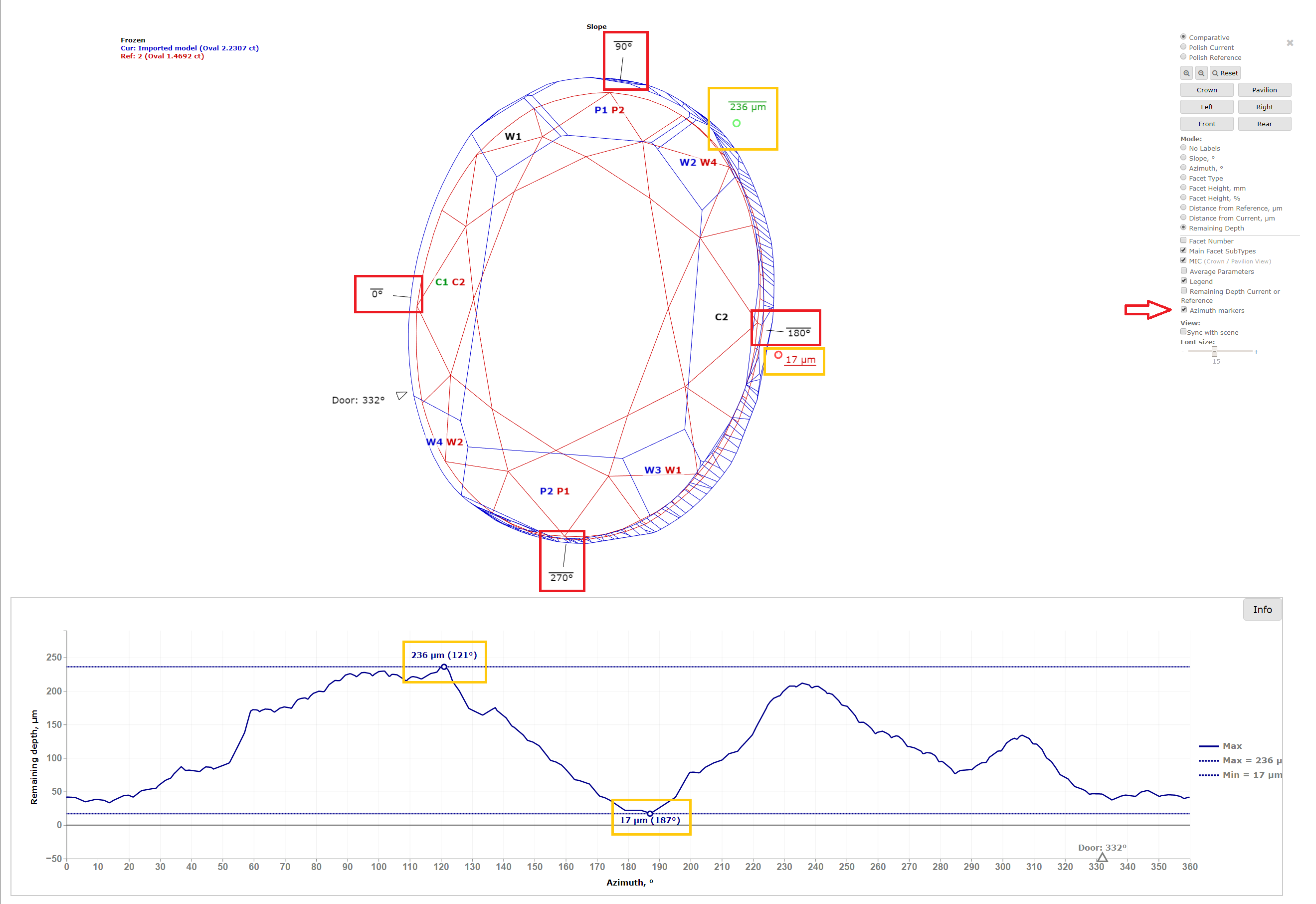
In I3D Comparative Remaining Depth mode, min/max indiaction added to the graph plot and 3D scene.
Azimuth markers were added to the 3D scene to make a more convenient navigation between the graph plot and the scene.
Facets Edge With for Princess cut
The parameters are calculated in mm and %. If Princess Cut has RT <= 1.05, then the parameters in % are calculated in relation to the width, and if more than 1.05, then the parameters in relation to the length are also added. The distances are calculated in projection on the plane of the table.
|
|
|---|
The bookmarks follow.
"a":
"PAV_MAIN_FACET_EDGE_WIDTH_MM",
"PAV_MAIN_FACET_EDGE_WIDTH_PC",
"PAV_MAIN_FACET_EDGE_LENGTH_MM",
"PAV_MAIN_FACET_EDGE_LENGTH_PC".
"d", "c", "b" ( numbering i comes from the girdle - that's how it was decided to number the chevrons ):
"CHEVRONi_EDGE_WIDTH_MM",
"CHEVRONi_EDGE_WIDTH_PC",
"CHEVRONi_EDGE_LENGTH_MM",
"CHEVRONi_EDGE_LENGTH_PC",
"e":
"PAV1_MAIN_FACET_EDGE_WIDTH_MM",
"PAV1_MAIN_FACET_EDGE_WIDTH_PC",
"PAV1_MAIN_FACET_EDGE_LENGTH_MM",
"PAV1_MAIN_FACET_EDGE_LENGTH_PC",
Heart Groove measurements
We added the following dimensions (in mm and as a percentage with respect to width).
See new bookmarks:
...
Preplan updates
Preplan Creation Improvements
...