
...
1. Creating a sandwich.
A sandwich can be created in two ways:
- Using the context menu in the scene (the selection mode must be activated in the scene for this).
- Using the context menu in the inclusion list.
|
|
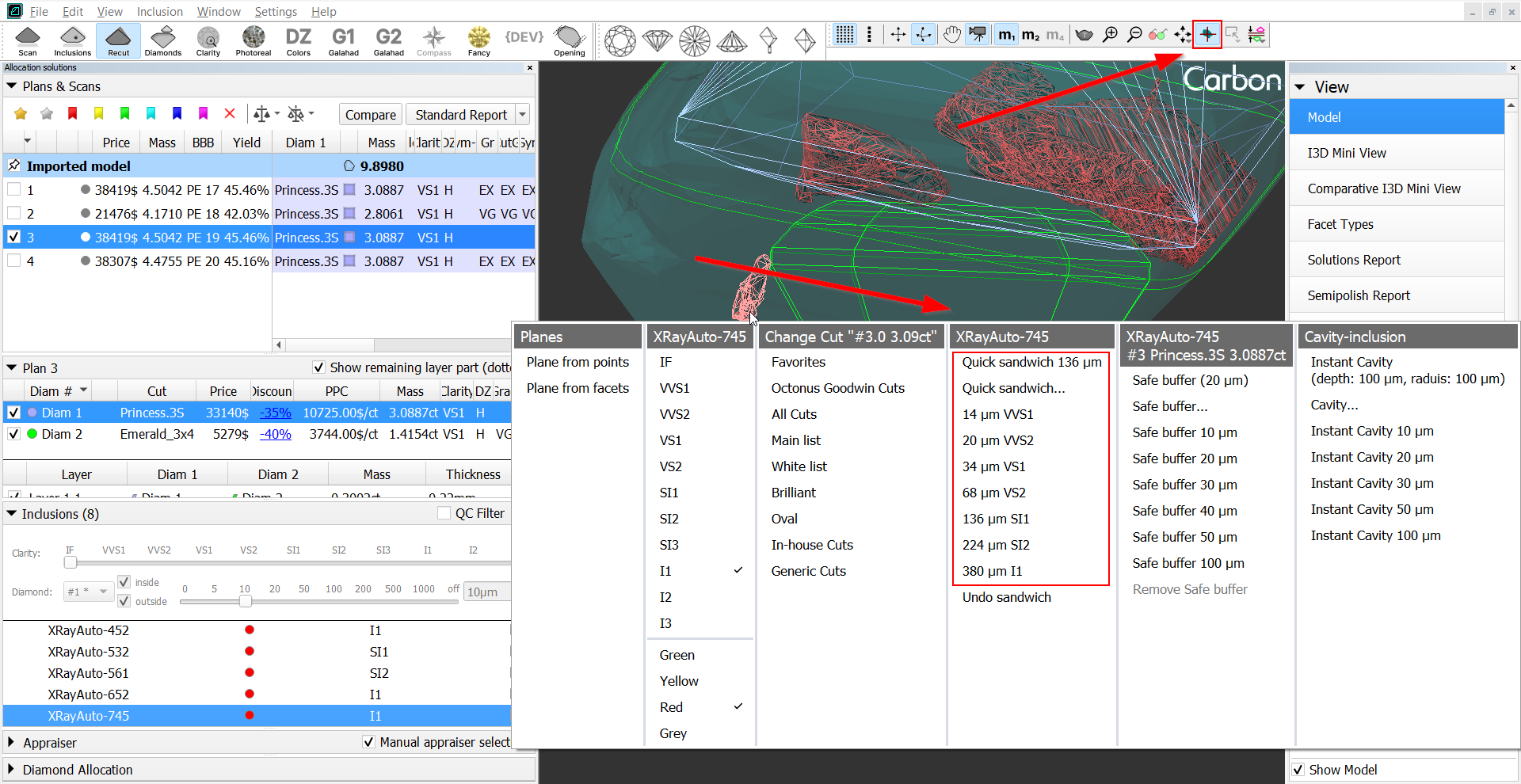
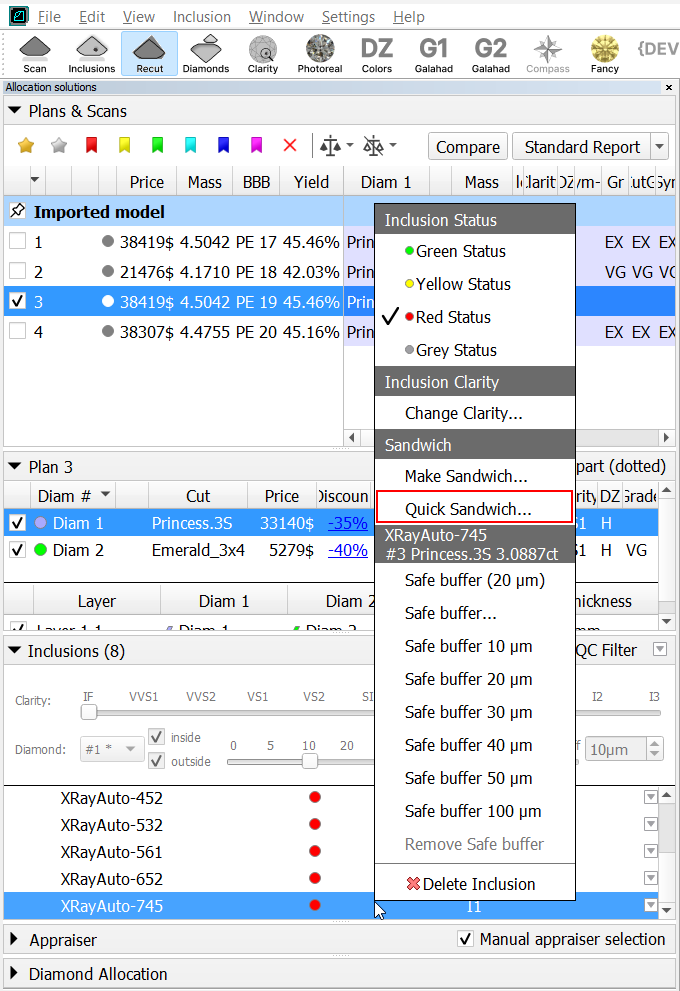
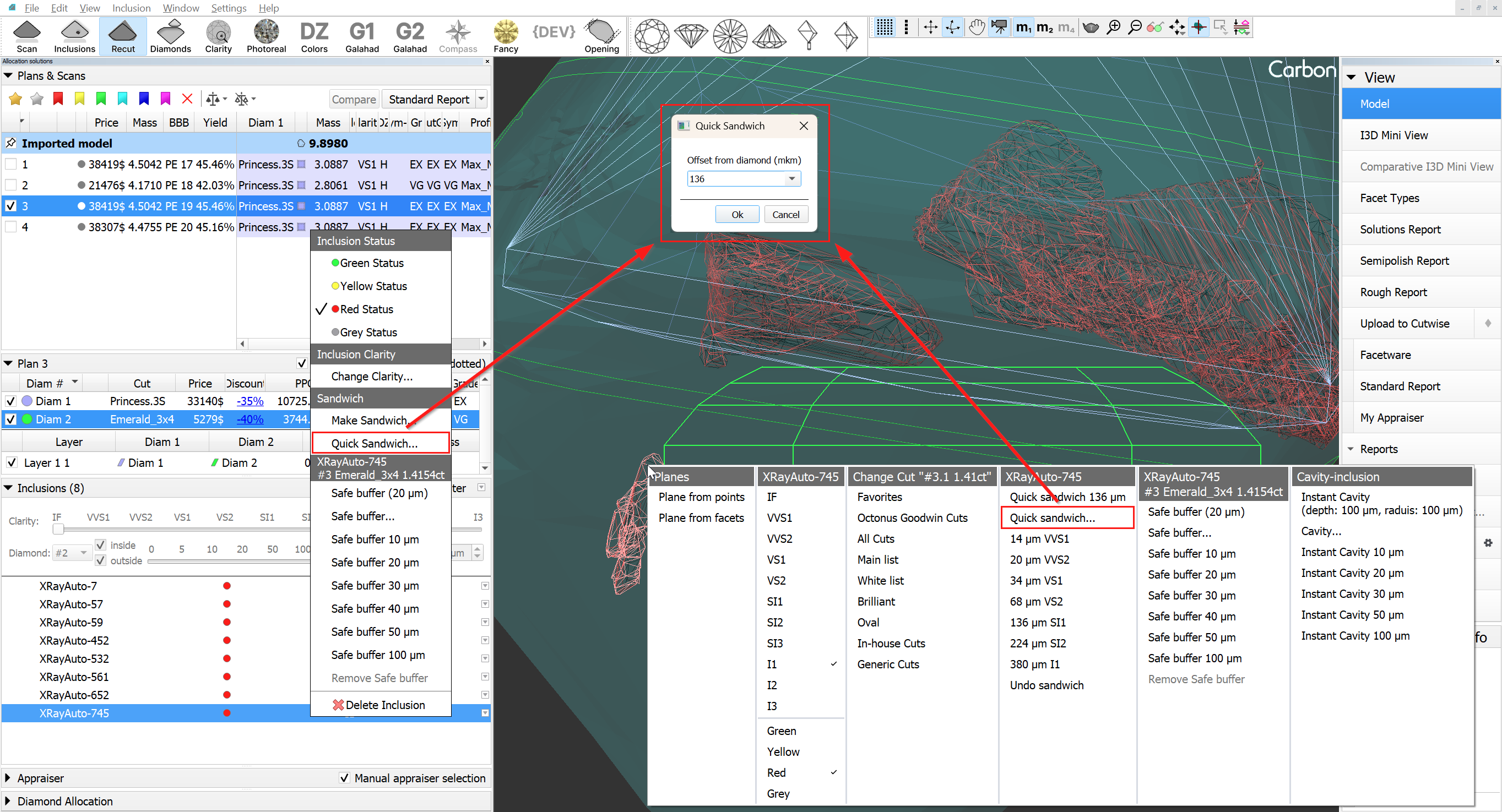
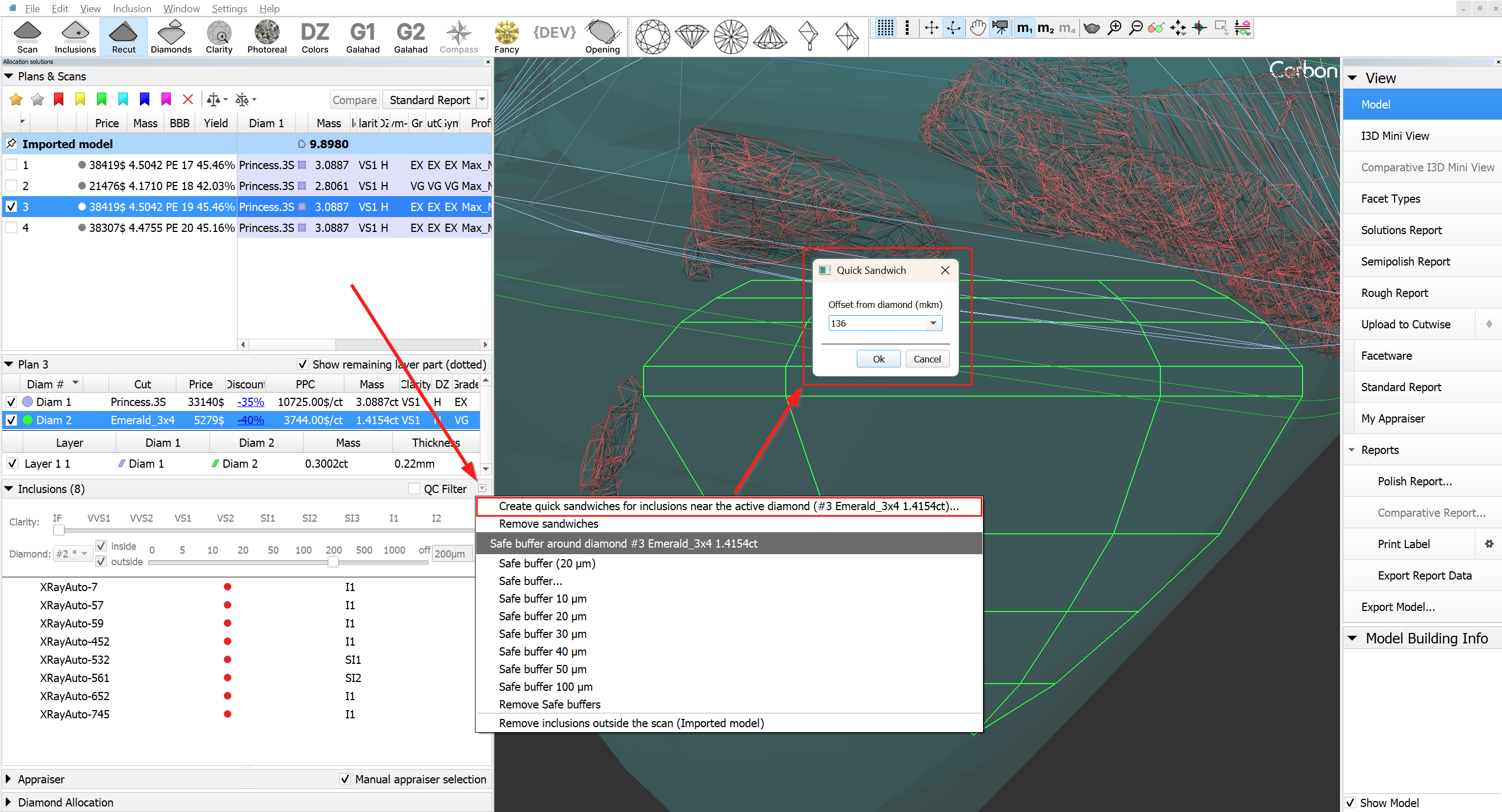
When you select the "Quick sandwich..." menu item, a dialog box will be displayed where you can manually enter the desired offset value.
Quick Sandwich is also now created in the "Creating sandwich inclusion" dialog box.
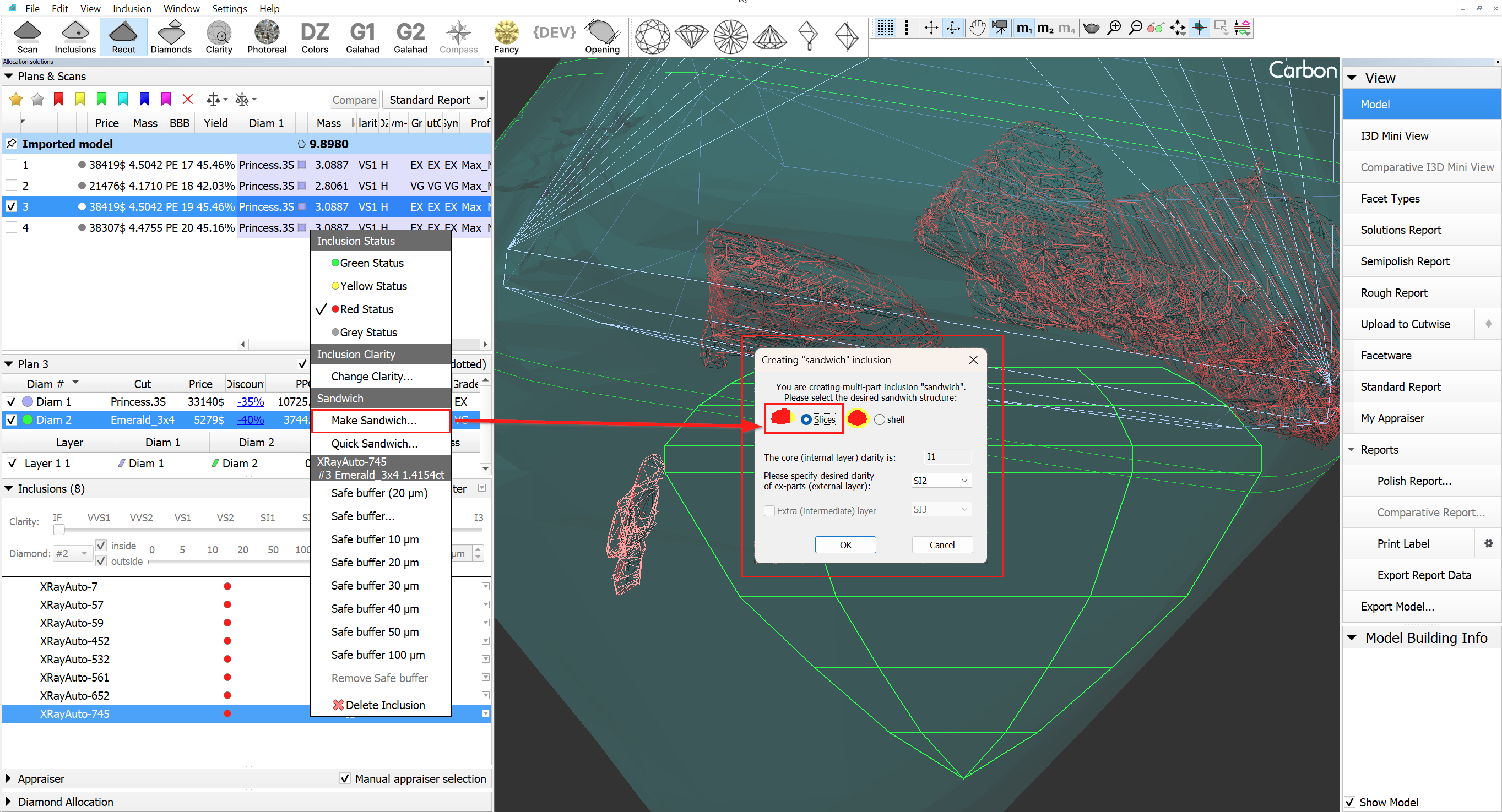
The saw disk of the sandwich will be created relative to the nearest diamond and positioned parallel to its nearest facet at the distance specified during the sandwich creation.
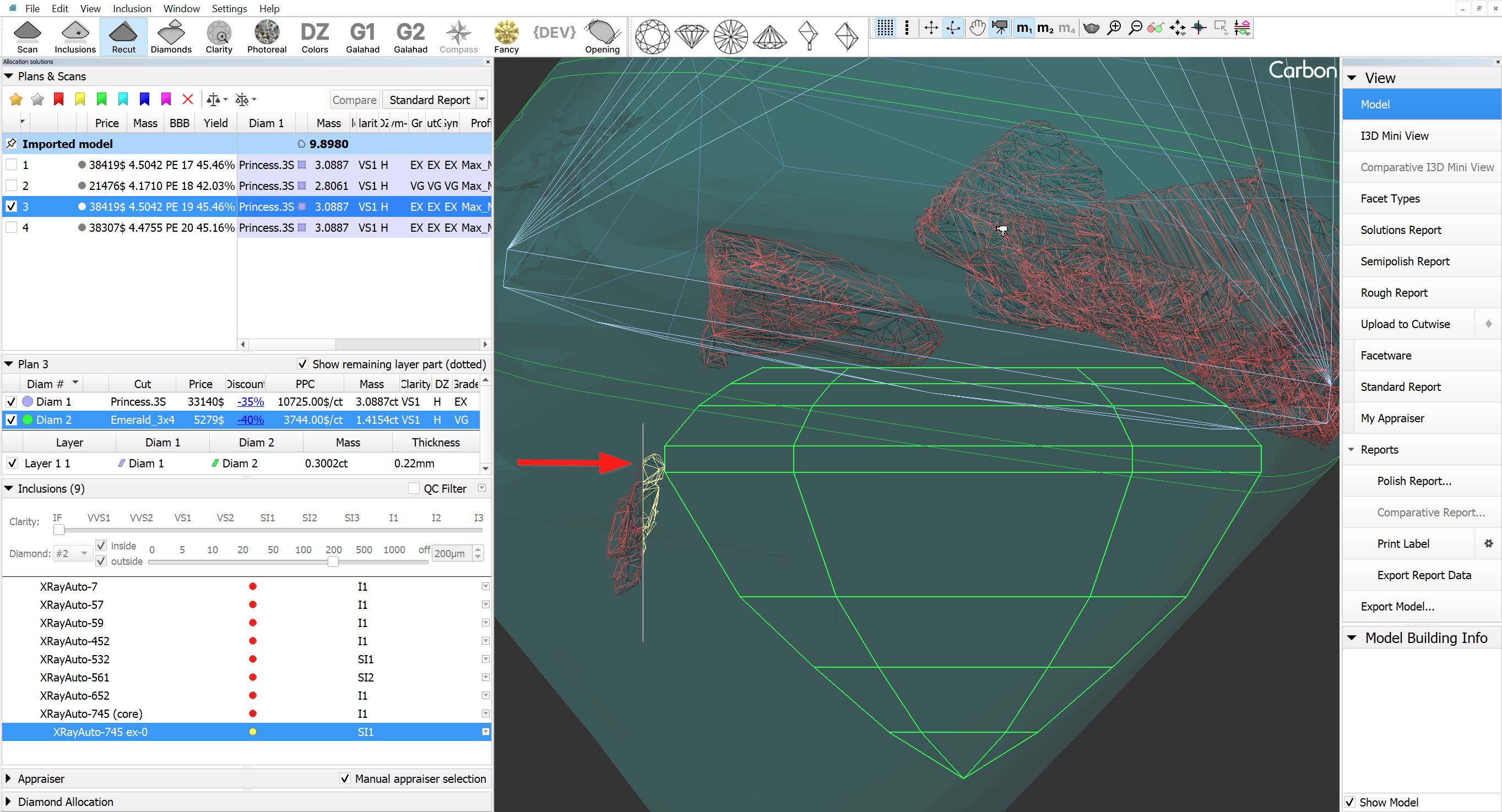
After creation expart sandwich becomes active.
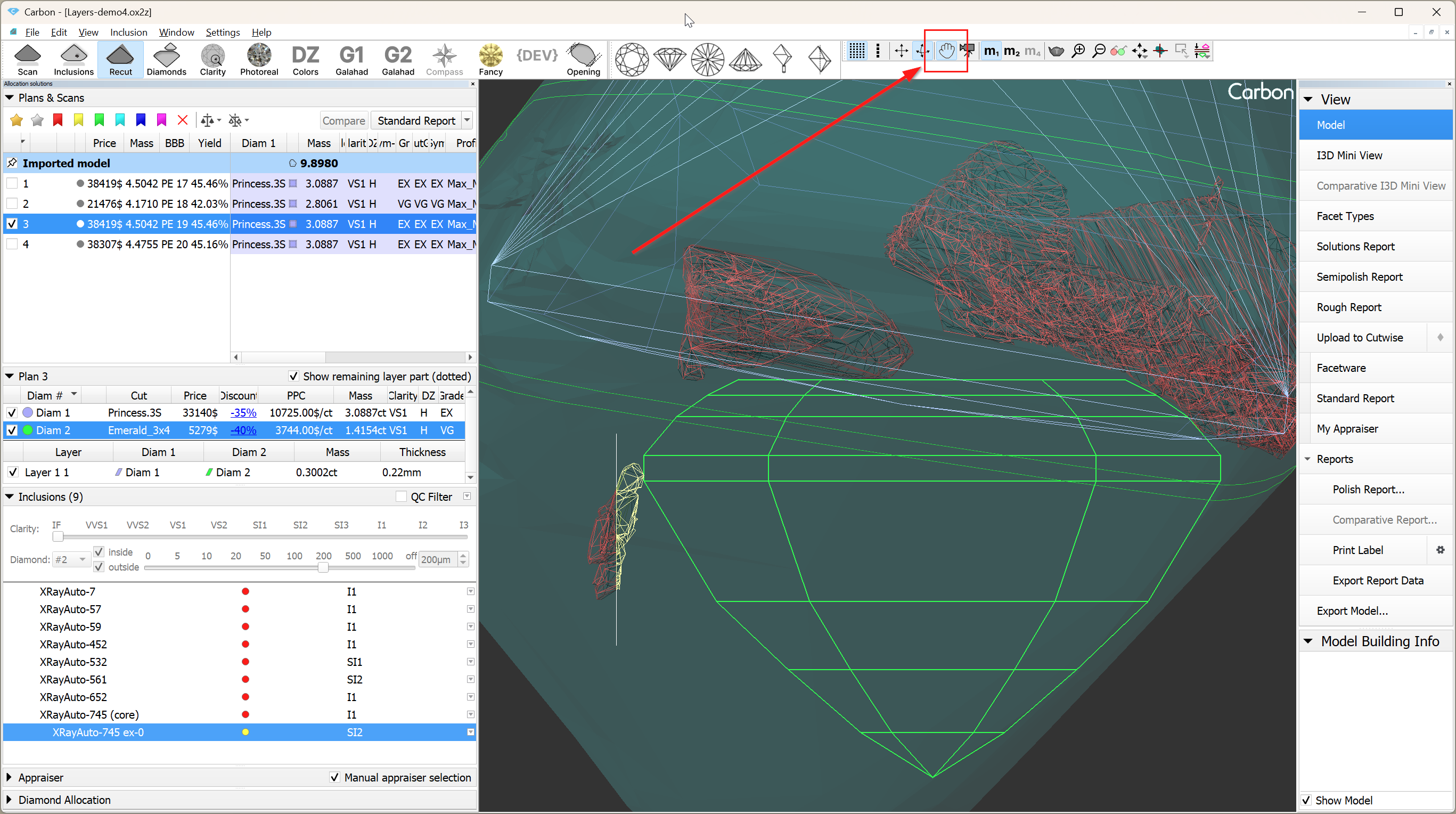
2. If it is necessary to change the position of the saw disk, you need to activate object move mode (hand icon on the toolbar). After that, the saw disk can be moved similarly to other objects in "hand" mode. This means using: Shift for flat-parallel movement, 'v' for rotation around the vertical axis, 'h' for rotation around the horizontal axis, and 'c' for rotation around the axis normal to the scene.
|
|
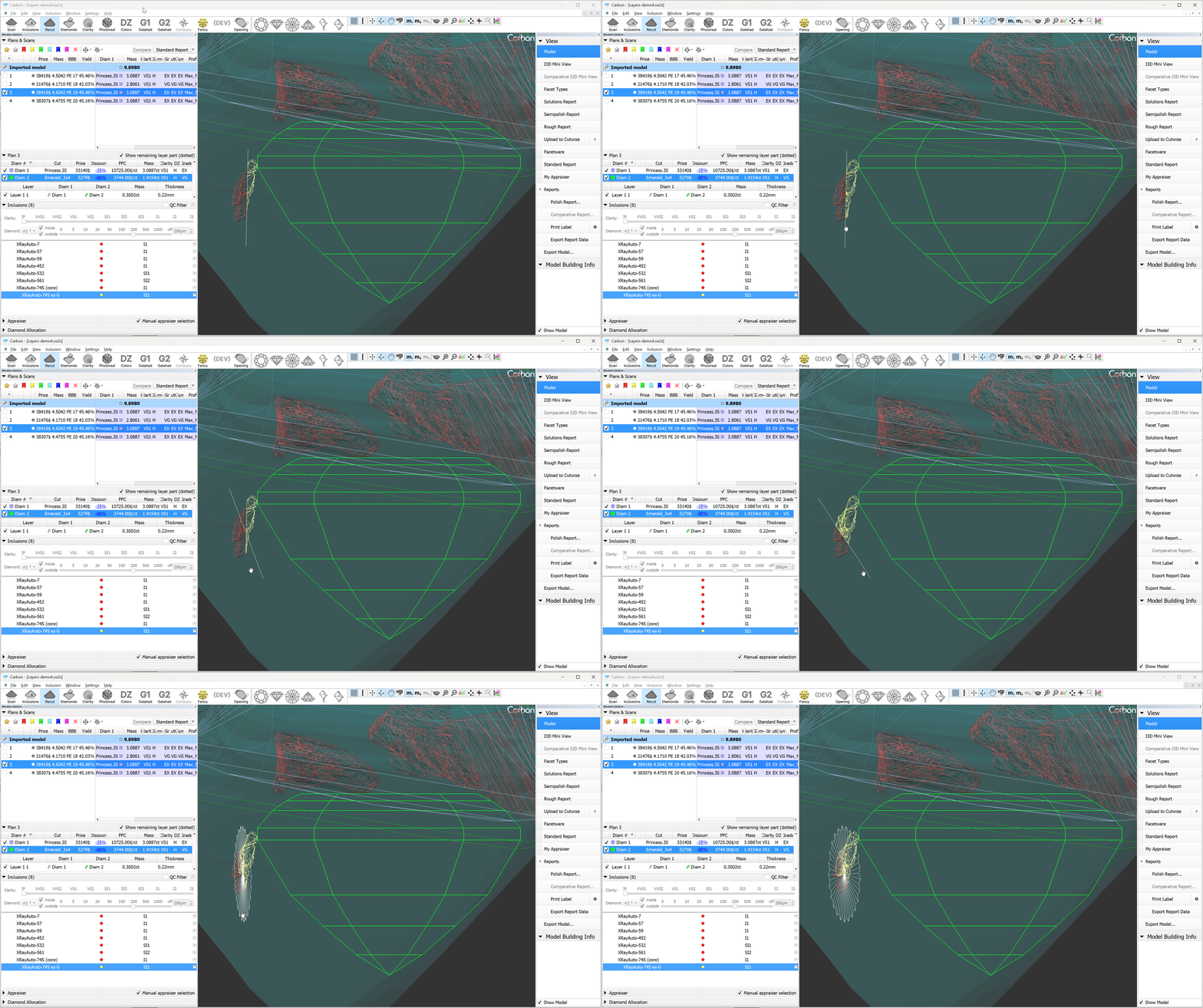
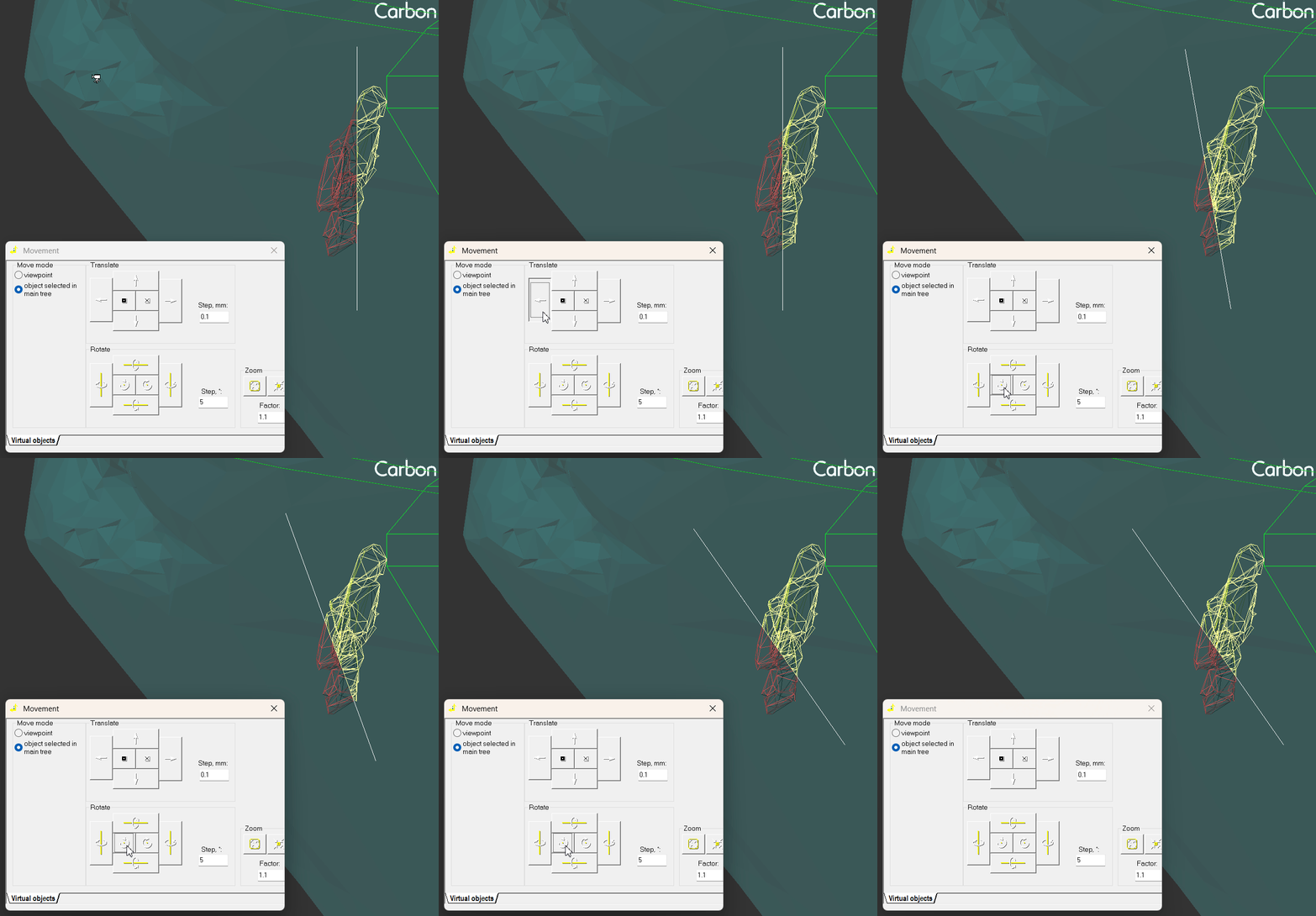
The position of saw disk also could be changes vide Movevemt panel:
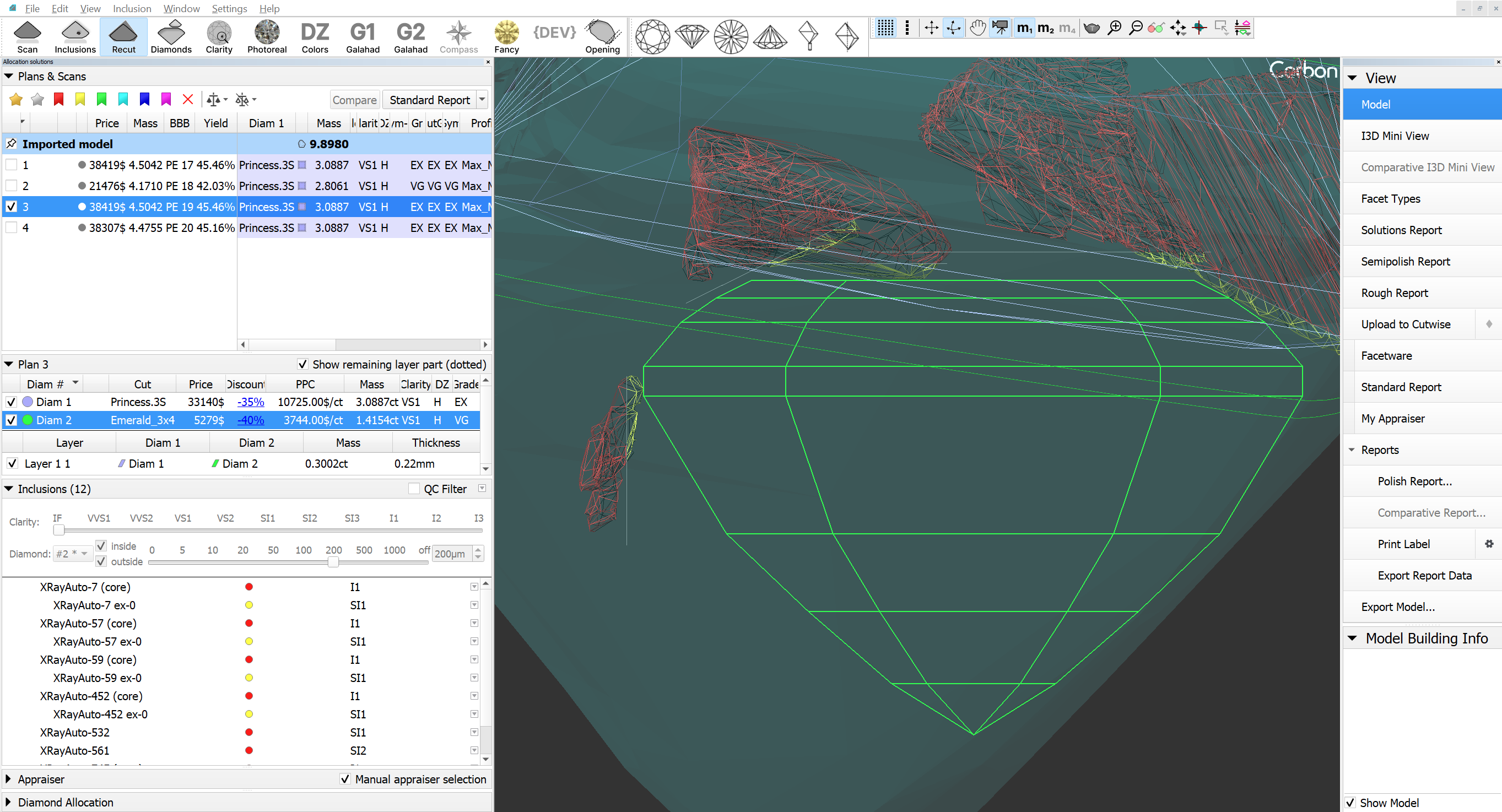
3. Additionally, there is an option to apply the Quick Sandwich to all inclusions near the active diamond.
|
|
Reports Improvements
...
- The Surface Recognition algorithm has been optimized to deliver more stable and accurate results..
- Additionally, we’ve introduced the display of the Model Distance Metric value, which roughly corresponds to the average distance between the model’s surfaces.

Fixed problems and improvements
- Swim, Ballon and Change Cut algorithms now use correct sawing thickness according to layer general settings.
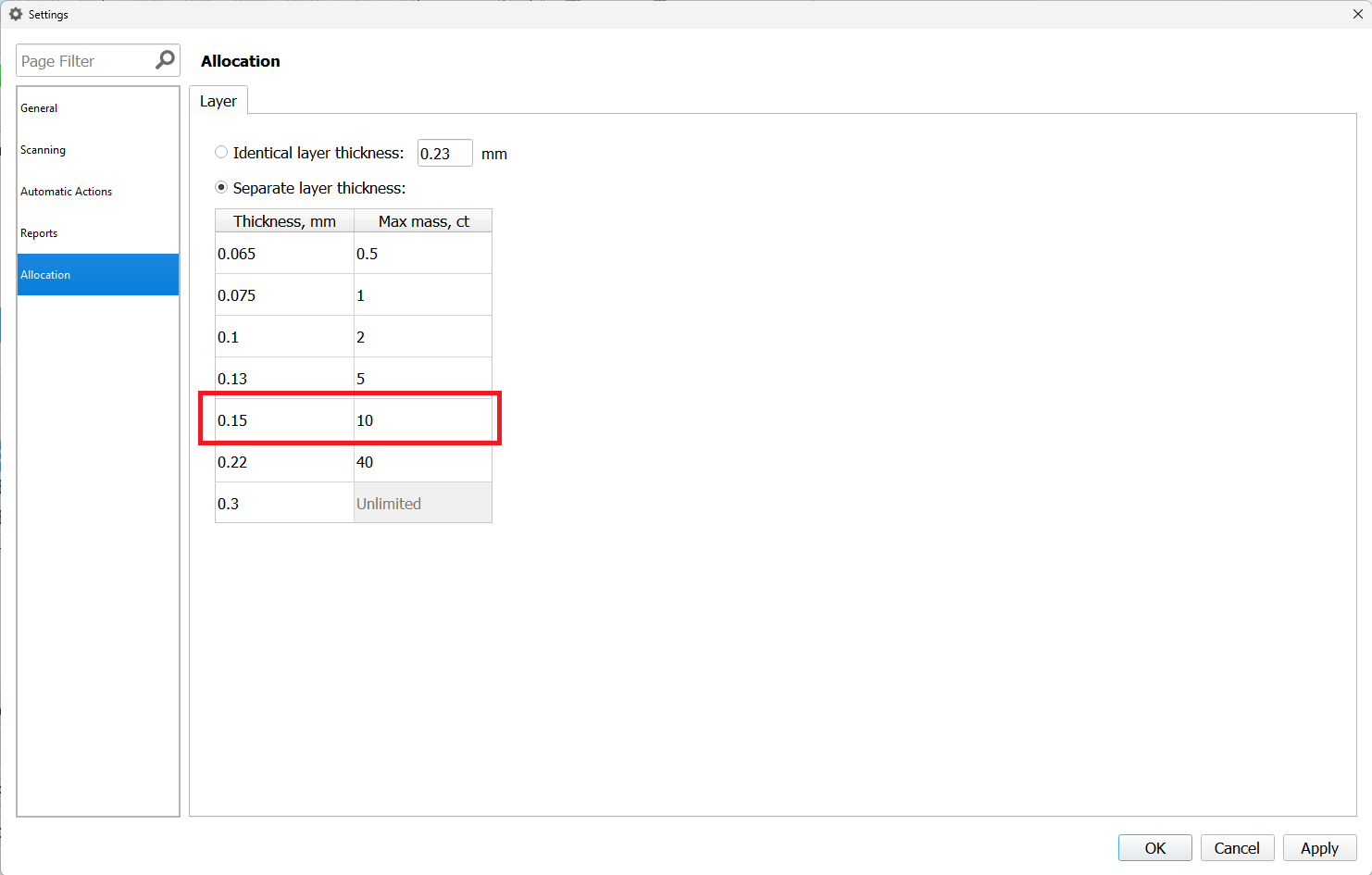
For instance, diamonds perfectly alligned to the layer with a thickness of 0.15 mm, corresponding to a rough weighing 8.84ct(between 5-10 ct interval).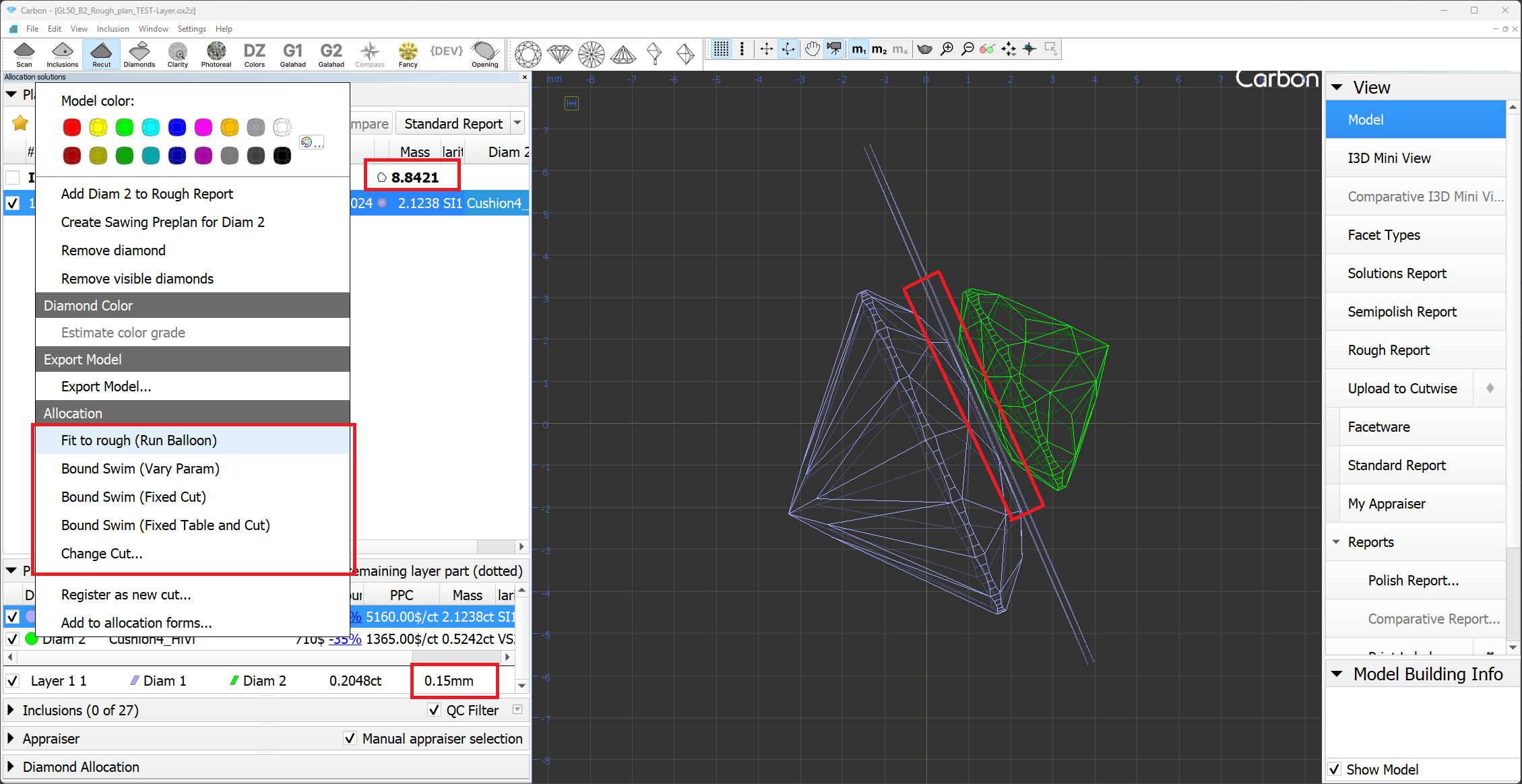
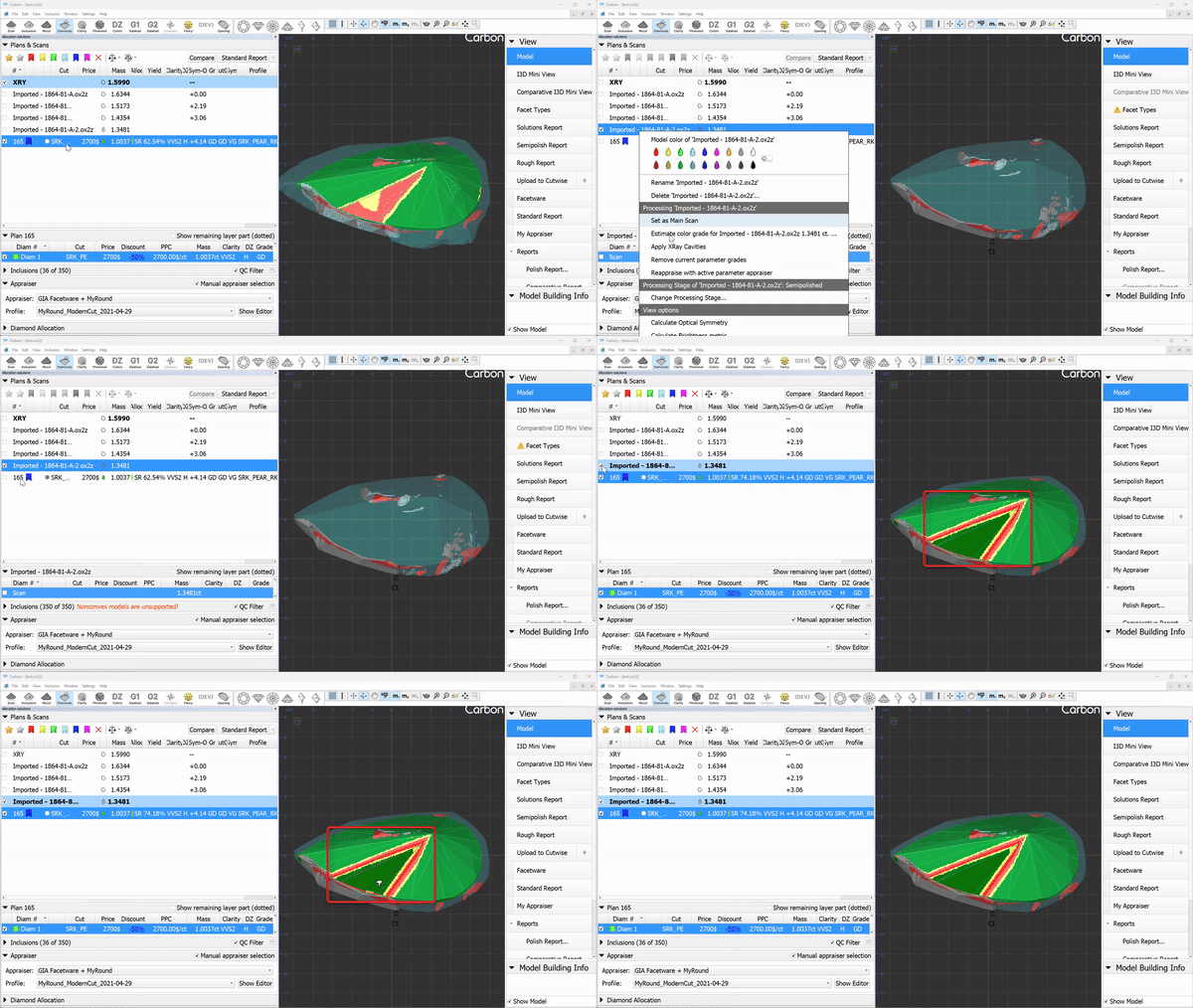
- Contact zone indication now updates, when the main scan changed.
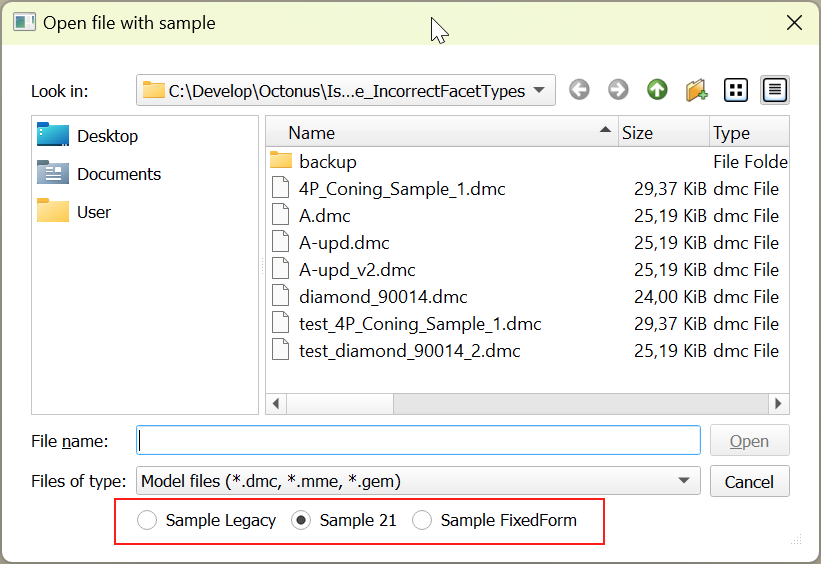
- Now the "Open Sample" dialog remembers the selected method, and the next time the dialog is opened, it will be automatically selected.
...
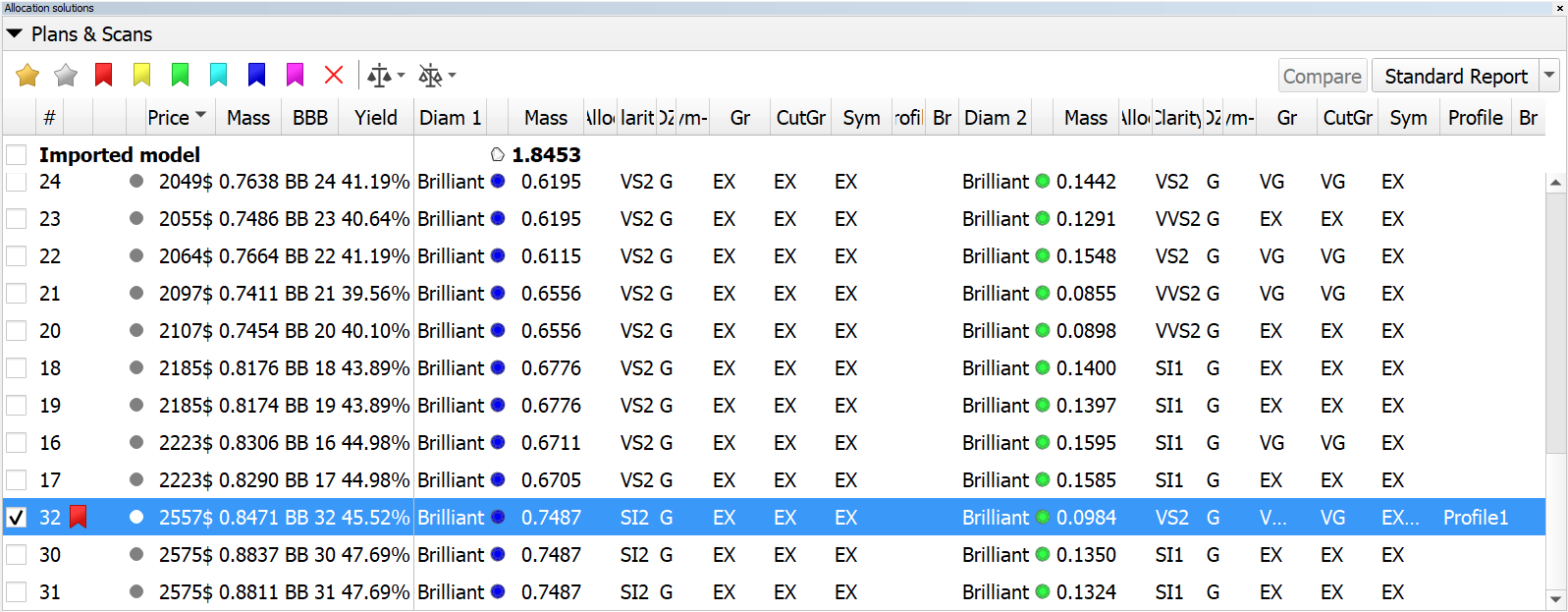
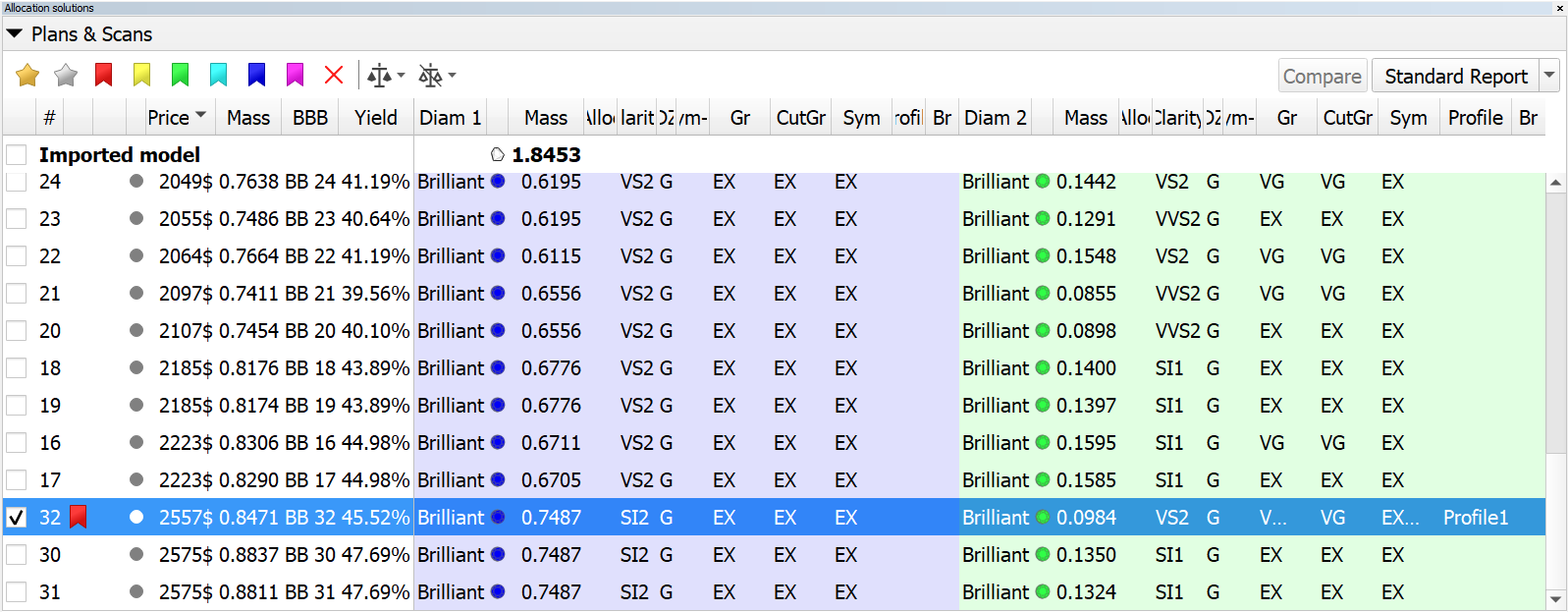
Solution list. Restored cell background colors in multi-diamond mode.
...
...
...
- batch removal of inclusions has been accelerated;
- batch set of inclusion status has been accelerated;
- the "Select All Inclusions" context menu operation has been accelerated;
- fix: the inclusion color status was not updating properly in the right pane of the Inclusion tab;
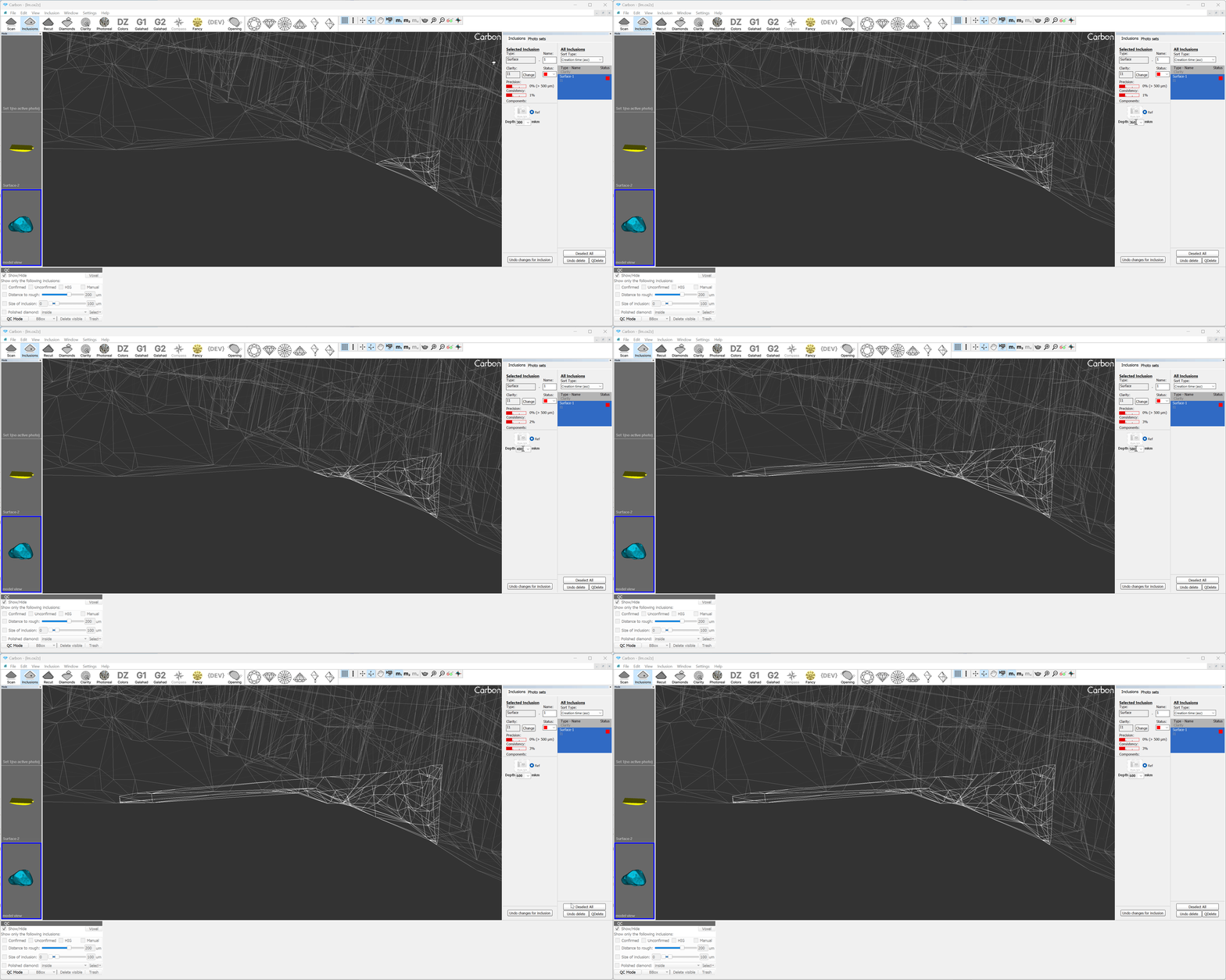
- surface inclusions: depth combo box was updated. Now the depth value can be changed using the mouse wheel (like in spin boxes), as well as edited manually.
Inclusion Mode improvements
- Batch removal of inclusions has been accelerated;
- Batch set of inclusion status has been accelerated;
- The "Select All Inclusions" context menu operation has been accelerated;
- Fix: the inclusion color status was not updating properly in the right pane of the Inclusion tab;
- Surface inclusions: depth combo box was updated. Now the depth value can be changed using the mouse wheel (like in spin boxes), as well as edited manually.
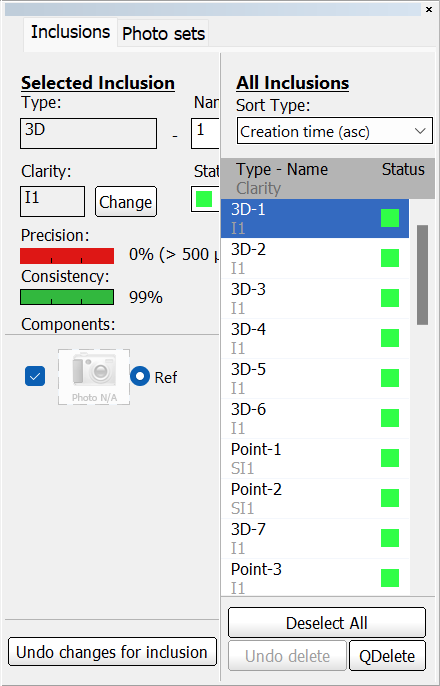
Resolved an issue where the color status of newly created inclusions was not updating correctly when accessed via the context menu in the list.
Fixed a problem that prevented the removal of inclusions from the scene in scenarios involving Cracks (with auxiliary inclusions such as deep point.
Fixed crash when deleting inclusions in a certain scenario and project.
- In the Inclusions mode, the inclusion color statuses were not updating correctly in the list.
Fixed problems and improvements
- Swim, Ballon and Change Cut algorithms now use correct sawing thickness according to layer general settings.
For instance, diamonds perfectly alligned to the layer with a thickness of 0.15 mm, corresponding to a rough weighing 8.84ct(between 5-10 ct interval). - Contact zone indication now updates, when the main scan changed.
- Now the "Open Sample" dialog remembers the selected method, and the next time the dialog is opened, it will be automatically selected.
Solution list. Restored cell background colors in multi-diamond mode.
now
Resolved an issue where the color status of newly created inclusions was not updating correctly when accessed via the context menu in the list.
Fixed a problem that prevented the removal of inclusions from the scene in scenarios involving Cracks (with auxiliary inclusions such as deep point.
Fixed crash when deleting inclusions in a certain scenario and project.- Fixed the incorrect layer indication on the layer panel.
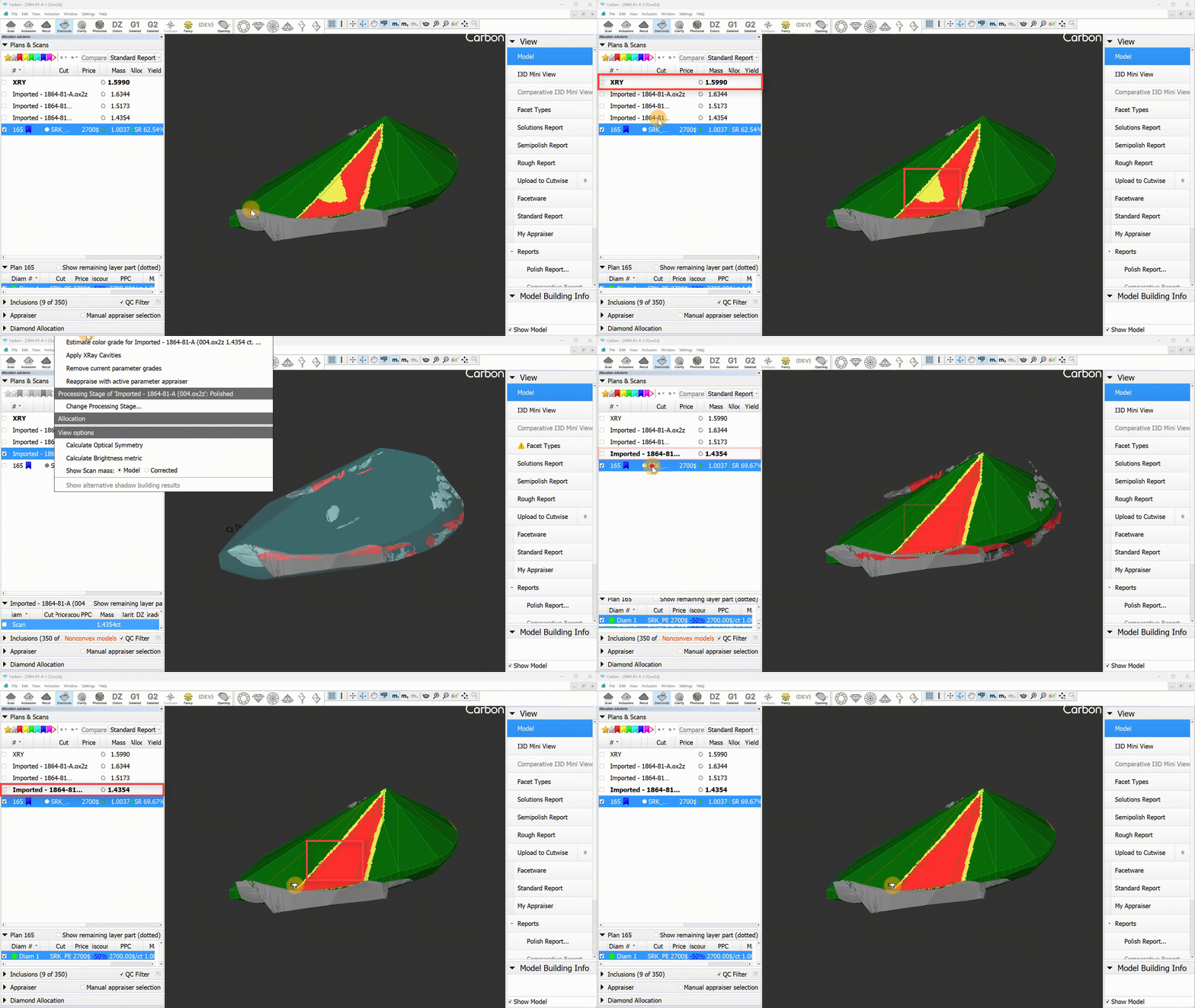
- The contact zone now updates correctly when the main scan changes.
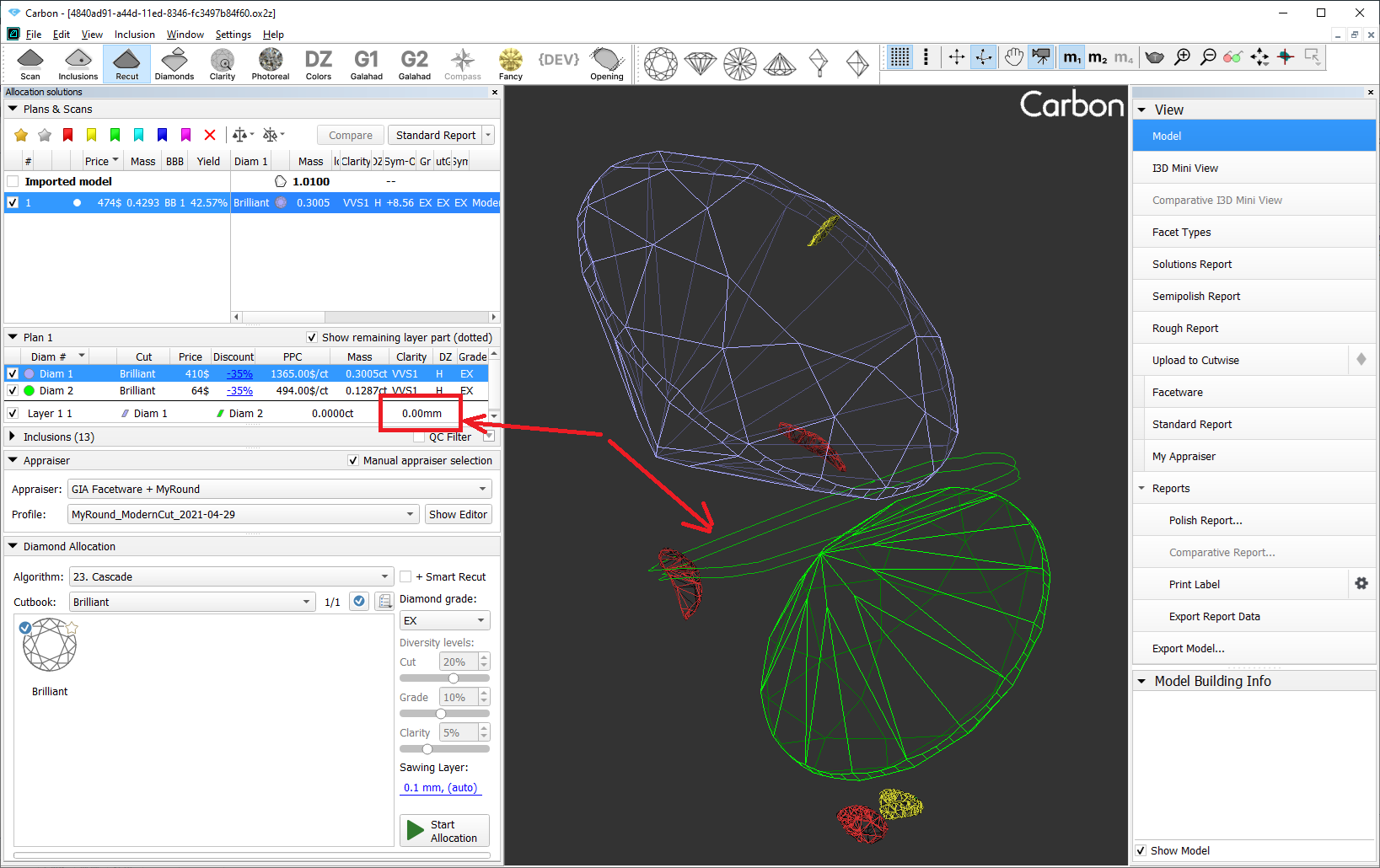
- Layer movements will no longer reset the layer thickness.
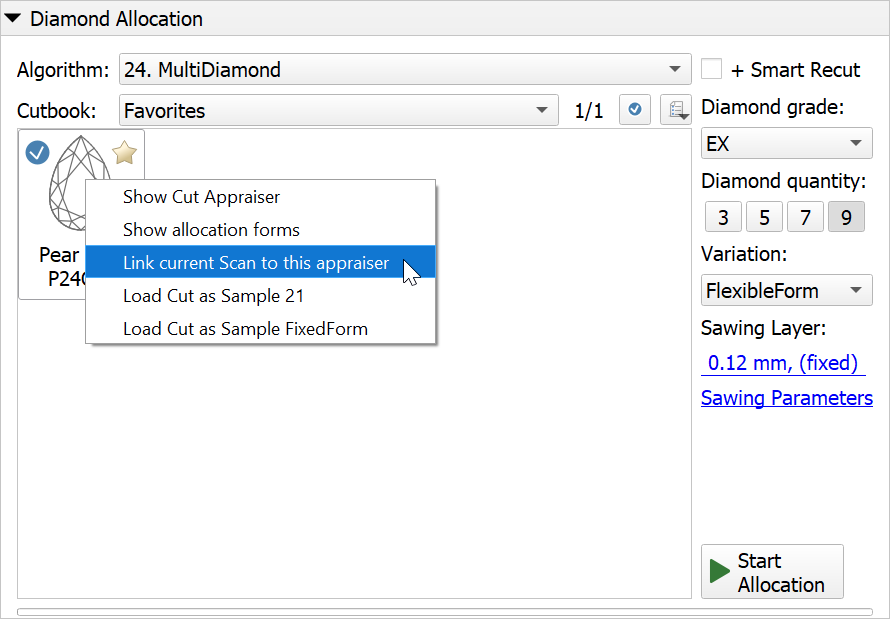
- The cut name set using "Link current Scan to this appraiser" was overwritten by the automatically defined name after changing the Facet Types.
- In the Inclusions mode, the inclusion color statuses were not updating correctly in the list.
- Improved facet marking transfer stability during "Batch add forms..." command. Fixed facet marking transfer bugs that made some forms unusable
...