...
- Dimension “A” - "HEART_GROOVE_WIDTH_MM", "HEART_GROOVE_WIDTH_PC"
- Dimension “B” - "HEART_GROOVE_DEPTH_CRN_MM", "HEART_GROOVE_DEPTH_CRN_PC"

- Dimension “C” - "HEART_GROOVE_DEPTH_PAV_MM", "HEART_GROOVE_DEPTH_PAV_PC"

- Dimension “D” - "HEART_GROOVE_HEIGHT_MM", "HEART_GROOVE_HEIGHT_PAV_PC"

Appraisers&Pricelists
...
The sawing layers have been upgraded with new data and an improved interface. The "Create sawing data" command in the solutions context menu has been replaced by two distinct commands: "Create sawing layers" and "Generate sawing data."
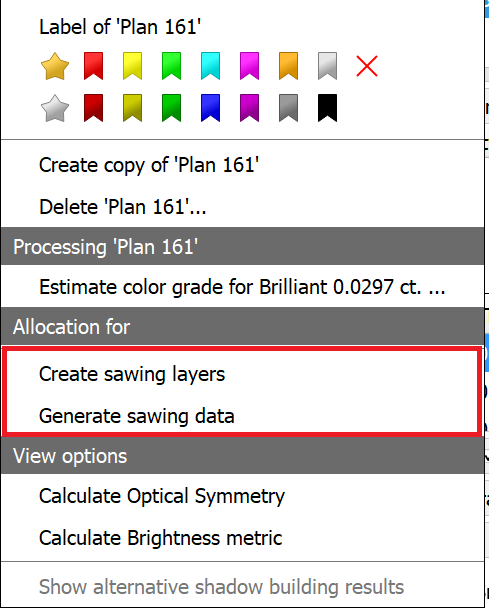
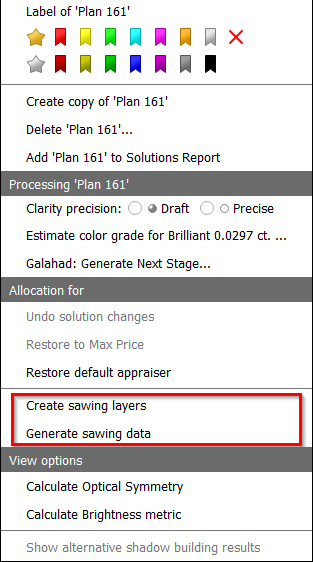
Here’s the key difference: "Create sawing layers" removes all existing layers and populates the solution with appropriate new layers (similar to the previous "Create sawing data" command). In contrast, "Generate sawing data" simply adds additional data to the already existing layers.
This additional data includes the following: generating half-planes where necessary, creating a glue point, establishing sawing directions for each layer, and developing a rough projection contour (blue line).
...
The parameters for sawing directions can be defined in "General Settings -> Allocation -> Sawing Parameters."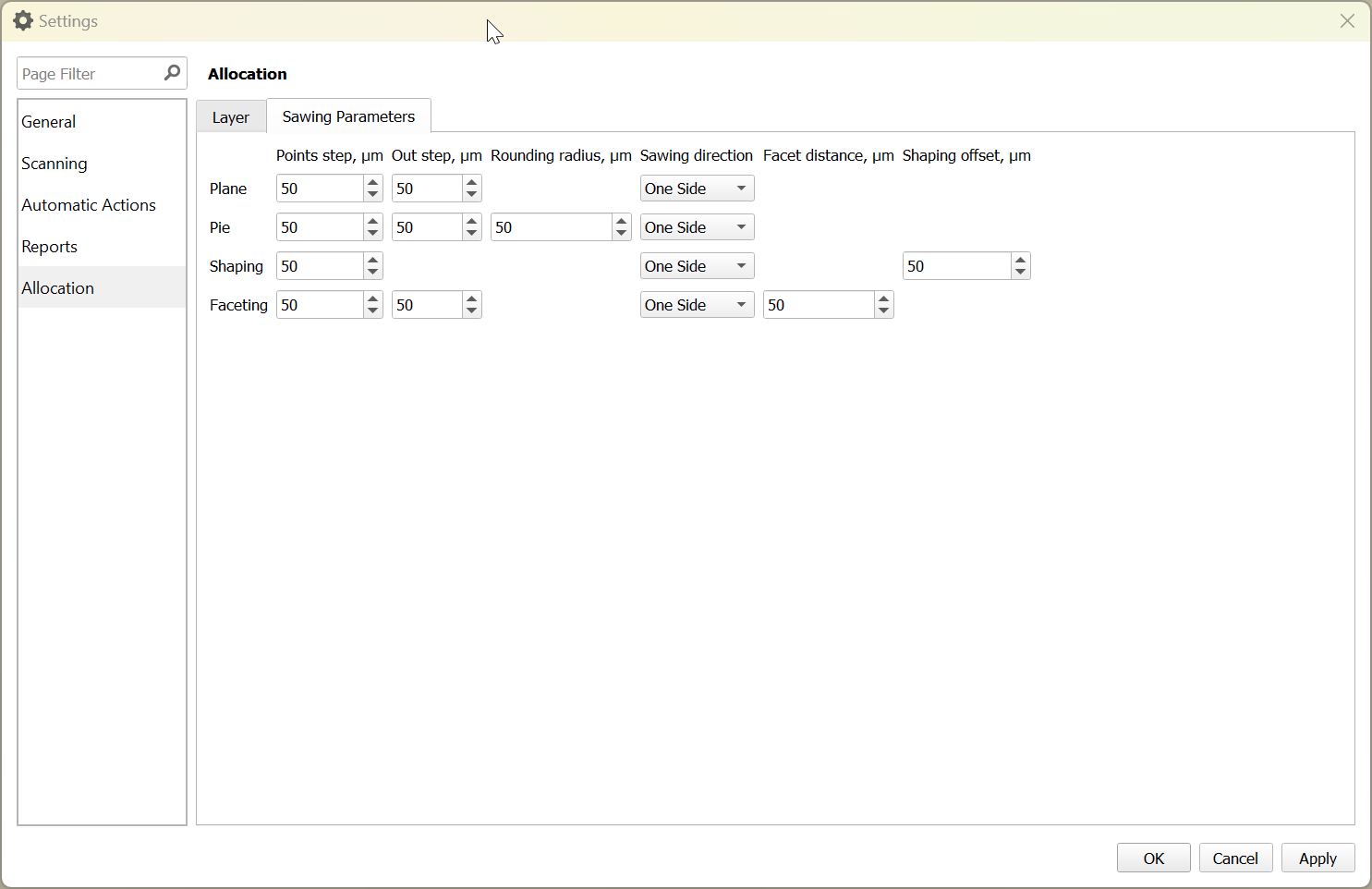
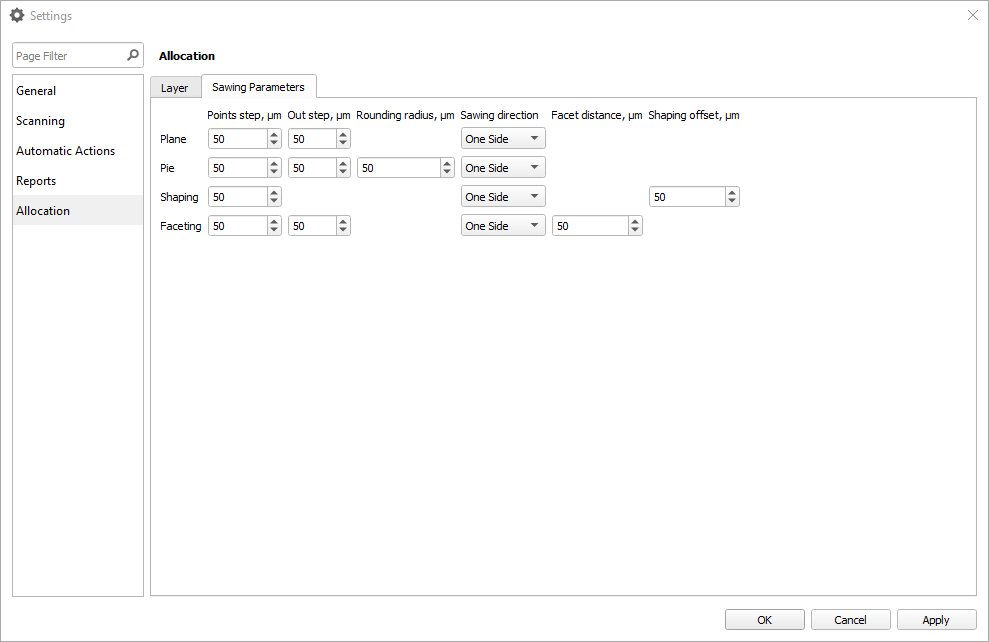
You can also set parameters for each layer individually by clicking on the "Sawing parameters panel" in the layer context menu.
The available parameters are:
For Plane:
...
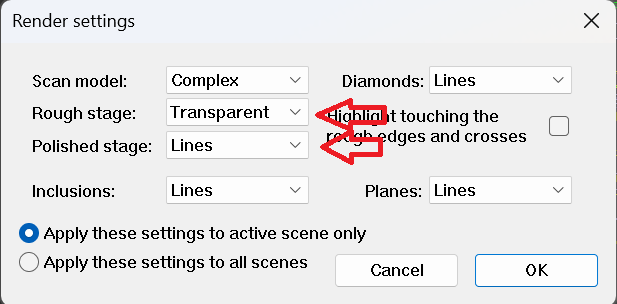
When loading a project, the Main Scan is automatically pinned if its processing stage is Rough, Saw, or Bruted. In Recut mode, scans with these stages appear transparently instead of in lines mode—this can be adjusted in the rendering settings, where separate display modes for Rough and Polished scans are now available.
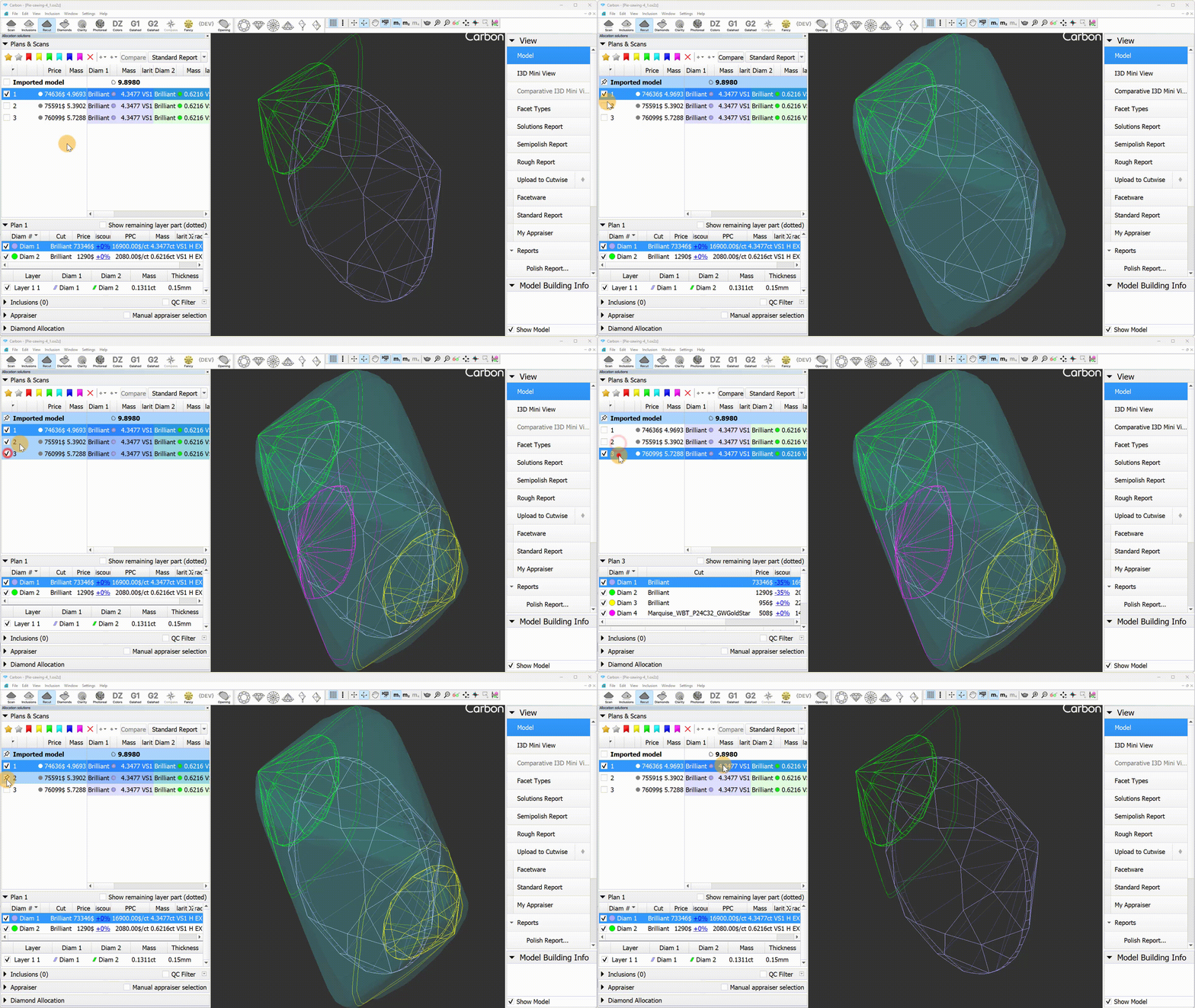
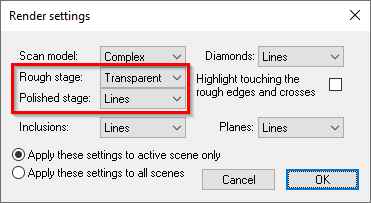
Saw rendering has been improved: non-visible parts are now shaded, and the active layer is highlighted in red with thicker lines. For users who prefer solid mode, this option can now be applied to layers(planes) in the Rendering Settings.
...
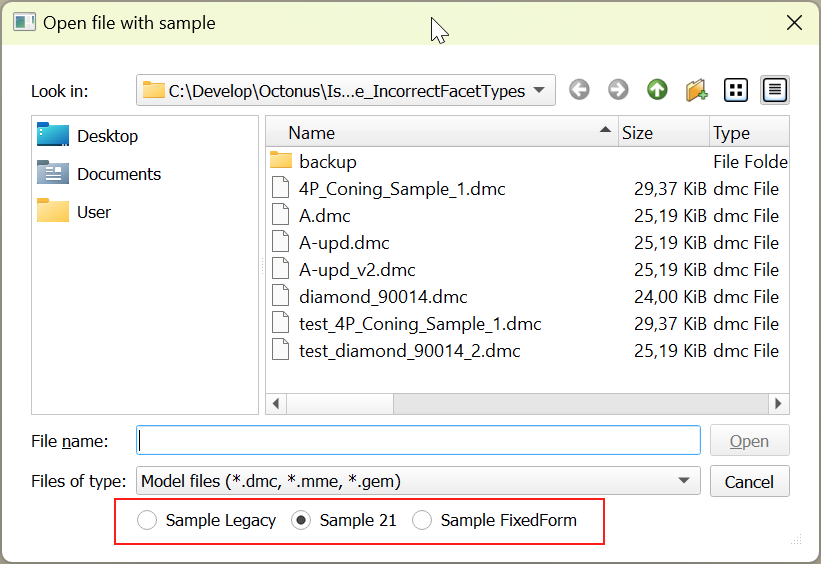
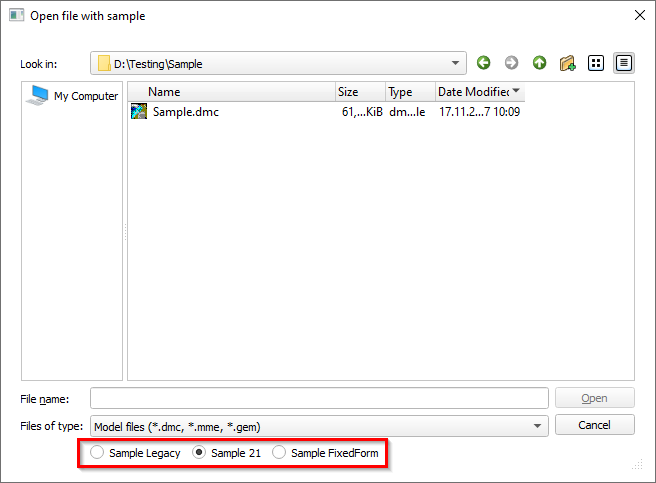
- Now the "Open Sample" dialog remembers the selected method, and the next time the dialog is opened, it will be automatically selected.
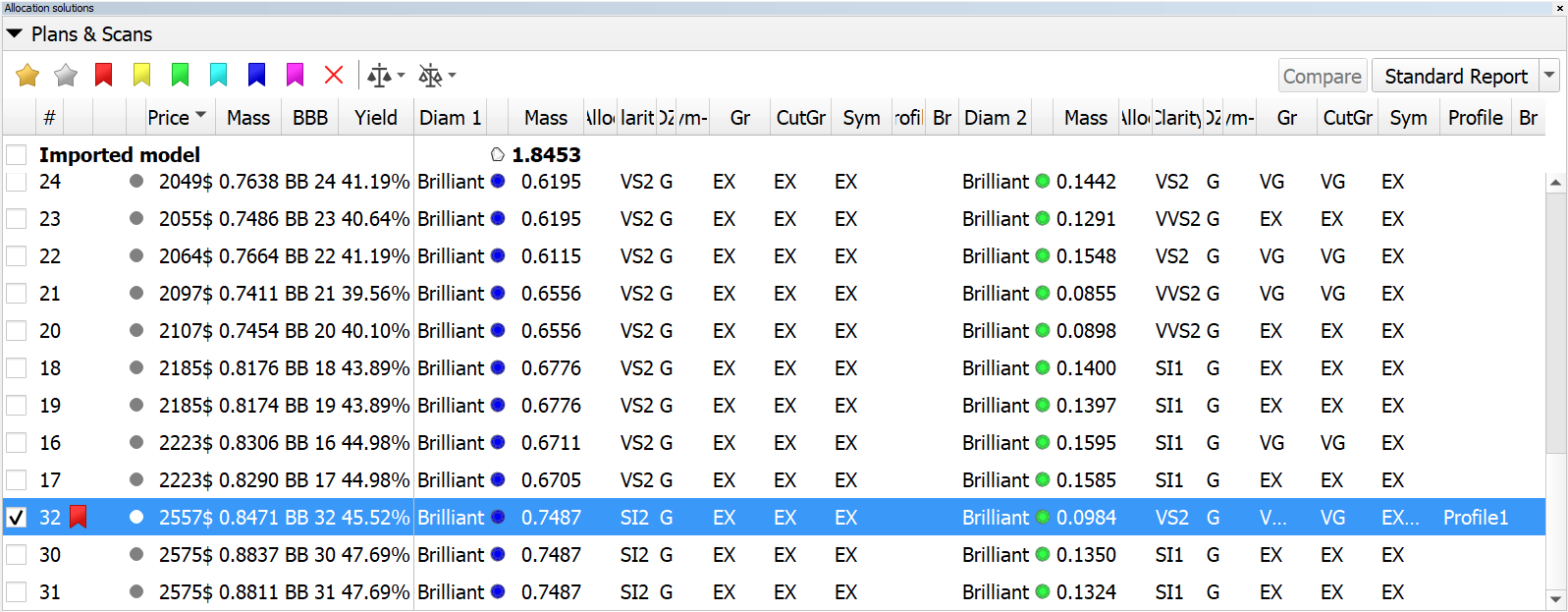
Solution list. Restored cell background colors in multi-diamond mode.
was
now
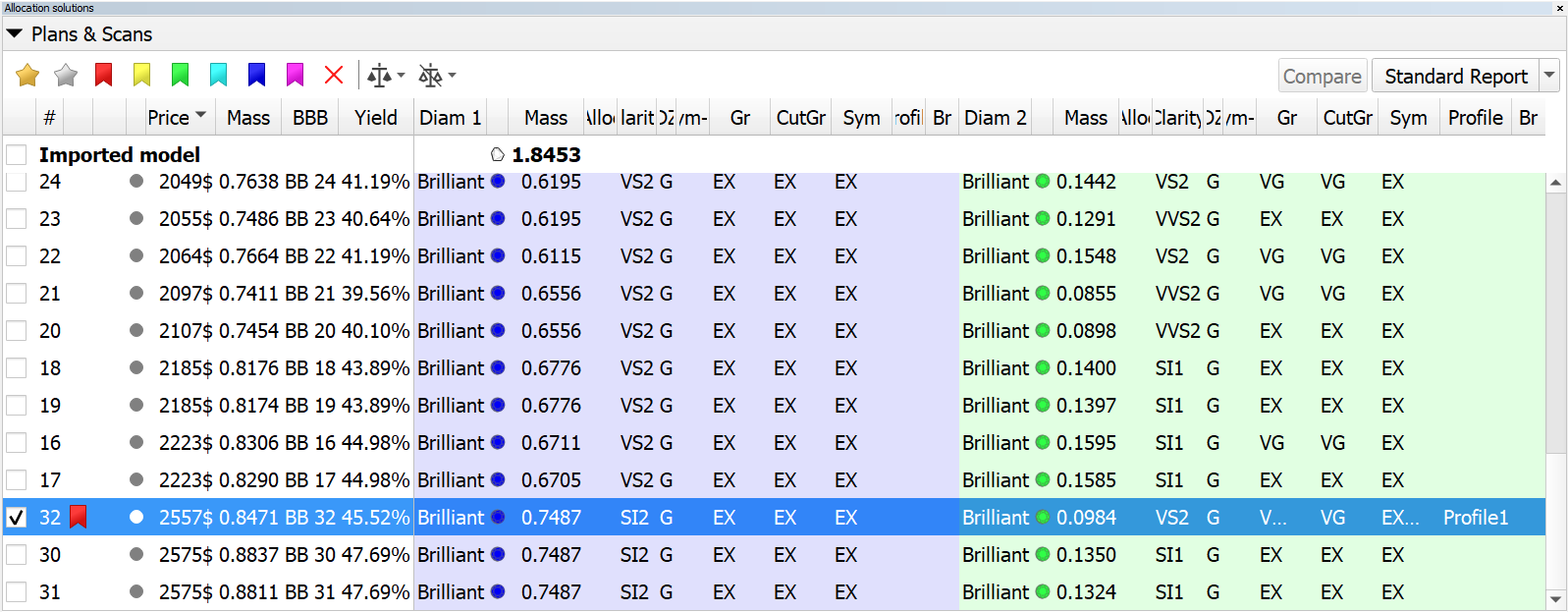
- Fixed the incorrect layer indication on the layer panel.
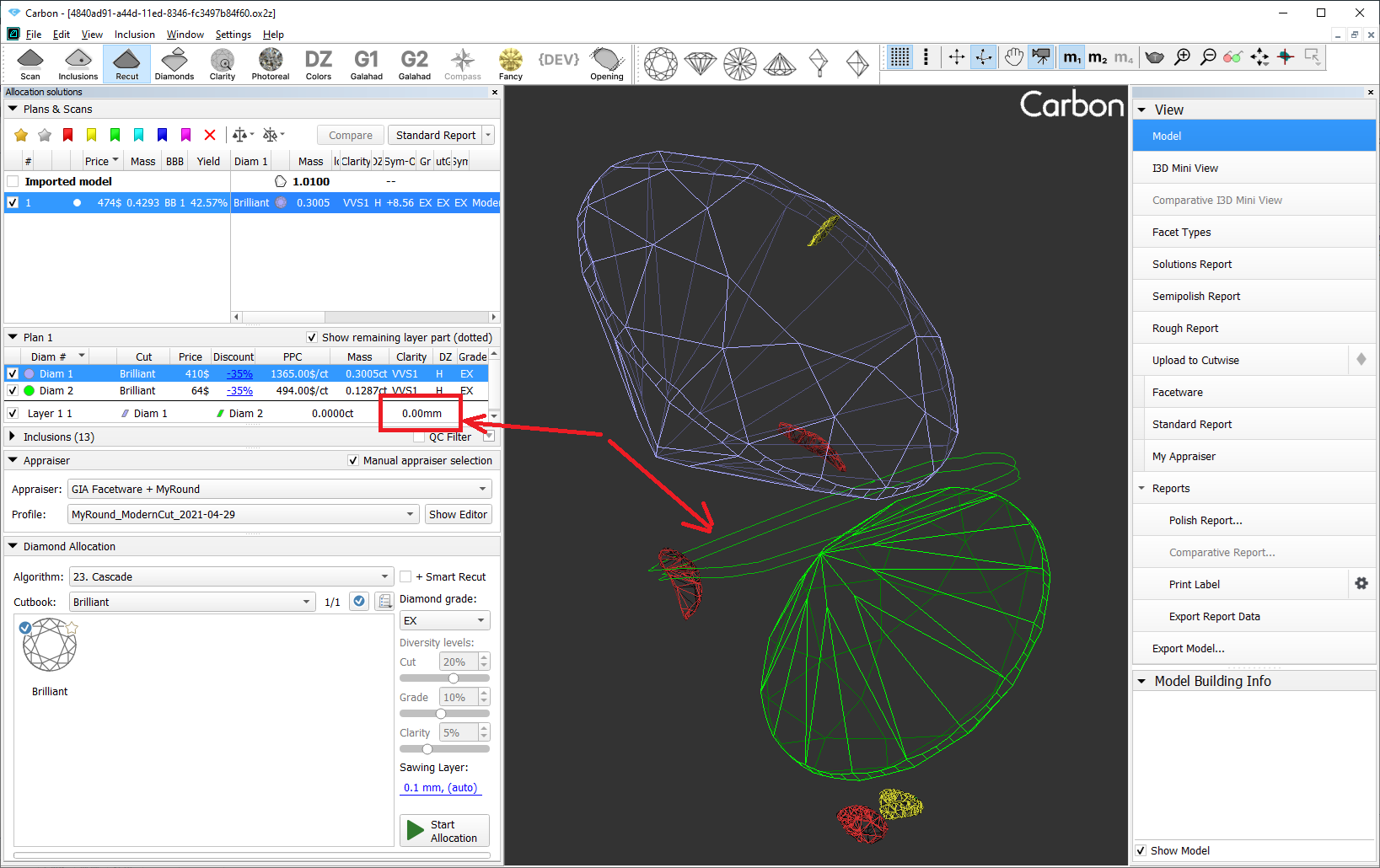
- The contact zone now updates correctly when the main scan changes.
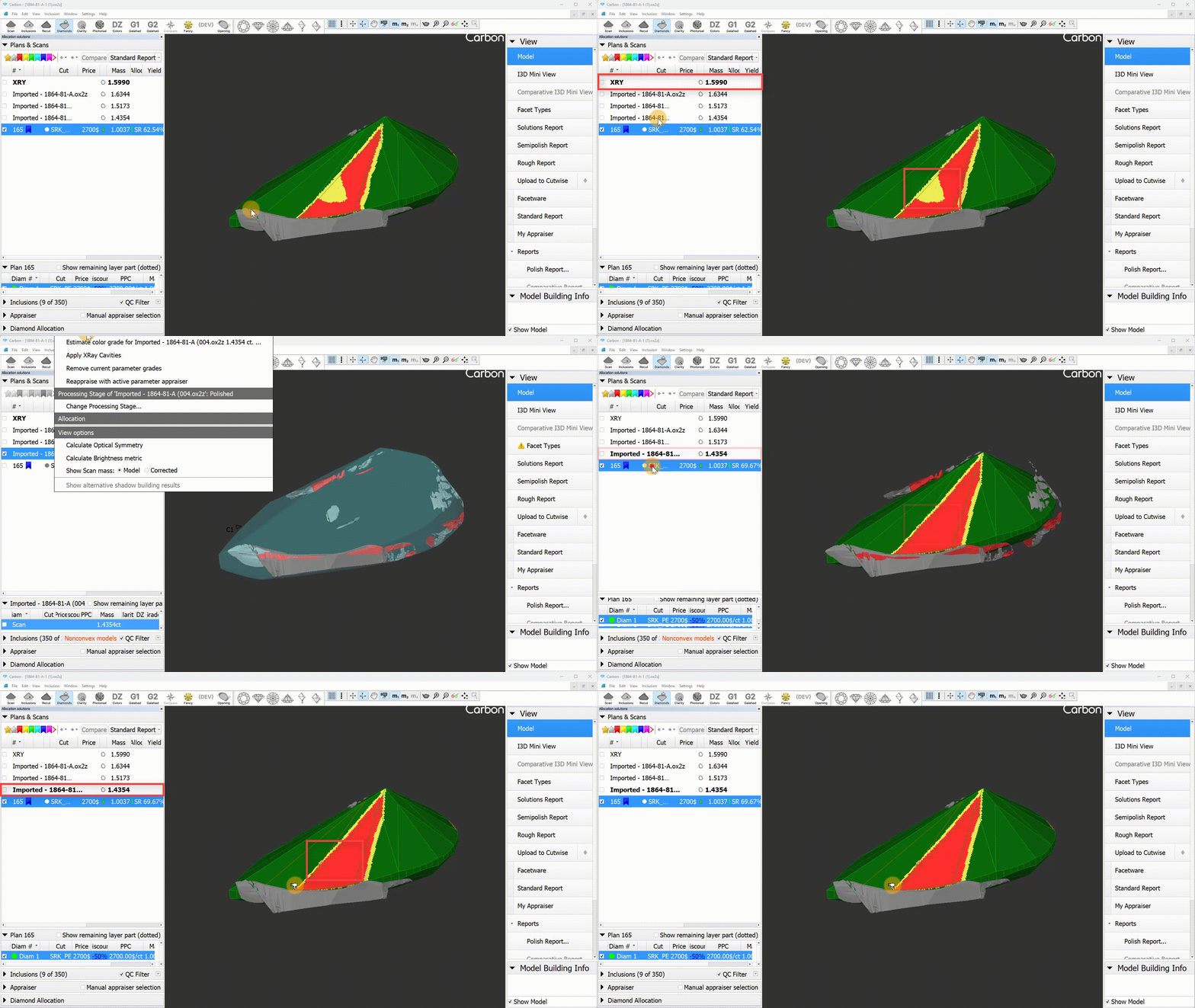
- Layer movements will no longer reset the layer thickness.
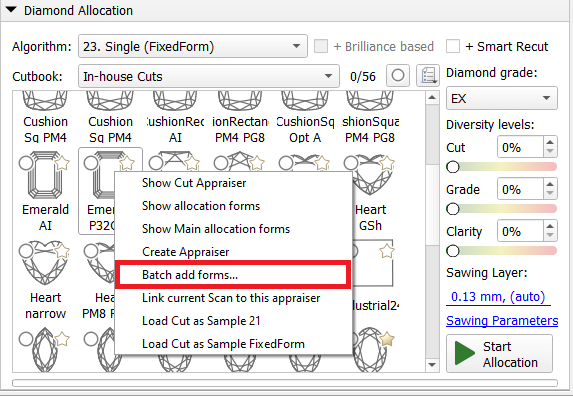
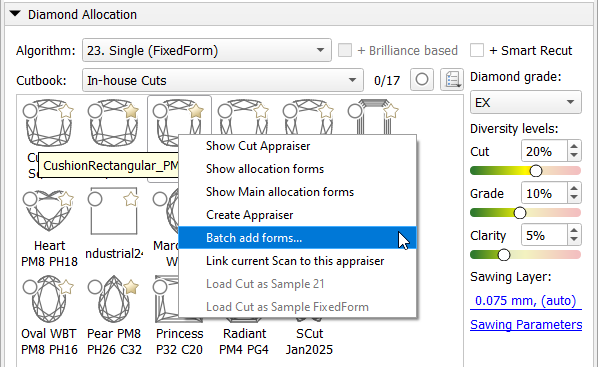
- Improved facet marking transfer stability during "Batch add forms..." command. Fixed facet marking transfer bugs that made some forms unusable
- SmartNormalize algorithm is improved for complex non-convex cuts.
- Uploading data to Cutwise is significantly accelerated
The pop-up window for the "Change layer thickness" command now correctly:
Responds to the Esc key
Handles default values properly when opened
- Fixed an issue where right-click + mouse wheel would move objects instead of zooming when object movement mode was active
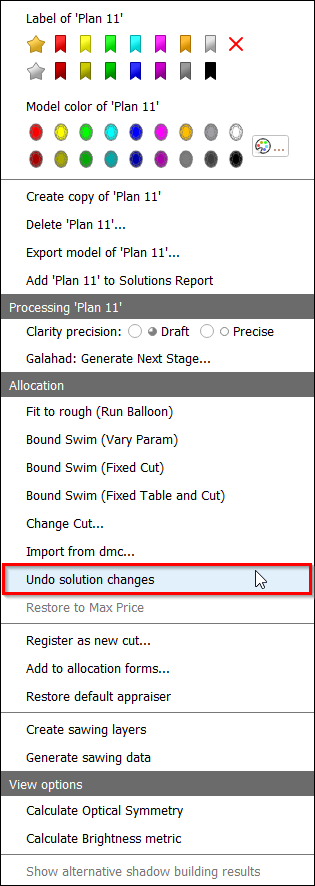
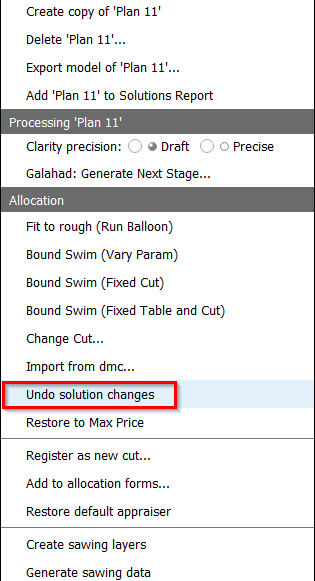
- The "Undo solution changes" function now works consistently in all scenarios, including when any layer is selected in the solution.
Glue Point Orientation button now centralizes the solution
Before Now 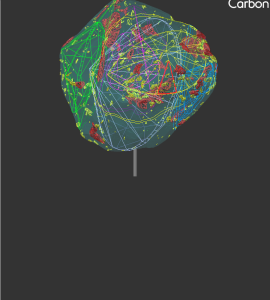
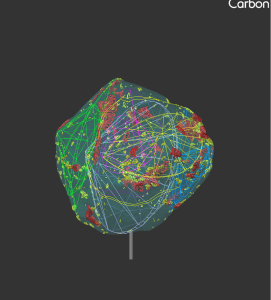
- Fixed unwanted scene rotation when closing the scene context menu
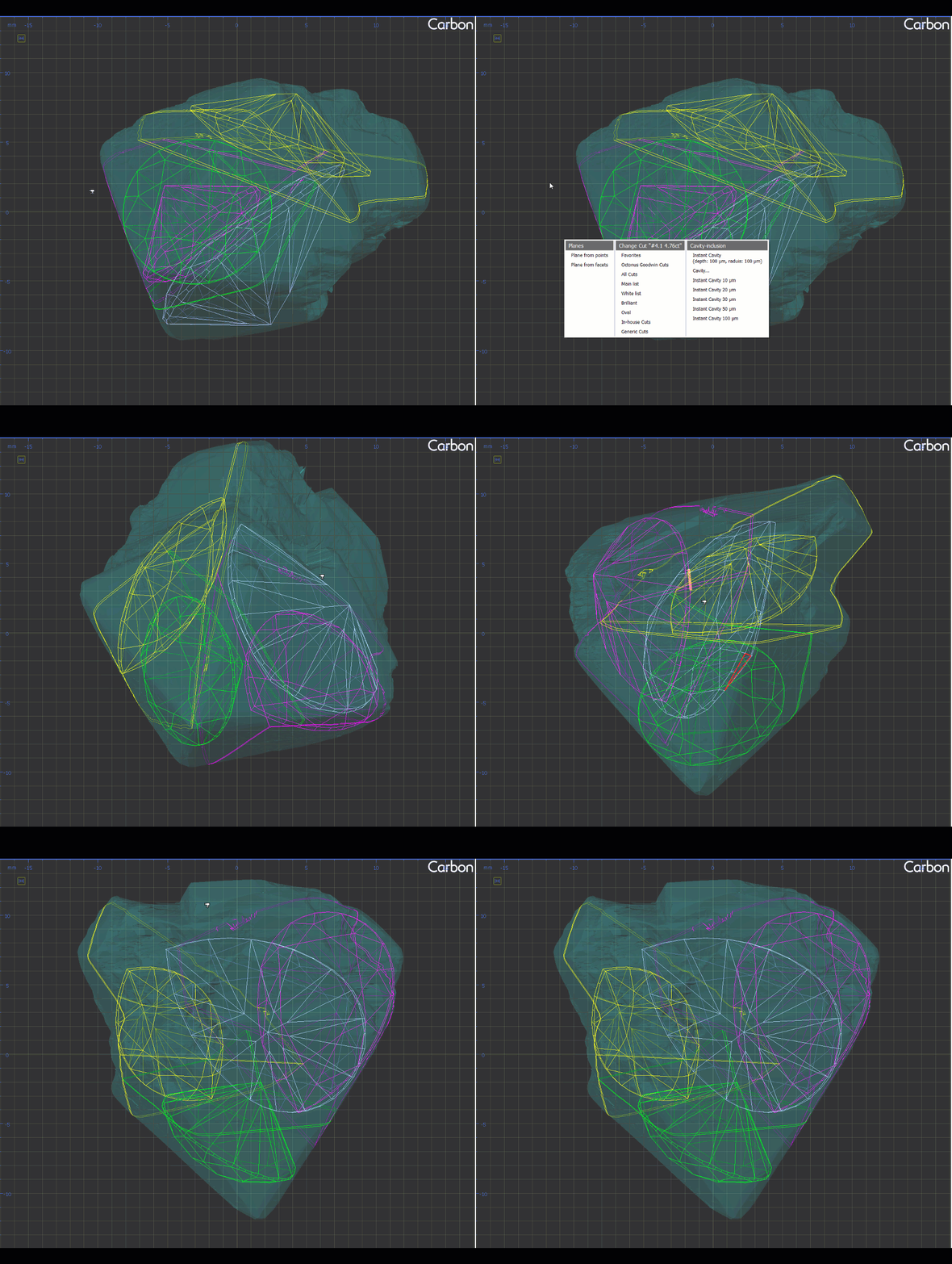
- Facet Types no longer disappear during certain actions as before:
- Adding/deleting a layer.
- Using "Create Sawing Data" or "Create Sawing Layers".
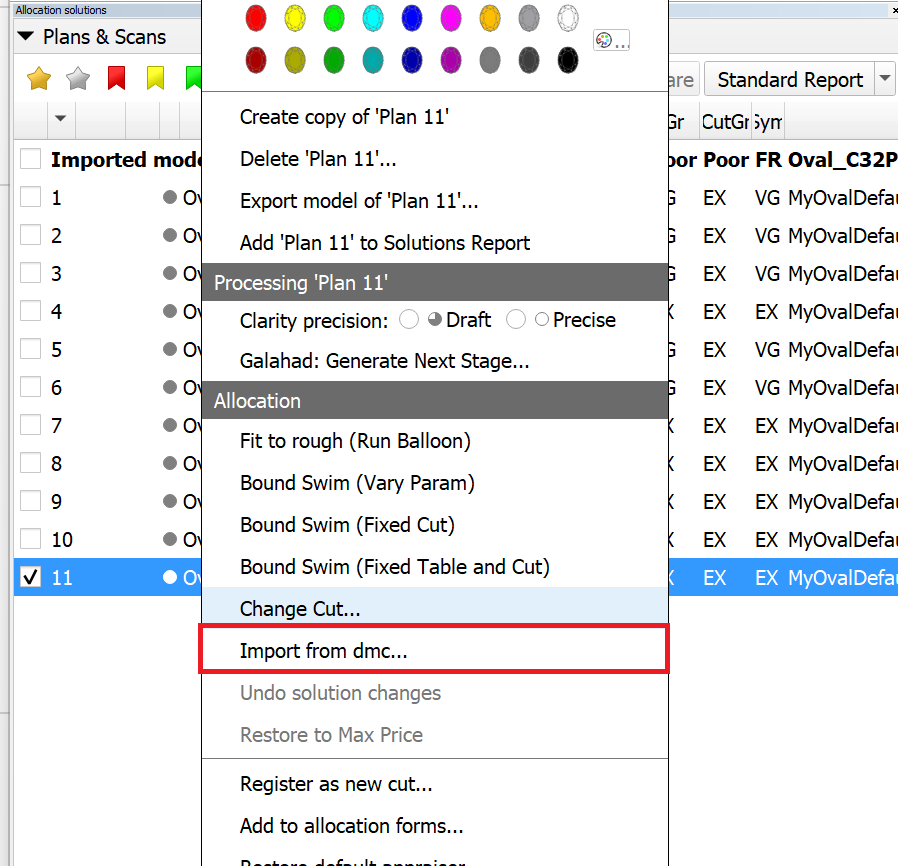
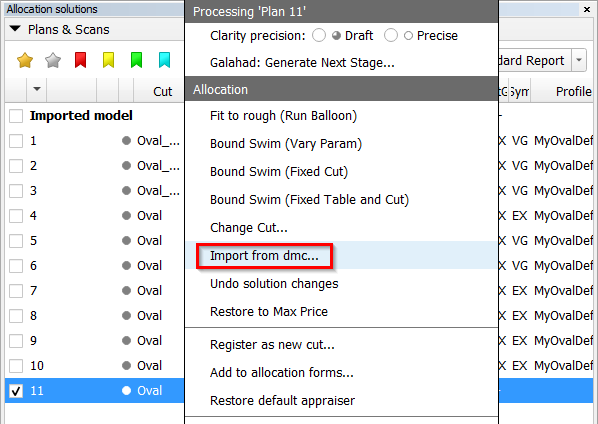
- The "Import from dmc..." item has been moved to the main context menu.
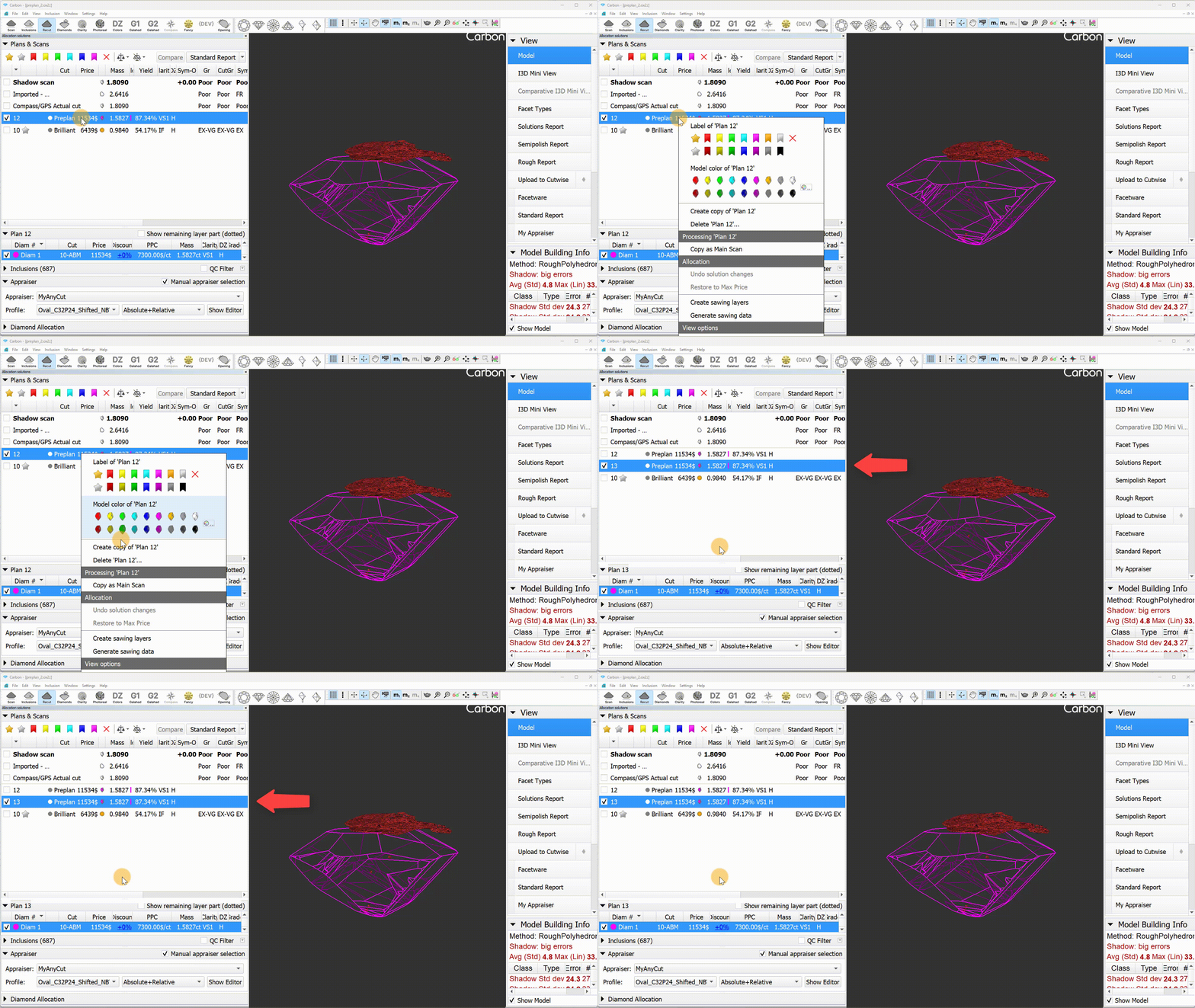
Fixed the copying of preplans. Now, a copied preplan remains a preplan.
was now 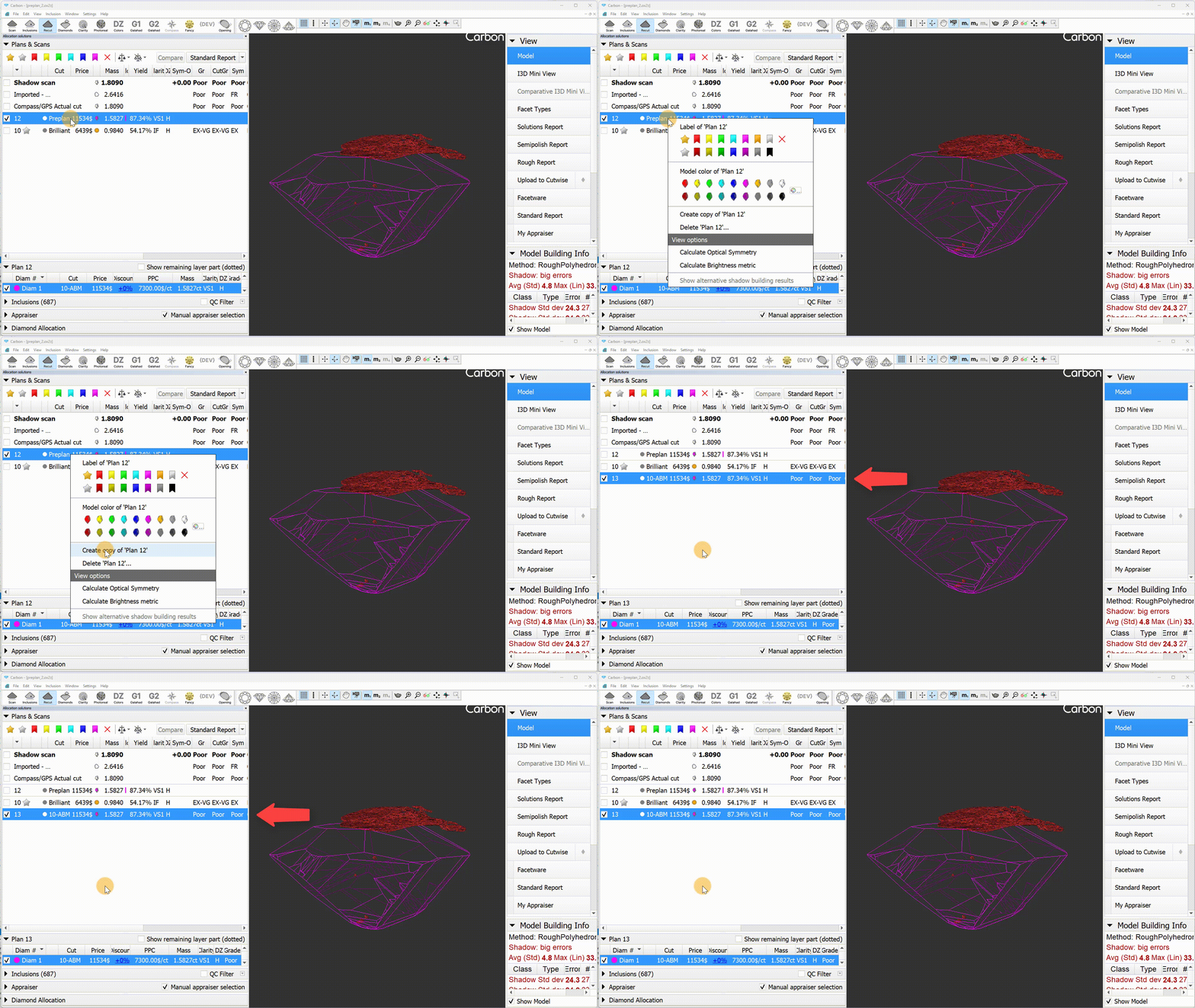
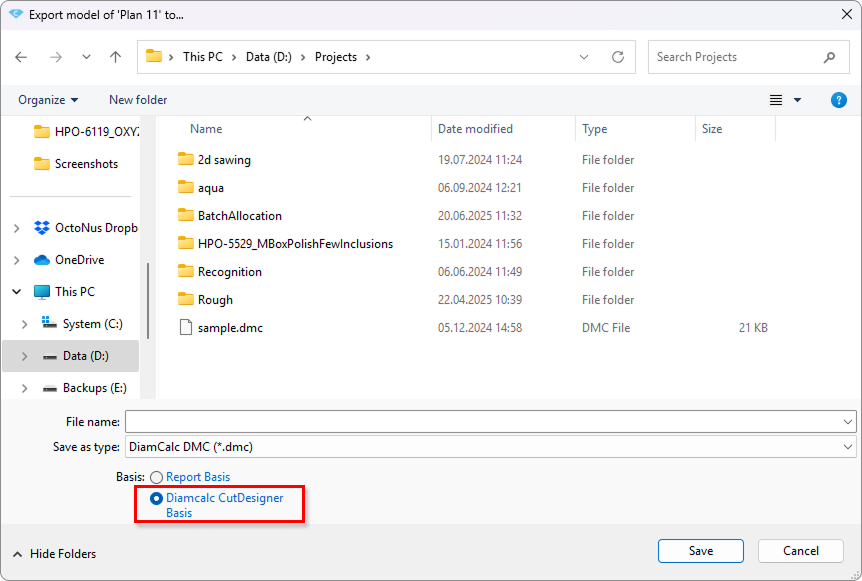
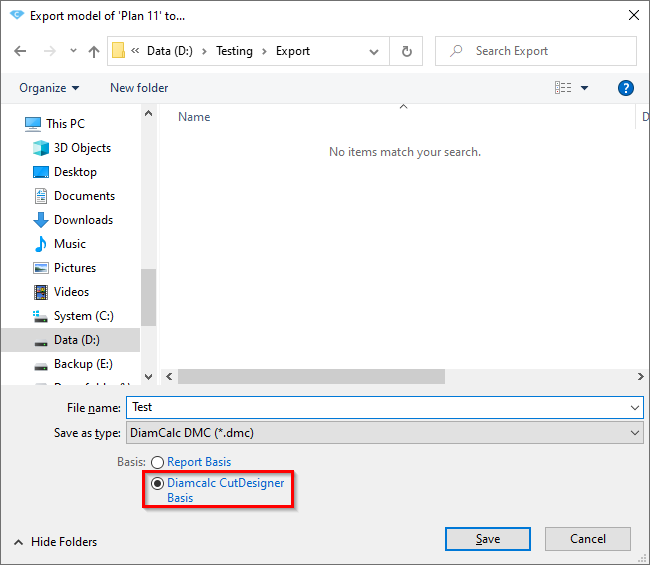
An export option "Diamcalc CutDesigner Basis" was added to HPC to address the axis misalignment between HPC and CutDesigner. Previously, DMC files exported from HPC used a coordinate basis where pear-shaped diamonds were oriented nose-down, whereas CutDesigner expects the orientation to be right-facing.