
Here you can find information about what is new in HP Carbon version 23.20.163.
| Tip |
|---|
This version is available for download from the Octonus official web site. |
...
| Panel | ||||||
|---|---|---|---|---|---|---|
| ||||||
|
Allocation - global algorithms
"24. MultiDiamond" and "24. MultiNext" new algorithms.
Include Page Video | Algorithms "24. MultiDiamond" and "24. MultiNext" Video | Algorithms "24. MultiDiamond" and "24. MultiNext"
24. MultiDiamond
Allocation of 3 or more diamonds has become the standard for all sizes and types of rough stones. On average, a solution contains 5 diamonds. An important question when allocating multiple diamonds is "How to perform Sawing?" Not all solutions with 4 or more diamonds can be sawn using modern sawing technologies. The picture shows an example that cannot be sawn.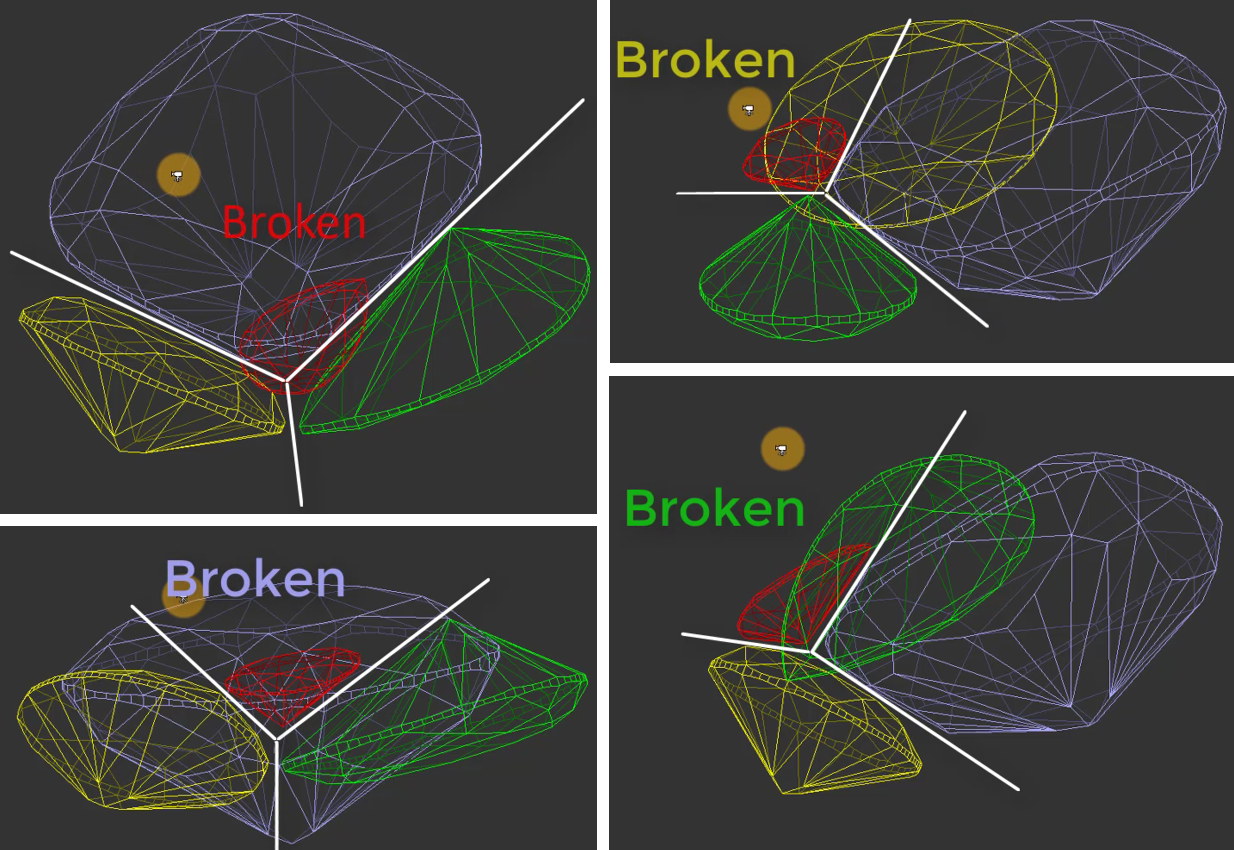
...
Furthermore, users can adjust the thickness of sawing planes used in the optimization process, and choose the "Variation" mode. Currently, two options are available:
"FixedForm" to produce solutions exactly of the same form as the allocation forms registered within the cut. Only scale or position may be changed
"FlexibleForm" to produce solutions in the limits specified by the appraiser.
24. MultiNext
The algorithm "24. Multinext" has also been added. It operates on one or multiple selected solutions. The user chooses how many extra diamonds need to be added to the selected solutions. In the case of multiple selected solutions, the algorithm will work independently and in parallel on each of them. "24. MultiNext" uses a allocation method identical to "24. MultiDiamond" starting from third solutions. The result of "24. MultiNext" can always be sawn with pie sawing.
...
The algorithm "24. MultiNext" with FixedForm Variation, compared to "24. MultiNext (FixedForm, BasicSawing)":
1) Is faster
2) In most cases provides higher solution price
3) Frequently cannot be sawn without using Pie Sawing.
Batch allocation
| Include Page | ||||
|---|---|---|---|---|
|
There is a plan to improve the batch allocation in the next release version and add more flexibility.
Allocation - manual tools
Fast Swim
Operators use manual tools during planning after getting the initial solution of global allocation. One of them is a movement of layer and recalculation of diamonds allocation.
This operation is required both for natural rough diamonds and grown CVD diamonds to get symmetrical solutions, or fixed mass solutions (such as 1ct+1ct, 1ct+2ct). Current algorithms may not provide that kind of solution.
However, you can achieve the desired result manually by using the movement panel for the layer and applying the Swim algorithm to each diamond individually. It takes time.
...
Include Page Video | Fast Swim - manual allocation tool by layer or pie movement Video | Fast Swim - manual allocation tool by layer or pie movement
Support for Solutions with Arbitrary Numbers of Polished Diamonds
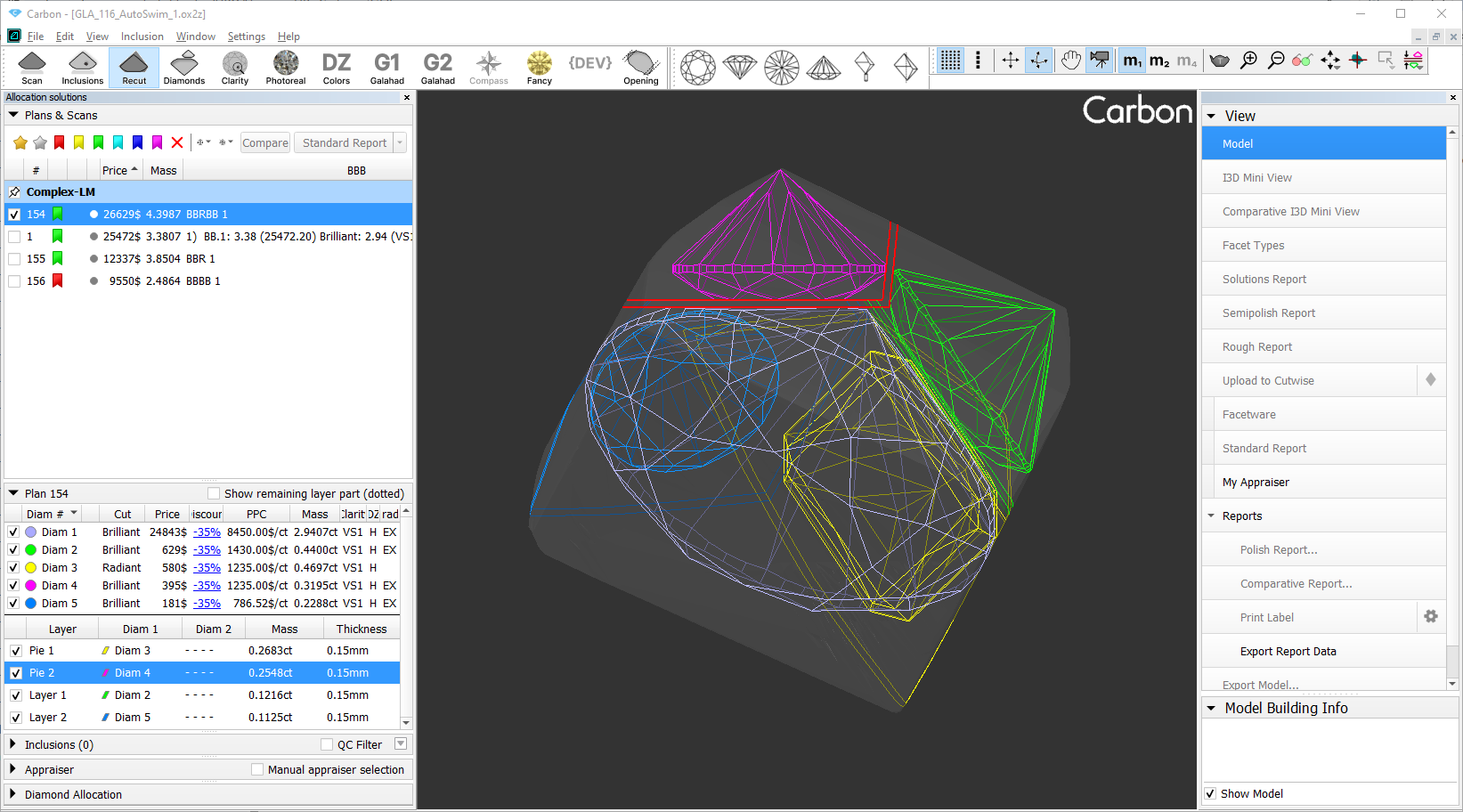
The Fast Swim processes solutions containing any number of polished diamonds. The order of layers in the solution defines the working zone for each polished diamond, where the Bound Swim algorithm is executed.
When the first layer is moved, Bound Swim runs for all polished diamonds in the solution.
Typically, each layer isolates one polished diamond from the remaining ones.
For subsequent planes (second, third, etc.), the working zone remains unchanged for previously isolated polished diamonds, and the algorithm is not triggered for them.
Compatibility with Different Section Types (Layer, Pie)
The algorithm now supports all section types, including:
...
Pie sections can only be moved or rotated as a single unit.
Adjustment methods:
Direct manipulation in the 3D scene (mouse controls).
Precision editing via the Movement panel.
Restriction: Angle adjustment between planes within a single Pie section is currently unavailable.
Algorithm Selection Integrated into Main Toolbar
The AutoSwim algorithm settings (activated after plane adjustment) are now accessible in the main toolbar.
...
| Vary param and clarity | Maximizes solution value by optimizing polished diamond parameters and evaluating multiple clarity groups (inclusion sets). Default mode. |
| Vary param, fixed clarity | Optimizes solutions by adjusting polished diamond parameters only (current clarity group remains unchanged). |
| Fixed cut and clarity | Uses predefined fixed polished diamond parameters and the current clarity group. |
| None | No automatic optimization after plane movement. |
Detailed solution information in the Scene
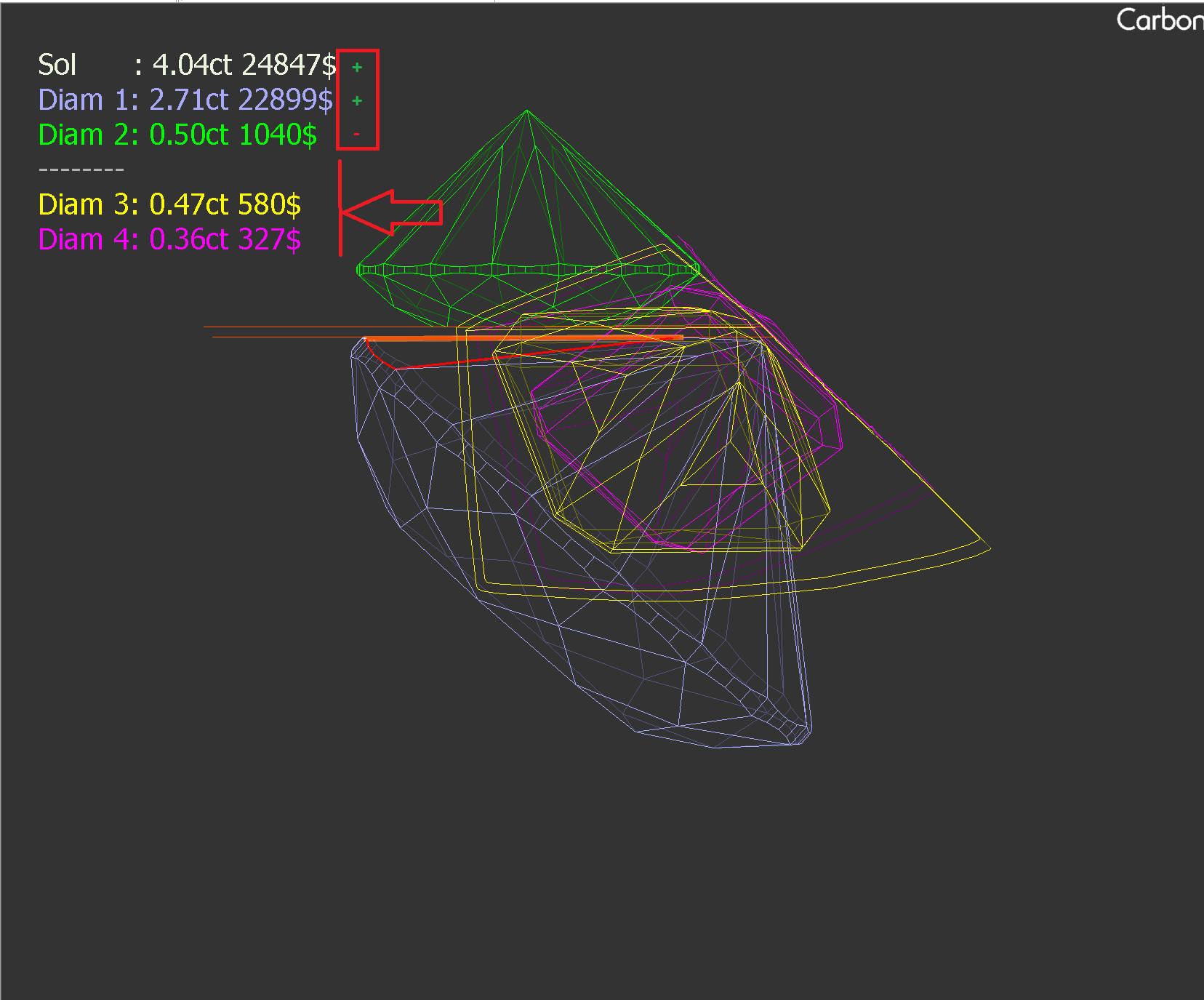
- In Fast Swim, extended solution details have been moved to the top-left corner.
- Price changes for diamonds and the solution itself are now marked with +/- signs.
- Below a dotted line in the table, you’ll see information about diamonds that cannot be modified when adjusting the current saw.
- This compact summary automatically disappears after 30 seconds.
Quick Sandwich tool
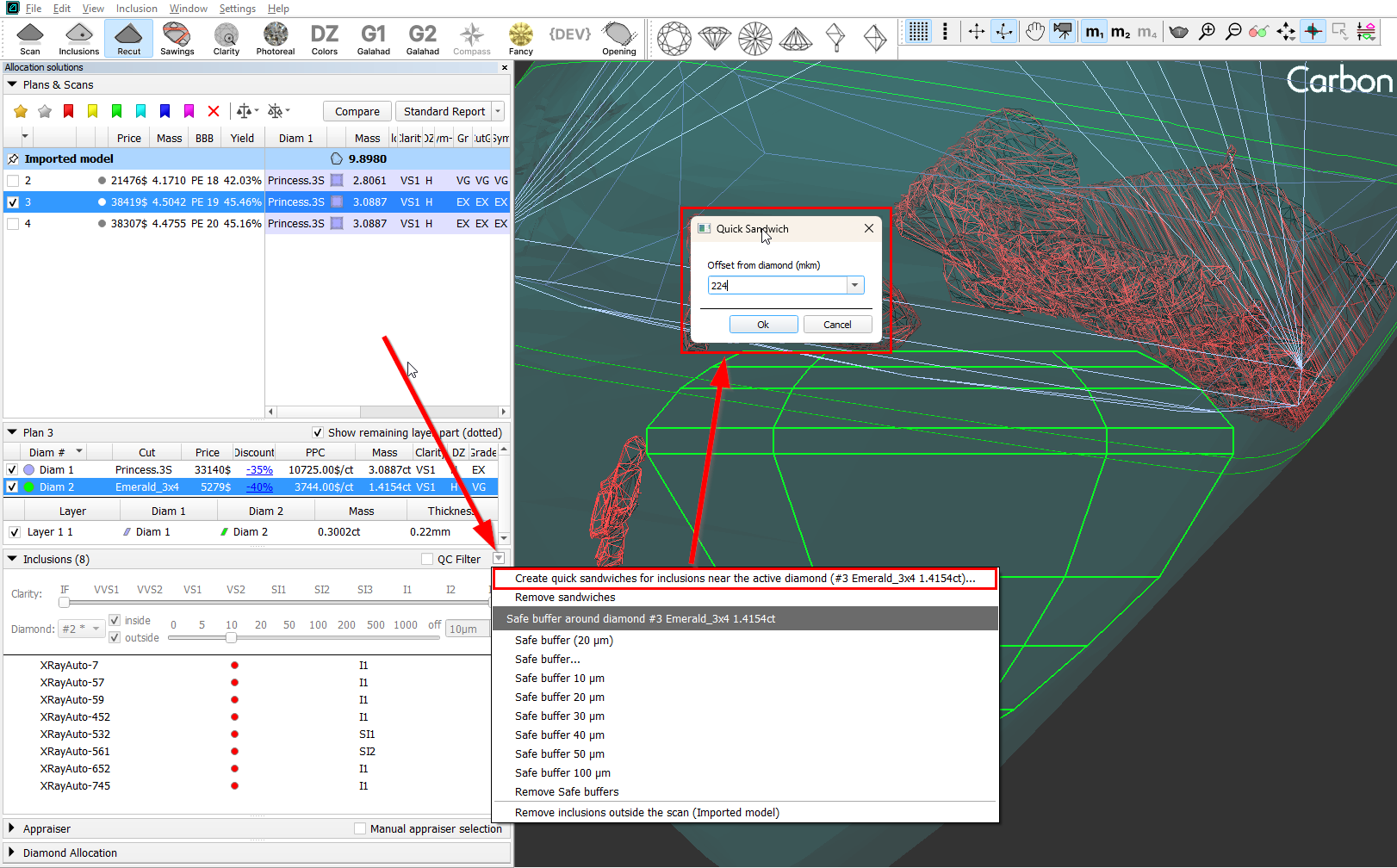
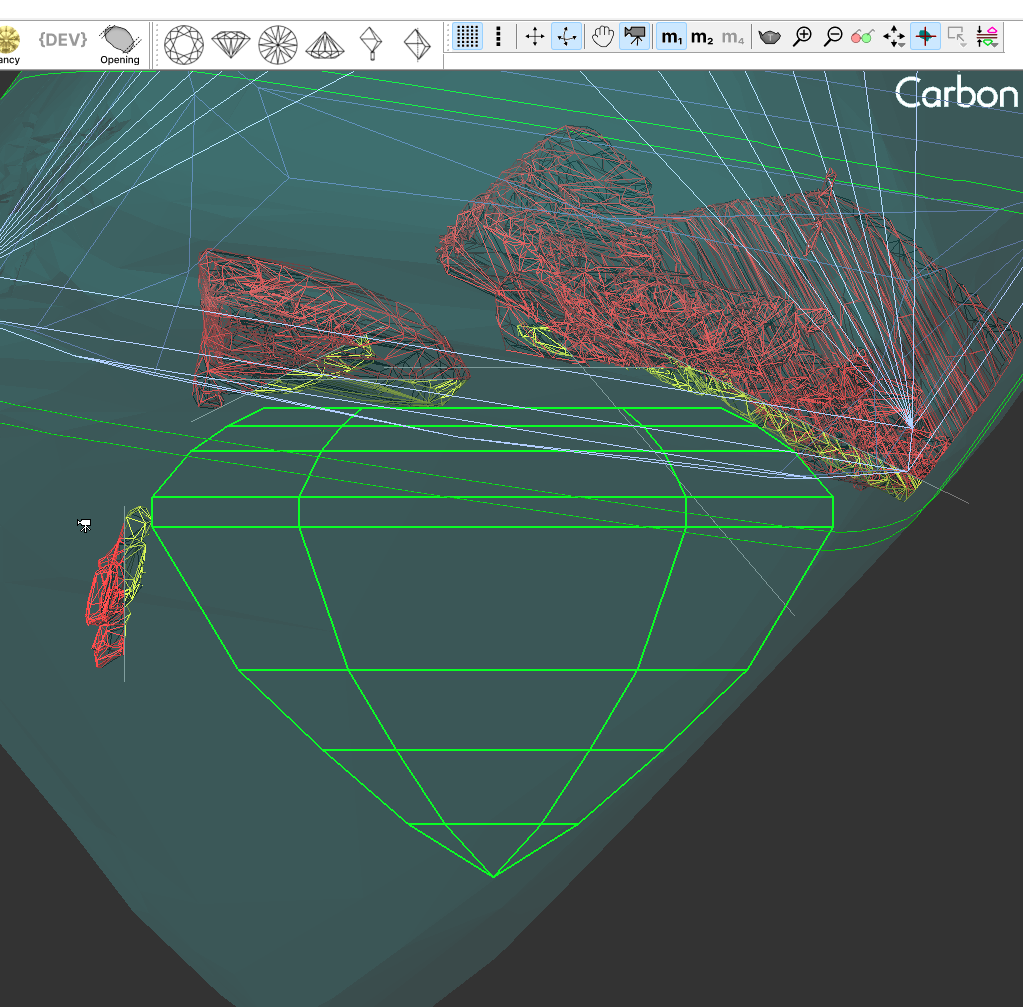
A Quick Sandwich tool has been added, which makes it possible to separate a smaller peace of inclusion. This may increase plan weight with the same clarity.
...
3. Additionally, there is an option to apply the Quick Sandwich to all inclusions near the active diamond.
|
|
Reports Improvements
Shape Deviation - new parameter
Include Page Video | Shape Deviation parameter Video | Shape Deviation parameter
...
To address this issue, we have developed the Shape Deviation parameters. These parameters help to compare how the girdle shape differs from the ideal shape, just like the 2RRoundness parameter does for the Brilliant cut. The Shape Deviation Grade enables operators to easily reject unacceptable girdle shapes.
What is Shape Deviation?
After aligning the girdle shape of the current model with the ideal girdle shape linked to the current cut, we calculate the distances between the two curves. These distances are presented as the Shape Deviation Plot and Shape Deviation Ideal Girdle. Next, we identify azimuth intervals of 11.25, 22.5, 45, and 360 degrees where maximum difference in distances between shapes are observed, and estimate these values. It is in these locations where the imperfections in the girdle shape are most noticeable. The Shape Deviation Plot highlights these areas with rectangular windows, along with indications of global maximum and minimum values.
...
Global maximum and minimum values are also represented in both pictures.
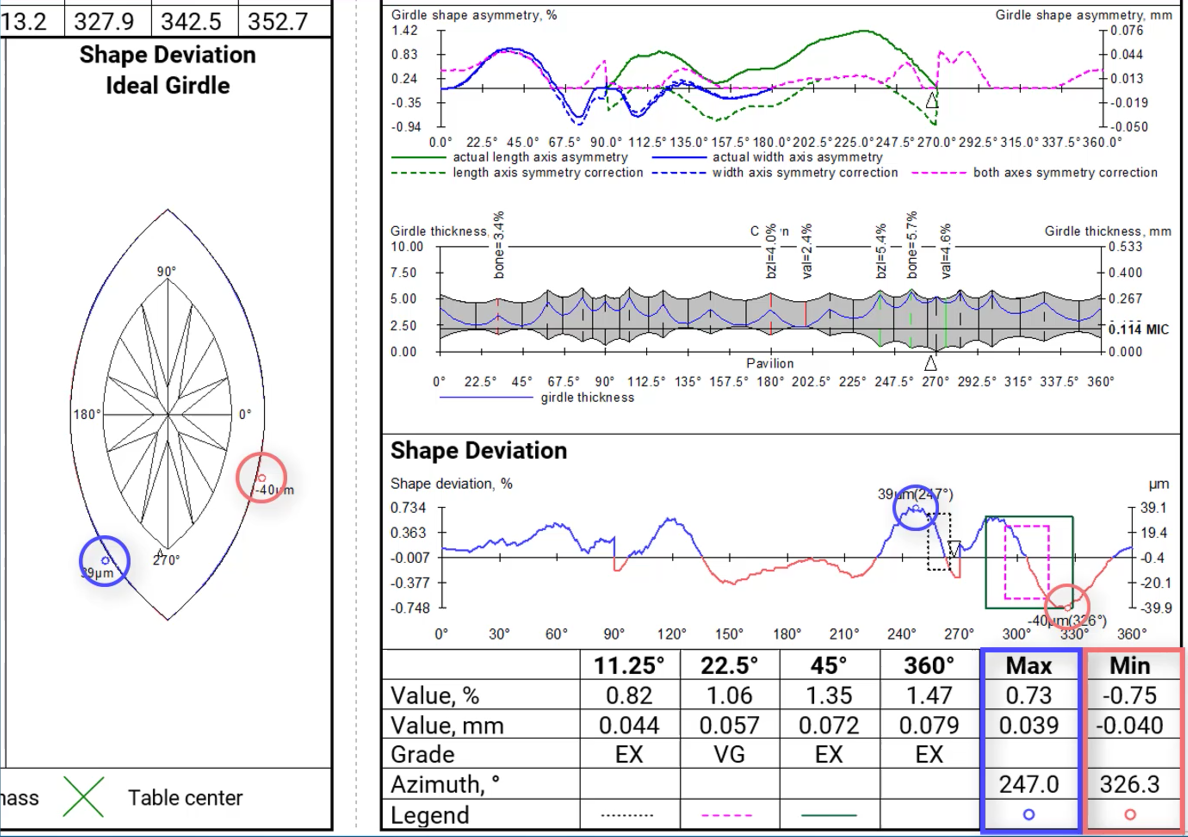
Shape Deviation in appraisers
The parameter is currently available for the following Octonus cuts:
...
Shape deviation now works on non-convex faces
Shape Deviation in SmartRecut
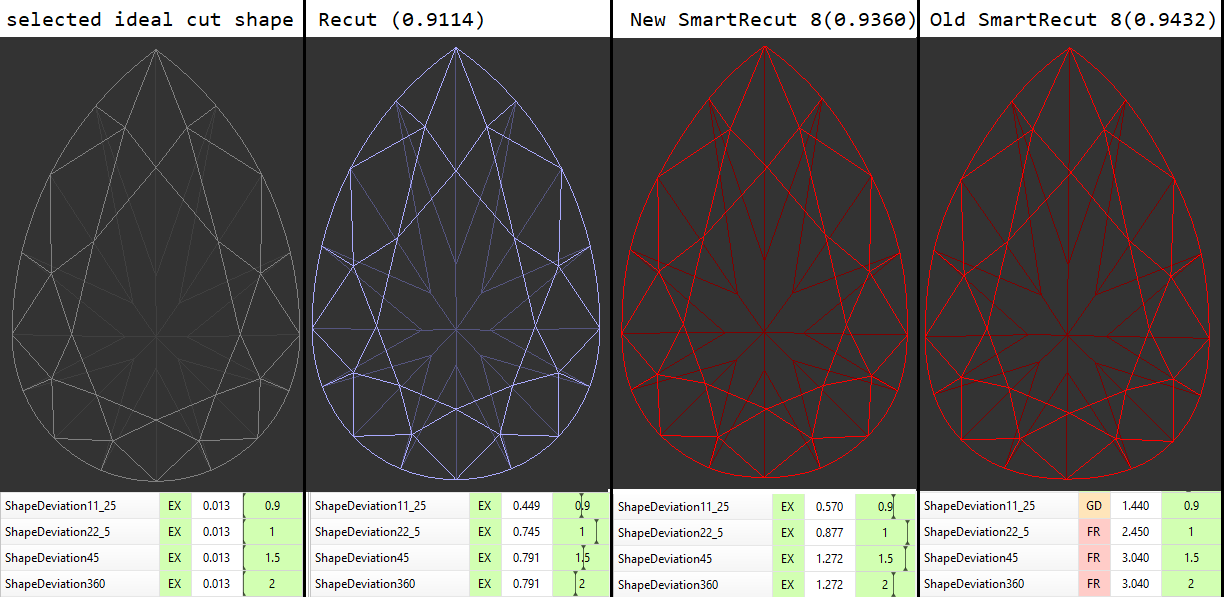
SmartRecut controls the new parameter if they are present in the appraiser. There is a comparison of SmartRecut solution with and without using this parameter on the picture. It is important to note that this parameter prevents the continuous deterioration of the girdle shape in the SmartRecut on SmartRecut scenario.
Shape Deviation in reports
The parameter has been included into reports:
...
The description of Shape deviation parameter and corresponding bookmarks are availbale in Shape Deviation.
Shape Deviation for scans
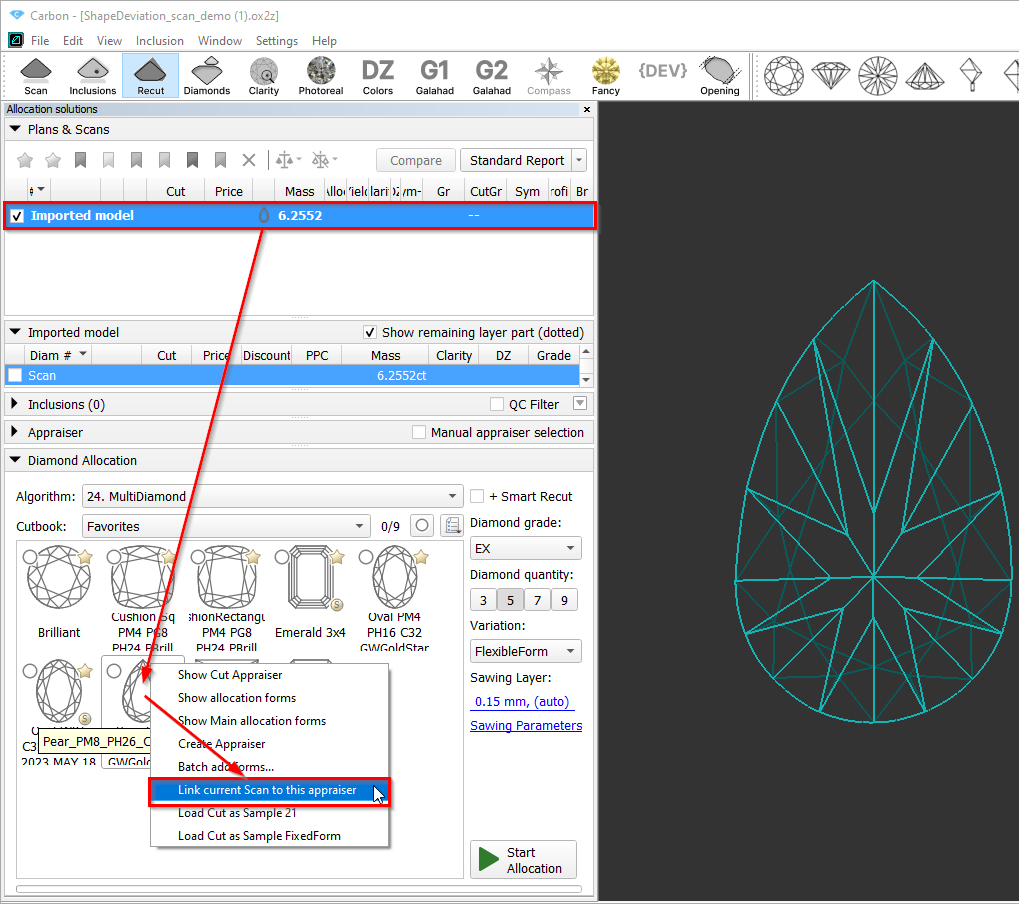
The Shape Deviation parameter can be utilized not only for solutions but also for scans of finished diamonds. To do this, select the scan, right-click on the corresponding cut in the "Cut Book," and choose "Link current scan to this appraiser." The scan can then be evaluated in the Appraiser Editor or Polish Report can be built.
...

The green option is recommended for rounded fancy cuts. The necessity and usefulness of the green option for step cuts are still under question, so both green and yellow options are possible for them.
...
| Warning |
|---|
You can read the full article about choosing an appraiser: Which appraiser template to choose? |
Add allocation forms with Shape Deviation
Include Page Video | Add allocation forms with Shape Deviation Video | Add allocation forms with Shape Deviation
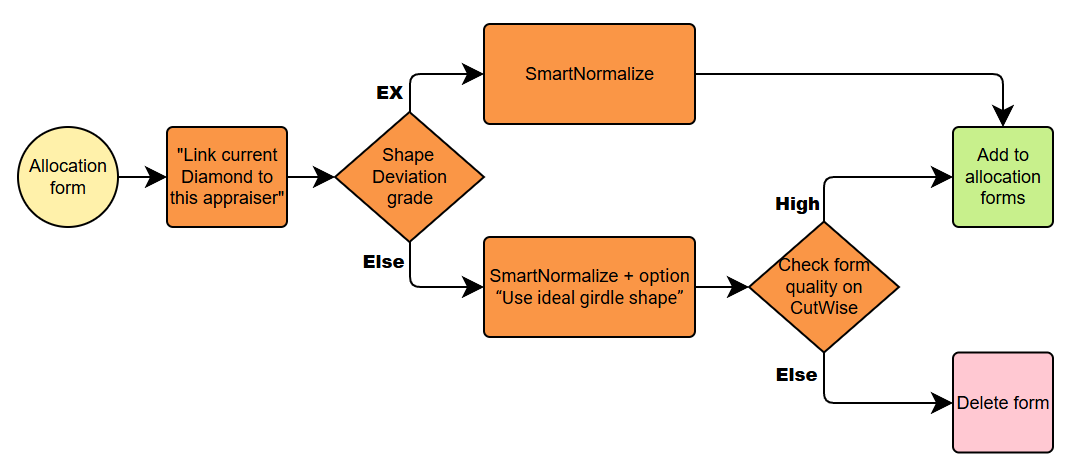
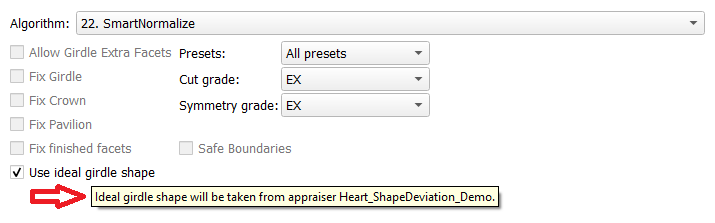
To make the allocation algorithms work correctly, we recommend using allocation forms with an EX grade by Shape Deviation parameter. How to get them? To solve this, we added the option “Use ideal girdle shape” in the SmartNormalize algorithm. How to achieve this? When working with the new cut, you will automatically get EX-grade solutions. The best of these can be normalized and added as forms. But if you've been using our products for a while, you already have a collection of good allocation forms for your cuts. These need to be transferred to the new versions of the cuts registered with the "Goodwin_GirdleShape_*" templates.
Scheme for one form or solution without Shape Deviation
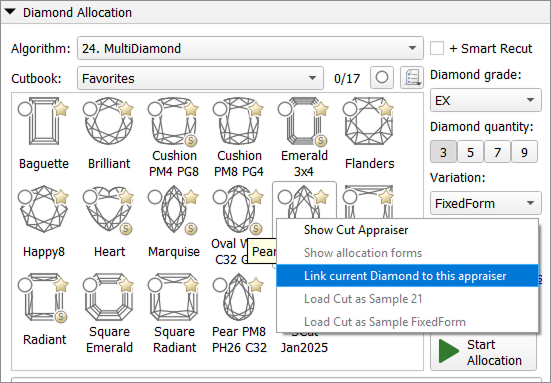
Your old preforms must be evaluated for Shape Deviation of the new cut using the “Link current Diamond to this appraiser” feature. If the preform has an EX grade by Shape Deviation, you can normalize it as usual with minimal changes and register it in the new cut. If the old preform has not EX Shape Deviation grade, the girdle shape must be corrected using SmartNormalize with the new option “Use ideal girdle shape”. Before registering this form, check in CutWise that the girdle shape change did not harm the optical properties of the preform.
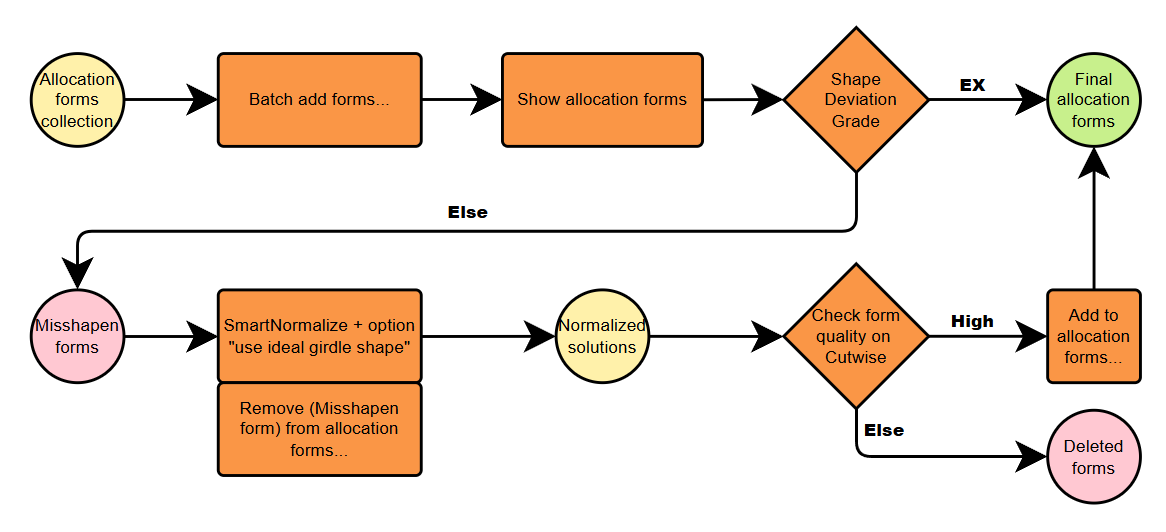
Scheme for many forms transit
If you have many forms in your collection, we recommend using the “Batch Add Forms” command to speed up the process. This command automatically transfers the forms without checking for Shape Deviation. So you’ll only need to fix the “Misshapen Forms”. To view these, use the “Show Allocation Forms” command. Then, apply the previously described procedure to correct Shape Deviation for the “Misshapen Forms”. Finally, don’t forget to remove the “Misshapen Forms” from your new cut, since they have already been added.
Link current Diamond to this appraiser
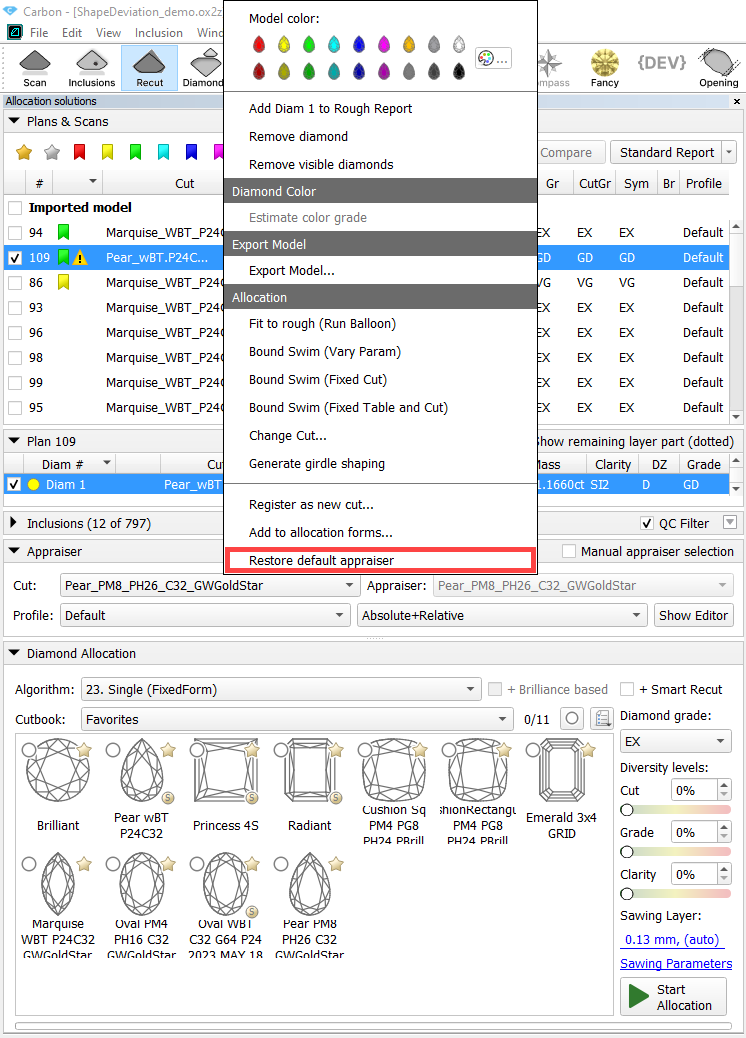
Now you can evaluate your solutions, made by any method, using any appraiser you want. For example, this helps you find shape deviation values based on the ideal girdle shape from another appraiser. This is especially useful if your current solution was made with an old appraiser and will be used as the allocation form for cutting with shape deviation.
...
To go back to the default appraiser, use the command “Restore default appraiser” in the diamond’s context menu.
Option “Use ideal girdle shape” during SmartNormalize
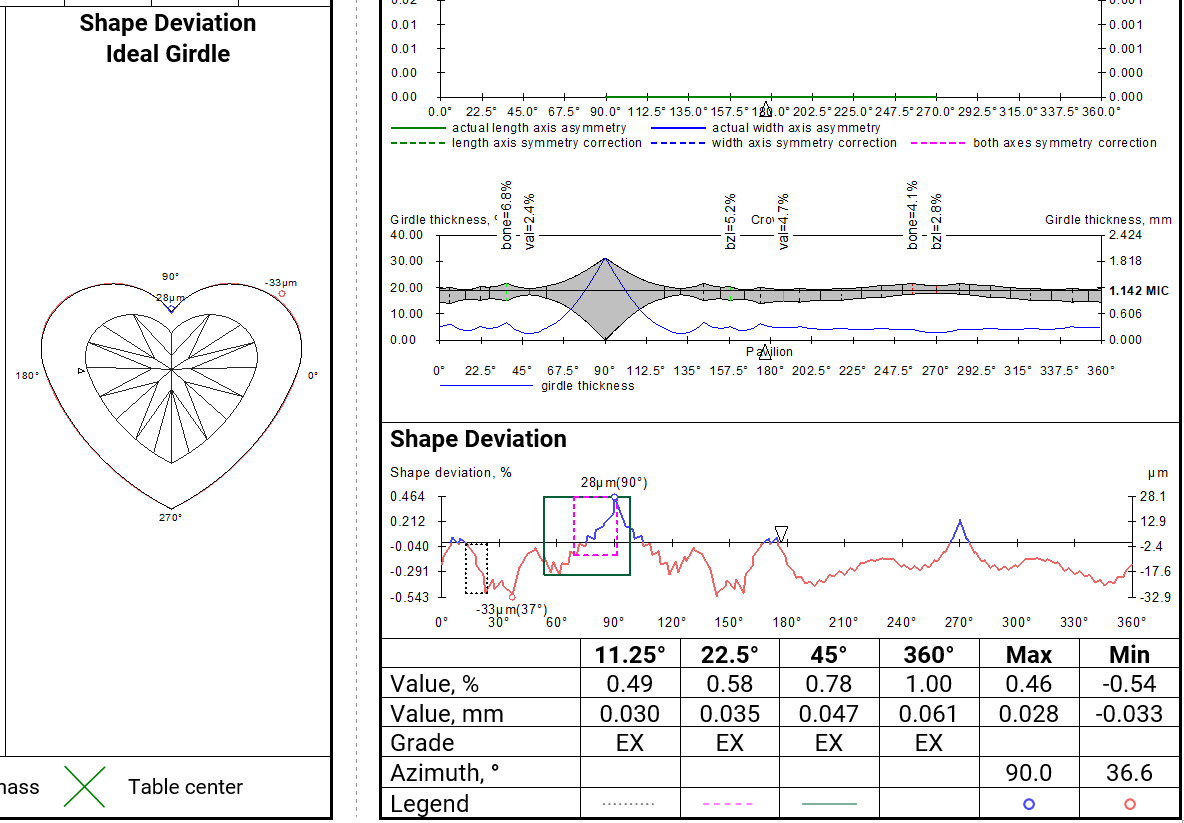
Suppose we have a solution that we want to use as allocation forms for the Heart_ShapeDeviation_Demo cut. We apply the command “Link current Diamond to this appraiser” to the solution. In the appraiser and report, we see poor Shape Deviation by appraiser Heart_ShapeDeviation_Demo.
...
The tooltip for the “Use ideal girdle shape” checkbox provides helpful information to understand how it works.
Remaining depth mode changes for I3D reports
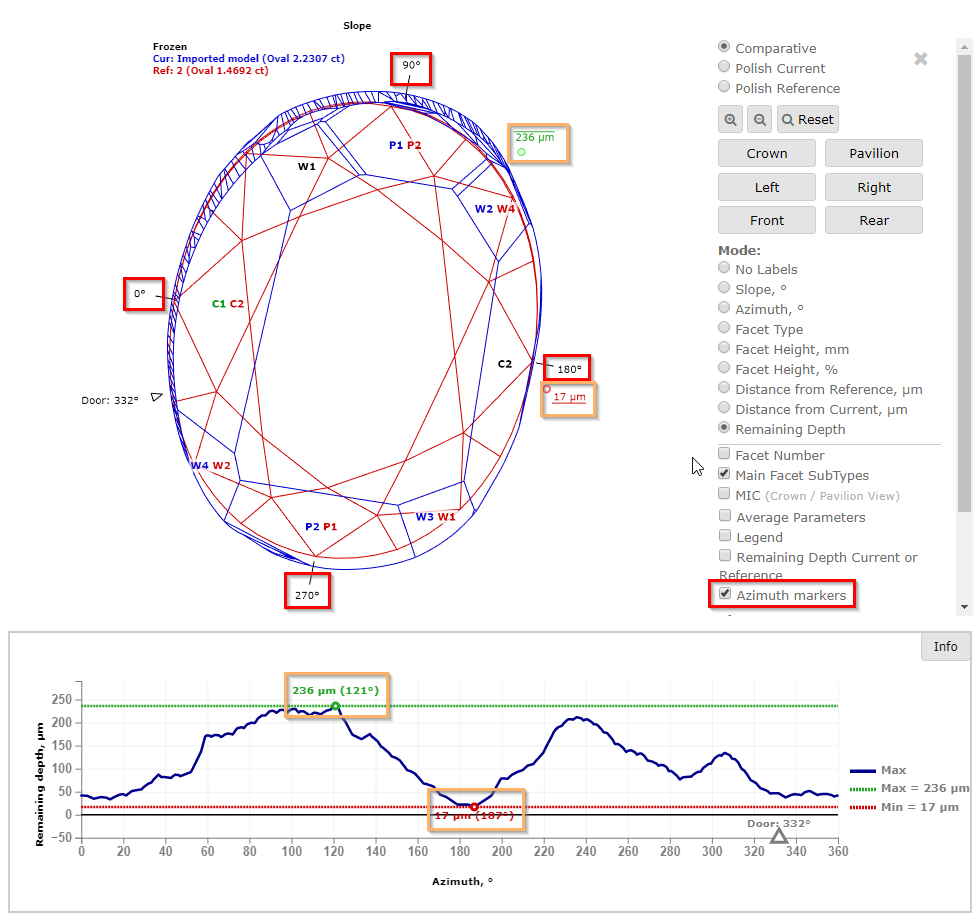
In I3D Comparative Remaining Depth mode, min/max indiaction added to the graph plot and 3D scene.
Azimuth markers were added to the 3D scene to make a more convenient navigation between the graph plot and the scene.
Facets Edge Width for Princess cut
The parameters are calculated in mm and %. If Princess Cut has RT <= 1.05, then the parameters in % are calculated in relation to the width, and if more than 1.05, then the parameters in relation to the length are also added. The distances are calculated in projection on the plane of the table.
...
"e":
"PAV1_MAIN_FACET_EDGE_WIDTH_MM",
"PAV1_MAIN_FACET_EDGE_WIDTH_PC",
"PAV1_MAIN_FACET_EDGE_LENGTH_MM",
"PAV1_MAIN_FACET_EDGE_LENGTH_PC",
Heart Groove measurements
We added the following dimensions (in mm and as a percentage with respect to width).
...
- Dimension “A” - "HEART_GROOVE_WIDTH_MM", "HEART_GROOVE_WIDTH_PC"
- Dimension “B” - "HEART_GROOVE_DEPTH_CRN_MM", "HEART_GROOVE_DEPTH_CRN_PC"

- Dimension “C” - "HEART_GROOVE_DEPTH_PAV_MM", "HEART_GROOVE_DEPTH_PAV_PC"

- Dimension “D” - "HEART_GROOVE_HEIGHT_MM", "HEART_GROOVE_HEIGHT_PAV_PC"

Appraisers&Pricelists
Link current Scan to this appraiser
The cut name set using "Link current Scan to this appraiser" was overwritten by the automatically defined name after changing the Facet Types.
User interface updates
Scene rotation tool (Ox/Oy/Oz)
You can navigate the scene using your mouse. However, for more precise adjustments, you'll need to use the movement panel, which can sometimes be inconvenient.
...
| Video | Axes rotation modificator - rotation along Ox/Oy/Oz axes | ||||||||||
|---|---|---|---|---|---|---|---|---|---|---|
| Published: | 2024, December 13 | Last Updated: | 2025, September 03 | v.1.3 | ||||||
| ||||||||||
Video summary: To rotate along those axes, simply press the H (Horizontal), V (Vertical) or С (Center) keyboard button respectively and rotate the scene
| ||||||||||
| Video keywords: rotation, scene, axes | ||||||||||
Data | ||||||||||
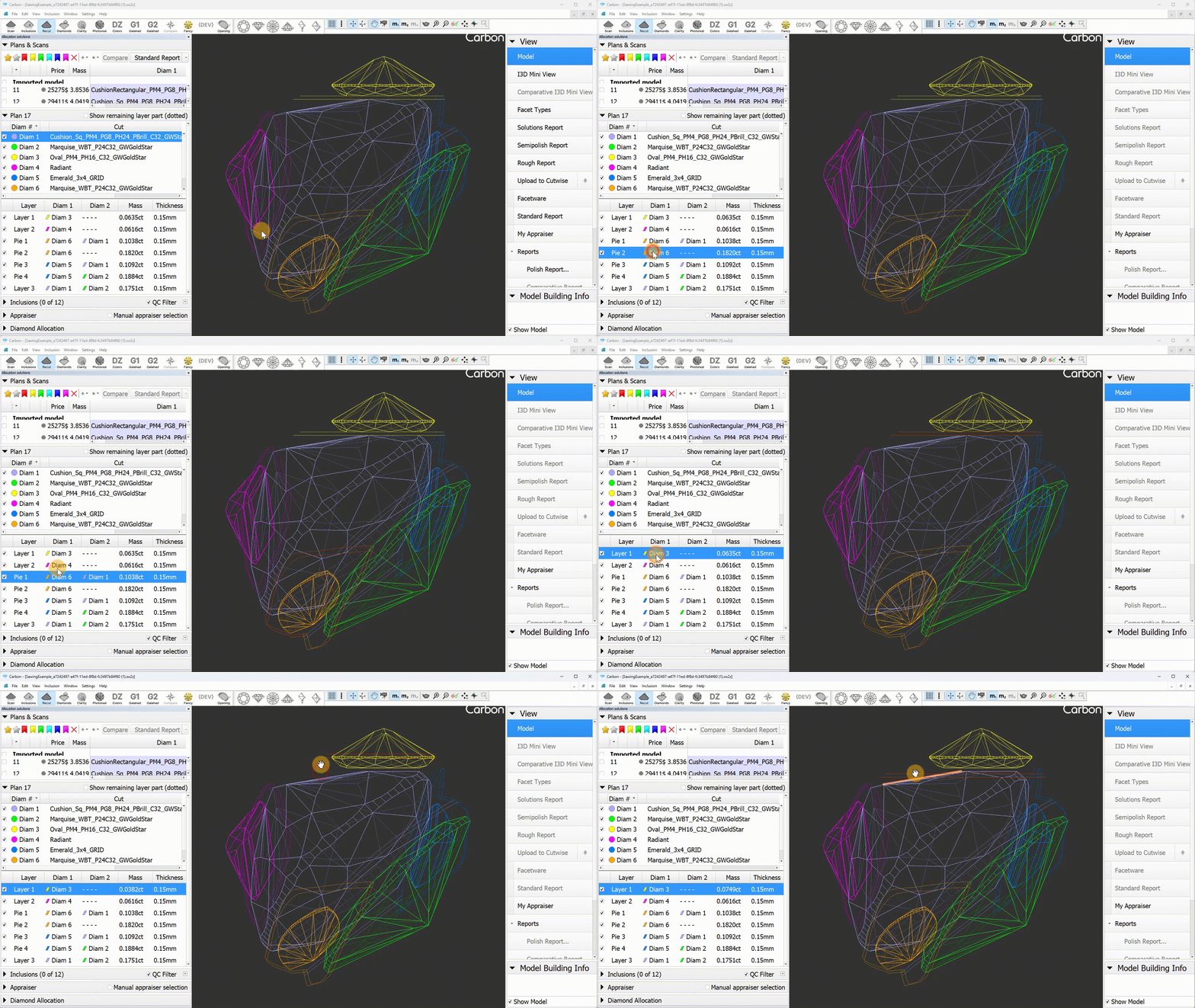
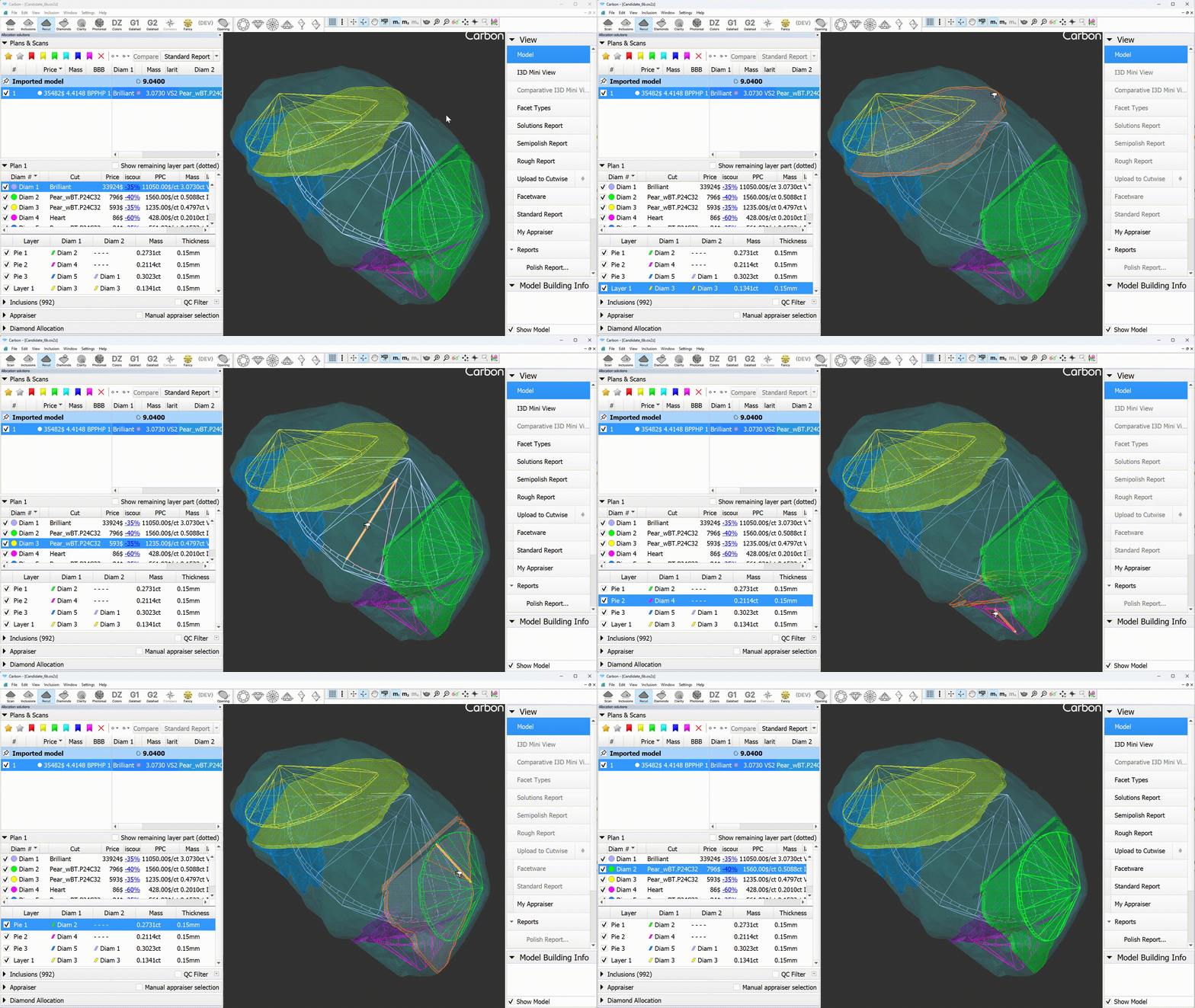
Layer selectable from the panel
Layers are now selectable like diamonds, enabling the use of object movement tools on the selected layer.
Objects selection tool
You can now select sawings directly on the scene with a simple click, just like diamonds. This is also useful for opening the context menu, which appears for the active diamond. In Lines mode, the active diamond is now visually distinguished on the scene with thicker lines.
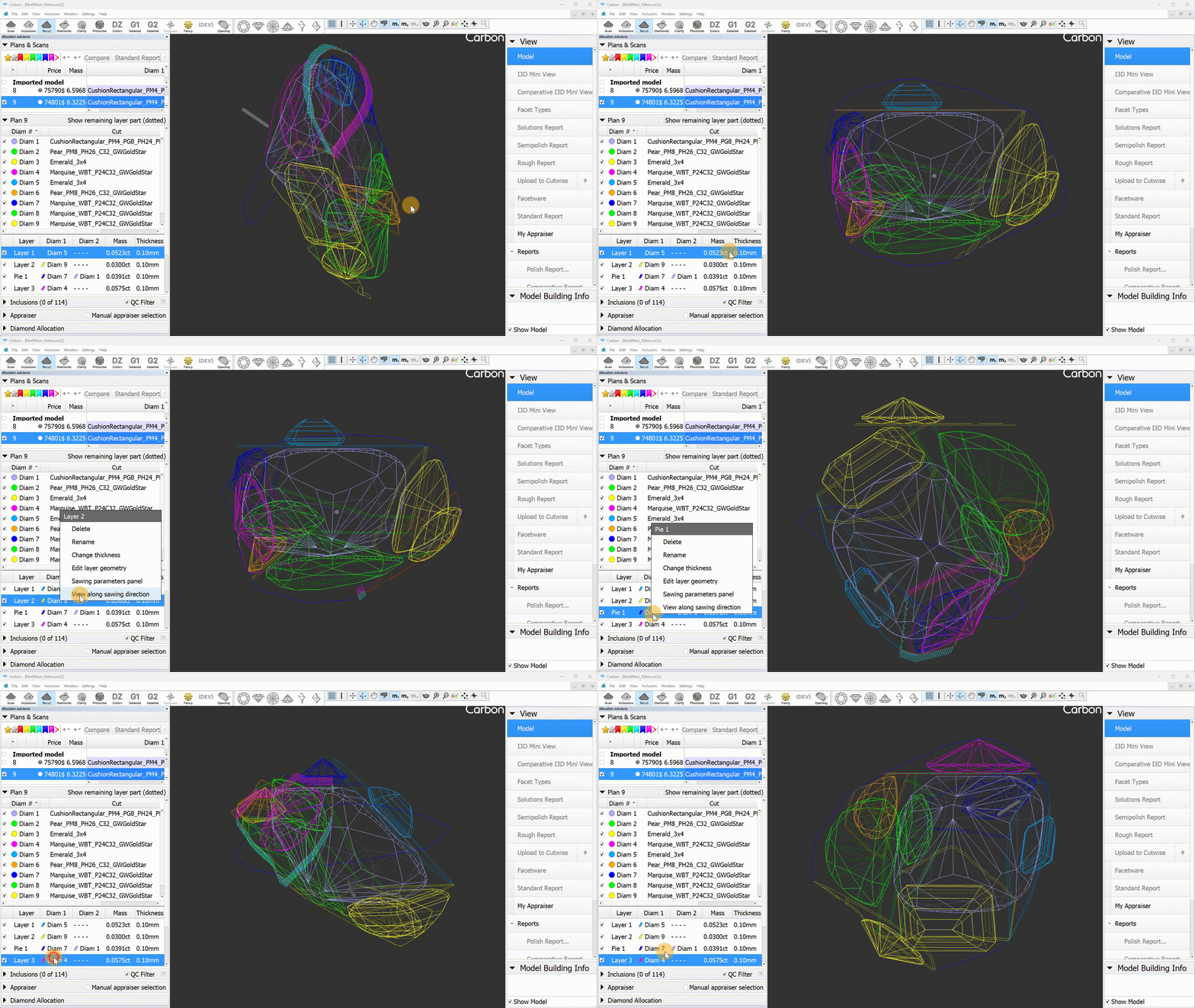
Operation "View along sawing direction"
A new context menu item, "View along sawing direction," has been introduced for layers. This command arranges the scene so that the layer becomes horizontal.
Scene objects - layers
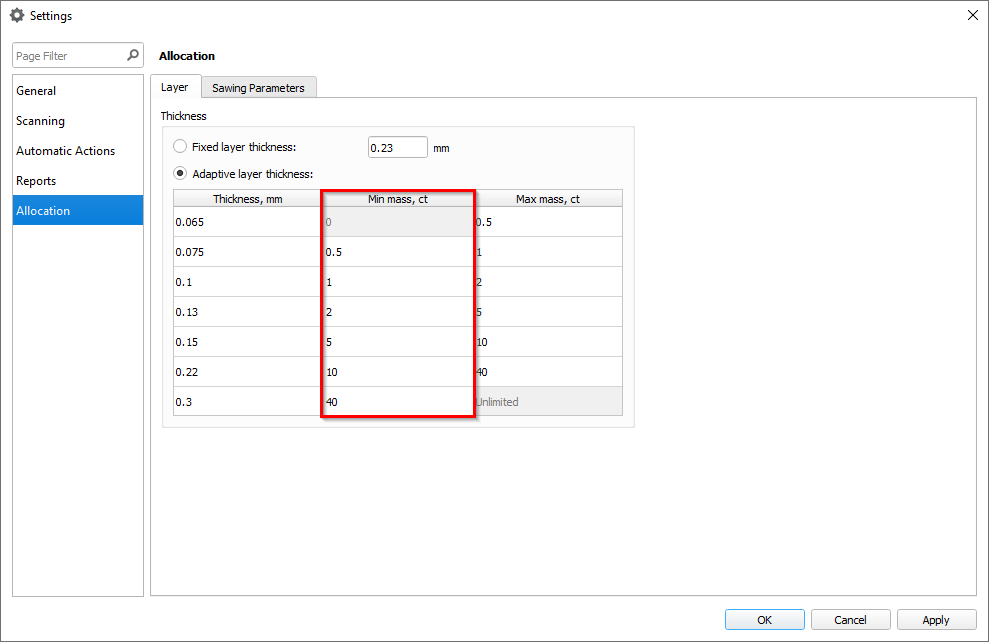
Sawing layers thickness settings
An additional column has been added to the sawing thickness table to display the minimum mass value, indicating the interval for the corresponding thickness value.
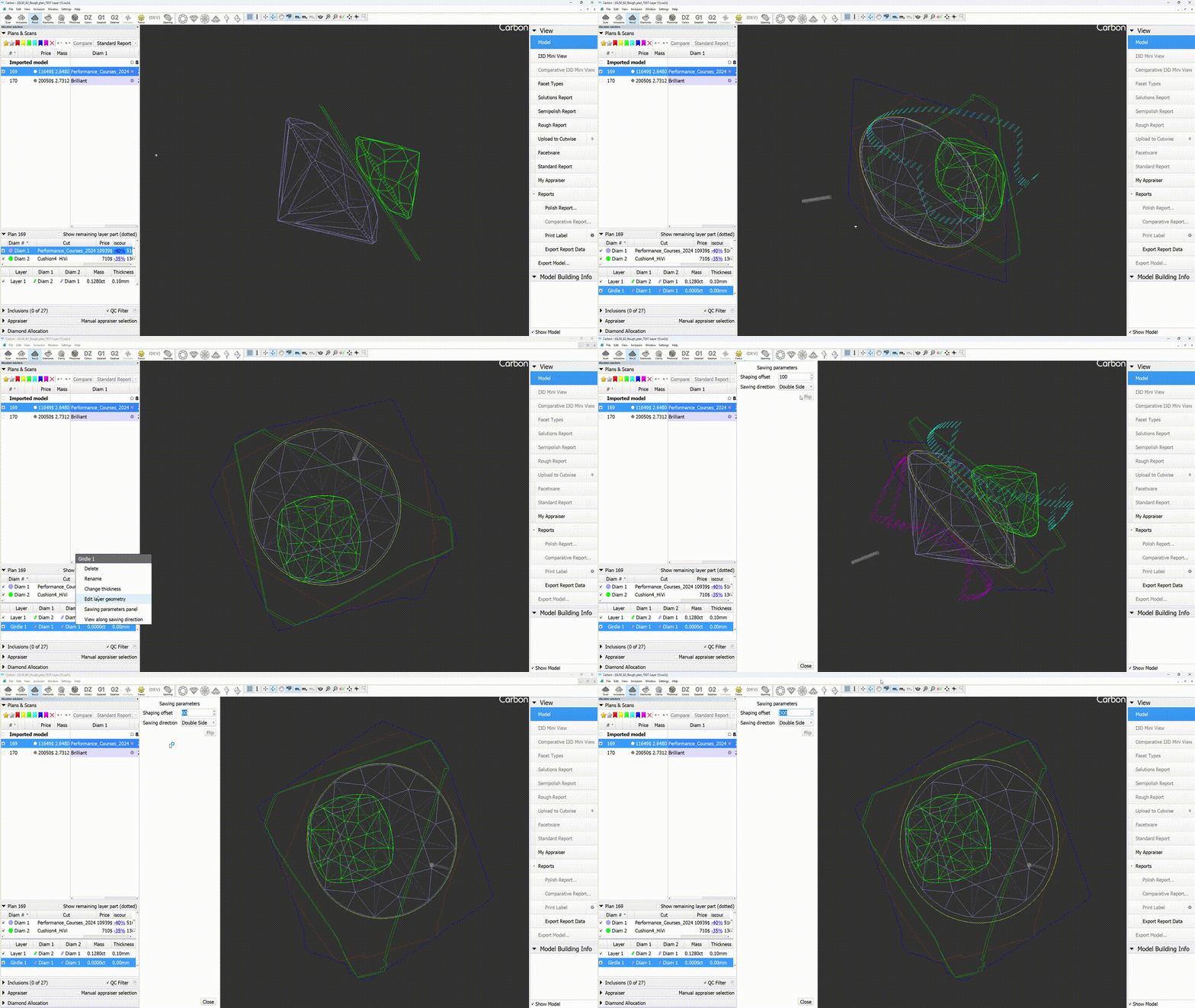
Sawing parameters
The sawing layers have been upgraded with new data and an improved interface. The "Create sawing data" command in the solutions context menu has been replaced by two distinct commands: "Create sawing layers" and "Generate sawing data."
...
To create a shaping, you can use the "Generate girdle shaping" command from the diamond context menu. For shaping sawings, there is additional data provided: a shaping contour around the girdle (yellow line).
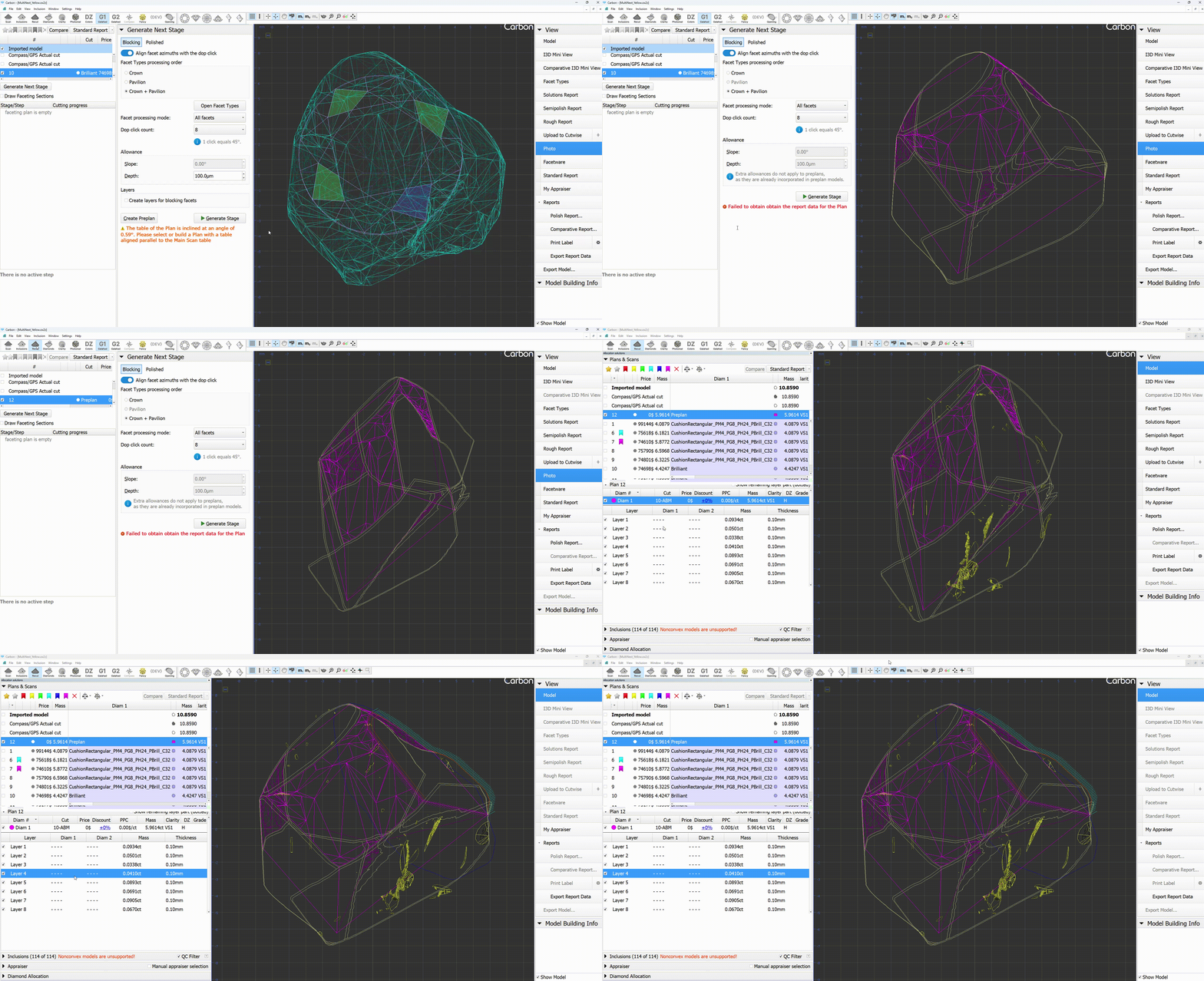
Blocking layers
You now have the option to create blocking layers when generating a preplan. To do this, simply check the "Create layers for blocking facets" checkbox and click the "Create preplan" button.
The sawings will be positioned with an offset from the facets. You can modify the offset value in "General Settings -> Allocation -> Sawing Parameters -> Facet Distance".
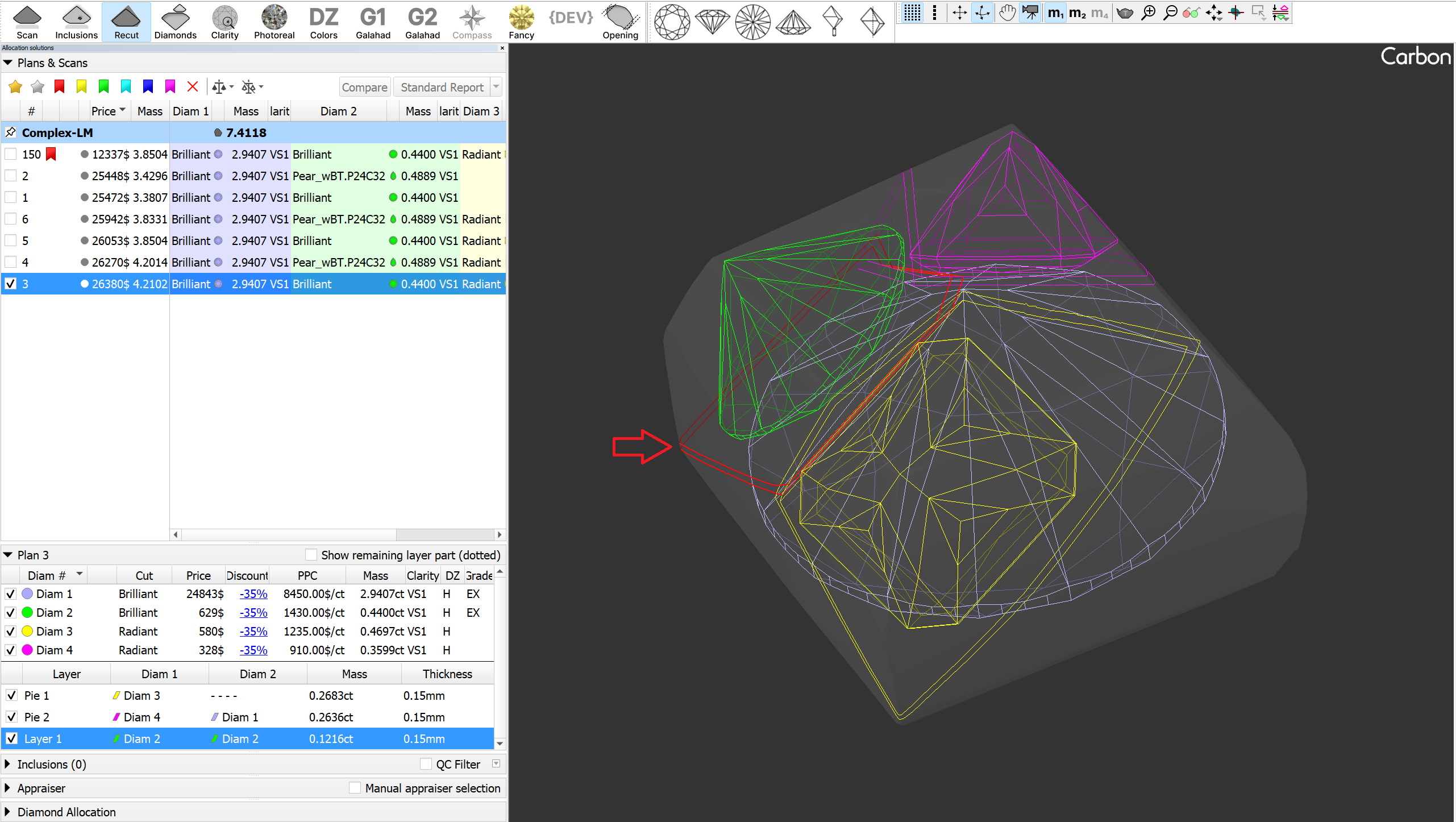
Pinning Solutions in the Solution List. Rendering upgrades.
We have added the ability to pin solutions in the solution list. To pin a solution, right-click its checkbox; click the same area again to unpin it. The pinned solution remains visible on the scene at all times, regardless of your selection from the list. This is particularly useful for keeping scans (like the main scan) permanently displayed.
...
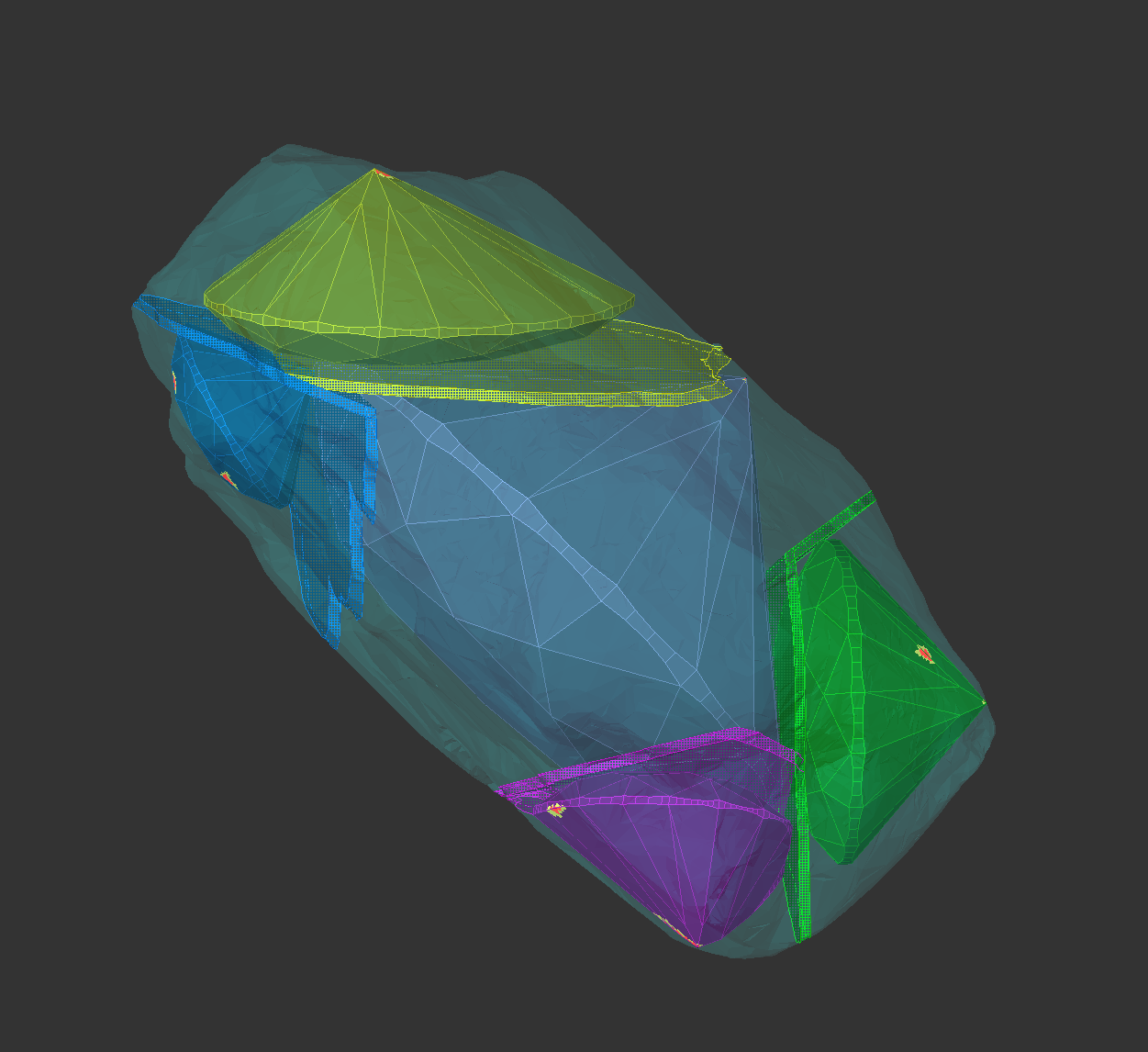
Saw rendering has been improved: non-visible parts are now shaded, and the active layer is highlighted in red with thicker lines. For users who prefer solid mode, this option can now be applied to layers(planes) in the Rendering Settings.
Sample Facet Types
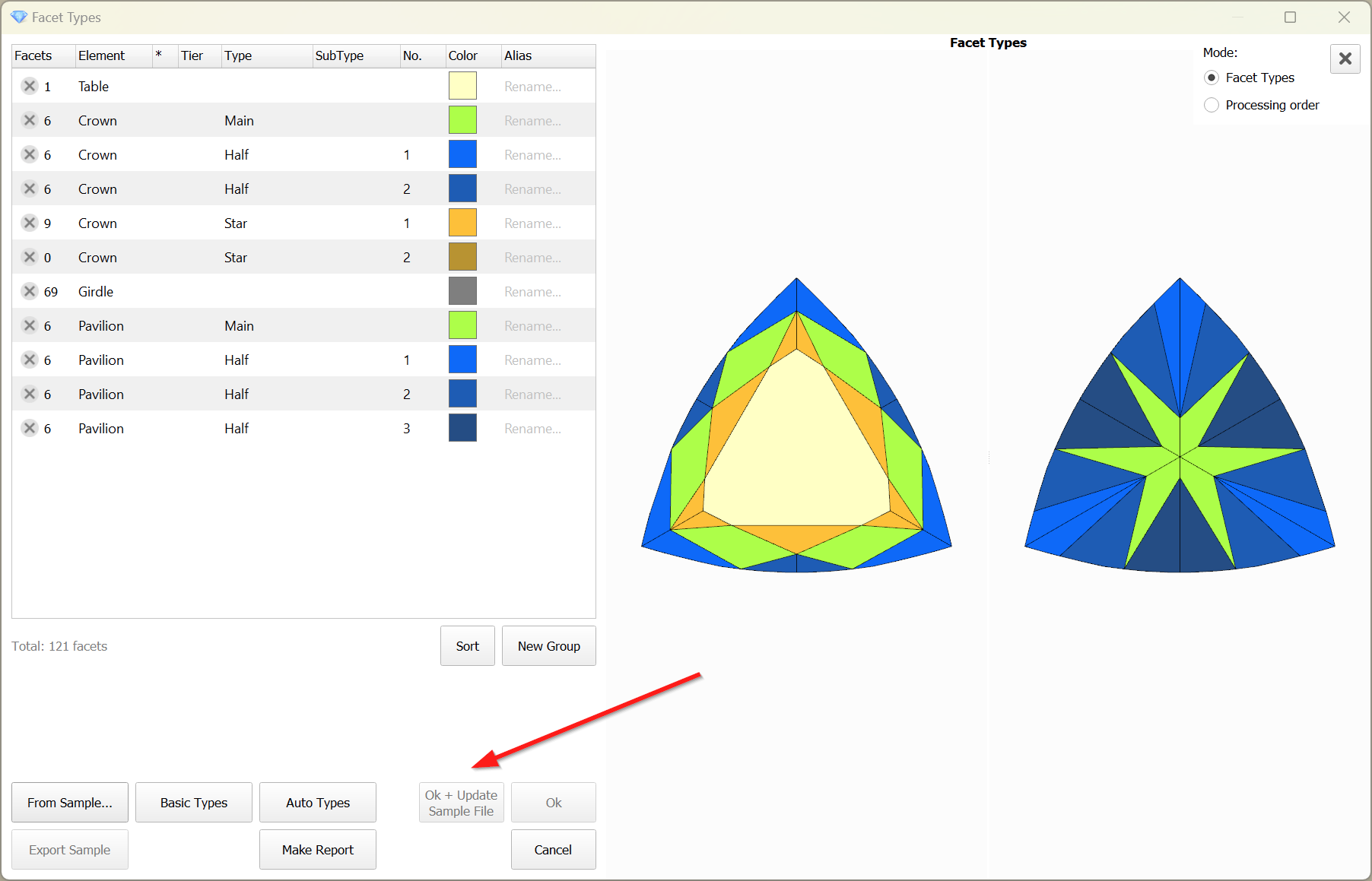
When editing the Facet Types of a sample, the modified types are not saved to the sample file by default. However, this feature proves to be quite useful and convenient. Therefore, this functionality has been implemented.
...
The button is disabled when the file is unavailable:
Preplan updates
Preplan Creation Improvements
The preplan creation process has been enhanced and stabilized. The "Create sawing preplan" feature now fully supports half-planes, pies, and shapings, including imported Sarin projects.
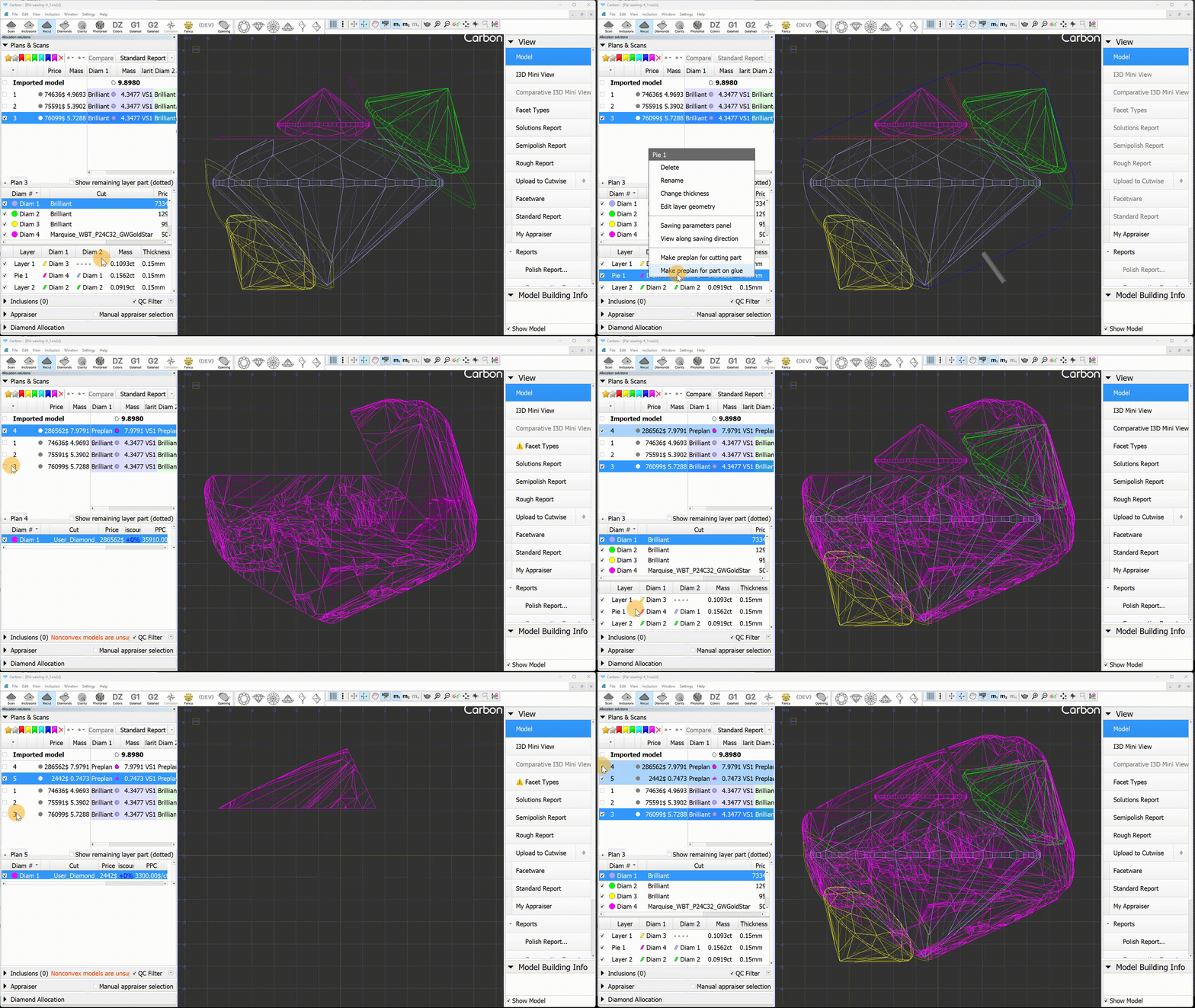
New Preplan Creation Methods
Two additional ways to create a preplan have been introduced: from the layer's context menu, you can select "Make preplan for cutting part" and "Make preplan for part on glue." "Make preplan for cutting part" creates a preplan for the part of the rough that should be cut off by the sawing. Typically, this is a sawing preplan for the diamond being cut. "Make preplan for part on glue," on the other hand, creates a preplan for the remaining rough part. This is the part of the rough, that remains at the glue point after being cut by this layer.
Recognition updates
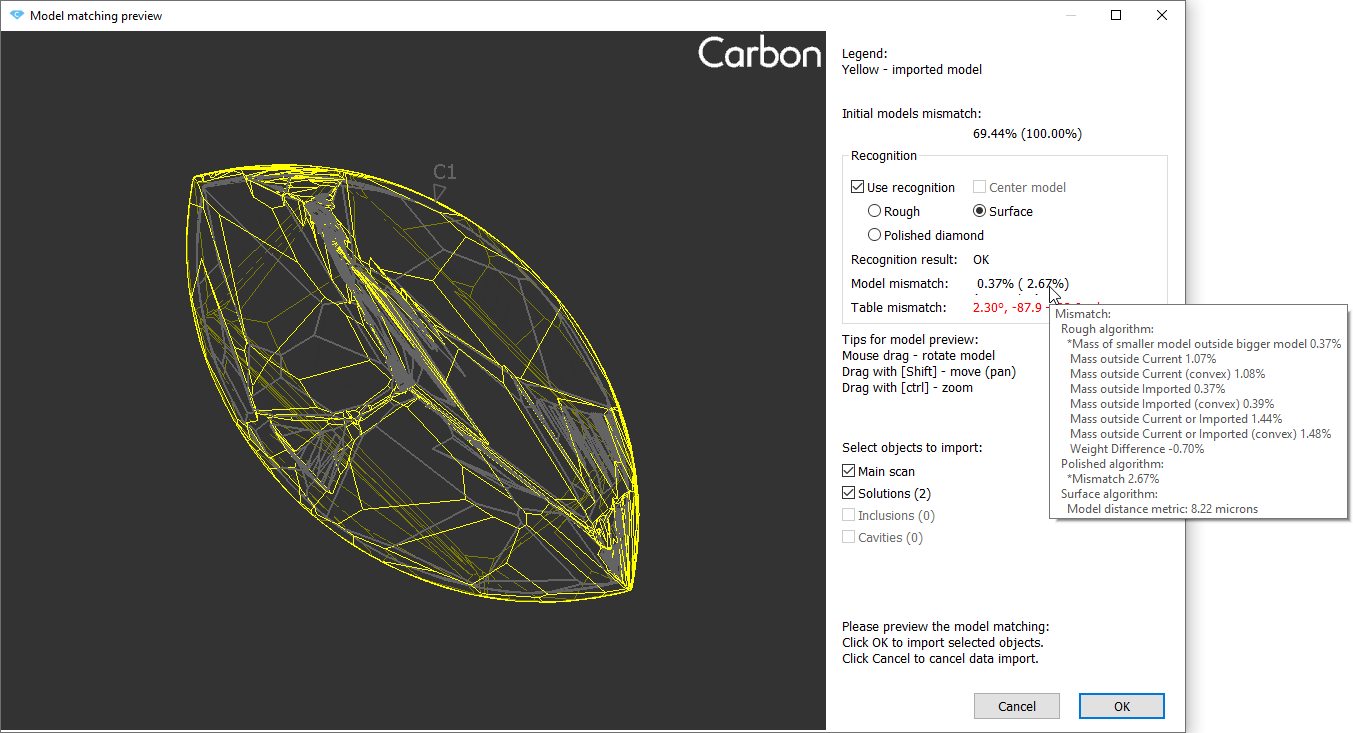
Surface recognition update
- The "Surface" recognition now provides consistent results, regardless of the order in which models are opened or imported.
- A bug affecting recognition has been fixed; it occurred that an imported model was a preplan instead of a scan (this issue raised after unchecking the "Recognition" option).
- Mismatch data for "Surface" recognition is displayed. We’ve introduced the display of the Model Distance Metric value, which roughly corresponds to the average distance between the model’s surfaces.
Inclusion Mode improvements
- Batch removal of inclusions has been accelerated;
- Batch set of inclusion status has been accelerated;
- The "Select All Inclusions" context menu operation has been accelerated;
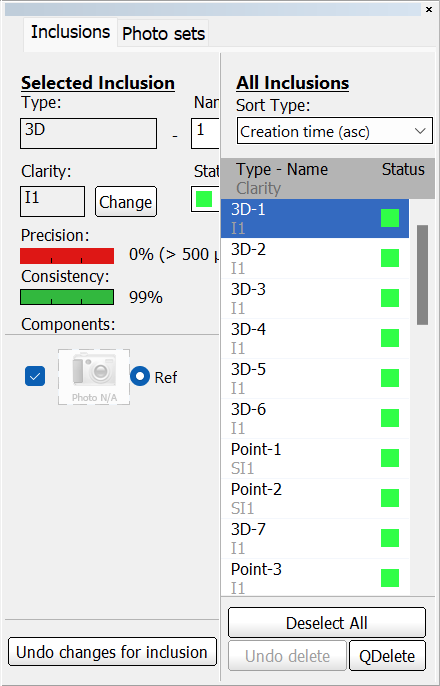
- Fix: the inclusion color status was not updating properly in the right pane of the Inclusion tab;
- Surface inclusions: depth combo box was updated. Now the depth value can be changed using the mouse wheel (like in spin boxes), as well as edited manually.
...
- Resolved an issue where the color status of newly created inclusions was not updating correctly when accessed via the context menu in the list.
Fixed a problem that prevented the removal of inclusions from the scene in scenarios involving Cracks (with auxiliary inclusions such as deep point.
Fixed crash when deleting inclusions in a certain scenario and project.
- In the Inclusions mode, the inclusion color statuses were not updating correctly in the list.
Fixed problems and improvements
- Now the "Open Sample" dialog remembers the selected method, and the next time the dialog is opened, it will be automatically selected.
...