...
| Note |
|---|
This feature is currently accessible:
|
To convert files, you need to do the following:
| Step | Screenshot |
|---|---|
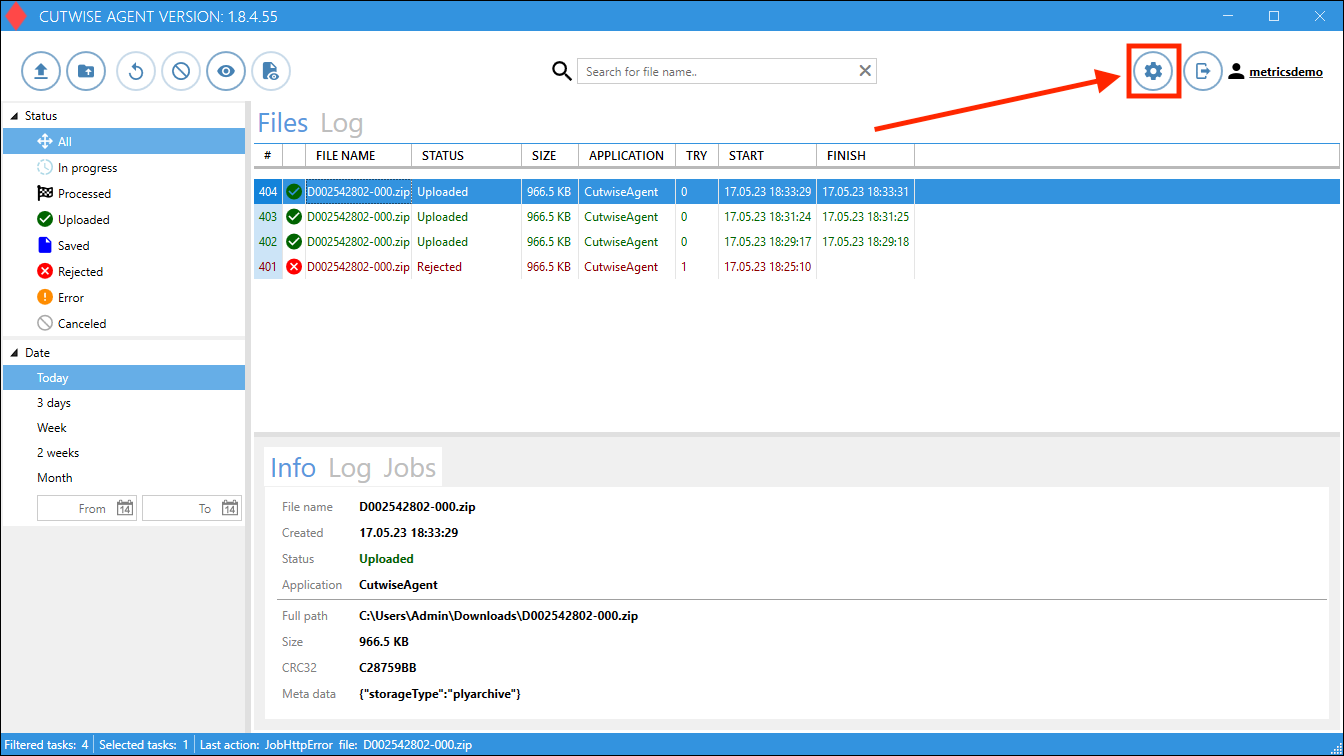
1. Open Cutwise Agent, log in with a Cutwise account. 2. Go to Settings: |
|
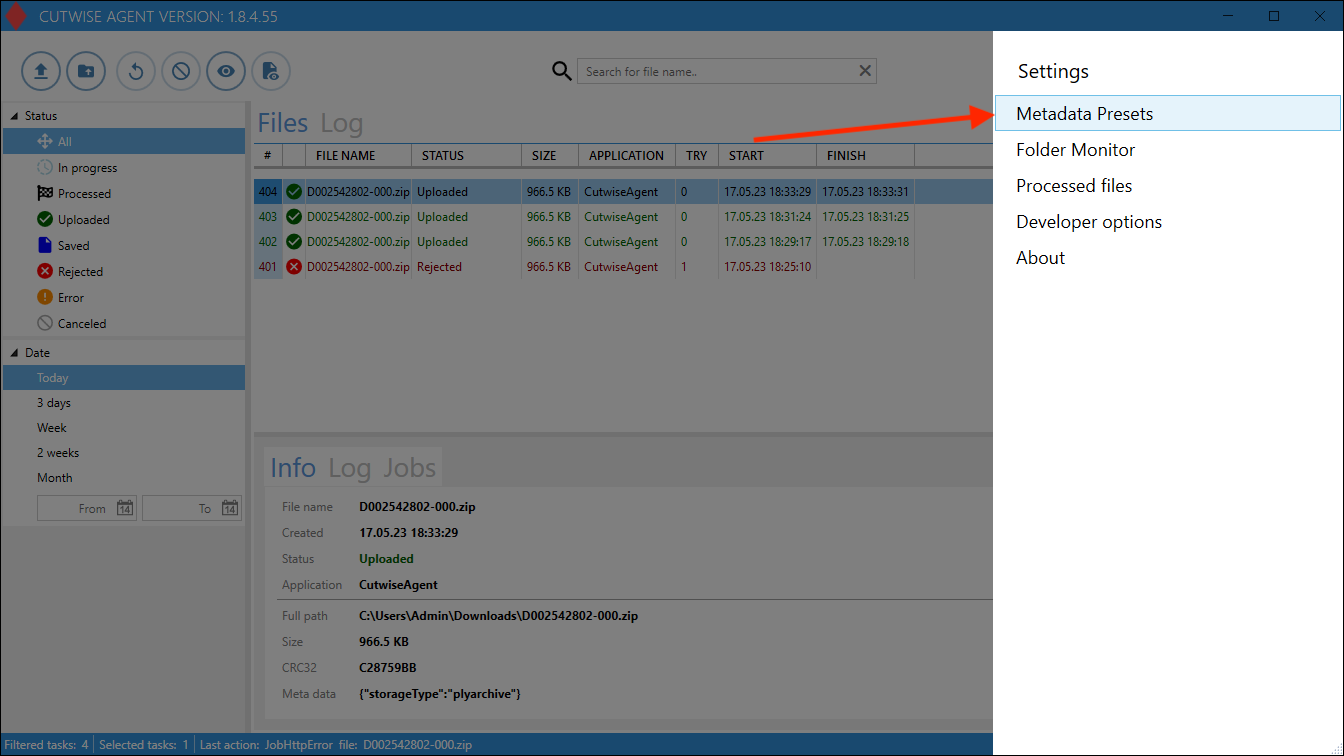
| 3. Next in the "Metadata Presets" menu: |
|
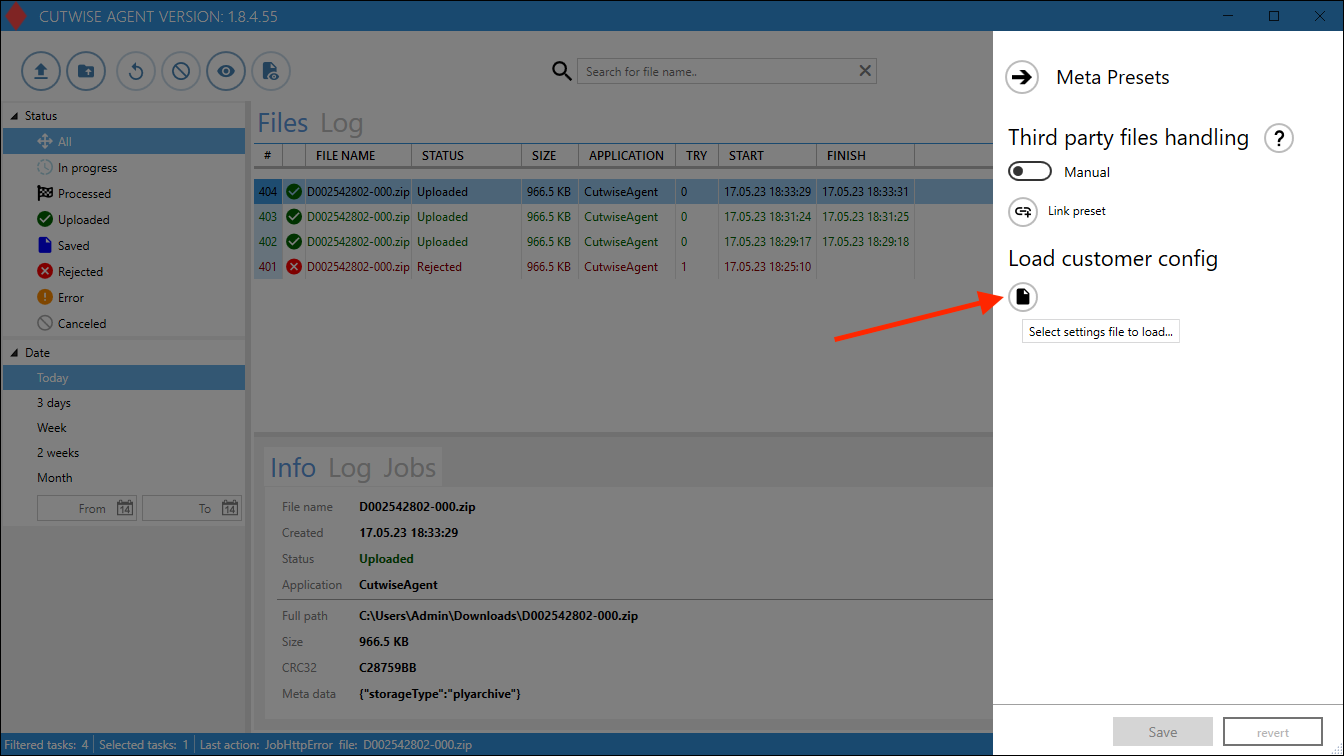
4. Click on the "Load customer config" button: |
|
5. In the menu that appears, download this config file: Appsettings_STL_new.json | |
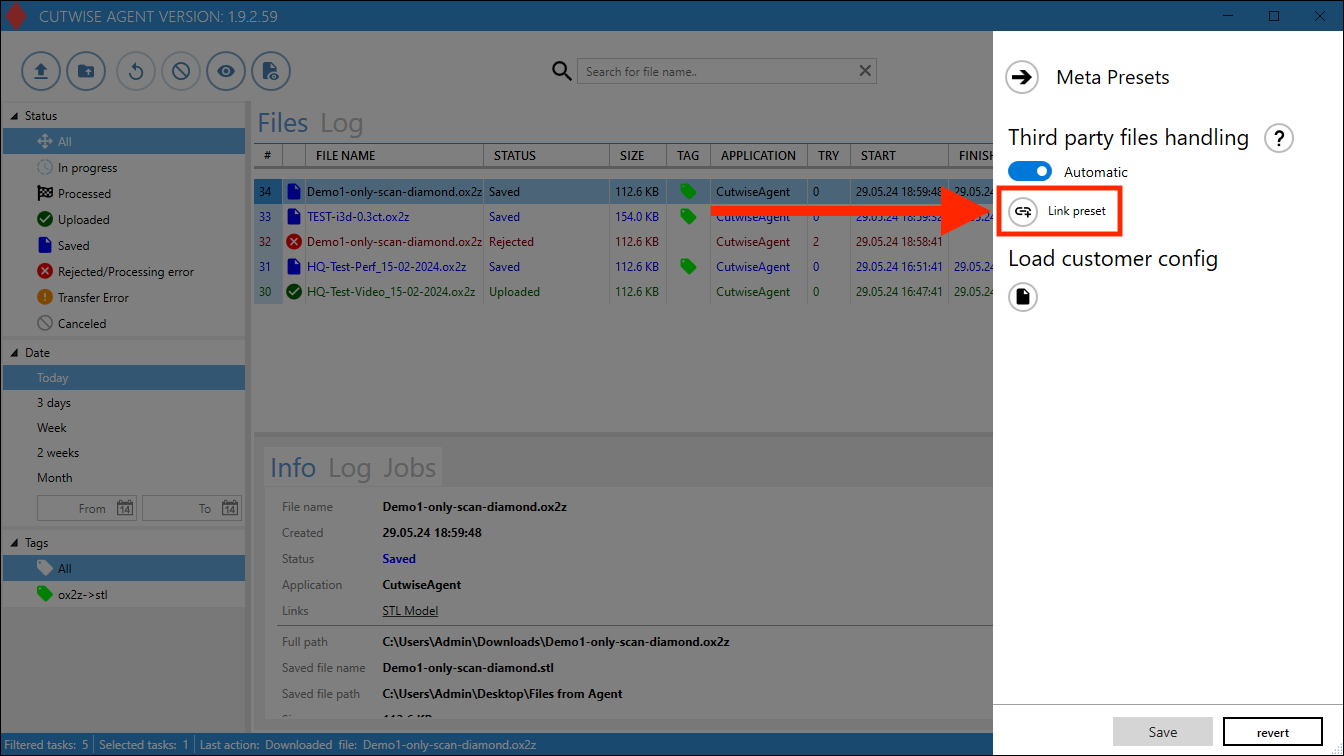
6. Click to "Link Preset" preset button |
|
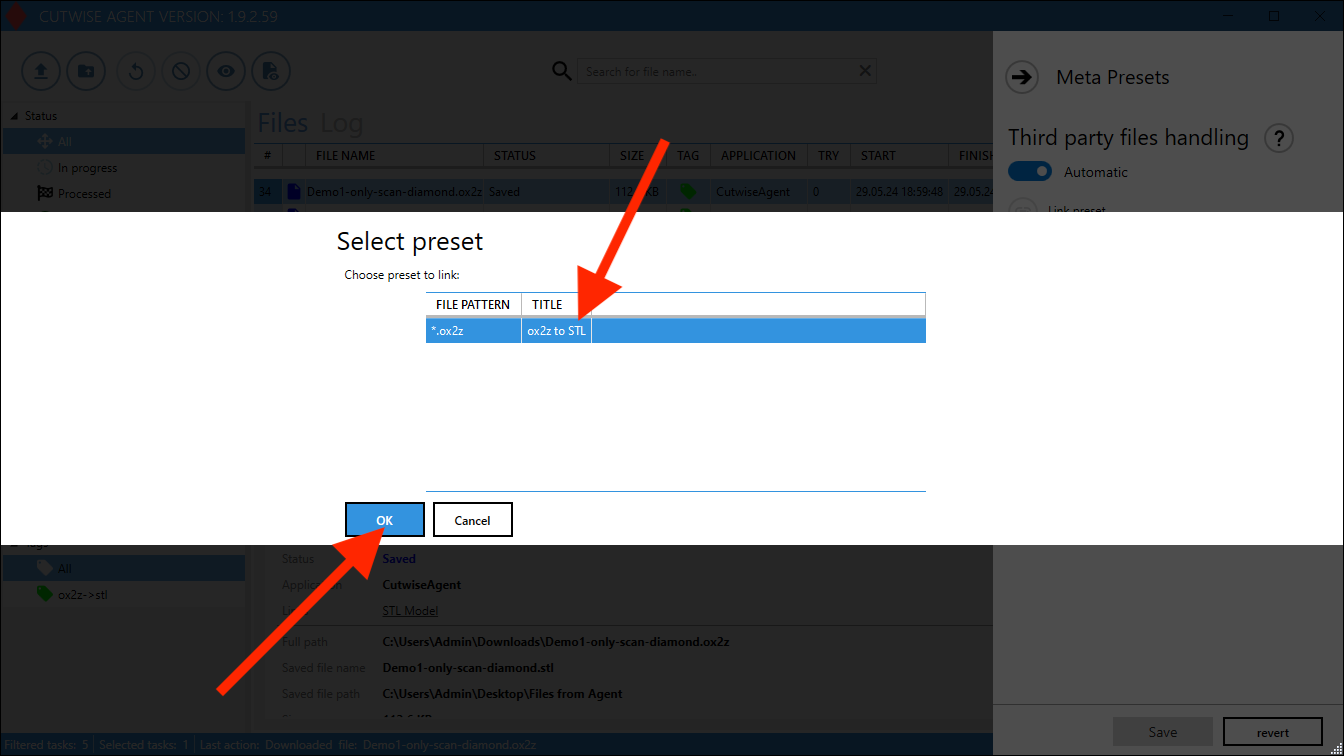
7. Choose the preset and click to "OK" button |
|
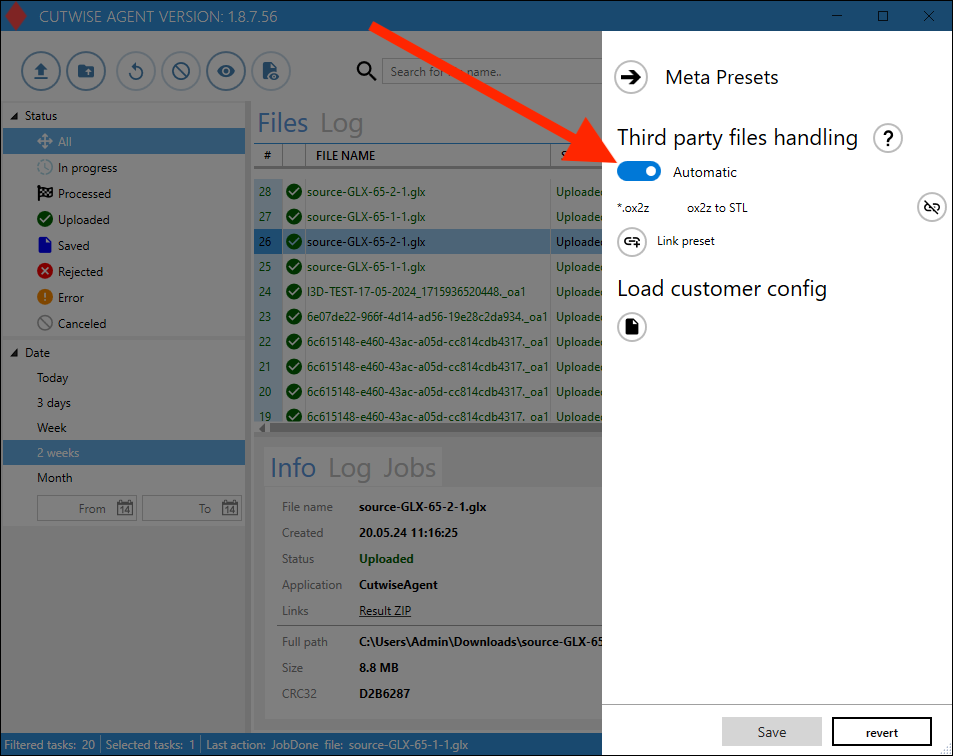
8. Check that the Third party files handling set as "Automatic". |
|
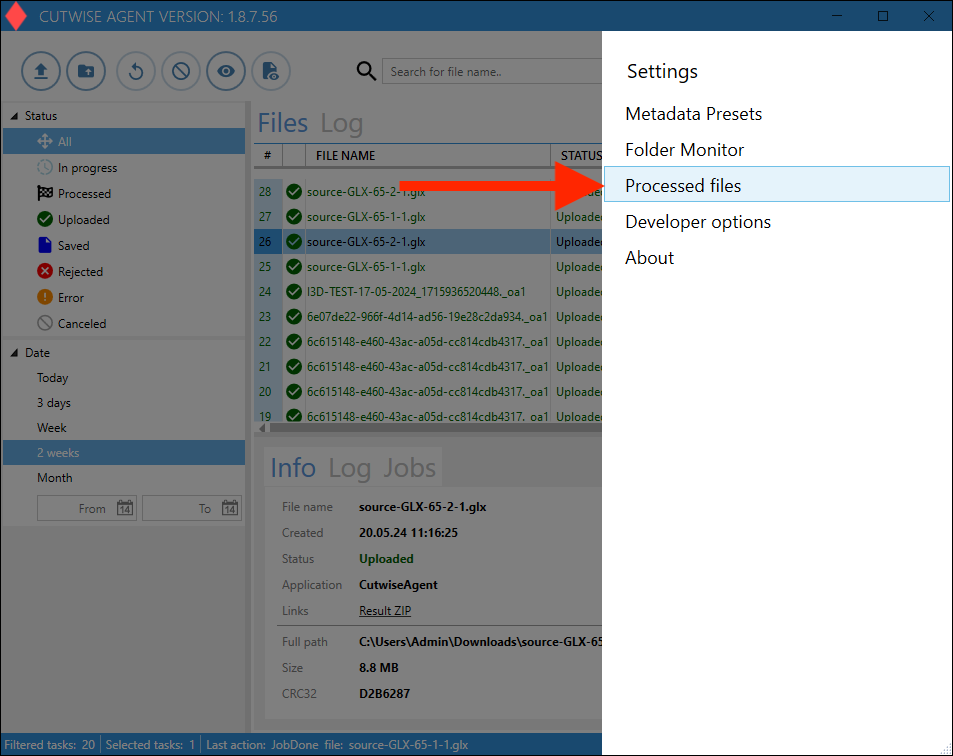
9. Go to the "Processed Files" settings |
|
10. Change the folder for result files (or you can use the default folder).
Click the “Save” button for saving all settings. |
|
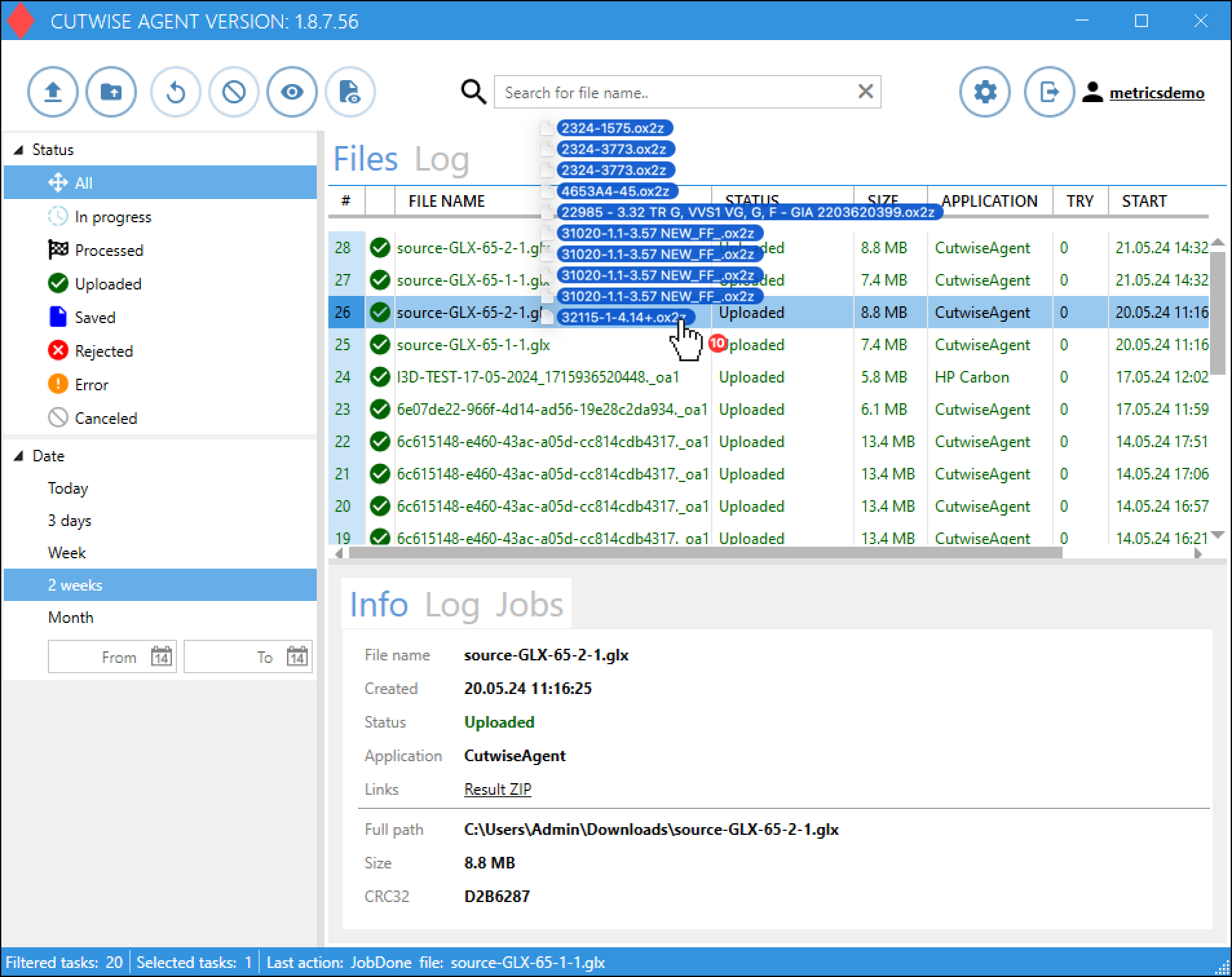
11. Drag n drop files into the Cutwise Agent interface (or use the monitoring folder). Uploading and conversion of files will start automatically. |
|
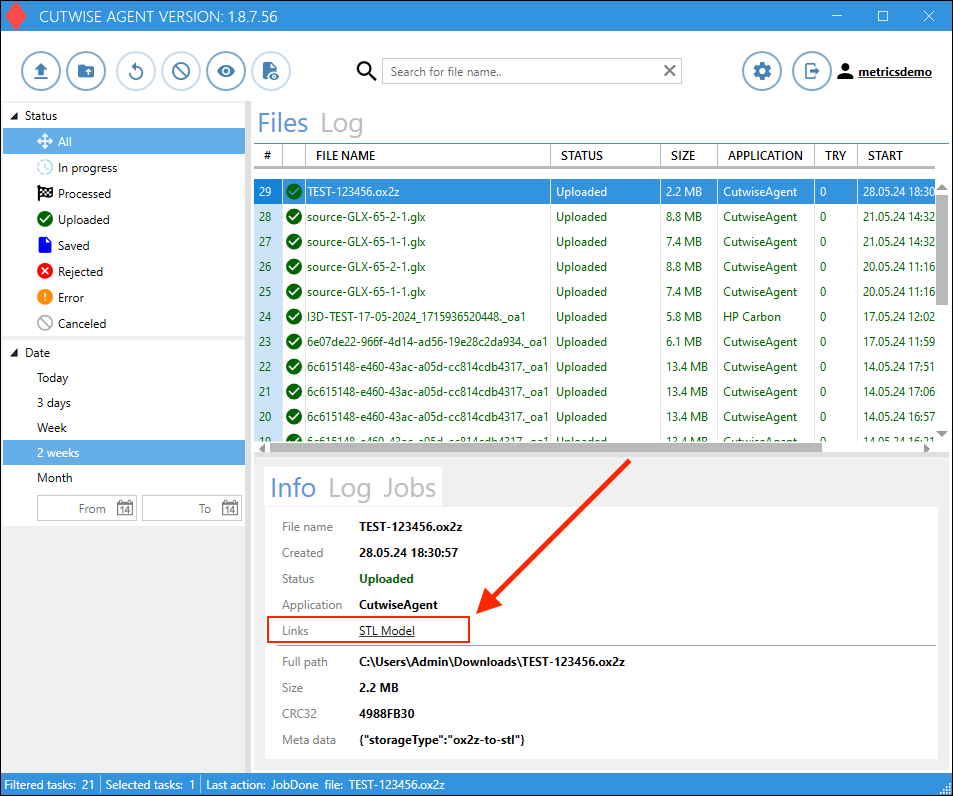
After a while you can download file from Cutwise Agent Interface |
|
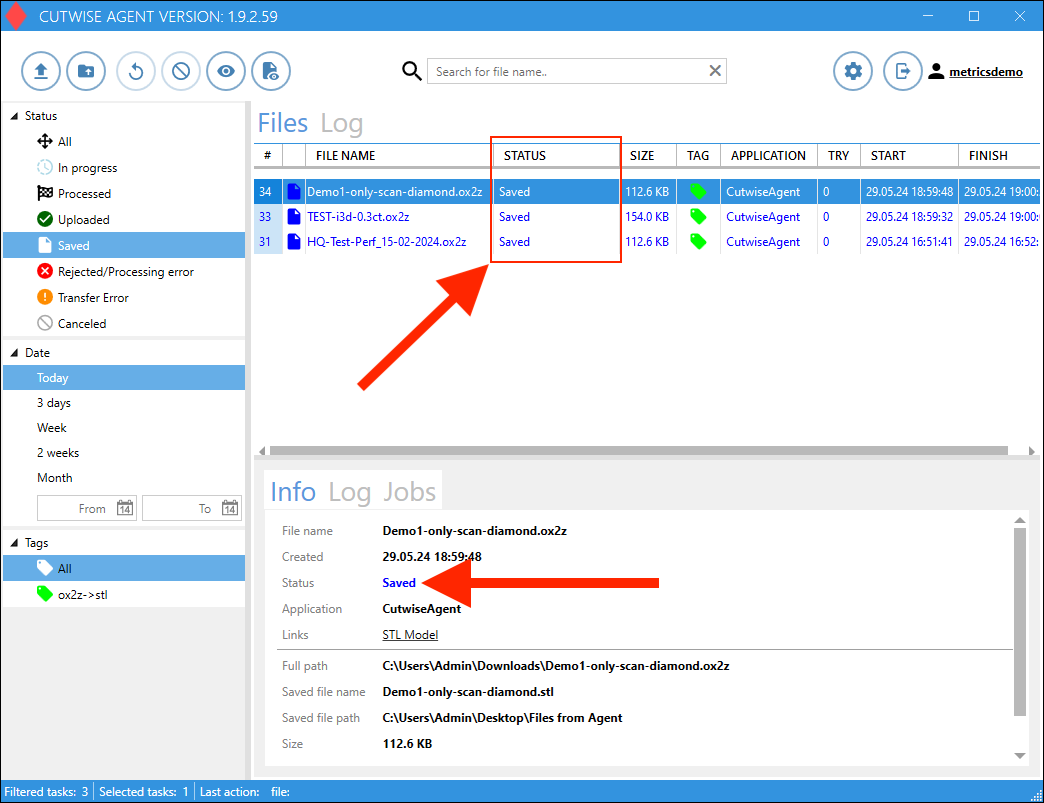
When the status changes to "Saved", the STL files are downloaded to PC and available in the folder from step 10. |
|
 The resulting STL files will be saved in this folder.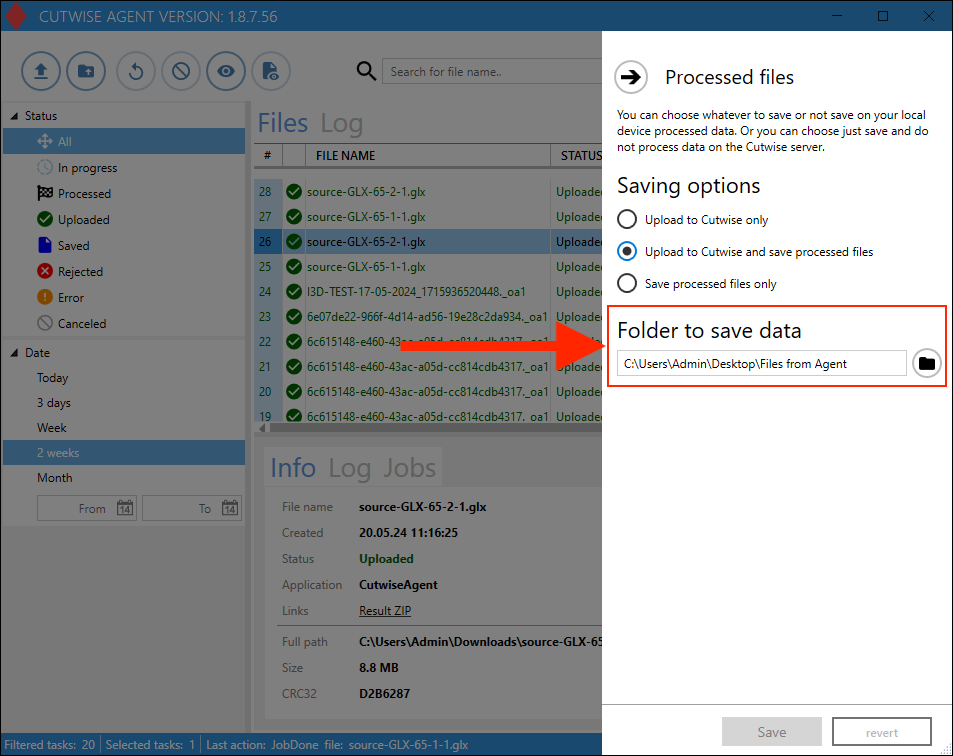
...