
...
Allocation - global algorithms
...
24. MultiDiamond
...
and
...
24. MultiNext
...
algorithms
Include Page Video | Algorithms "24. MultiDiamond" and "24. MultiNext" Video | Algorithms "24. MultiDiamond" and "24. MultiNext"
24. MultiDiamond
Allocation of 3 (three) or more diamonds has become the standard for all sizes and types of rough rough stones. On average, a solution contains 5 (five) diamonds. An important question when allocating multiple diamonds is "How to perform Sawing?" Not all solutions with 4 (four) or more diamonds can be sawn using modern sawing technologies.
The picture shows an example that cannot be sawn.: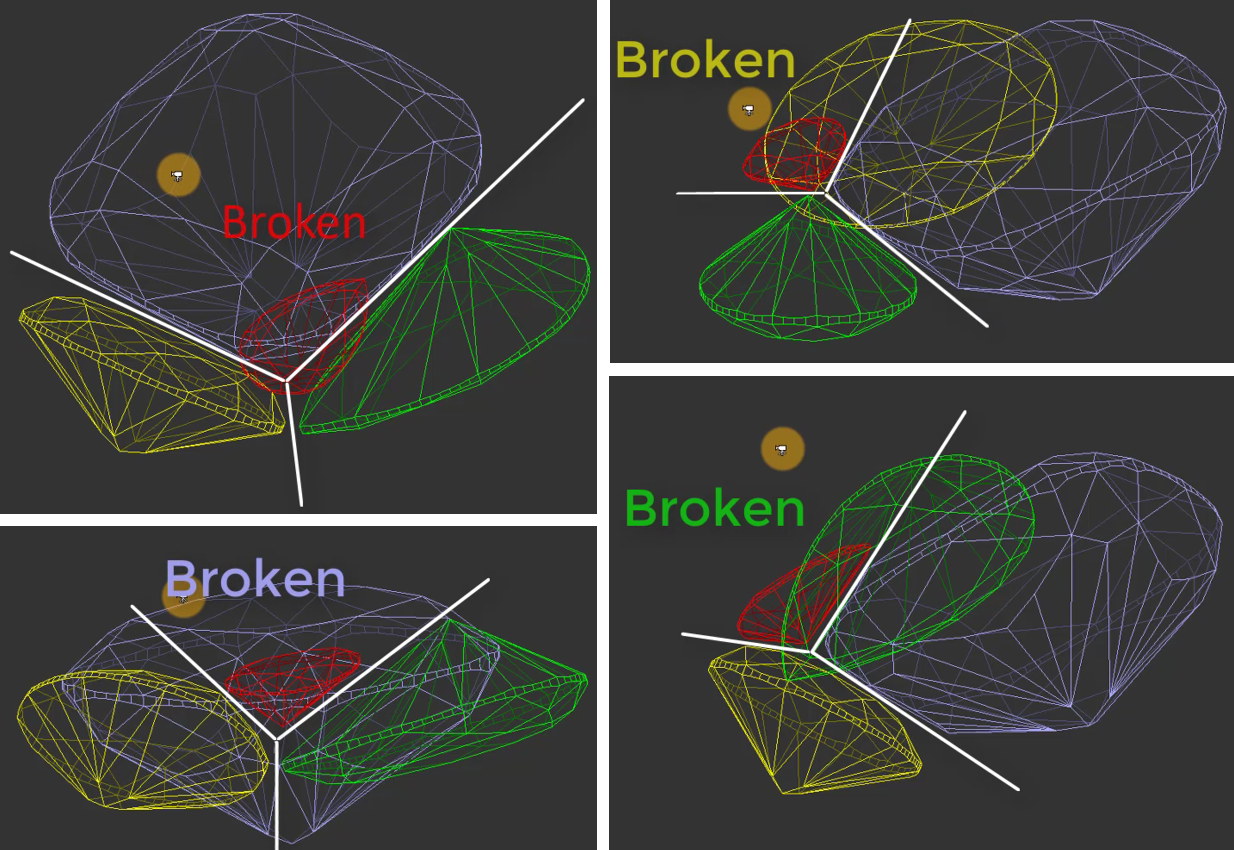
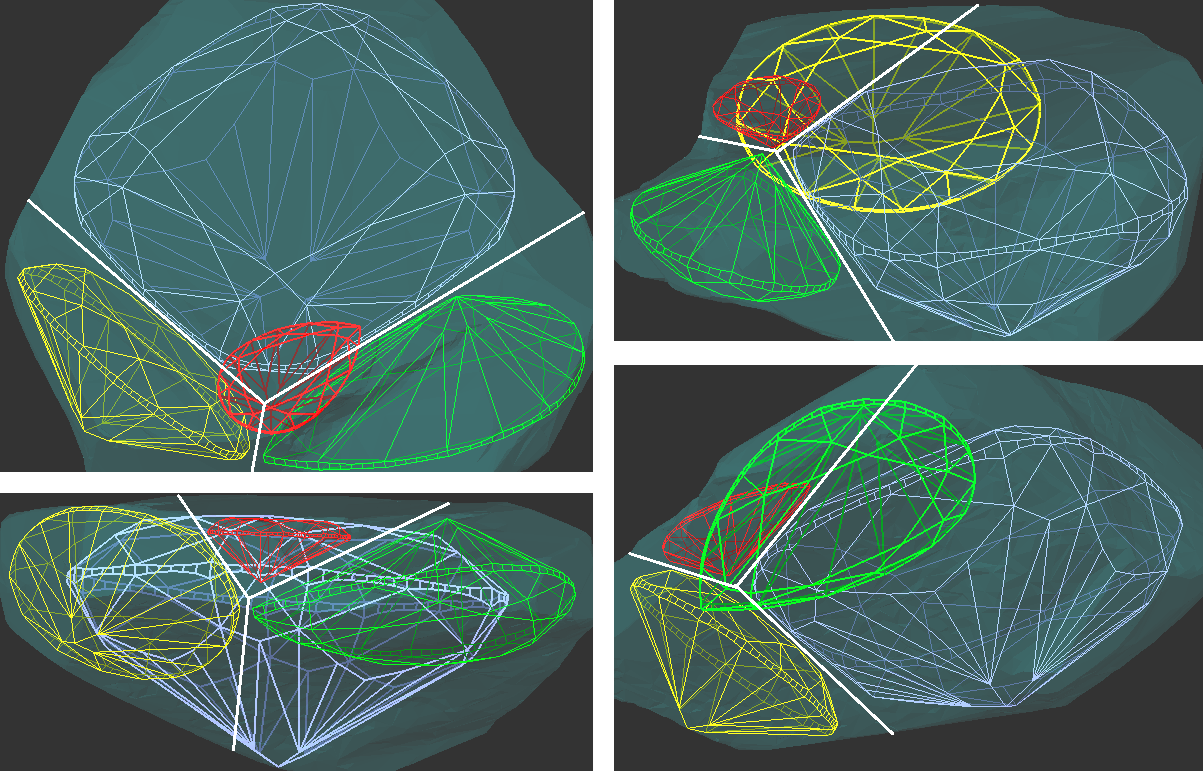
Introducing our the new algorithm " 24. MultiDiamond."
Solutions from generated by the " 24. MultiDiamond " algorithm can always be sawn, and we provide a sequence of sawing layers and pies to guide this process.
Users can specify the desired number of diamonds they want in a solution, and the algorithm will find allocate that many exact quantity of diamonds in the scan model.
When searching for the 3 (three) largest diamonds, the algorithm prioritizes maximizing price. From 4 (four) diamonds onwards, the algorithm also considers the need for existing sawing.
...
Furthermore, users can adjust the thickness of sawing planes used in the optimization process, and choose the "Variation" mode. Currently, two options are available:"
- FixedForm
...
- to produce solutions exactly of the same form as the allocation forms registered within the cut. Only scale or position may be changed;
...
- FlexibleForm
...
- to produce solutions in the limits specified by the appraiser.
24. MultiNext
The algorithm "24. Multinext" MultiNext has also been added. It operates on one or multiple selected solutions. The user chooses how many extra diamonds need to be added to the selected solutions. In the case of multiple selected solutions, the algorithm will work independently and in parallel on each of them. "24. MultiNext " algorithmuses a an allocation method identical to " 24. MultiDiamond" starting from third solutions. The result of "24. MultiNext" can always be sawn with pie sawing.
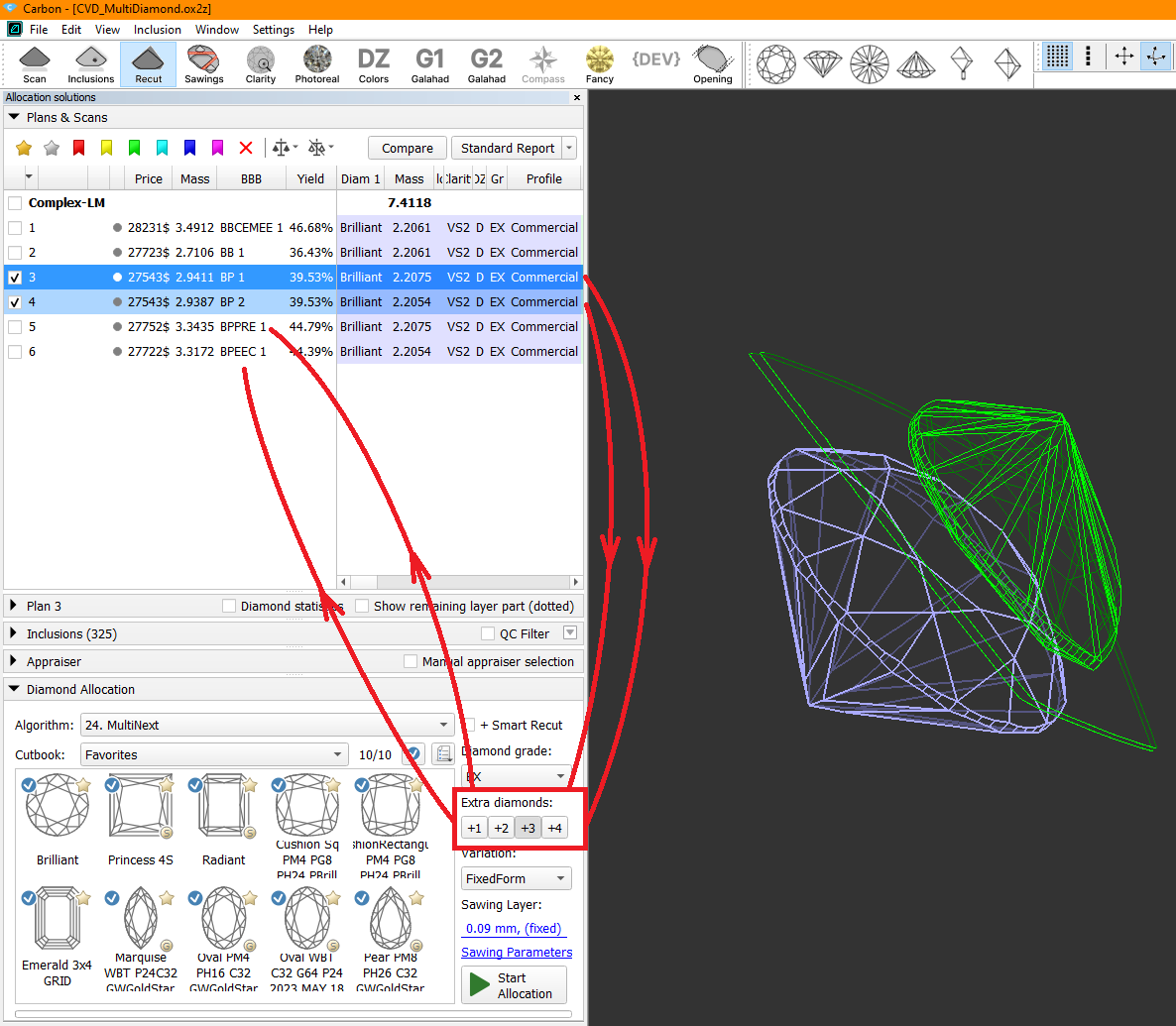
...
24. MultiNext can always be sawn with pie sawing.
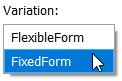
The 24. MultiNext algorithm (similar to described above 24. MultiDiamond algorithm) provides two options in the Variation dropdown menu:
- FixedForm to produce solutions exactly of the same form as the allocation forms registered within the cut. Only scale or position may be changed;
- FlexibleForm to produce solutions in the limits specified by the appraiser.
Compared to thу previously released 24. MultiNext (FixedForm, BasicSawing) algorithm in HPCarbon version 2.0.9, the new 24. MultiNext algorithm with chosen FixedForm option:
- Is faster;
- In most cases provides higher solution
...
- price;
- Creates solutions that frequently cannot be sawn without using Pie Sawing.
...
25. Semicut (final)
...
algorithm
| Include Page | ||||
|---|---|---|---|---|
|
Introducing the updated algorithm : "25. Semicut (final)".

This method is used for semipolished stones to ensure that the solution maintains the Table normal of the scanned model. This allows for the cutting of other facets without altering the Table facet angle.
Key advantages over the "06. Semicut (final)" version algorithm:
It uses preforms to increase the solution's weight.
It features improved adjustment of the solution's rotation around the Table normal to find the optimal weight.
It is built on the " 23. Single " algorithm and incorporates all its modern features.
On semipolished stones with a defined Table facet and girdle, " 25. Semicut (final) " with the Brilliant cut shows an average improvement of 0.5% in mass and 1% in price compared to " 06. Semicut (final)". The average processing time with one cut is approximately 3 seconds.
...
25. Chess
...
algorithm
Multi-diamond optimization algorithms primarily operate on a greedy principle. Each subsequent diamond tries to maximize its own volume, paying little attention to the space it leaves for the others. This greed can lead to inefficient use of the original rough's space. While various balancing techniques exist—where earlier diamonds yield some of their space to later ones to increase the total value—the problem becomes intractable within a reasonable time as the number of diamonds increases and the rough becomes more complex due to cavities and inclusions. This forces a reliance on the initial luck of the greedy approach.
...
This standardization of the input data allowed us to create a new algorithm based on principles from the theory of packing space with identical objects.
Introducing the "25. Chess" algorithm algorithm.
It works by first constructing an optimal cutting lattice for the entire volume and then searching for the best diamonds within it, taking into account the specifics of the input model and inclusions.
...
This algorithm is more efficient than greedy methods. And as CVD diamonds become purer over the years, the results of the "25. Chess" algorithm will become increasingly flawless. It also allows for for finding multiple diamonds of similar mass from the same rough, which carries additional value.
The algorithm is currently under active development and can be considered a demo version. It fully supports only the " Brilliant " cut. You can select a different cut, and the algorithm will will search for it it during the selection phase, but the optimal cutting lattice will still be built for the " Brilliant " cut. In future updates, we will add full support for other cuts, starting with rectangular StepCuts.
...
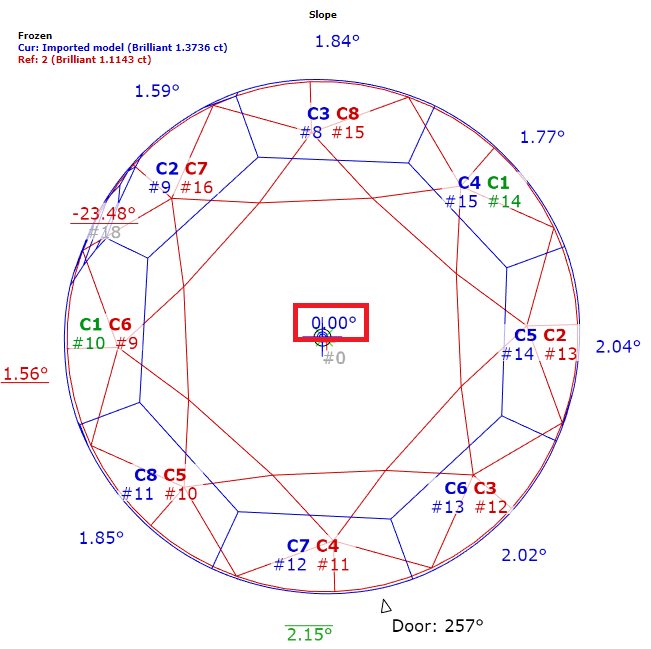
Some customers evaluate results using external price lists that our algorithms cannot access. They need a simpler, faster way to manually guide the allocation algorithms. Specifically, they want direct control over which inclusions are prohibited in solutions and which ones factor into the final price. In earlier versions, users marking inclusions as green expected a maximum-volume solution, ignoring the "permitted green" inclusions. However, the algorithm instead reduced volume to create a cleaner, more expensive result per its built-in pricing.
Thre There is example where the change in behavour behavior of green inclusions is shown obviously:
...
Operators use manual tools during planning after getting the initial solution of global allocation. One of them is a movement of layer and recalculation of diamonds allocation.
This operation is required both for natural rough diamonds and grown CVD diamonds to get symmetrical solutions, or fixed mass solutions (such as 1ct+1ct, 1ct+2ct). Current algorithms may not provide that kind of solution.
However, you can achieve the desired result manually by using the movement panel for the layer and applying the Swim algorithm to each diamond individually. It takes time.
We have developed an autoswim a mode that eliminates the need for manual use of the Swim algorithm, saving you valuable time.
...
Algorithm Selection Integrated into Main Toolbar
The AutoSwim Fast Swim algorithm settings (activated after plane adjustment) are accessible in the main toolbar.
...
Include Page Video | Quick sandwich tool- Tool to separate part of inclusion. Episode 2 Video | Quick sandwich tool- Tool to separate part of inclusion. Episode 2
Sequence of actions when working with Quick Sandwich.
...
The saw disk of the sandwich will be created relative to the nearest diamond and positioned parallel to its nearest facet at the distance specified during the sandwich creation.
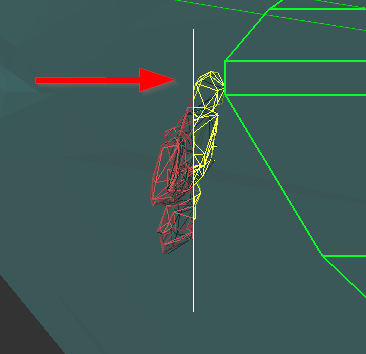
After creation expart ex-part sandwich becomes active.
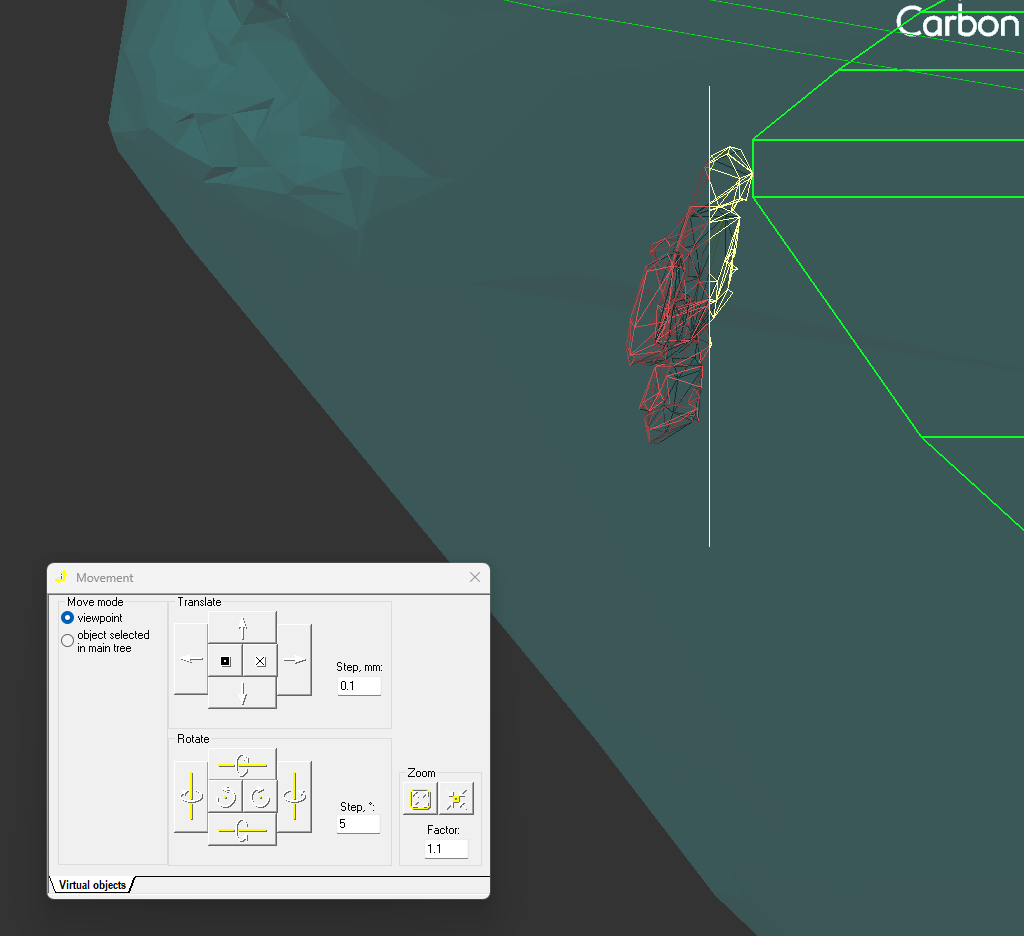
2. If it is necessary to change the position of the saw disk, you need to activate object move mode (hand icon on the toolbar). After that, the saw disk can be moved similarly to other objects in "hand" mode. This means using: Shift for flat-parallel movement, 'v' for rotation around the vertical axis, 'h' for rotation around the horizontal axis, and 'c' for rotation around the axis normal to the scene.
...
The position of saw disk also could be changes via Movevemt Movement panel:
3. Additionally, there is an option to apply the Quick Sandwich to all inclusions near the active diamond.
...
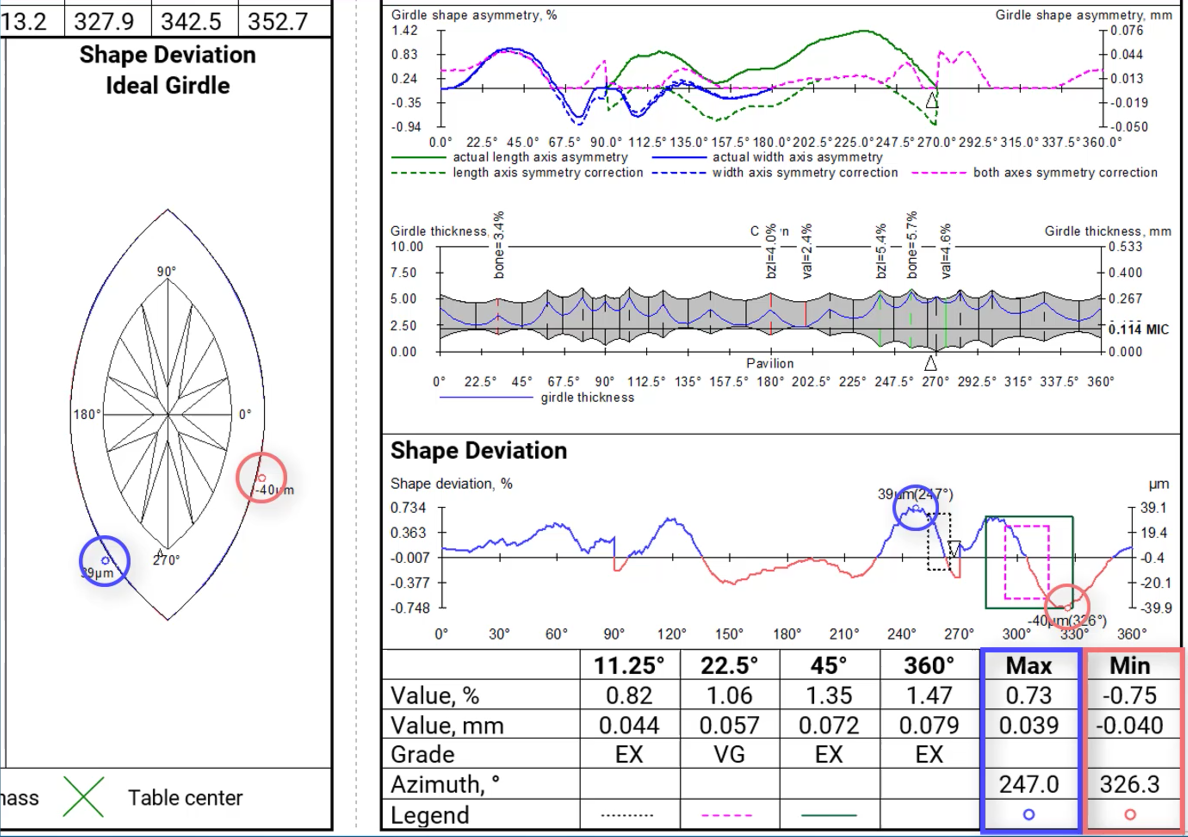
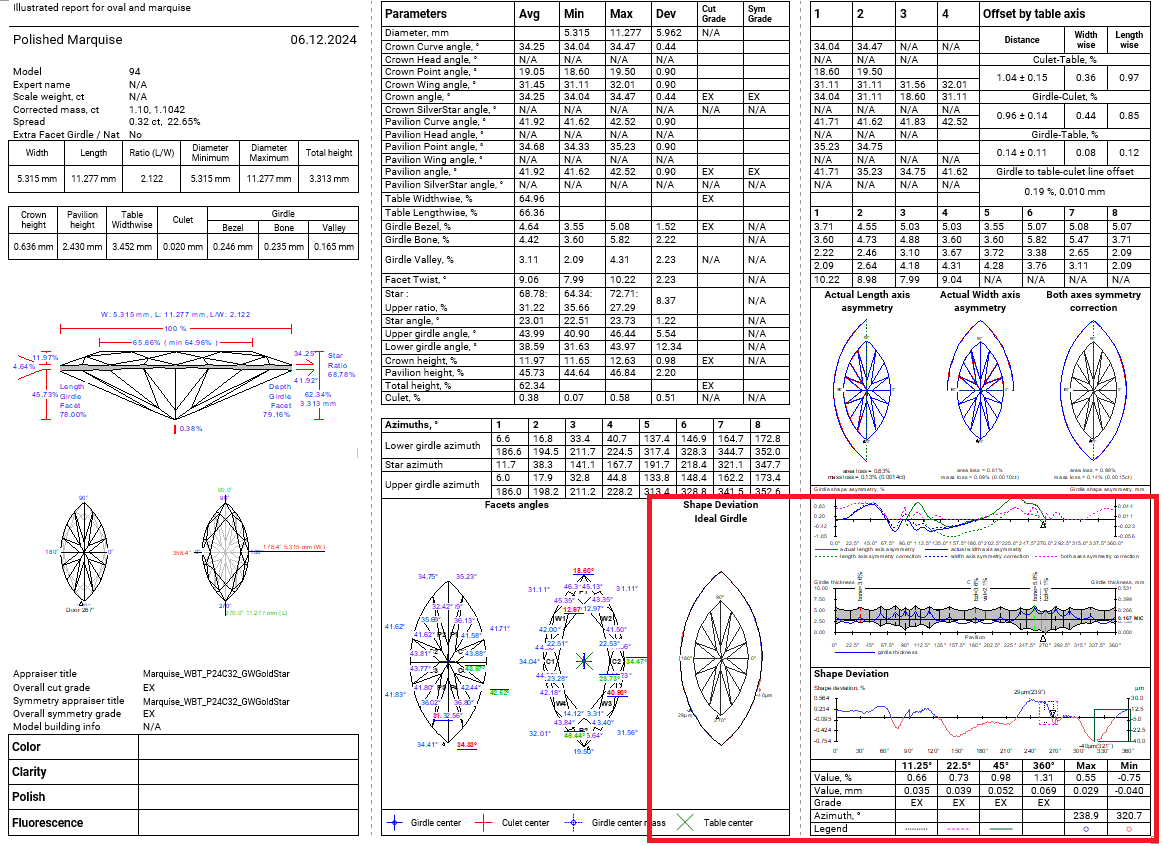
After aligning the girdle shape of the current model with the ideal girdle shape linked to the current cut, we calculate the distances between the two curves. These distances are presented as the Shape Deviation Plot and Shape Deviation Ideal Girdle. Next, we identify azimuth intervals of 11.25, 22.5, 45, and 360 degrees where maximum difference in distances between shapes are observed, and estimate these values. It is in these locations where the imperfections in the girdle shape are most noticeable. The Shape Deviation Plot highlights these areas with rectangular windows, along with indications of global maximum and minimum values.
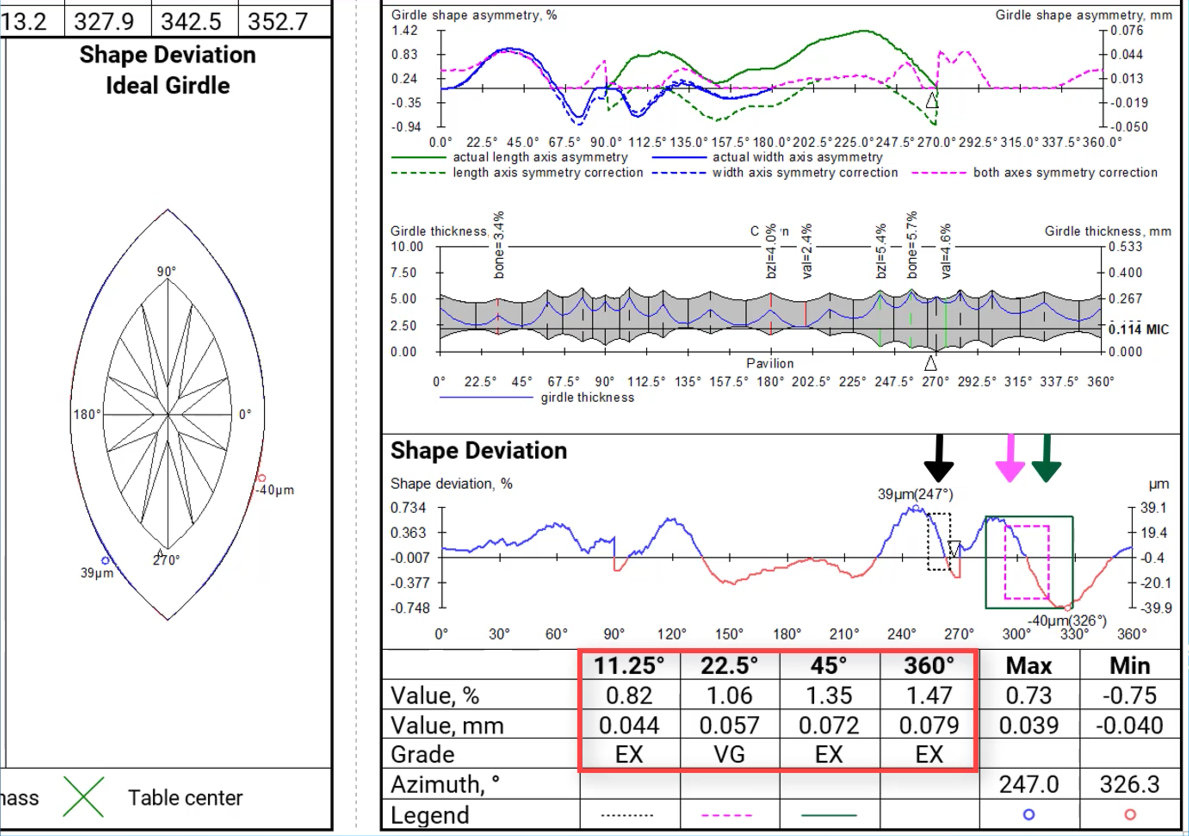
Deviations where the current girdle shape is wider or narrower than the ideal shape are color-coded. This information is also depicted in the Shape Deviation Ideal Girdle image. Here, the current model is outlined in black, with areas highlighted in blue and red denoting the extent to which the girdle shape of the current cut deviates in width from the ideal girdle.
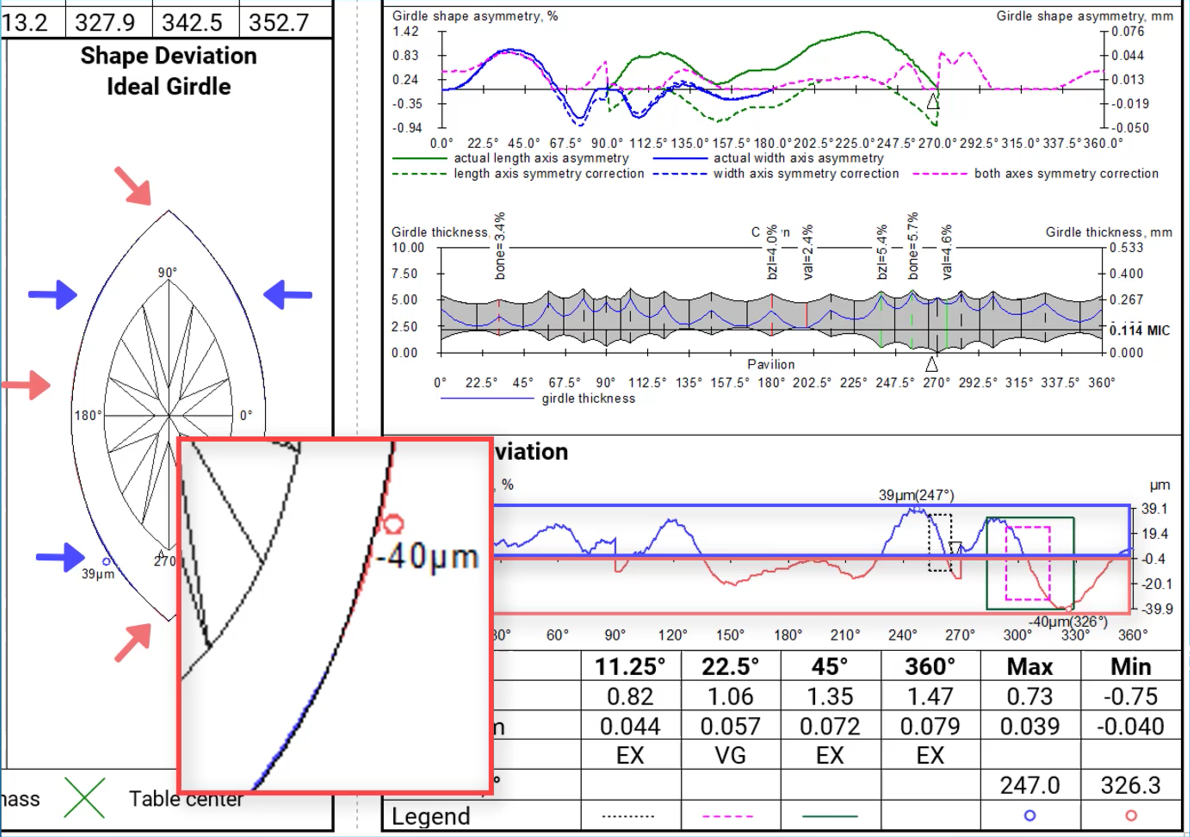
Global maximum and minimum values are also represented in both pictures.
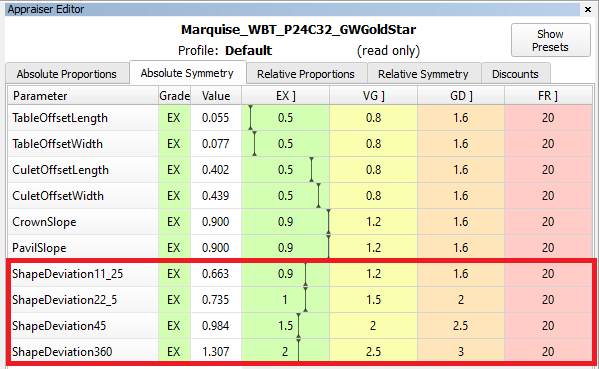
Shape Deviation in appraisers
...
In the reports an ideal ellipse is used as a reference for any сuts recognized as oval and lacking own reference shapes.
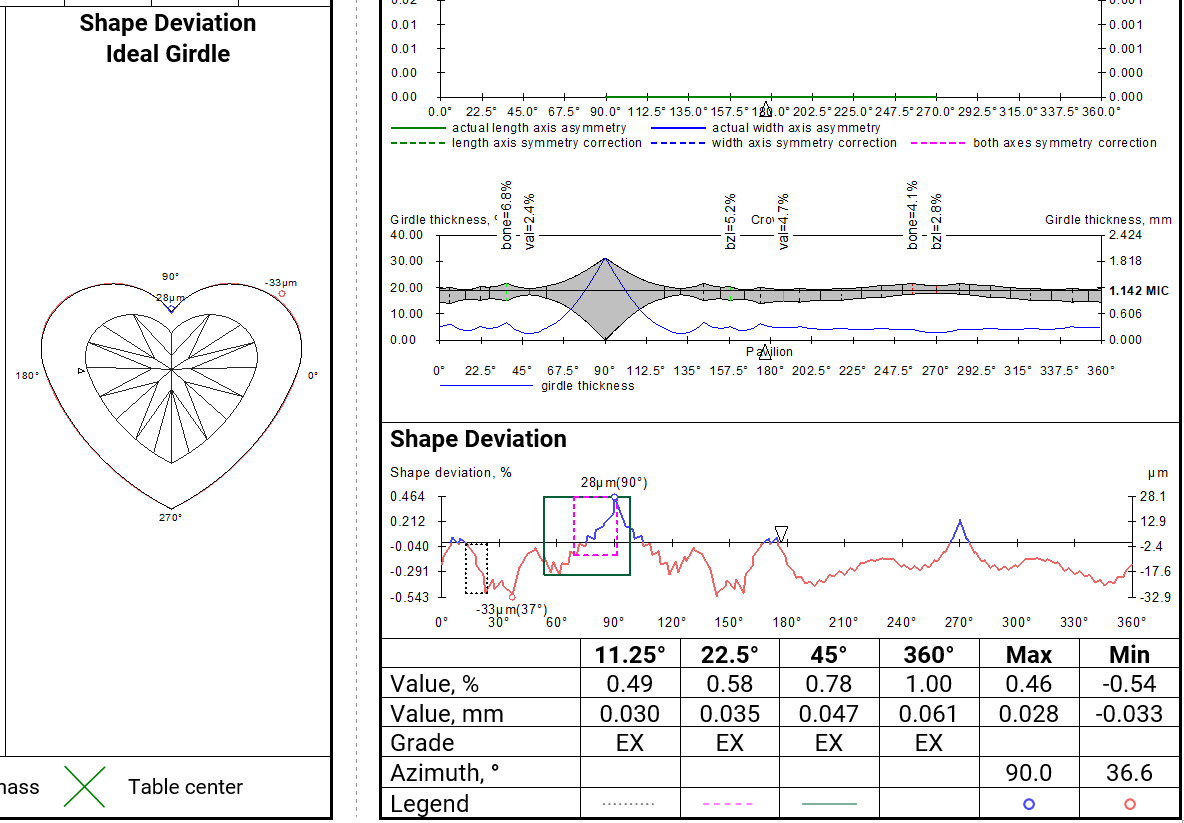
Shape deviation now works on parameter is also available for non-convex facesshapes (for example, Heart shape):
Shape Deviation in SmartRecut
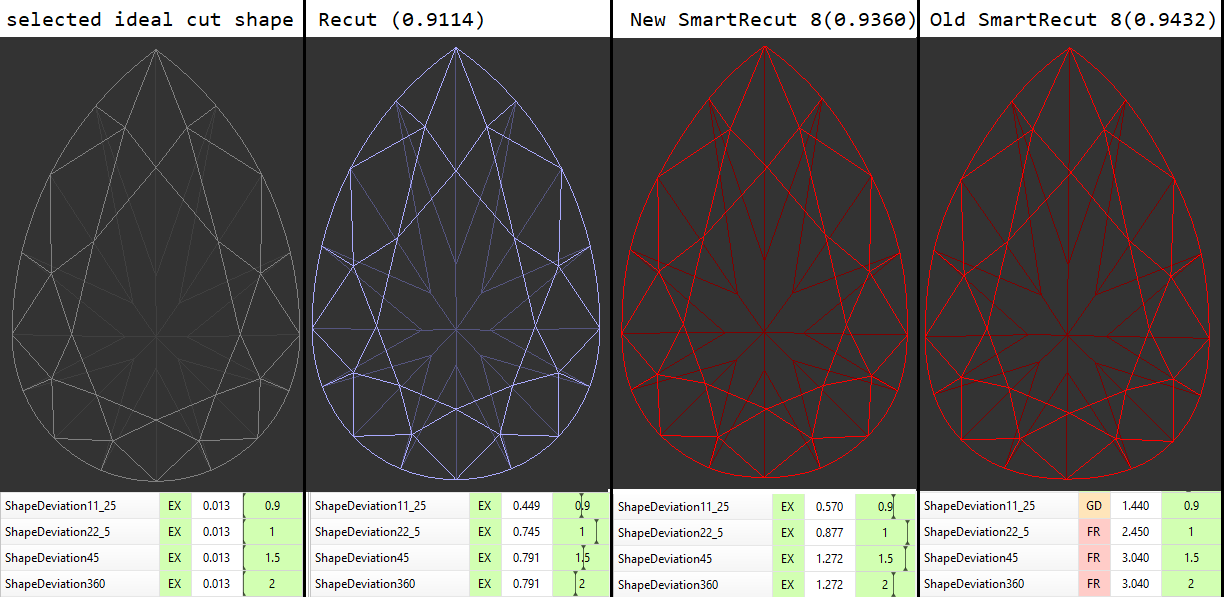
SmartRecut controls the new parameter if parameter if they are present in the appraiser. There There is a comparison of SmartRecut solution with and without using this parameter on the picture. It is important to note that this parameter prevents the continuous deterioration of the girdle shape in the SmartRecut on SmartRecut scenario.
Shape Deviation in reports
The parameter has been included into reports:
- RTF Full report for rounded fancies
- RTF Illustrated report for oval and marquise
- RTF Illustrated report for rounded fancies fancies
- RTF Illustrated report for AnyCut
- HTML Illustrated report for oval and marquise
- HTML Illustrated report for rounded fancies
- HTML Illustrated report for rounded fancies AnyCut
- Export Report Data, Color
In the illustrated reports, the Shape Deviation is located in the bottom right corner .or in the center:
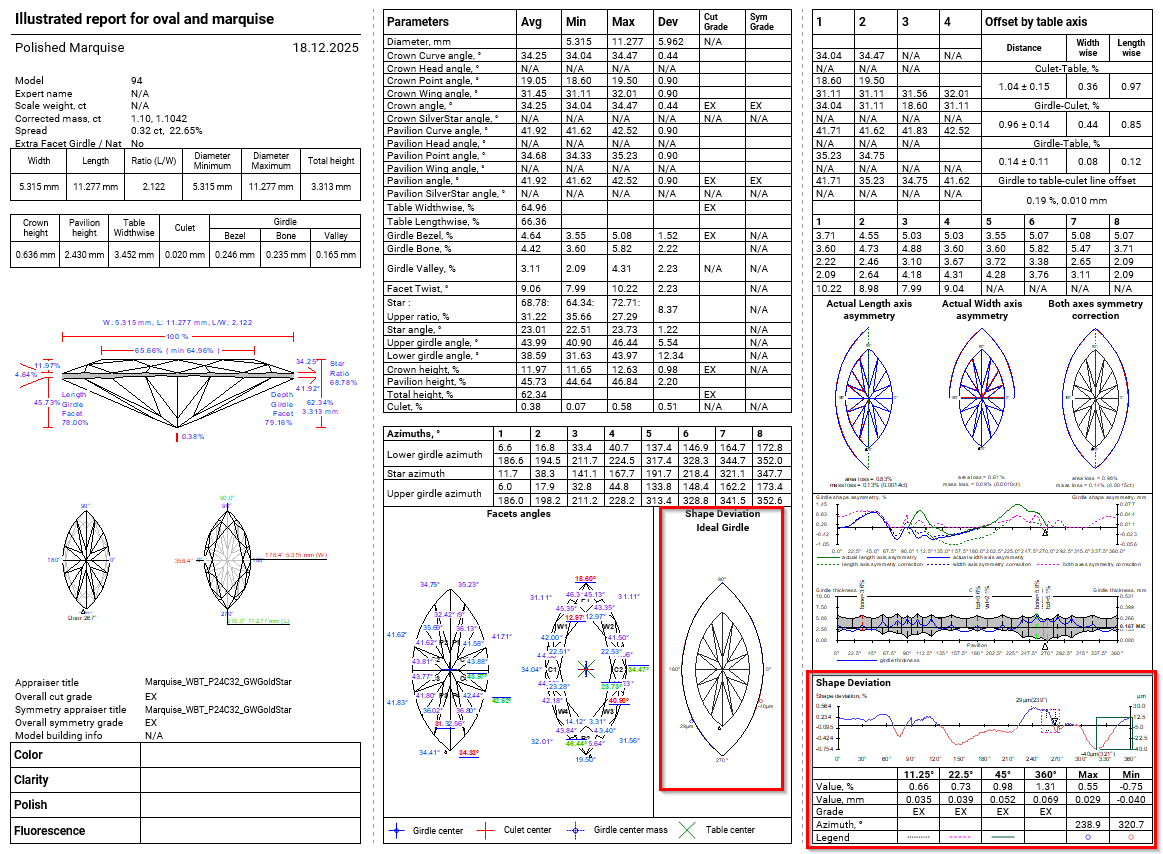
In the full report, this parameter is placed on a separate page.
...
The description of Shape deviation parameter and corresponding bookmarks are availbale in available in Shape Deviation.
Shape Deviation for scans
...
...

The green option is recommended for rounded fancy cuts. The necessity and usefulness of the green option for step cuts are still under question, so both green and yellow options are possible for them.
...
| Warning |
|---|
You can read the full article about choosing an appraiser: Which appraiser template to choose? |
Add allocation forms with Shape Deviation
...
In I3D Comparative Remaining Depth mode, min/max indiaction indication added to the graph plot and 3D scene.
Azimuth markers were added to the 3D scene to make a more convenient navigation between the graph plot and the scene.
...
- Dimension “A” - "HEART_GROOVE_WIDTH_MM", "HEART_GROOVE_WIDTH_PC"
- Dimension “B” - "HEART_GROOVE_DEPTH_CRN_MM", "HEART_GROOVE_DEPTH_CRN_PC"

- Dimension “C” - "HEART_GROOVE_DEPTH_PAV_MM", "HEART_GROOVE_DEPTH_PAV_PC"

- Dimension “D” - "HEART_GROOVE_HEIGHT_MM", "HEART_GROOVE_HEIGHT_PAV_PC"

Shape Deviation Paramets in Illustrative report for Anycut
Shape Deviation metrics are now included in the Illustrative Report for Anycut across both RTF and HTML outputs.
This enhancement improves clarity by providing users with detailed deviation information directly within the generated reports.
...
Princess reports - improved pictures
...
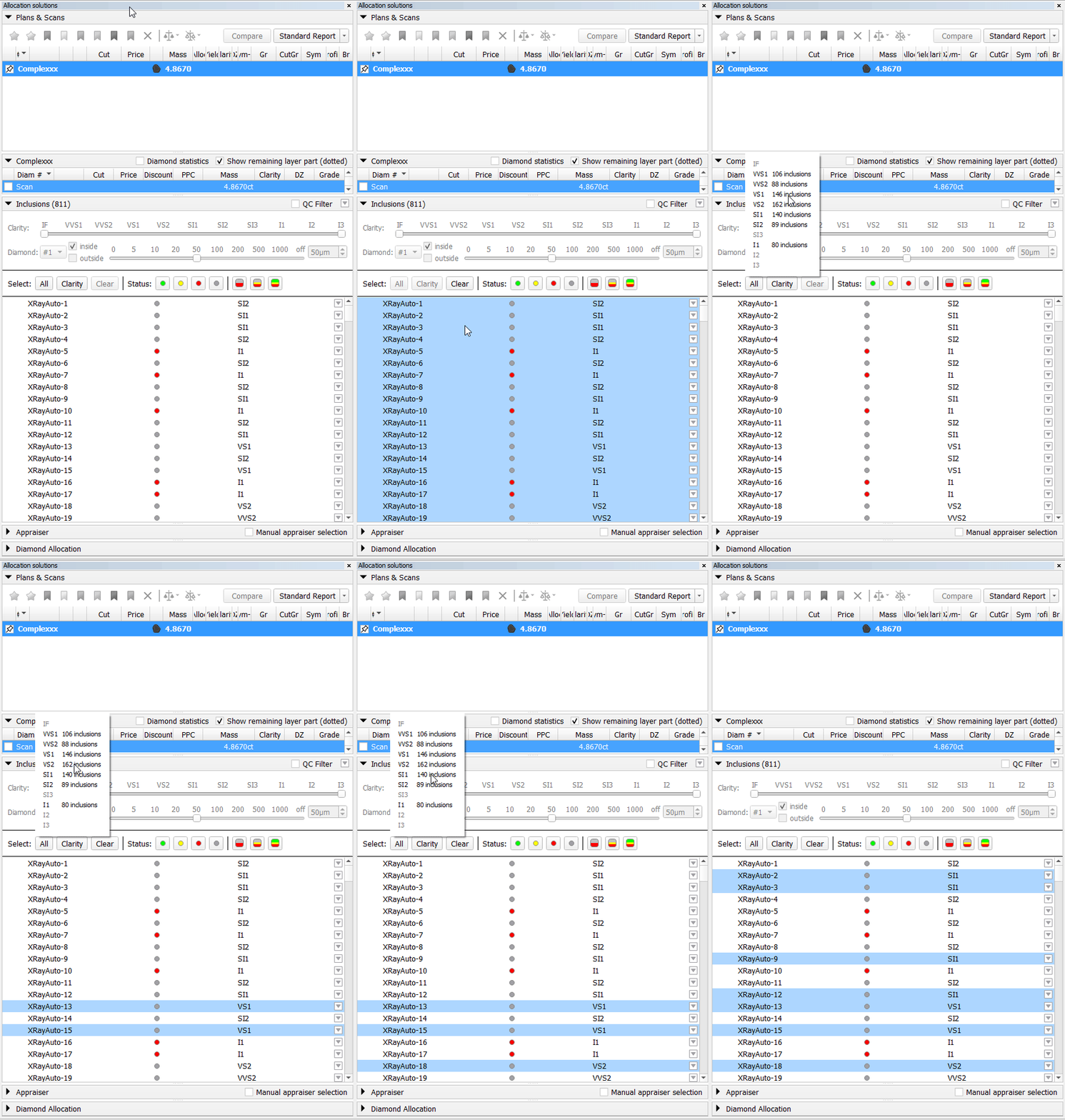
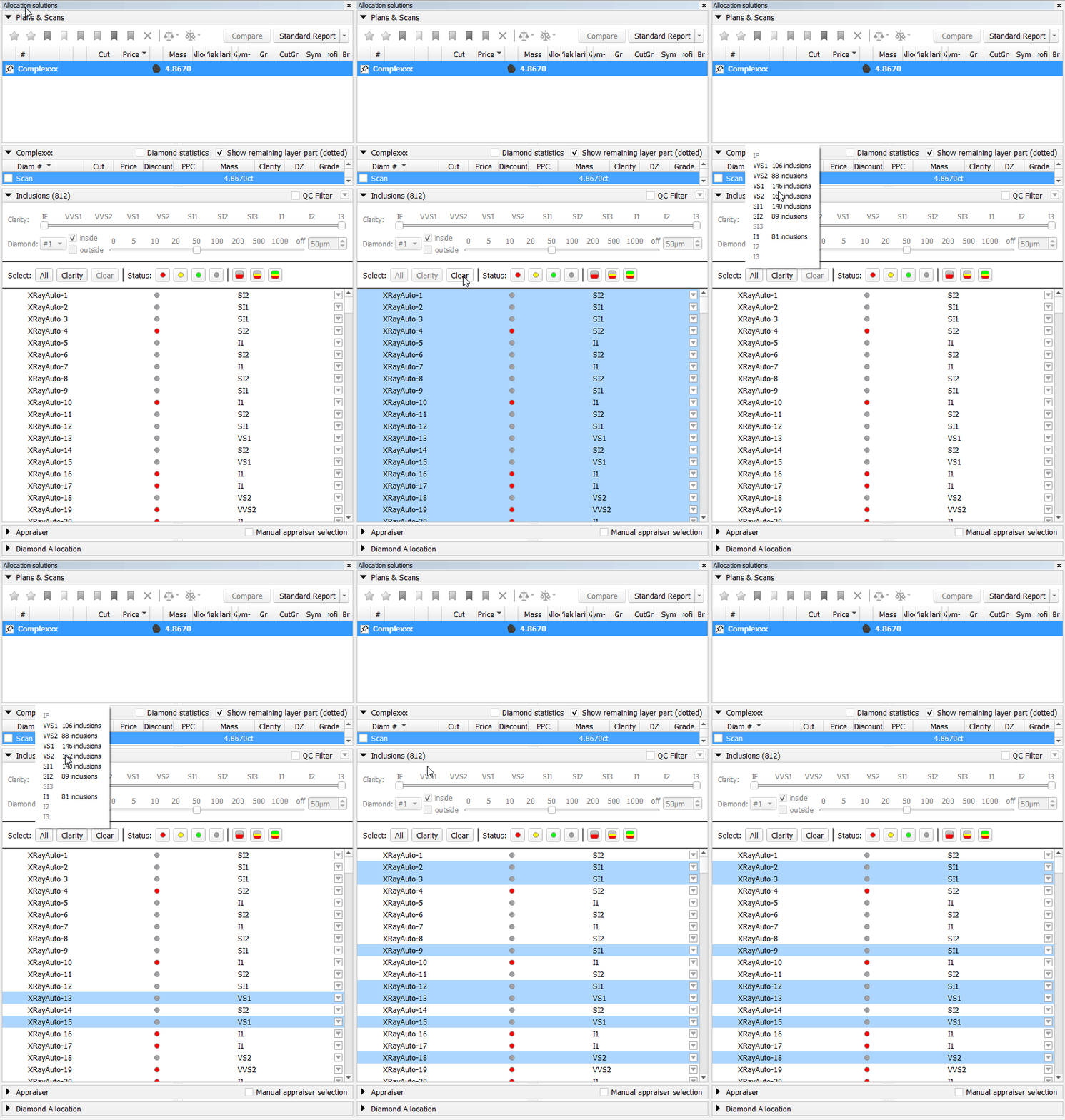
- All Button: Selects all items currently visible in the list.
- Clarity Button: Opens the window to select inclusions based on a specific Clarity value. Only These inclusions matching the chosen value will be added to those already selected.
- Clear Button: Deselects all items in the list.
2. Status Operations
...
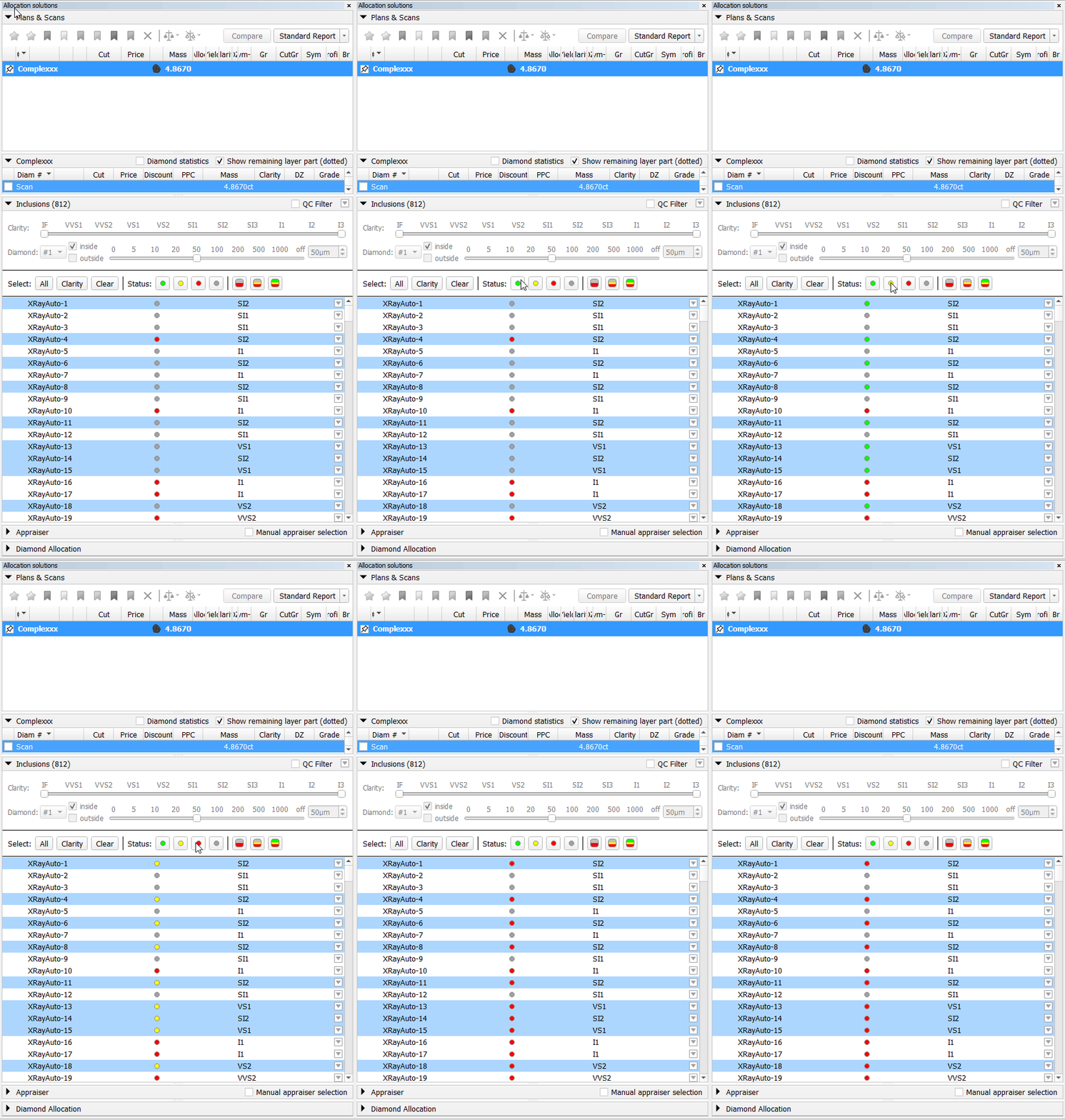
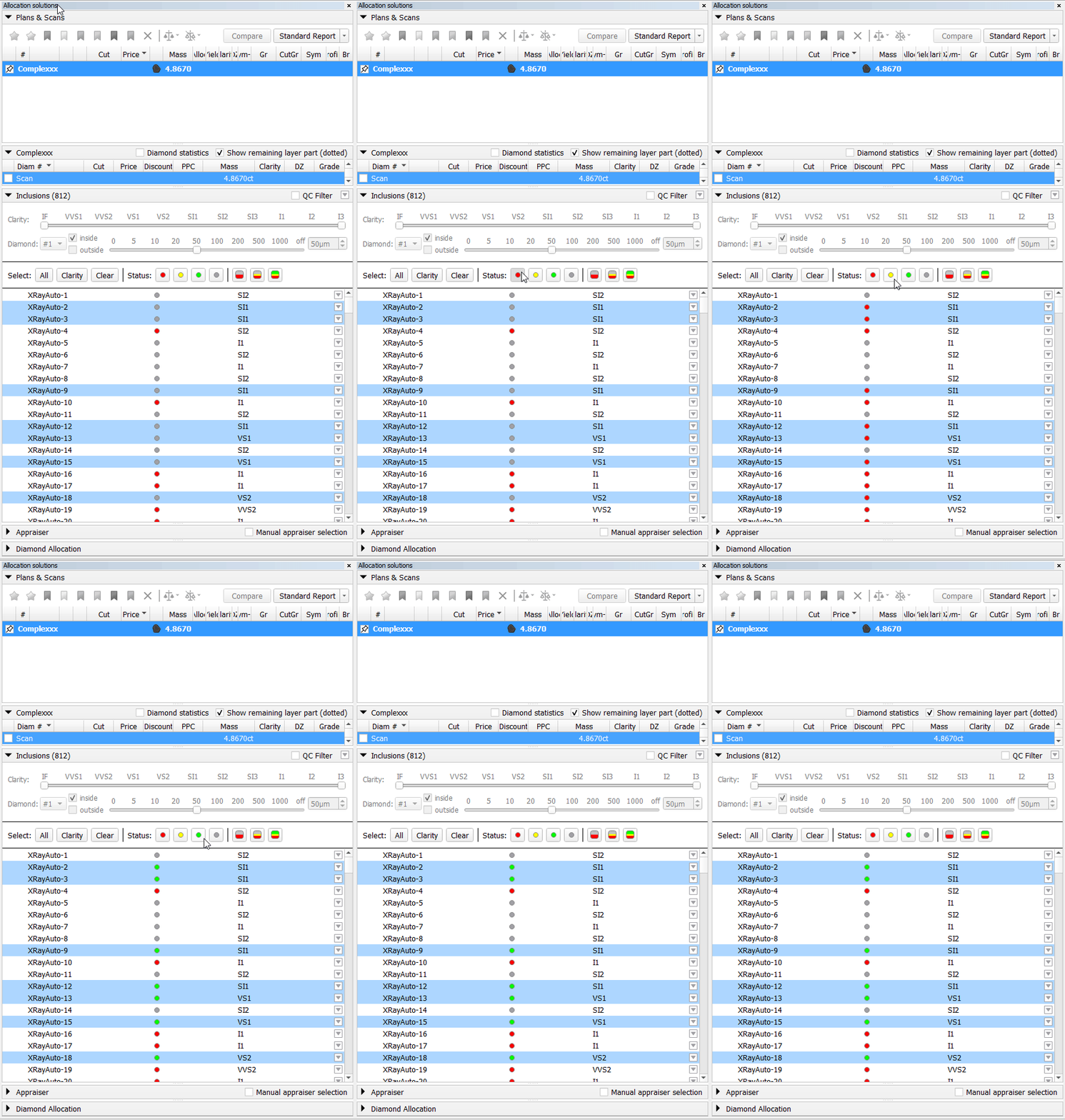
Buttons: Red, Yellow, Green, Gray. These buttons immediately set the corresponding status for currently selected inclusions.
2.2. Clarity-Based Status Assignment
These operations assign statuses to inclusions based on their Clarity value. The status is applied to all inclusions currently in the list (i.e., those passing filter above).
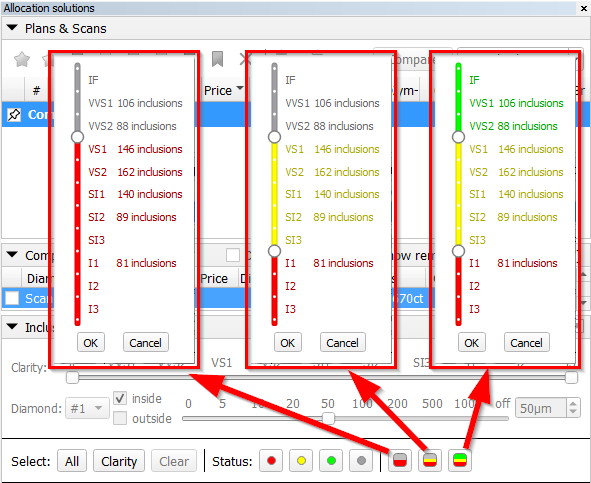
Clicking one of these buttons opens a configuration pop-up. Within the pop-up, sliders are used to define threshold values for the Clarity attribute. A pre-defined status scheme is applied based on these thresholds, assigning a status to each inclusion according to its Clarity value.
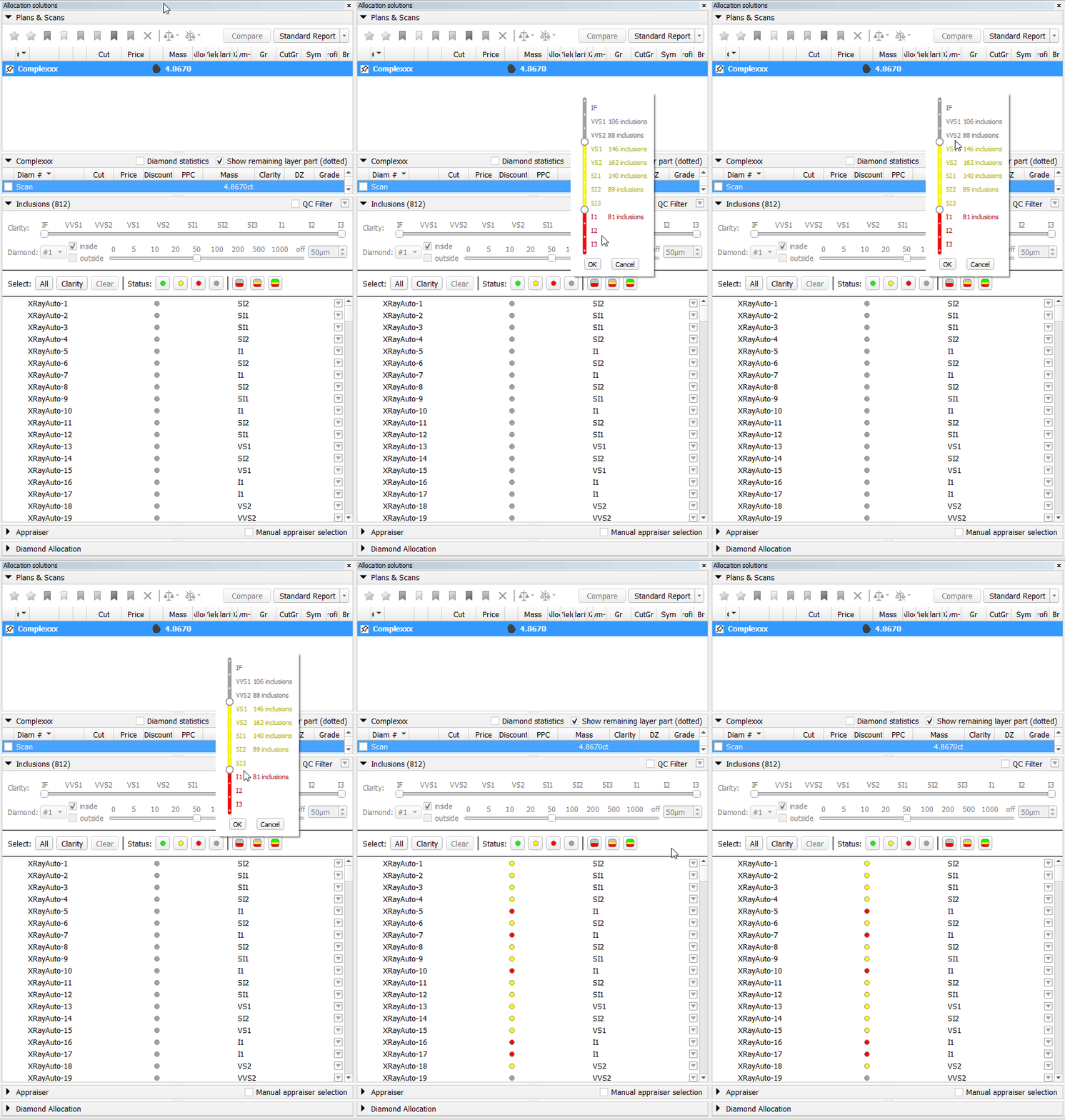
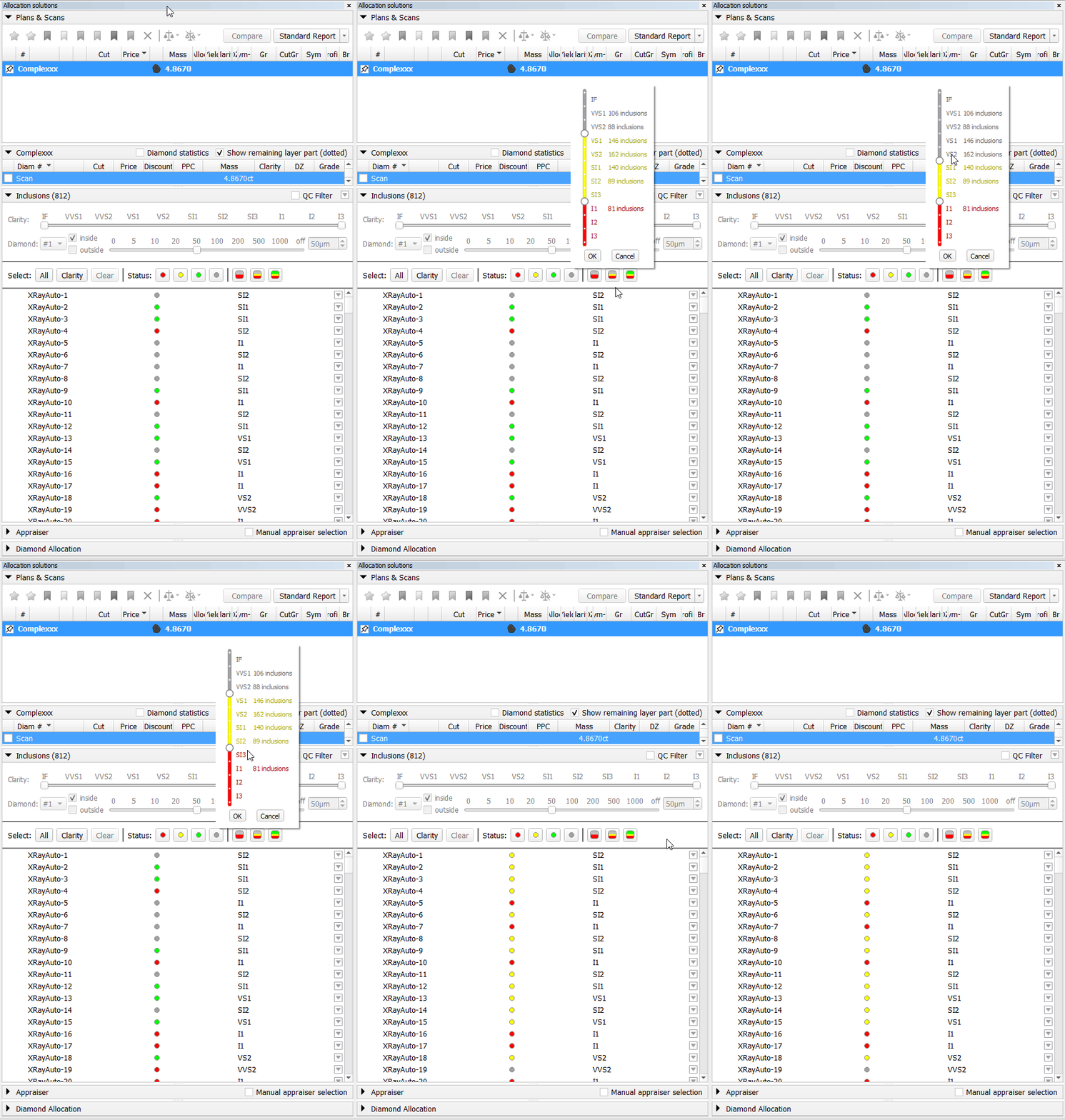
Available Schemes: Gray-Red, Gray-Yellow-Red and Green-Yellow-Red.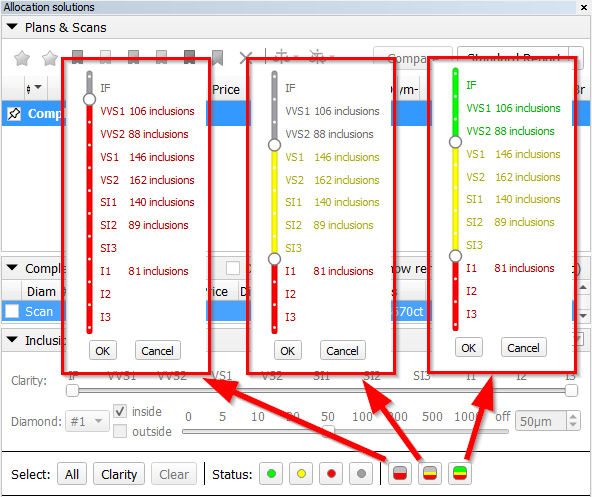
All buttons in the Status group have descriptive tooltips. Hovering over a button provides a clear explanation of which inclusions will be affected by the operation.




Scene rotation tool (Ox/Oy/Oz)
...
Preplan Creation Improvements
The preplan creation process has been enhanced and stabilized. The "Create sawing preplan" feature now fully supports half-planes, pies, and shapingsshapes, including imported Sarin projects.
New Preplan Creation Methods
Two additional ways to create a preplan have been introduced: from the layer's context menu, you can select "Make preplan for cutting part" and "Make preplan for part on glue." "Make preplan for cutting part" creates a preplan for the part of the rough that should be cut off by the sawing. Typically, this is a sawing preplan for the diamond being cut. "Make preplan for part on glue," on the other hand, creates a preplan for the remaining rough part. This is the part of the rough, that remains at the glue point after being cut by this layer.
...