
After successfully connecting to the Vibox Reco 4P hardware and logging into Cutwise, you will see the software in camera live stream mode.
Conceptually, the graphical interface in this mode can be divided into several parts:
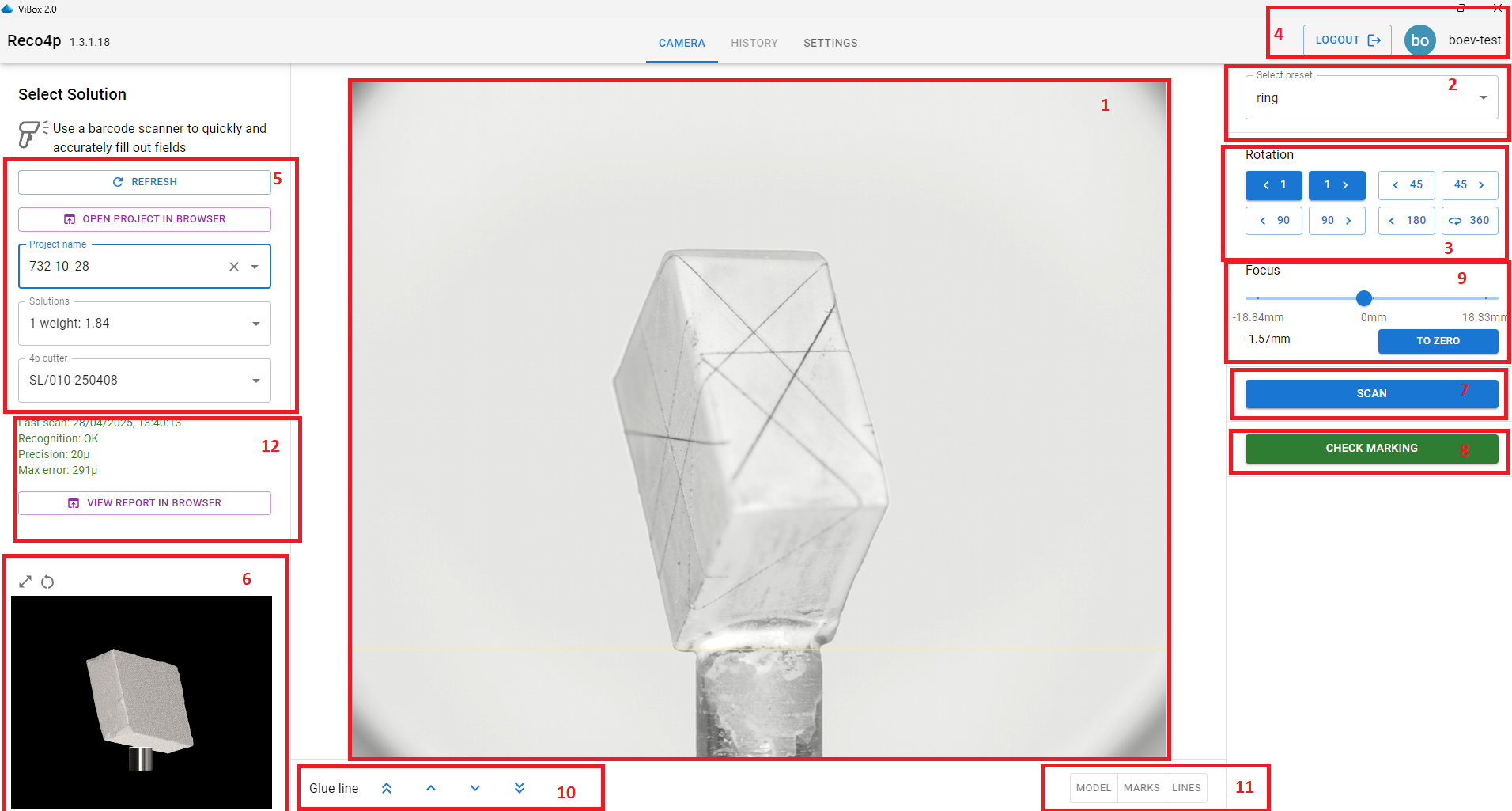
1. Live camera stream: This allows you to view the object being placed glued to the holder and adjust its position in real time.
2. Preset selection control: Presets define standardised settings for scanning. Basically, scanning can be done is shadow light (silhouette of object) for 3D model registration purpose and in office light for checking laser markings.
3. Object rotation buttons: These allow for rotation by 360, 180, 90, 45, or 1 degree.
4. Cutwise login section: Clicking on this area (Logout button) allows you to log in with a different account.
5. Panel for searching Cutwise project and selecting solution and 4P cutter : By entering project title to a search bar or by selecting project from a list of recent projects, it is possible to find concrete project. For selected project a solution may be specified. And also a 4P cutter should be specified before sending scan to 3D model registration. Refresh button is useful to update latest information from Cutwise server.
6. 3D model view : In this view a 3D model is shown with a glueing point.
7. Scan button: to launch scanning in specified lighting
8. Button for launching test laser marking accuracy. This option is available when successfull model registration was done.
9. Focus control. Change focus in live image from camera
10. Glue line controls. Changes the position of glue line for 3D registration
11. Enabling/disabling layers: 3D model, Galaxy marks, laser lines. This option is available when successfull model registration was done. We recommend to check model to image correspondence in Check marking mode or in registration report (p.12), because in this case you work with ortographic stacking images and you will not need to find optimal focus position for edge to fit 3D model contour
12. 3D model registration status with errors and button to show report. This option is available when 3D model registration was done.