
The second key use case of Vibox Reco 4P software is verifying the accuracy of lines marked on a diamond's surface to confirm that the sawing project has been correctly transferred to the specific 4P cutter's coordinate system.
To perform this verification, follow these steps:
Activate appropriate lighting to visualize laser markings
Select the project by Project Title and choose the solution for analysis
If the previous model registration was successful, the "Check Marking" button will become available. Click it to initiate object scanning
Upon completing the scan, you'll enter a special mode for marking planes
After marking all planes in the images, you'll receive a final assessment of linear and angular marking accuracy - determining whether the object is suitable for sawing or not
Below is the GUI layout for plane marking:
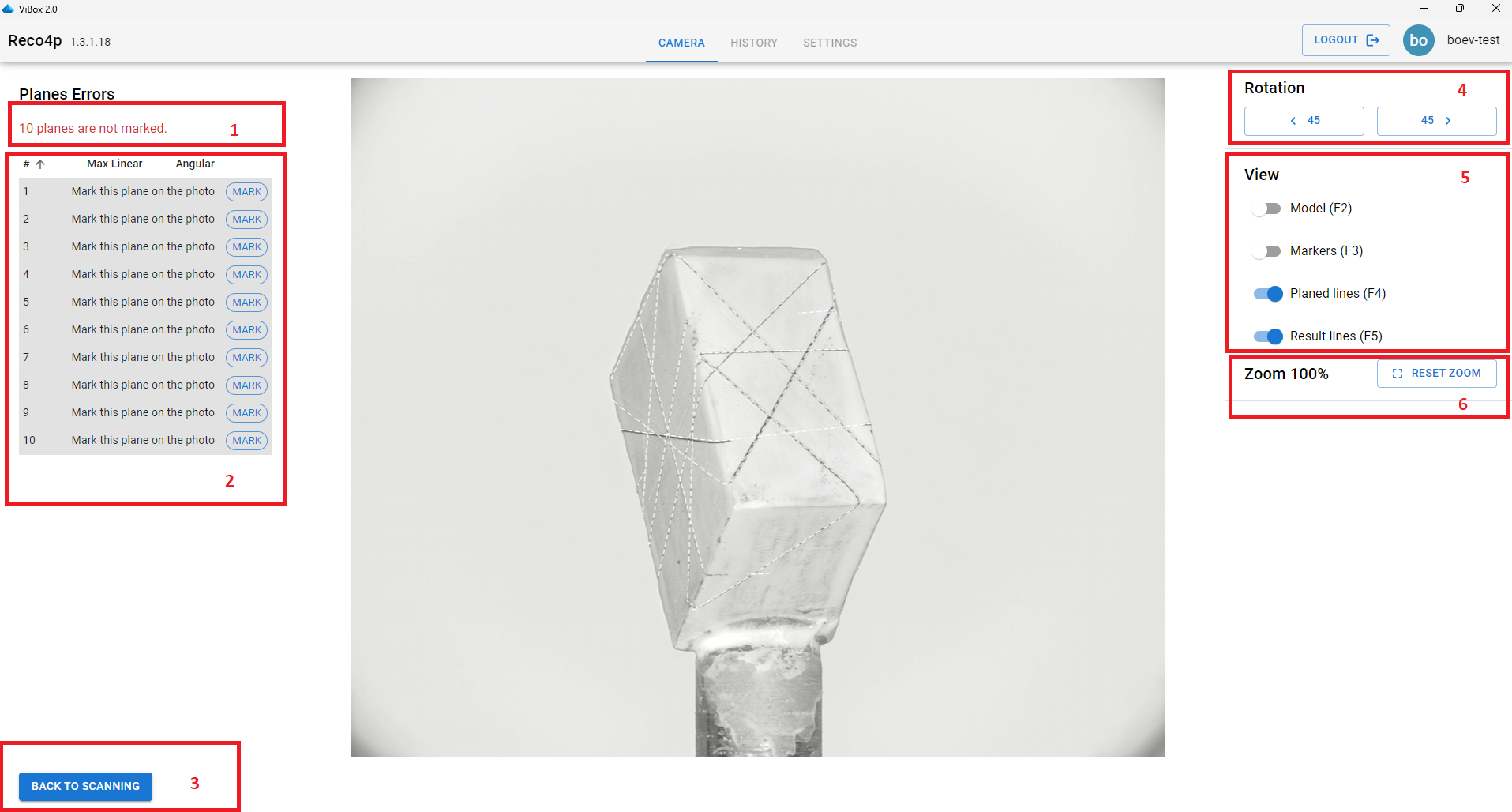
Current Marking Status: Continue marking until the status changes from red.
Planned Planes Table: Displays target planes requiring photo-based marking. During marking, the system automatically calculates linear and angular errors for each plane, with accuracy status color-coding:
Red: Low accuracy
Green: High accuracy
Yellow: Borderline case
Grey: Not marked yet
Click the Mark button to enter marking mode for a specific plane.
Back To Scanning Button: Returns to camera view.
Image Navigation Panel: Toggle between photos. Alternatively, use the mouse wheel for navigation.
Layer Control Panel: Manages display layers:
3D model
Sarin markers (if available)
Planned planes
Resulting planes (user-marked from photos)
Each layer has dedicated toggle shortcuts (F2-F5).
Zoom Control Panel: Shows current digital zoom level with a reset button. Additional features:
Point-specific zoom: Hold Ctrl + mouse wheel
Image panning: Middle mouse button drag
When entering plane marking mode (by clicking the Mark button), the Marking section appears with the following functionality:
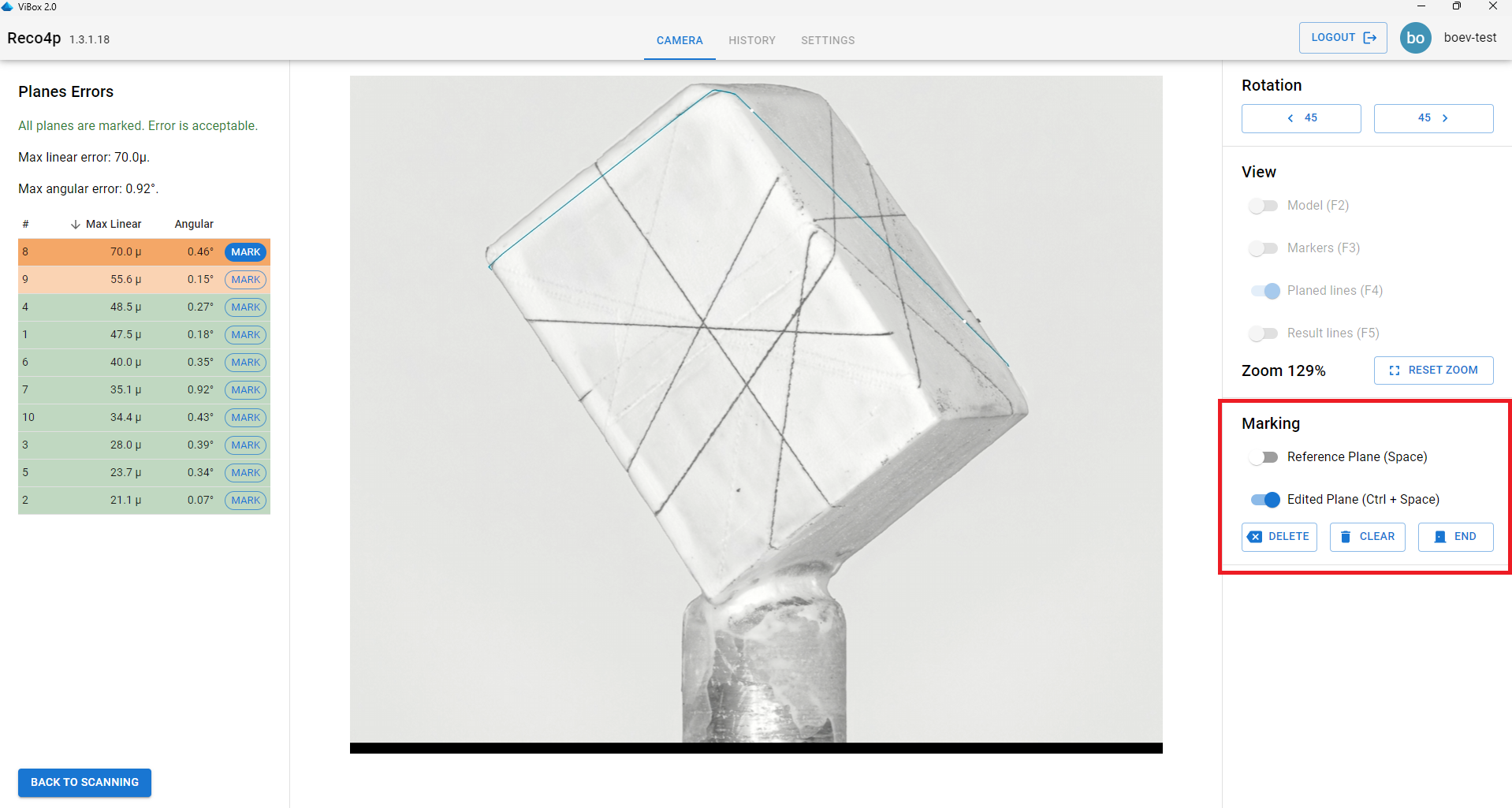
Highlight the current reference plane (planned plane on the image) - shortcut: Space
Hide/show the currently edited plane - shortcut: Ctrl+Space
Clear all plane points (Clear button)
Remove the last point (Delete button or Ctrl+Z)
When you left click on the marking lines on photo, you add new points to the plane. Add points, until you see that the visualization of result plane fits the photo.
To complete editing, you can:
Click the End button
Press the Mark button on the currently edited plane
Begin editing a new plane by clicking its Mark button
The plane annotation process is demonstrated in the video below.