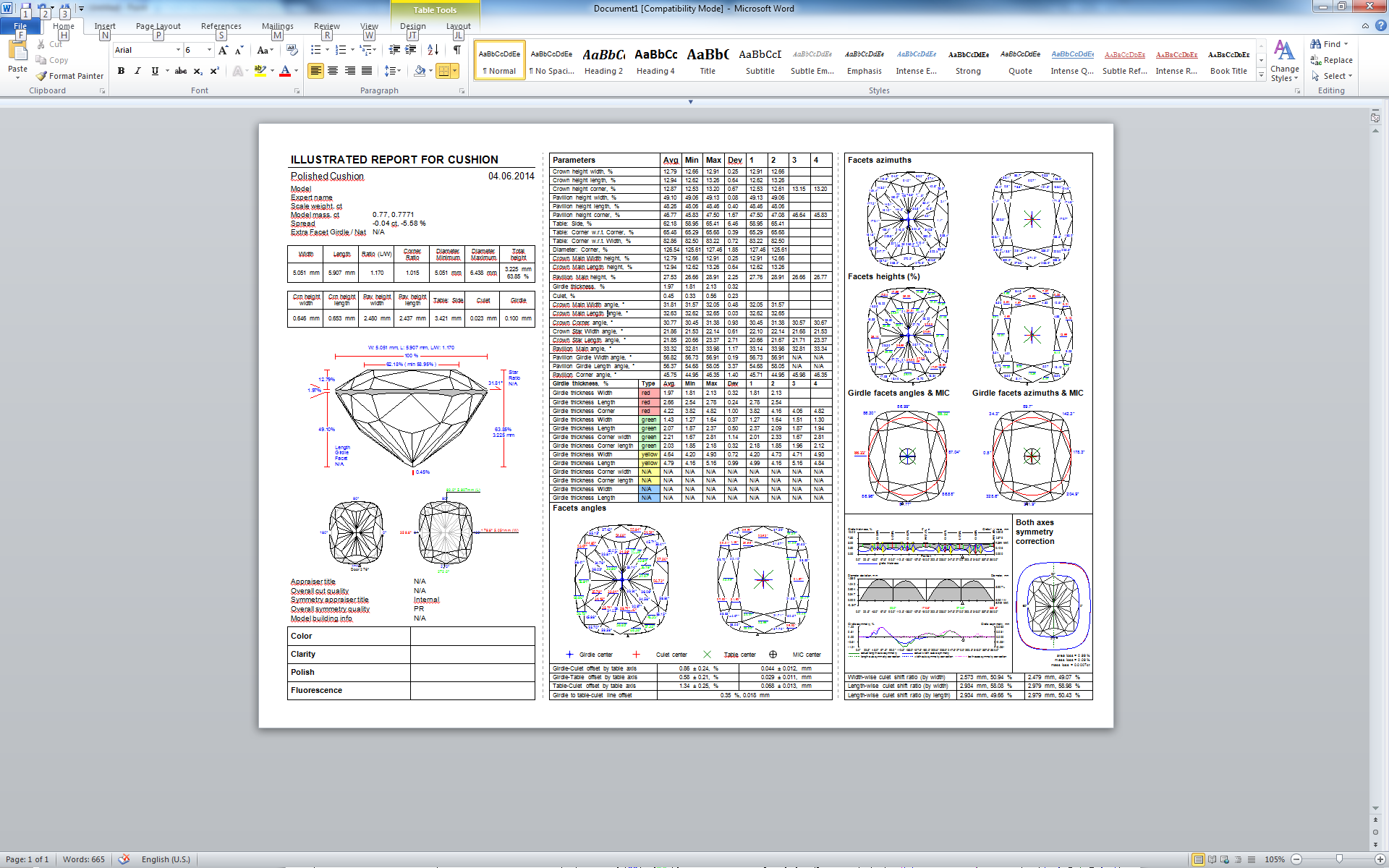
Polished report can be accessed in one of the following ways:
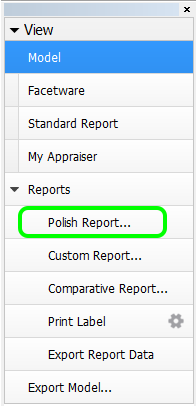
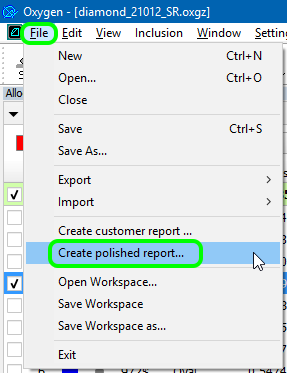
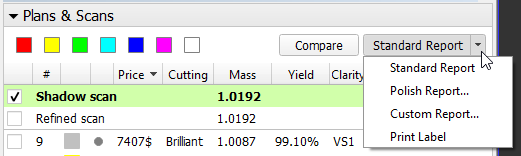
Select Polish report from the Reports section of the right panel, | select File - Create polished report from the top menu, | or press Polish report button in the Plans & Scans panel. |

| Note that the latter button is multi-optional. The dropdown list to the right provides a selection of options: Standard Report, Polish Report, Custom Report, and Print Label. Once selected, the option persists until the program is closed or a new model is opened.
|
The Polish report popup window will appear.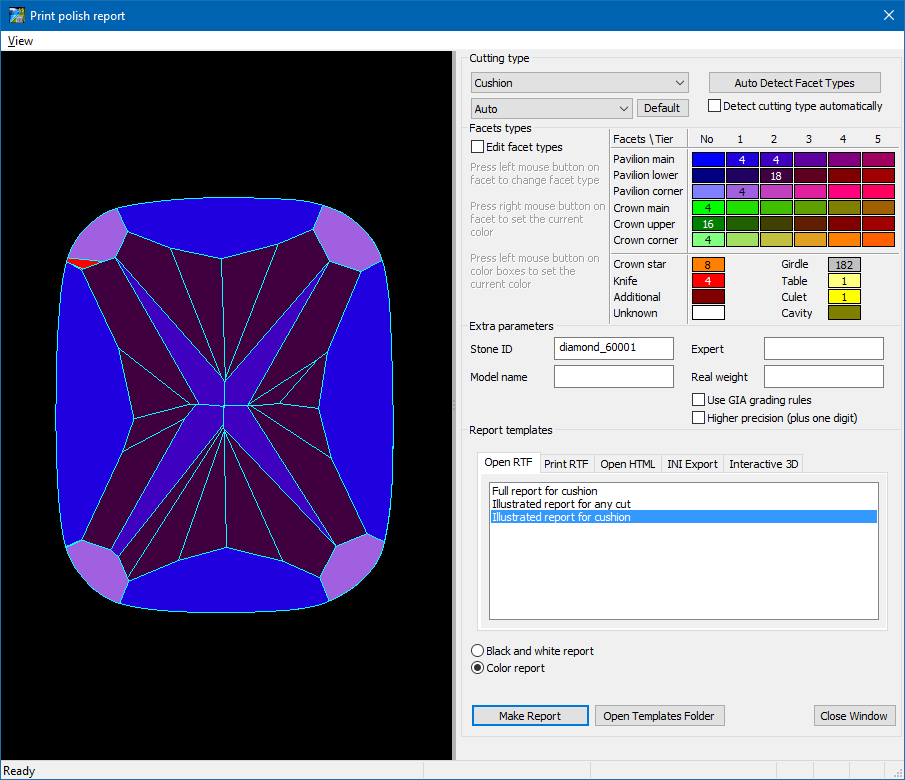
Set the cutting type (initially it is assigned automatically).
Incorrect cutting type would result in a report with multiple inconsistencies, missing parameters and poor grades. - Edit facet types, if you need (normally these are assigned automatically, too; if you want more flexibility in dealing with facet types, for example when evaluating a non-standard cut, consider using custom report instead).
- Specify the extra parameters, if needed:
- Stone ID (normally assigned to a stone during scanning)
- Model name (normally assigned automatically)
- Expert name
- Real weight
- Make the following settings, if needed:
- Use GIA grading rules
Higher precision (plus one digit)
The extra parameters and settings are not persistent. If you close and reopen the report window, they revert to their default values.
Select report type and template. The choice of the report template depends on the report type and the particular cut.
When you are done with settings, press Make report. Depending on the report type, one of the following actions will occur:
| Type | Action |
|---|---|
| Open RTF | Opens the report in MS Word |
| Print RTF | Sends the report (the same one as above) to the default printer |
| Open HTML | Opens the report in the default web browser |
| INI Export | Exports a plain text report with pictures in separate files (see Export report data for more details) |
| Interactive 3D | Opens the interactive report in the default web browser (see Interactive 3D Report for more details) |