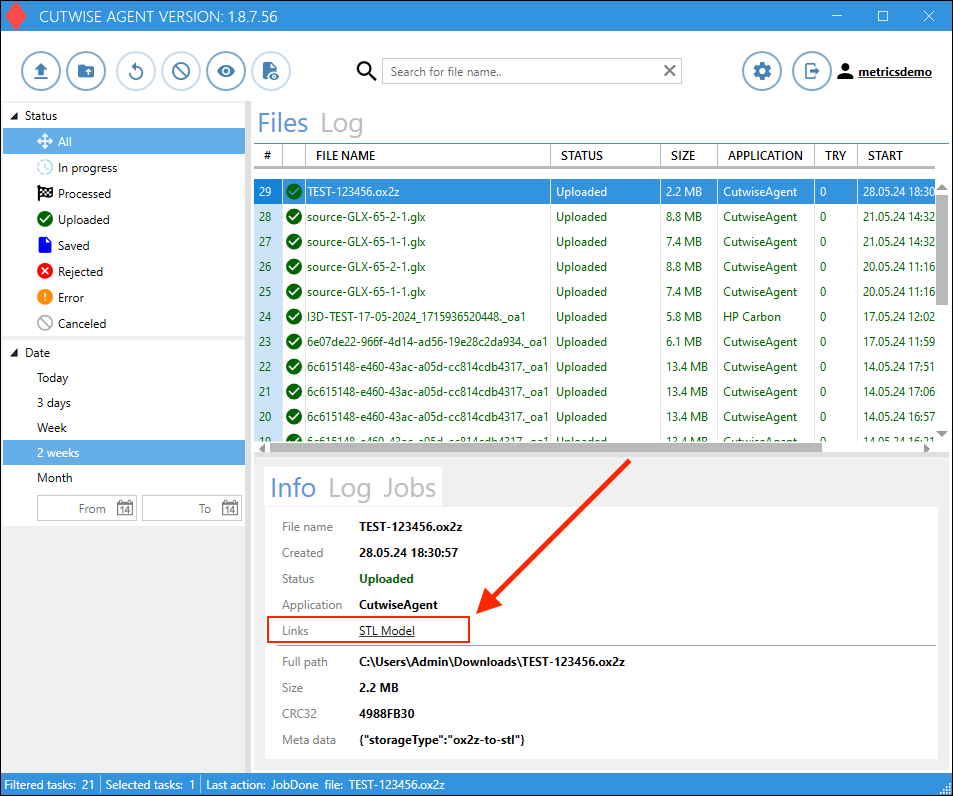
1. Open Cutwise Agent, log in with a Cutwise account.
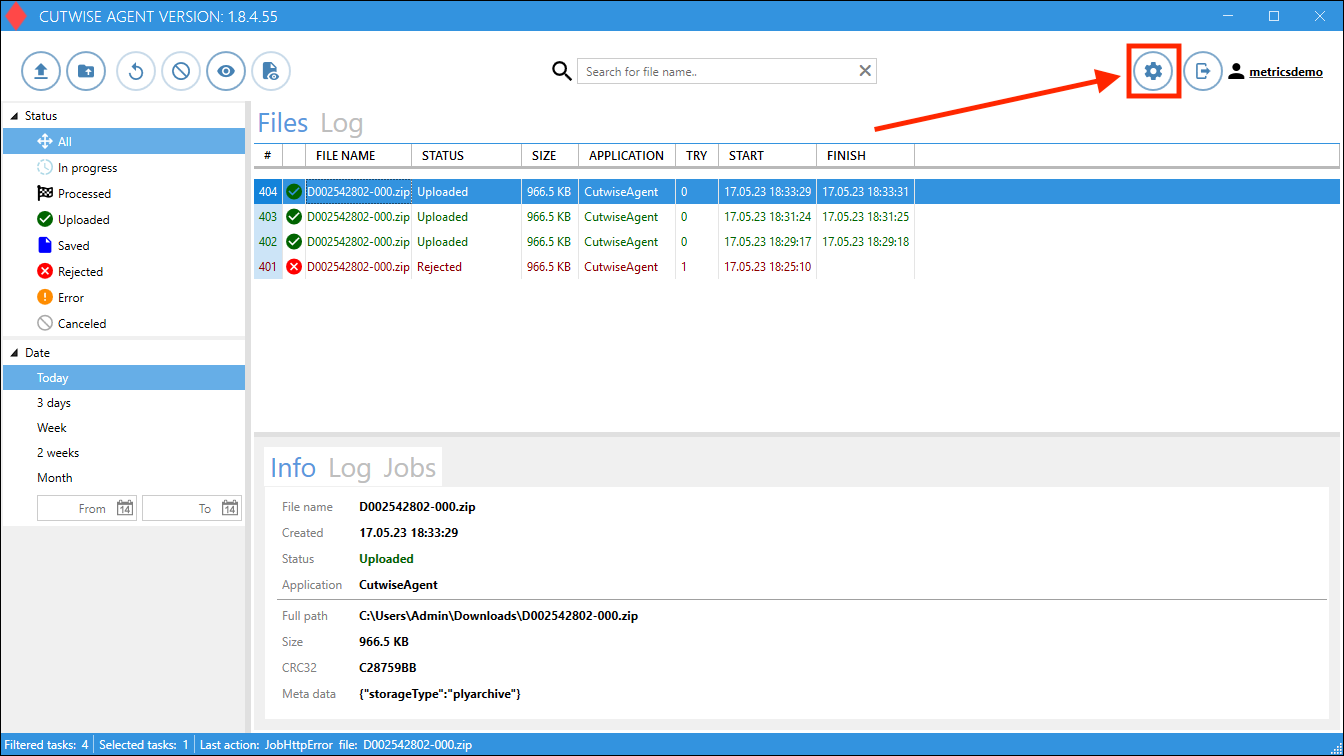
2. Go to Settings:
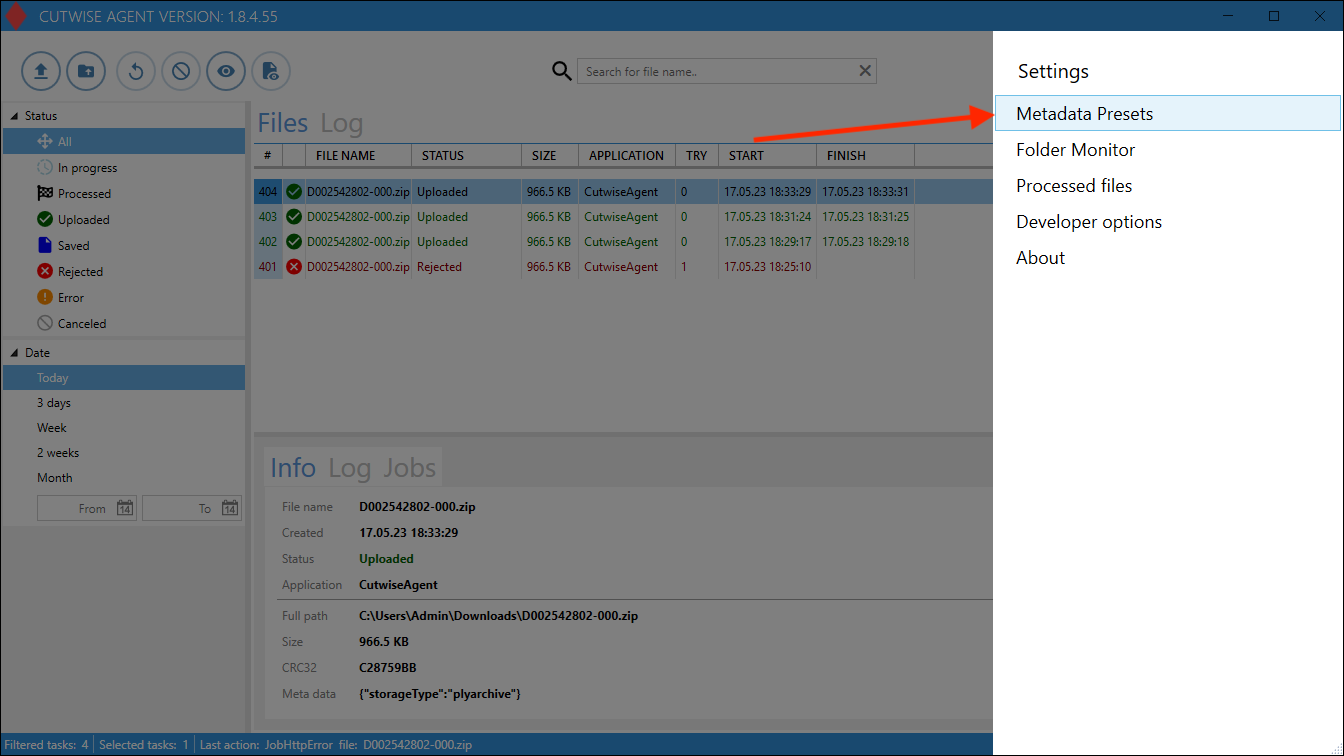
4. Click on the "Load customer config" button:
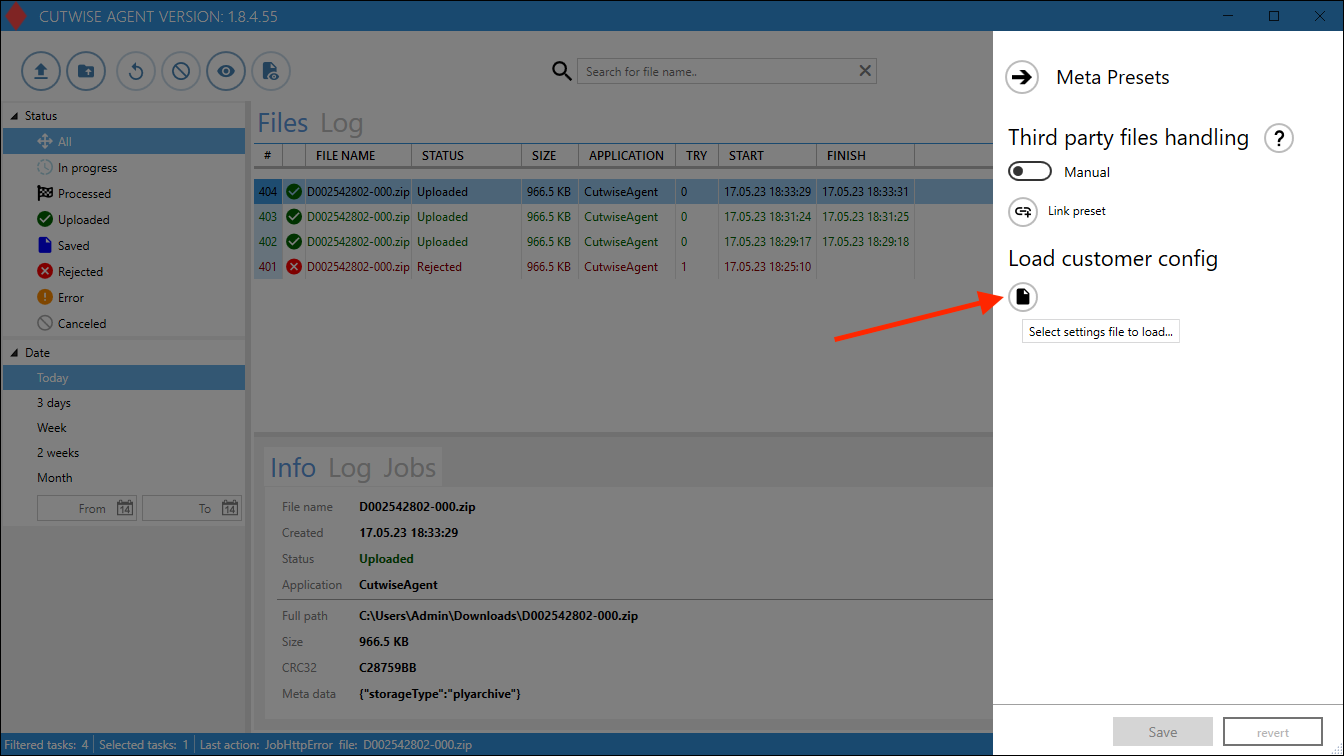
5. In the menu that appears, download this config file: Appsettings_STL_new.json
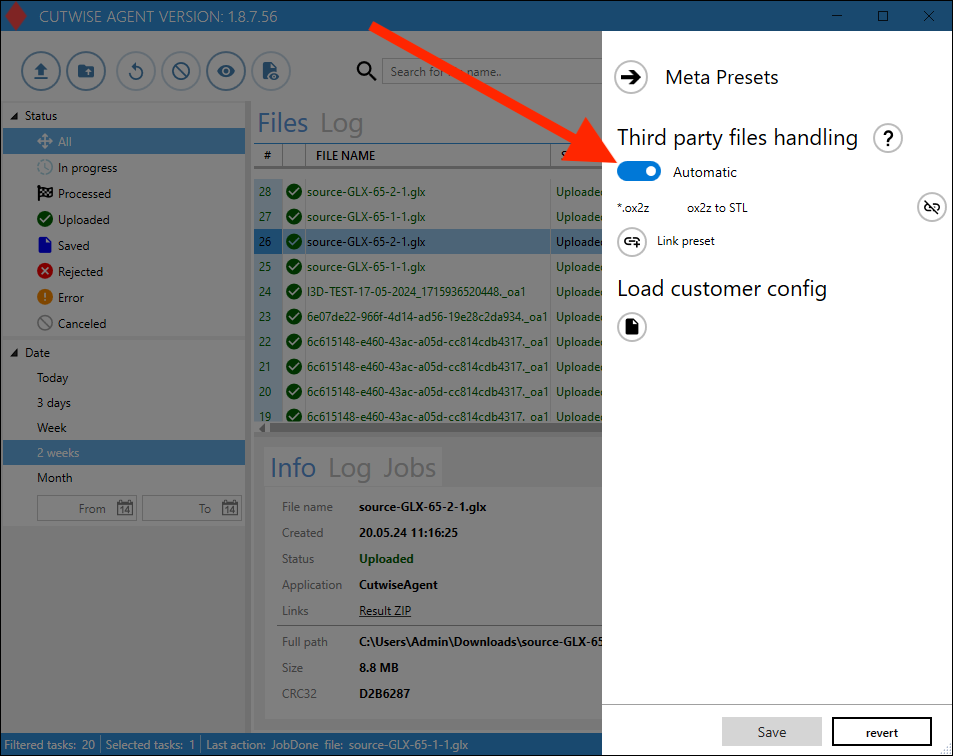
6. Check that the Third party files handling set as "Automatic".
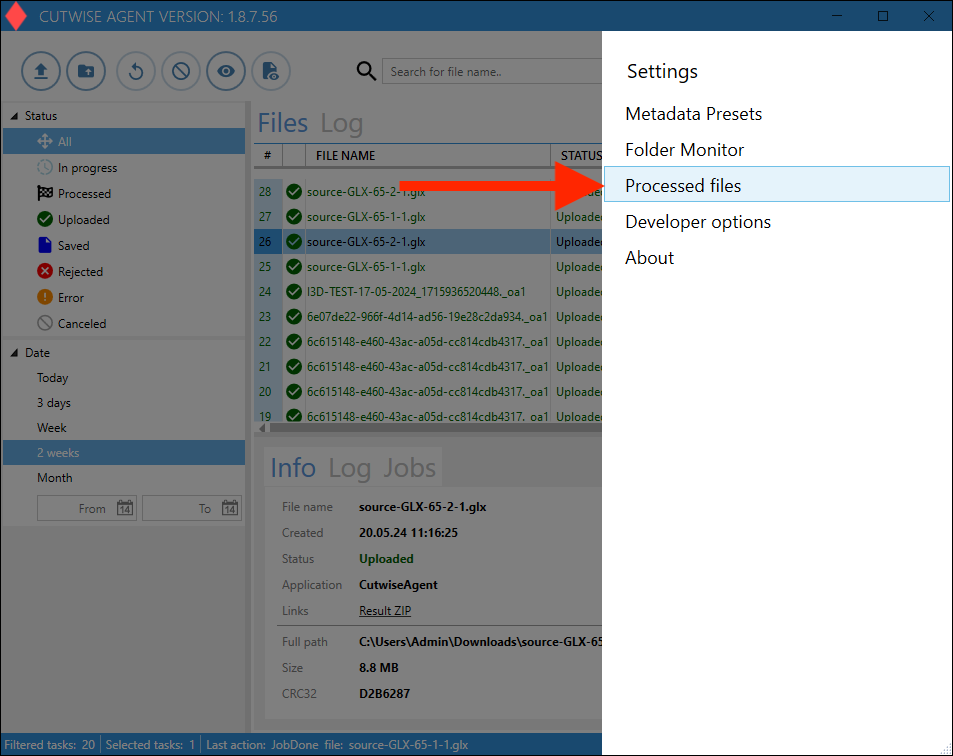
7. Go to the "Processed Files" settings
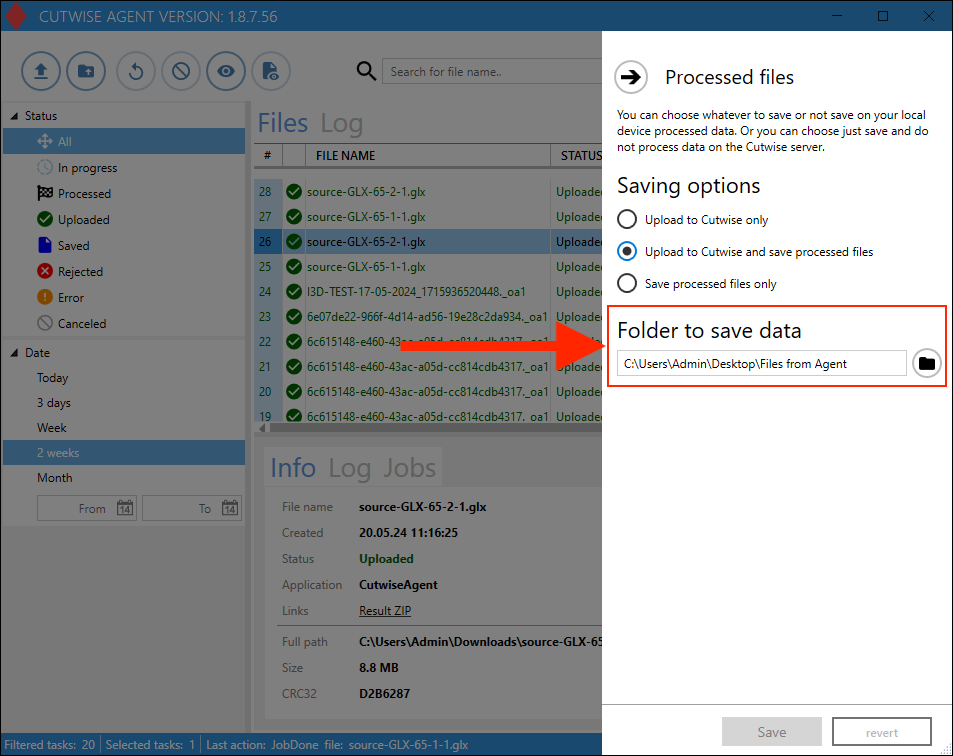
8. Change the folder for result files (or you can use the default folder).
The resulting STL files will be saved in this folder.
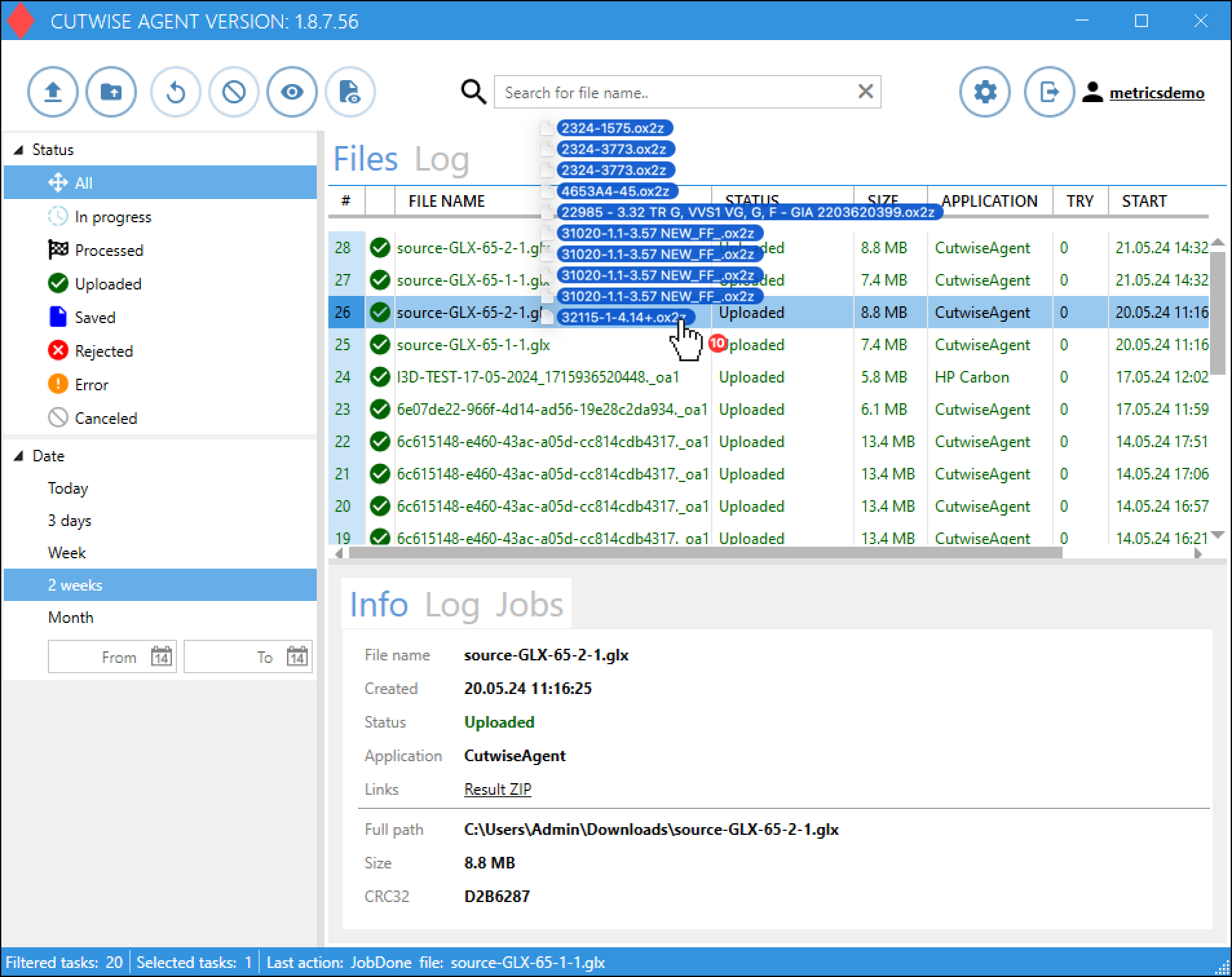
9. Drag n drop files into the Cutwise Agent interface (or use the monitoring folder).
Uploading and conversion of files will start automatically.
10. After a while go to folder from step 8, or download file from Cutwise Agent Interface
(an indication that the STL file is ready is the presence of a link or a successful status in the job tab)