Here you can find information about what is new in HP Carbon version 1.12.10.
This version is available for download from the Octonus official web site. |
The new algorithm 23. Cascade is available since version 1.12.10, designed for finding solutions comprising two diamonds, offers several advantages over its predecessor, the 13. Cascade-2M algorithm.

While new global allocation algorithms prioritize finding the most price-effective solution based on a given price list, it's important to recognize that user requirements are diverse.
The value of a particular diamond to a company depends on various factors beyond its carat price alone, including:
Let's focus on the "diamond performance," specifically the Brilliance characteristic.
The program now includes Brilliance Based Cuts, which utilize a GRID-appraiser built based on the Brilliance characteristic. The preforms for these cuts undergo quality control that excludes low Brilliance and have assigned Brilliance values in the program. Modern algorithms can utilize these values.

The "+ Brilliance Based" option is available in the "23. FixedForm" and "23. Single" algorithms. It allows users to obtain a range of solutions from optimal mass to optimal Brilliance. The SmartRecut algorithm is automatically launched with a single preset for all these solutions. Brilliance Based solutions are marked with shine icons in the label field. The "+ Brilliance Based" option only affects Brilliance Based Cuts

The option “+ Brilliance based” is disabled if no such cut is selected. Note! The only cut that currently supports this option is Princess.3S_Performanceware.

To ensure the algorithms can select Brilliance Based solutions, they need to calculate them in addition to the standard solutions. This may take a bit longer, but the additional processing time is insignificant compared to the overall duration.
When searching solutions with high Brilliance, the algorithms consider the Brilliance of the preform. Notably, the "23. Single" algorithm modifies the initial preform. The SmartRecut algorithm also modifies the initial preform in both cases, including "23. FixedForm." Consequently, the algorithms can only provide an approximate estimation of the final Brilliance. We assume that solutions obtained from preforms with high Brilliance have a higher probability of achieving high Brilliance in the end.
To evaluate and compare the optical properties of the final solutions, you can use CutWise.

There are two types of Brilliance Based solutions:
1) At the final stages of the regular algorithm, when the approximate local position of the diamond is known, the algorithm calculates additional preforms. These preforms are slightly smaller than the optimal ones in that specific position, but they have significantly better Brilliance.
Solutions obtained through this approach, after SmartRecut, can have nearly identical mass compared to the best solution or even exceed it. However, they have a significantly higher probability of achieving greater Brilliance.
2) For the combination of Cut+Grade+Clarity that has reached a sufficient price to be included in the solutions list, an additional variation of the FixedForm algorithm is launched, which uses only elite preforms.
As a result, two solutions are obtained - the solution based on the preform with the highest Brilliance and the solution with the best mass among the elite unmodified forms. These solutions do not undergo any parameter modifications until SmartRecut, which ensures their higher and more reliable Brilliance. However, their mass may be noticeably lower in the "23. Single" algorithm.

There is video explaining principles and main ideas of applying option "+ brilliance based" for cut Princess.3S_Performanceware:
The "Change Cut To" menu is now available from the scene's context menu.


Cut Princess.3S_Performanceware is implemented on the base of cut Princess.3S. This is the first cut that works with the "Brilliance based" technology, see above.
Preplans are separated into a single section in the solutions list. The 'Cut' column will indicate 'Preplan' for them.

In the I3D Report, implemented interactive features within the Remaining Depth chart.
Users can now easily toggle the visibility of associated lines and marks by clicking on the respective legend items. Selections are saved and persist across program relaunches, providing a seamless experience.
This update introduces a more intuitive and dynamic interaction, allowing users to focus on specific lines of data that are of interest.
By default, only the Max Line (Blue) is enabled, while Girdle Zone Min and Max are disabled.
Sample: Plan+Preplan+Bruted.ox2z

Introduced an "Info" button to display an image containing graphical explanations of distances on the chart. The image updates based on the selection made in the legend items.

In Export Report Data, the capability to export images in the SVG (Scalable Vector Graphics) format has been introduced. This format offers high-quality vector images that can be scaled to any size without loss of quality.
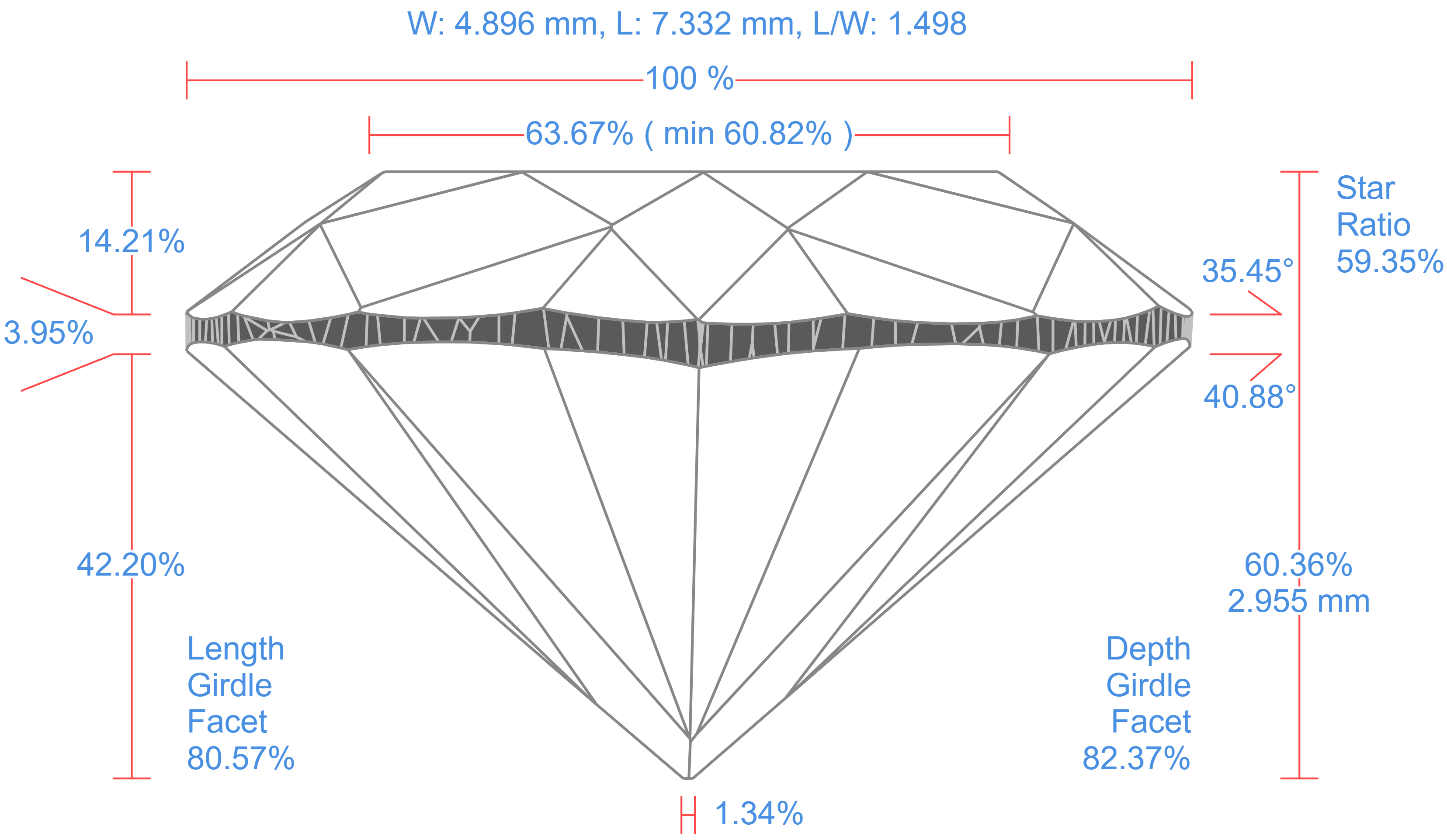
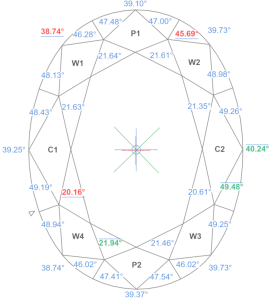
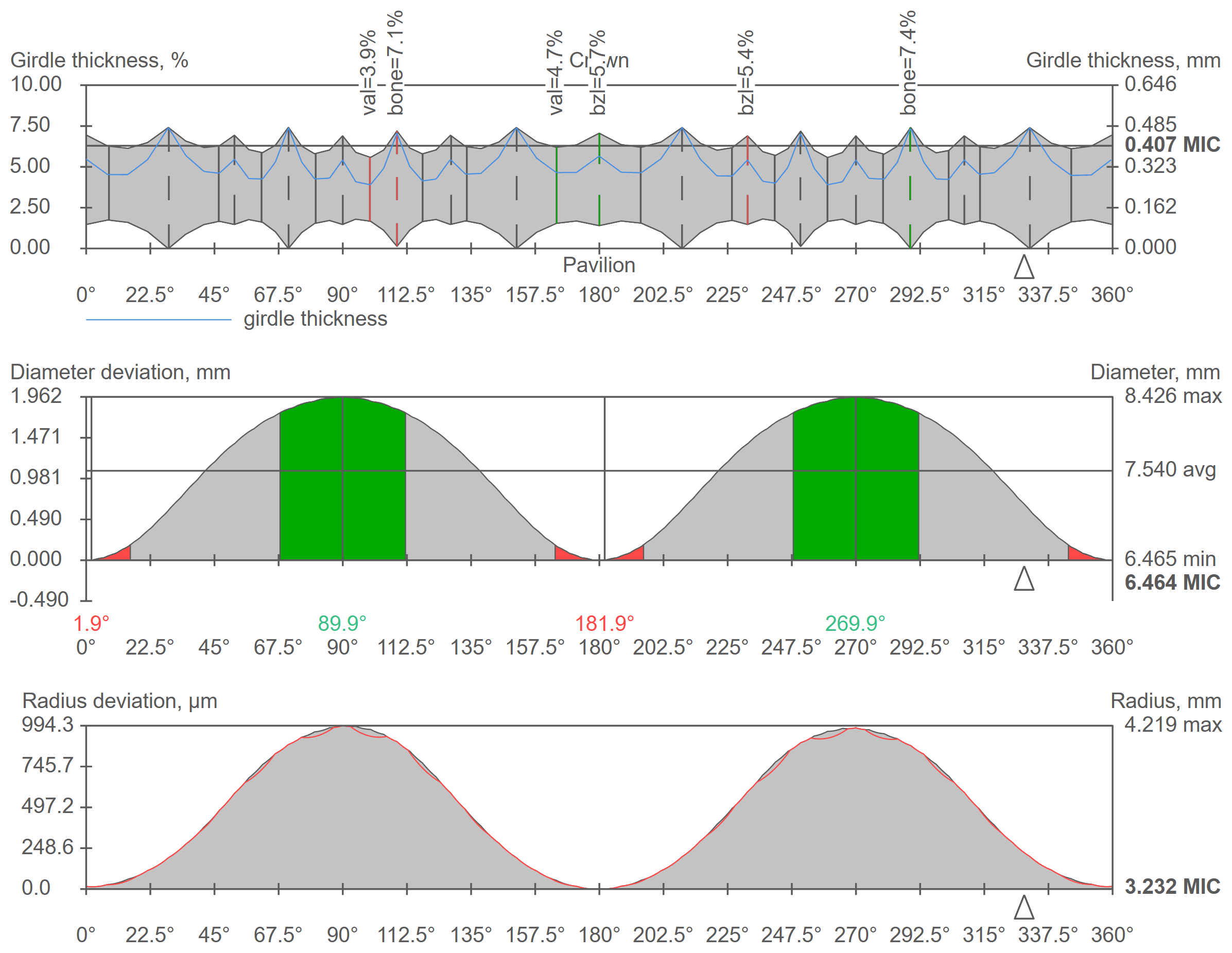
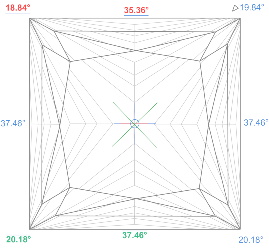
Additionally, the image format for export can now be configured in the General Settings dialog.
In the I3D Mini View / Report, the quality of UX/UI has been improved, specifically:

A quick sandwich tool has been added, which makes it possible to separate a smaller peace of inclusion. This may increase plan weight with the same clarity.
Please look at the video with demo of tool advantages and settings:
The quick sandwich tool is available in two places:


Additionally, there is an option to apply the quick sandwich to all inclusions near the active diamond.
For detailed customization, a modal window can be opened to input the desired offset.
The result of the quick sandwich applying is an separated inclusion with parallel to the diamond plane.
Unified Safe buffer elements in all menus (in the scene, list, and panel header).
| in the scene | in the list | in the panel header |
|---|---|---|
|
|
|
Now the selection with inclusion can be removed.
For that purposes, you need to click on an empty space in the scene with the inclusion selection tool active.
Also, for convenience, you can use the SHIFT modifier instead of the tool on the panel.

Zoom has significantly improved:
On the 2D scene, you can move around using the combination 'Left click + SHIFT + Mouse Move'.
Additionally, the scroll bars that appear when zooming in can be disabled in the menu item View -> Show Scroll Bars.

By double-clicking on the scene, you can reset all transformations (zoom and movements) made with the mouse.
Diamond facets and edges are highlighted upon mouse hover.

This feature is disabled by default, so you need to click on View -> Enable bone highlighting / Enable facet highlighting accordingly.

When the feature is enabled, some commands are available in the scene's context menu:


Since it's now possible to manually set sawing planes, we've added the ability to modify and delete them.


The algorithm for calculating Remaining Depth Blue Line has been reworked. This fixed critical bugs in the old implementation. The purple line in the figure shows the behavior of the new version of the algorithm compared to the old one.


