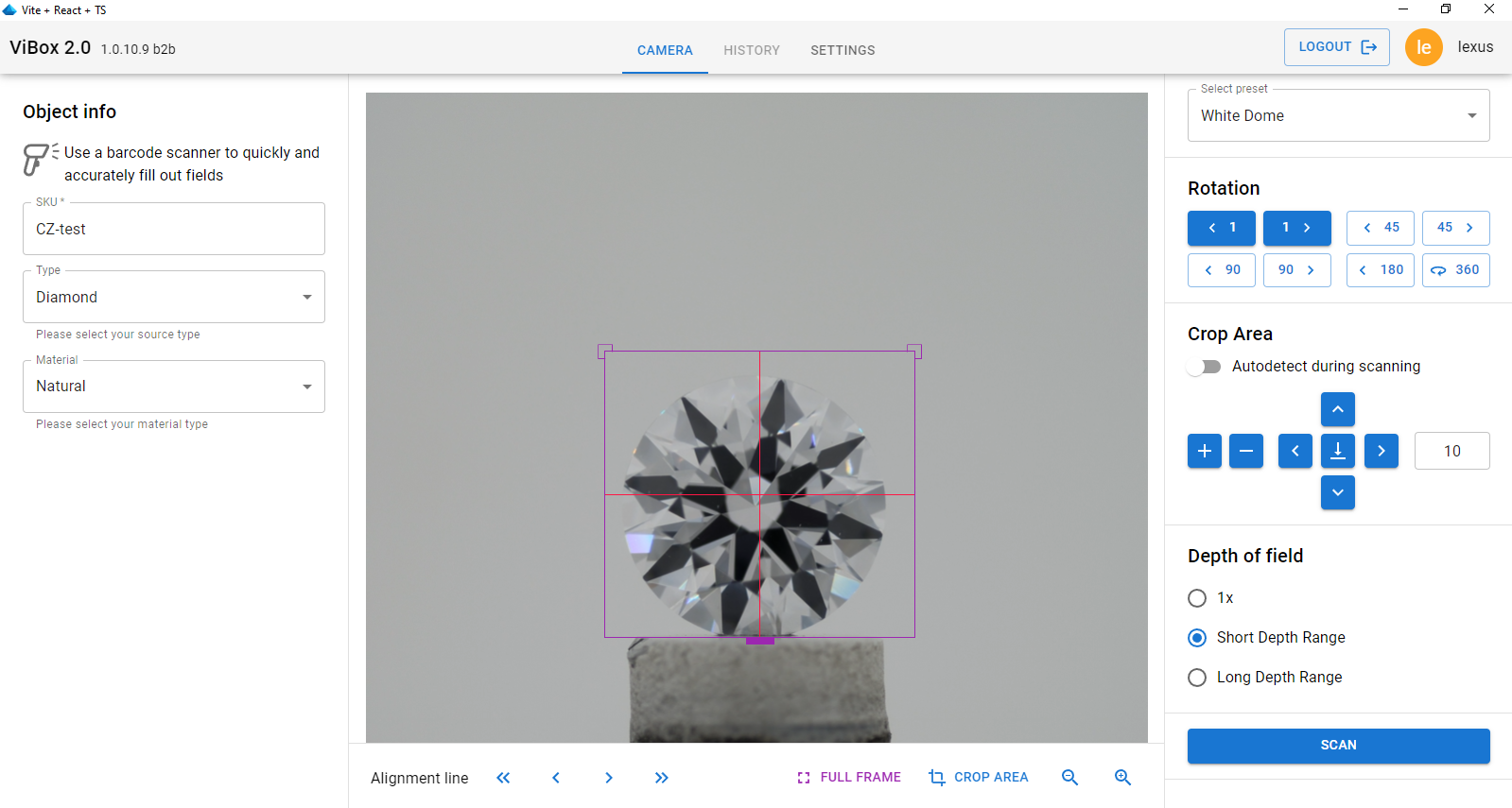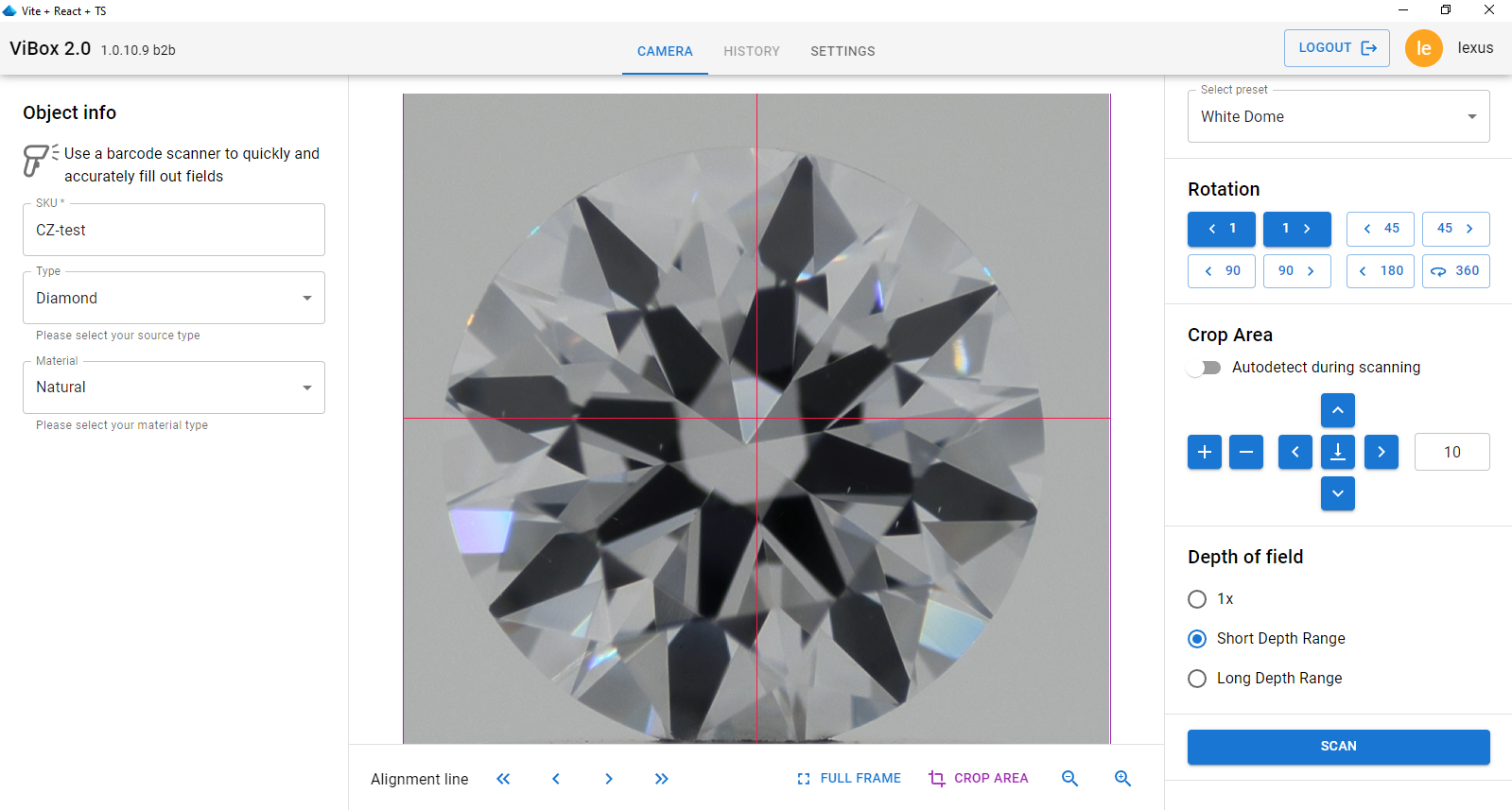
After successfully connecting to the Vibox 2.0 hardware and logging into Cutwise, you will see the software in camera live stream mode.
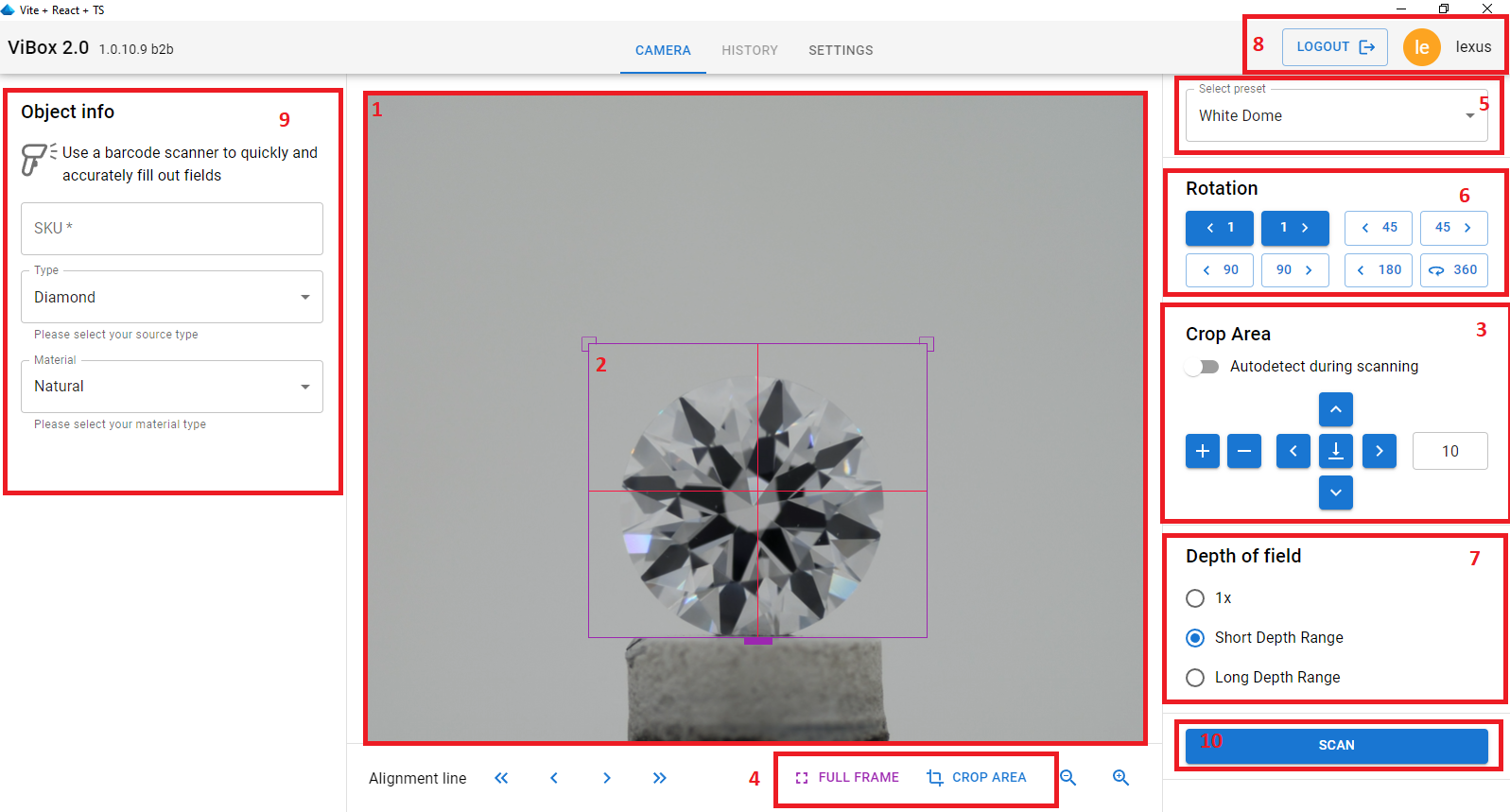
Conceptually, the graphical interface in this mode can be divided into several parts:
1. Live camera stream: This allows you to view the object being placed on the holder and adjust its position in real time.
2. Region of interest (ROI) rectangle and rotation axis: These are overlaid on the live stream. During scanning, the frame will be cropped according to this rectangle. In the B2B setup, the intersection point of the rotation axis and the rectangle is usually fixed (anchored) and calibrated at the top of the holder. While you can move it with the mouse, this is generally unnecessary. Typically, only the left or right edge of the rectangle is adjusted (by dragging it). When you move one side of the rectangle, the opposite side moves symmetrically to the rotation axis. You can also drag the top side of the rectangle to crop the area from the top.
3. Controls for adjusting the ROI rectangle: These are provided as buttons. Buttons  - enlarge/reduce ROI,


 - moves anchor point by specified number of pixels (on the screenshot
  - ten pixels),
  - returns an anchor point to calibrated default position
4. View mode buttons: These include Crop area (showing the stream after applying the ROI) and Full frame (showing the full-size frame before cropping).
| Full frame | Crop area |
|---|---|
|
|
5. Preset selection control: Presets define standardised settings for filming (lighting, exposure, film processing settings, etc.).
6. Object rotation buttons: These allow for rotation by 360, 180, 90, 45, or 1 degree.
7. Extended depth of field mode selection: You can choose between modes with no depth extension, a mode for rough stones or cuts with a short light path (Short Depth Range), and a mode for cuts with a long light path (Long Depth Range).
8. Cutwise login section: Clicking on this area (Logout button) allows you to log in with a different account.
9. Metadata panel for entering stone information: This is used to identify the stone on Cutwise and is also available during the scanning mode.
10. Scan button: to launch scanning
For more details on specific use cases with this interface, please refer, for example, to the page: Creating movies