
After clicking the Scan button in Camera live view, the software switches to the scanning tab. This tab has the following structure:
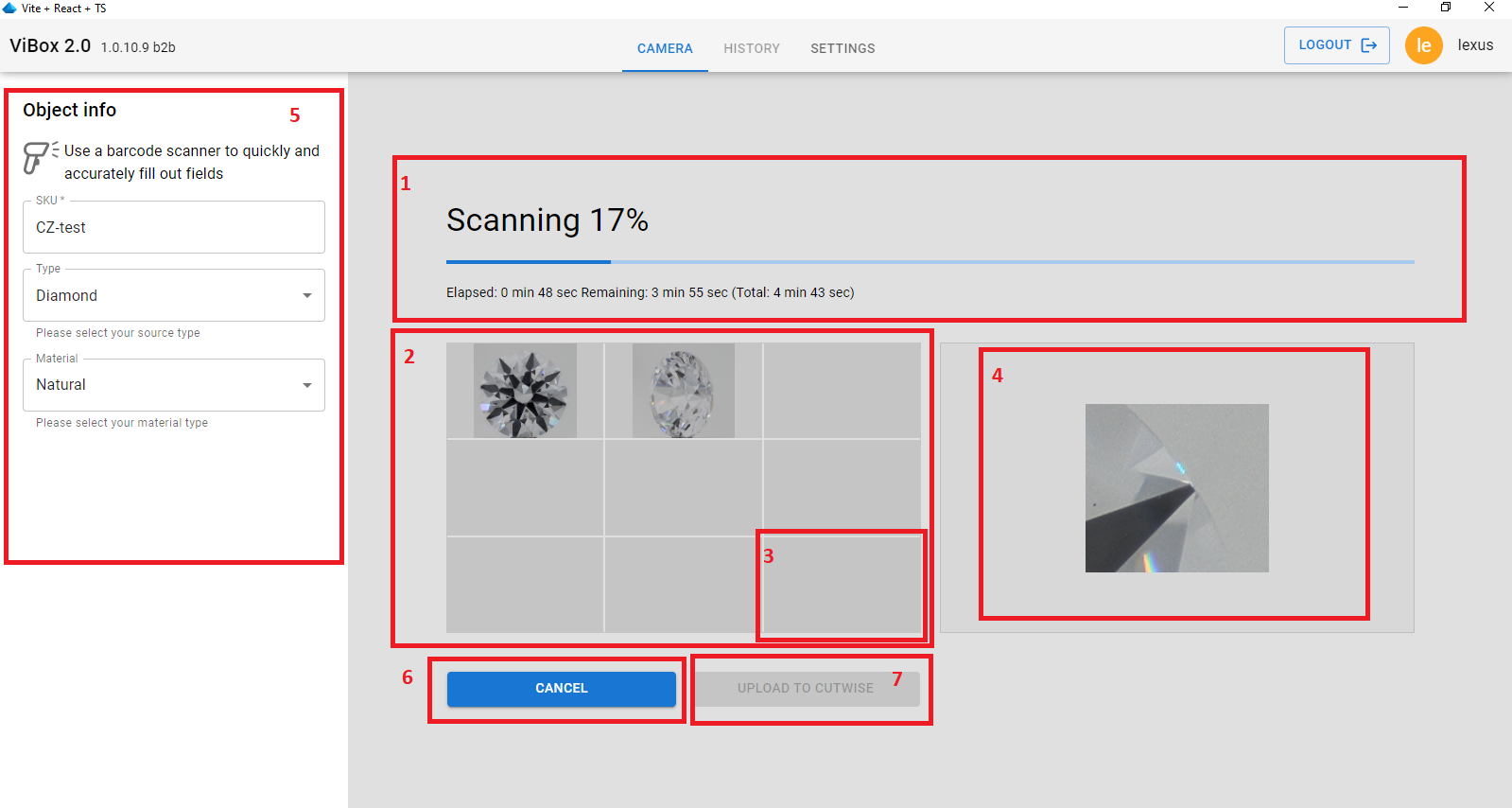
1. Scanning status information: Displays the completion percentage, estimated total and remaining scan time, and the time elapsed since the scan began.
2. Thumbnail block: Contains reduced copies of images from the resulting film (9 mini-images).
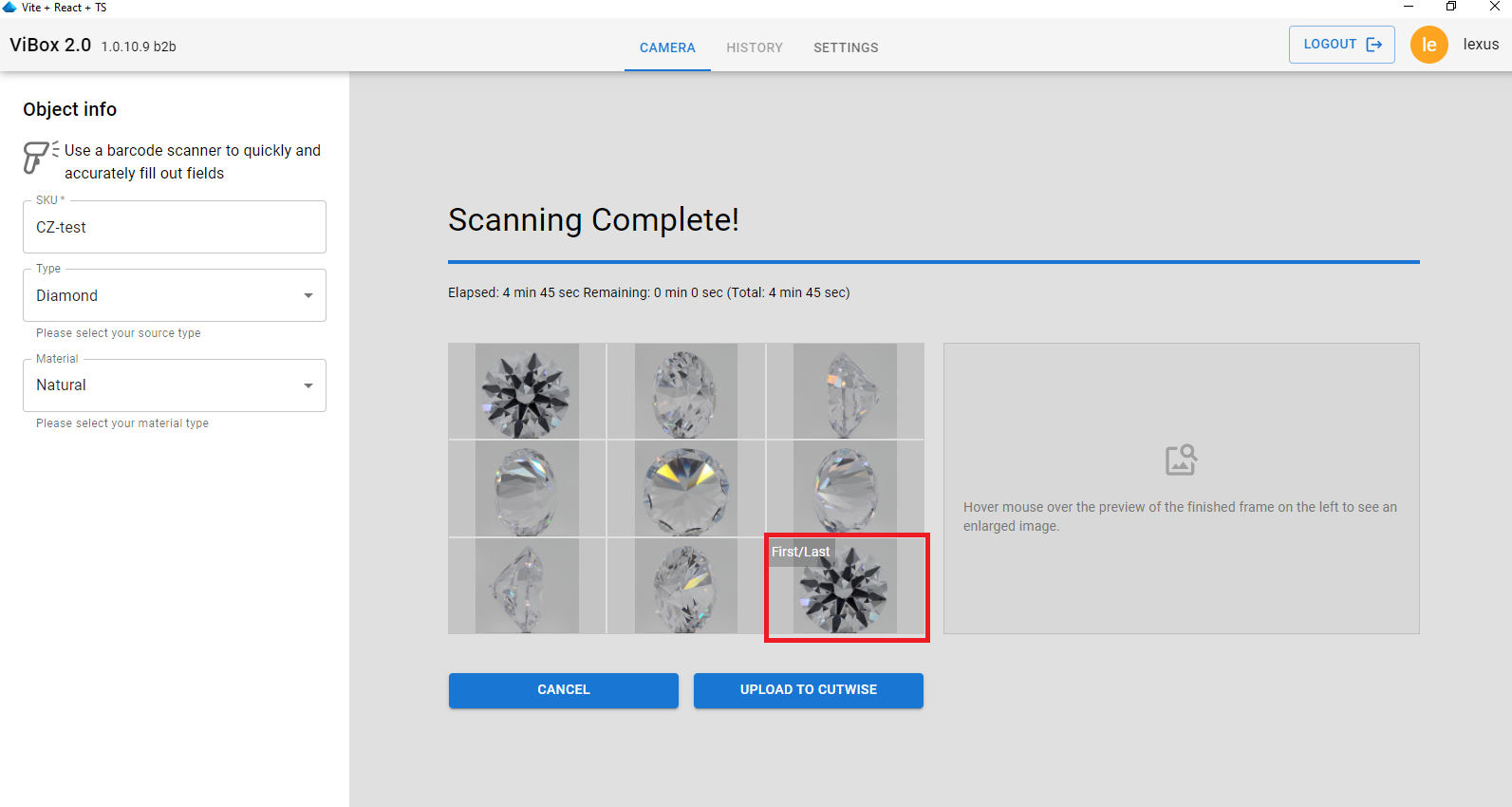
3. Thumbnail before/after scanning: When scanning is finished, by clicking on this thumbnail after scanning it is possible to compare object before and after scanning in same rotation position. Comparison between these two images may show possible problems with object shift/rotation relative to holder during scan
4. Zoomed image block: Shows a magnified portion of the images (at 100% resolution). When moving the mouse over the thumbnail block, the zoomed image acts like a magnifying glass over the specific mouse position on the thumbnail, displaying the image at its original resolution. Blocks 2 and 4 allow you to evaluate the scan results, for example, by checking for sharpness in all parts of the images from different angles.
5. Stone information panel: Similar to the panel in Camera live view. By entering the exact SKU of the stone, if it exists in the Cutwise account, the stone's information is automatically loaded. If the stone does not yet exist, you must fully enter the stone's information so it can be uploaded after scanning is complete.
6. Cancel button: Stops the scan at any time. After stopping the scan, the software returns to Camera Live View.
7. Upload to Cutwise button: This becomes active after the scan is successfully completed and valid information is entered in the stone information panel (see point 5). Clicking this button prepares the film for upload to Cutwise and uploads it via the Cutwise Agent. After the upload begins, the software returns to Camera live view.
For more details on specific use cases with this interface, please refer to the page: Creating movies