Convert model files OX2Z to STL format.
This feature is currently accessible:
- only for users with an active Cutwise b2b account that has a positive balance.
- only with Cutwise Agent 1.9.2 or higher (latest version: https://files.octonus.com/CutwiseAgent/Cutwise-Agent-v.1.9.2.msi)
To convert files, you need to do the following:
| Step | Screenshot |
|---|---|
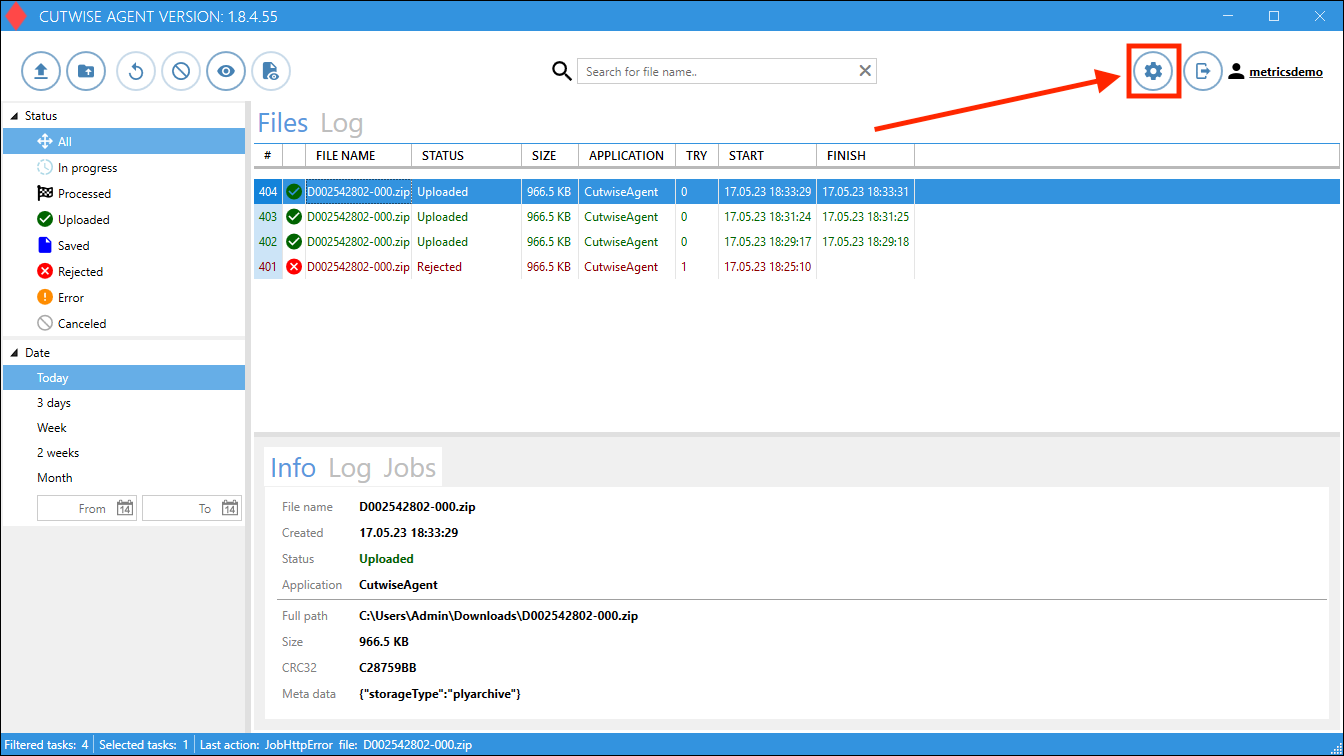
1. Open Cutwise Agent, log in with a Cutwise account. 2. Go to Settings: |
|
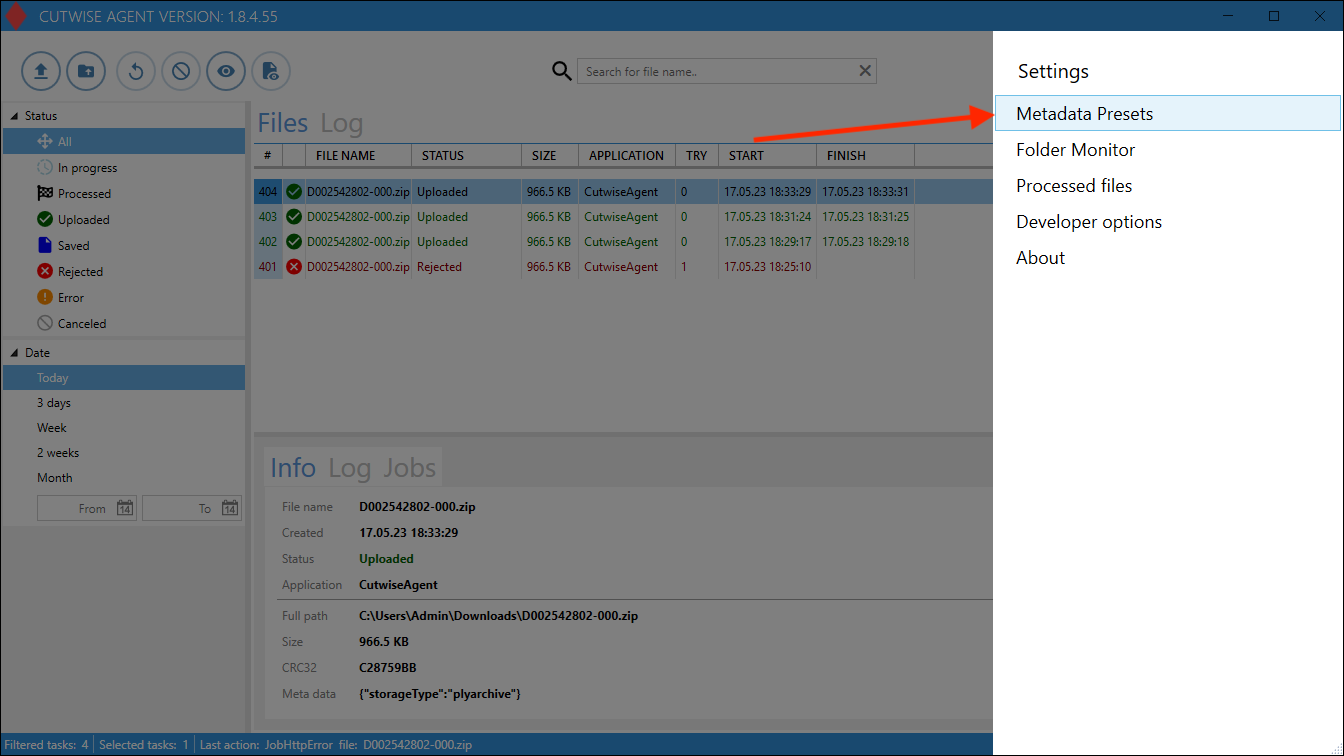
| 3. Next in the "Metadata Presets" menu: |
|
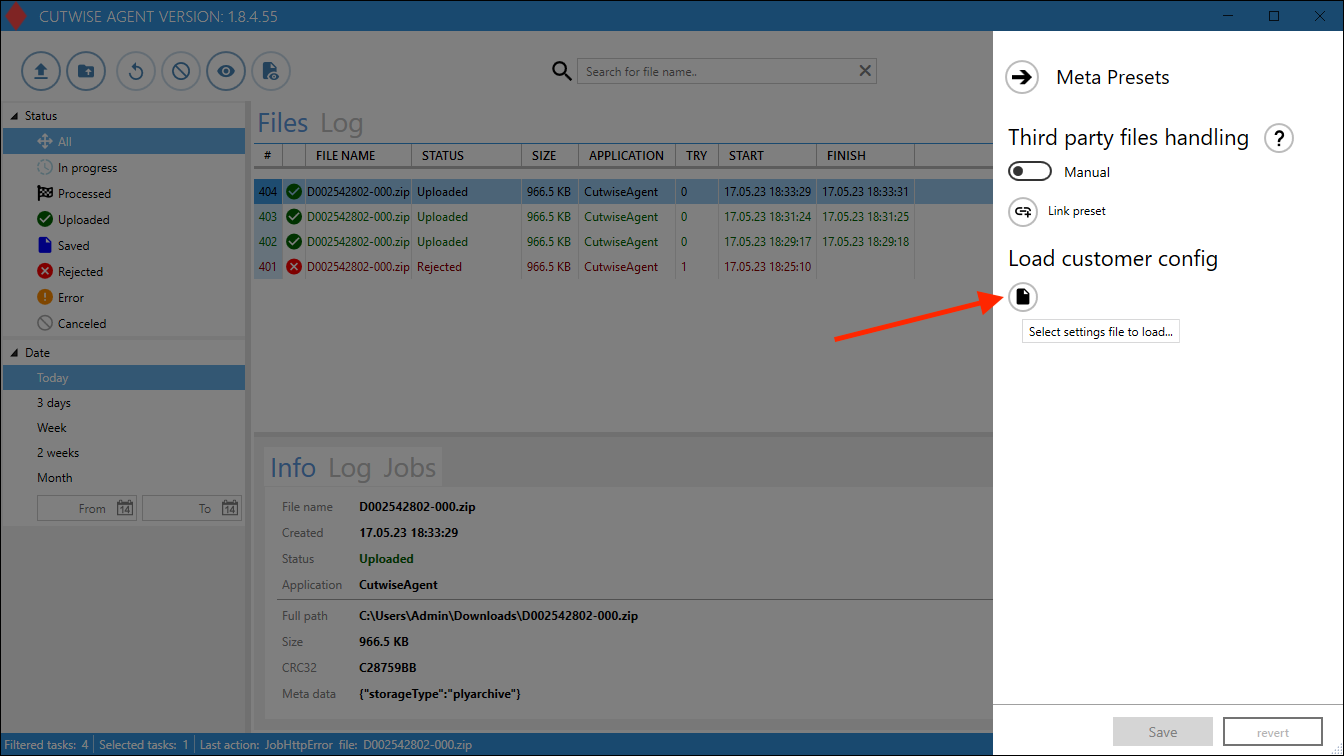
4. Click on the "Load customer config" button: |
|
5. In the menu that appears, download this config file: Appsettings_STL_new.json | |
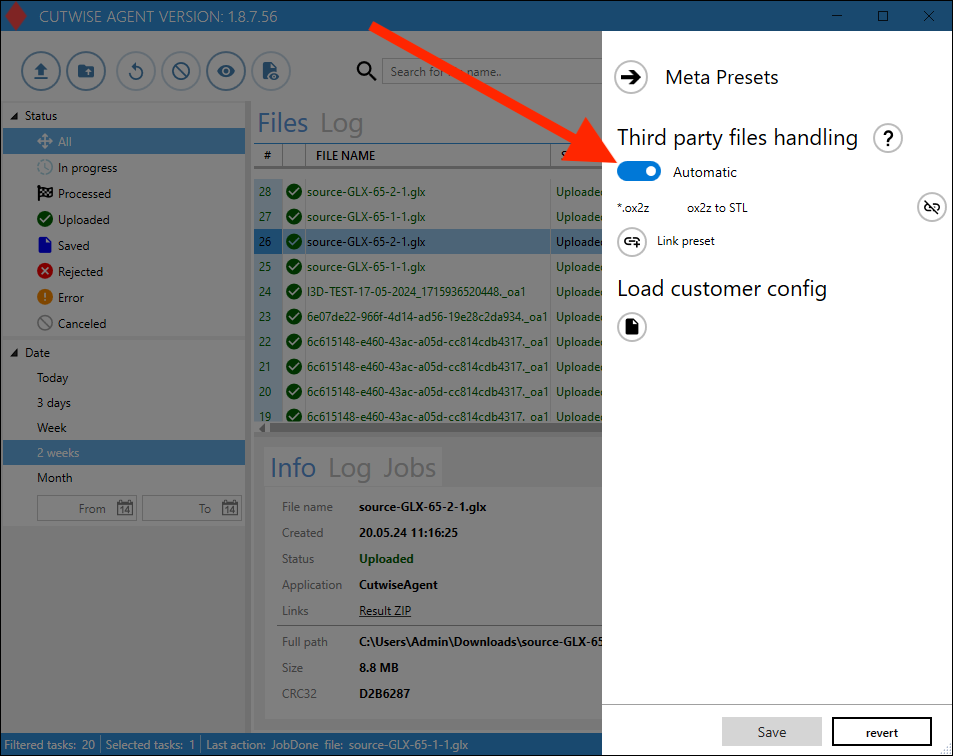
6. Check that the Third party files handling set as "Automatic". |
|
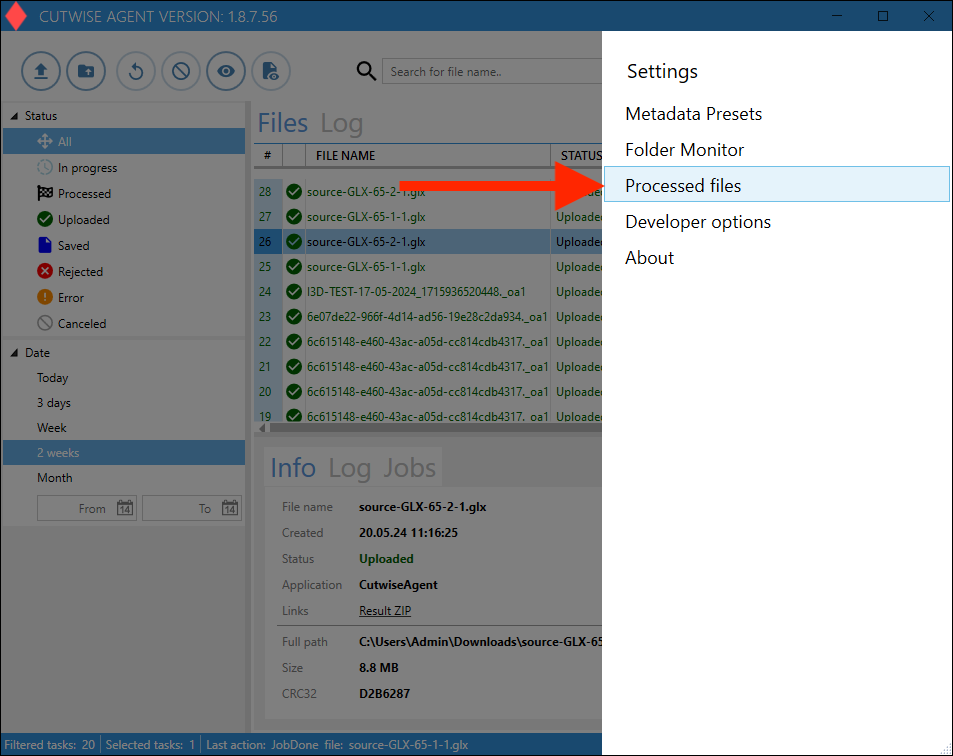
7. Go to the "Processed Files" settings |
|
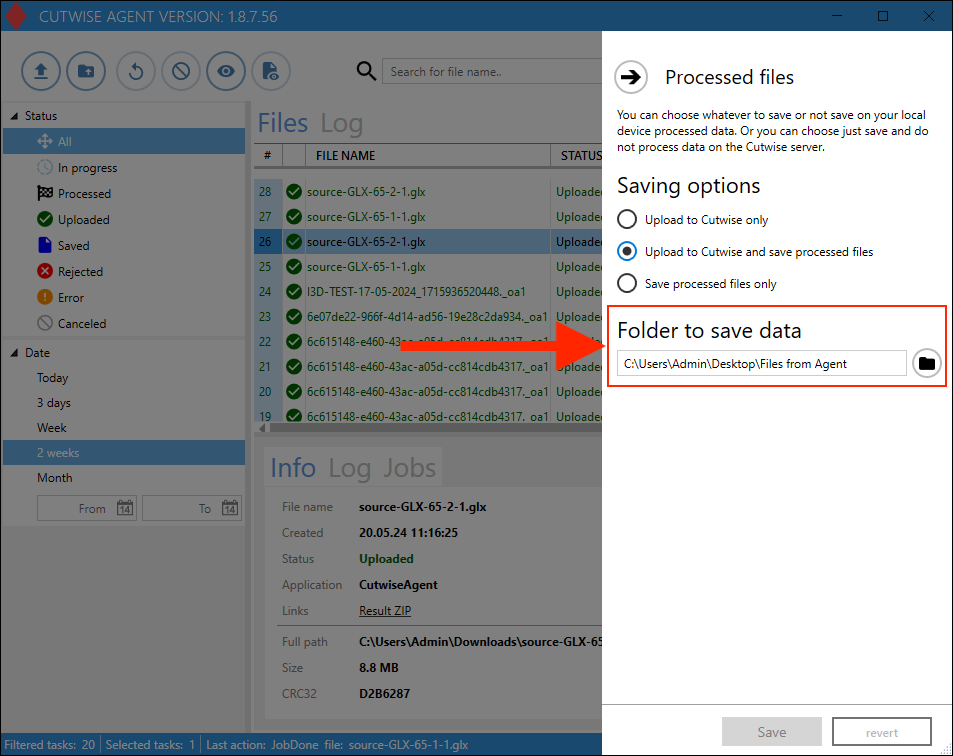
8. Change the folder for result files (or you can use the default folder). The resulting STL files will be saved in this folder. |
|
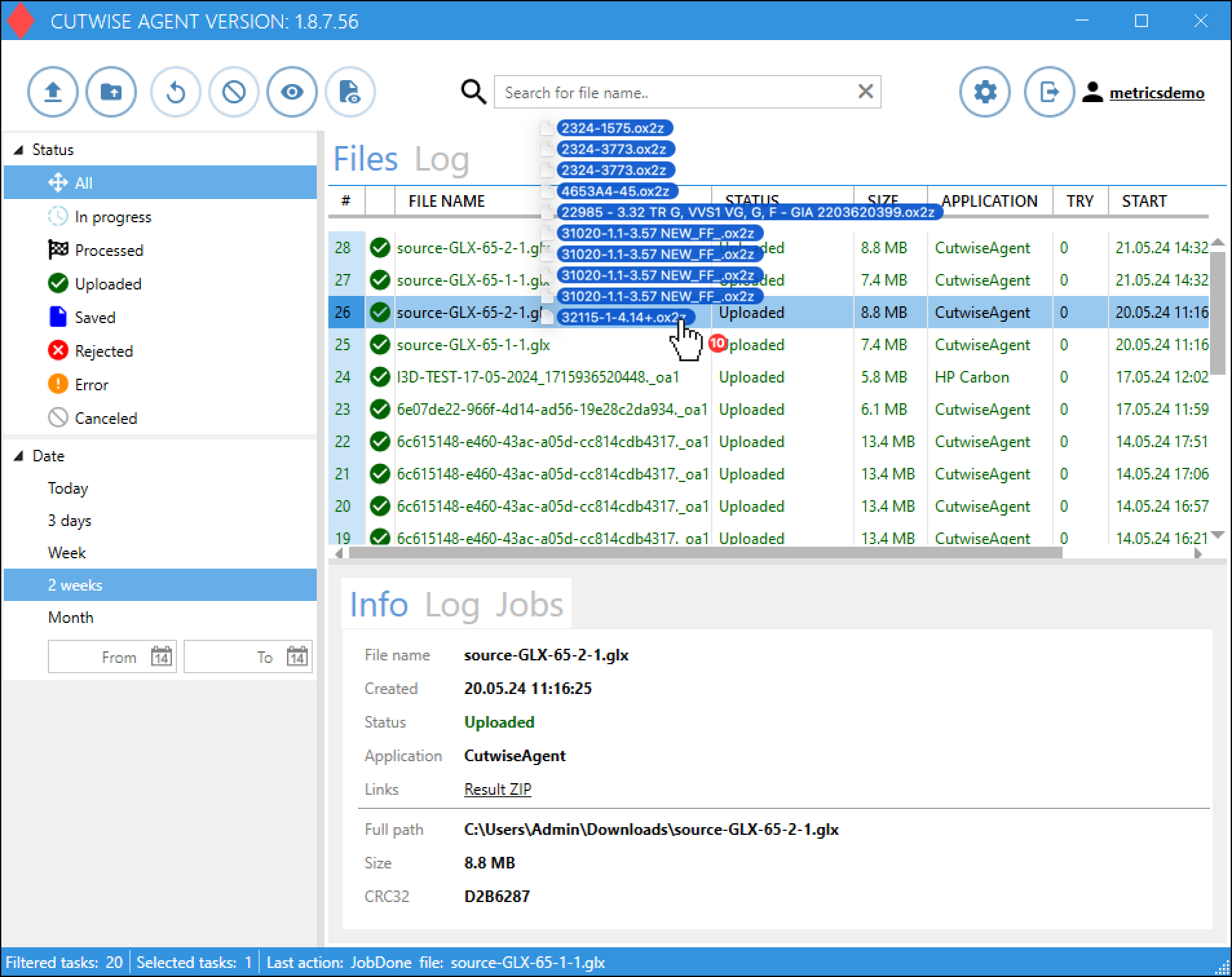
9. Drag n drop files into the Cutwise Agent interface (or use the monitoring folder). Uploading and conversion of files will start automatically. |
|
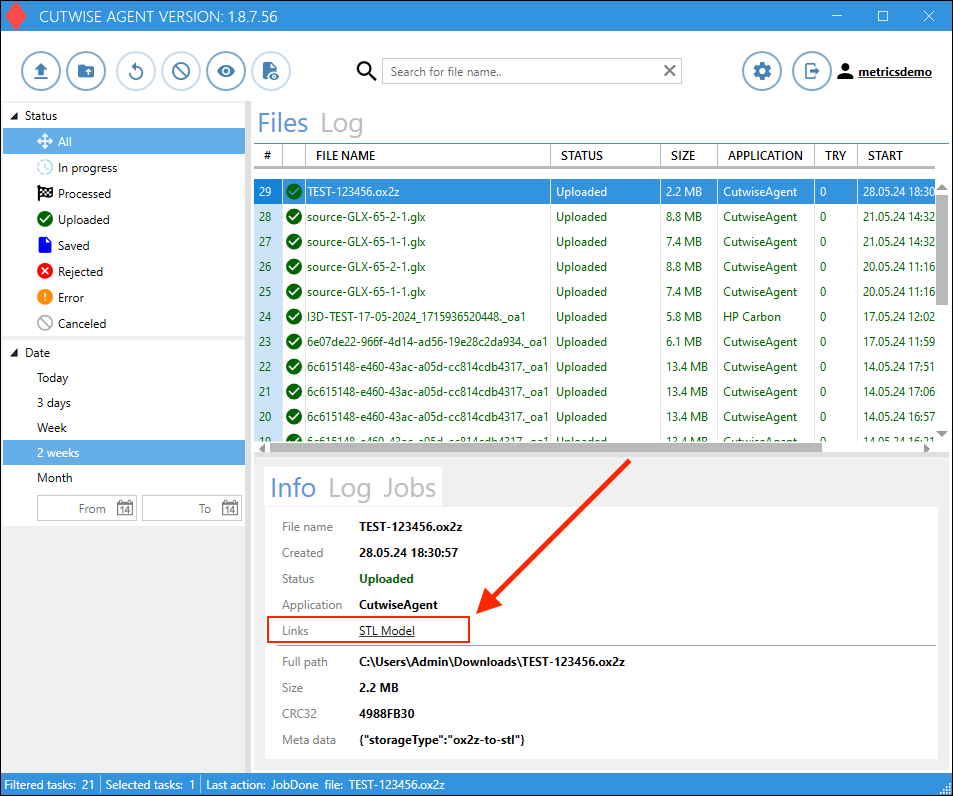
10. After a while go to folder from step 8, or download file from Cutwise Agent Interface (an indication that the STL file is ready is the presence of a link or a successful status in the job tab) |
|