Upload video from other systems (girdle and pavilion) to Cutwise products.
This functionality is currently available only for .mp4 format of video files
To upload 360 video, you need to do the following:
| Step | Screenshot |
|---|---|
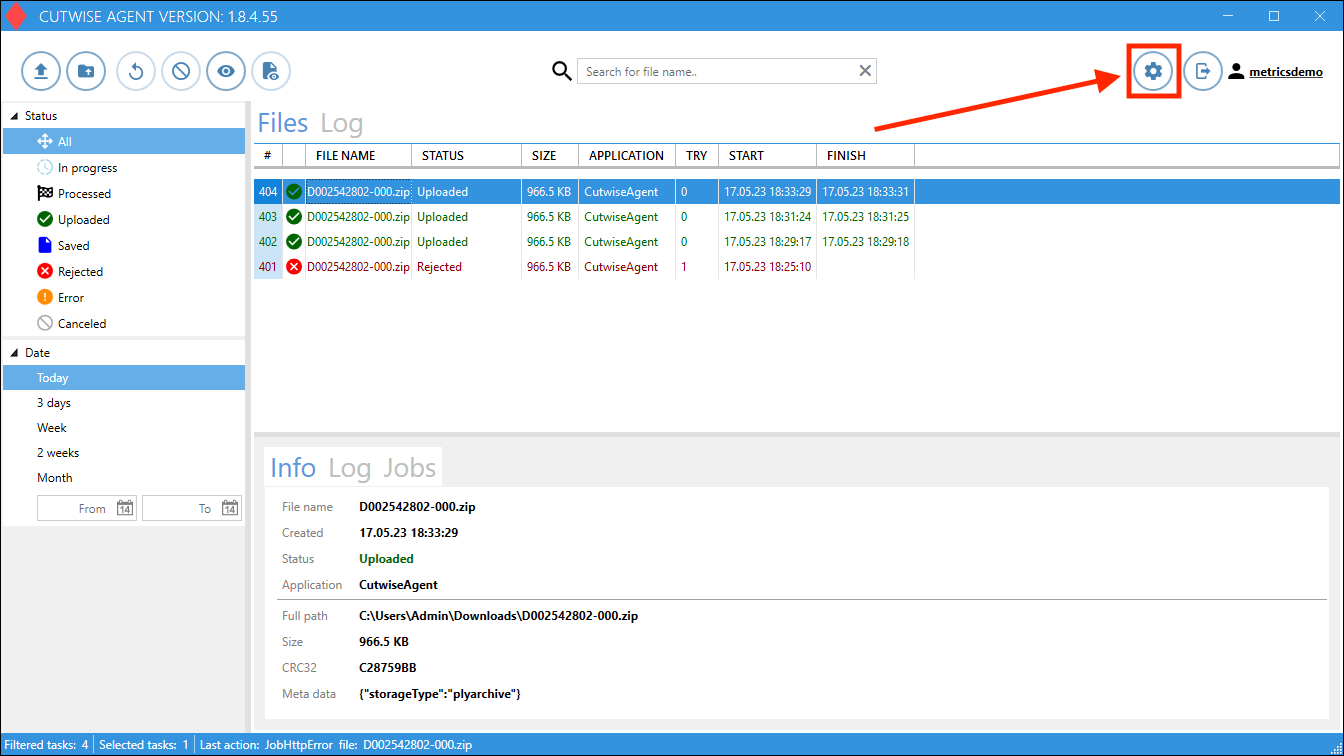
1. Open Cutwise Agent, log in with a Cutwise account. 2. Go to Settings: |
|
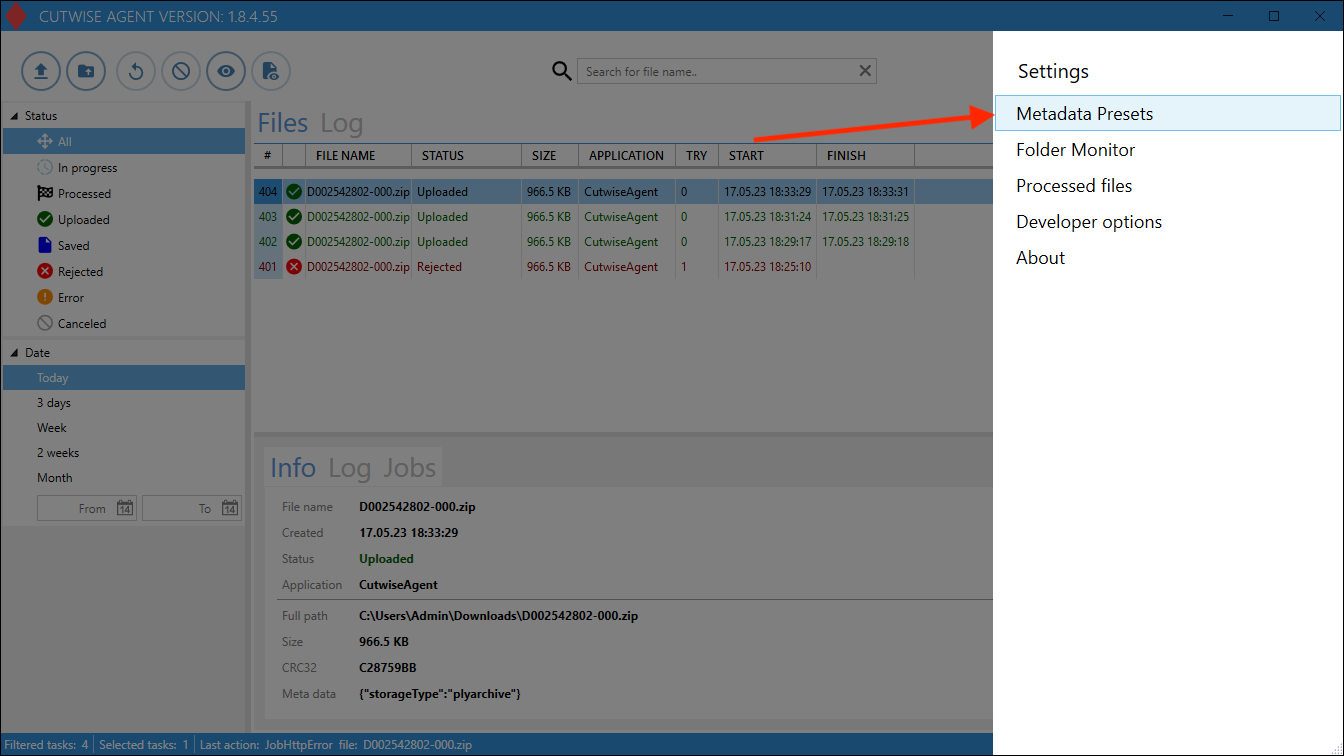
| 3. Next in the "Metadata Presets" menu: |
|
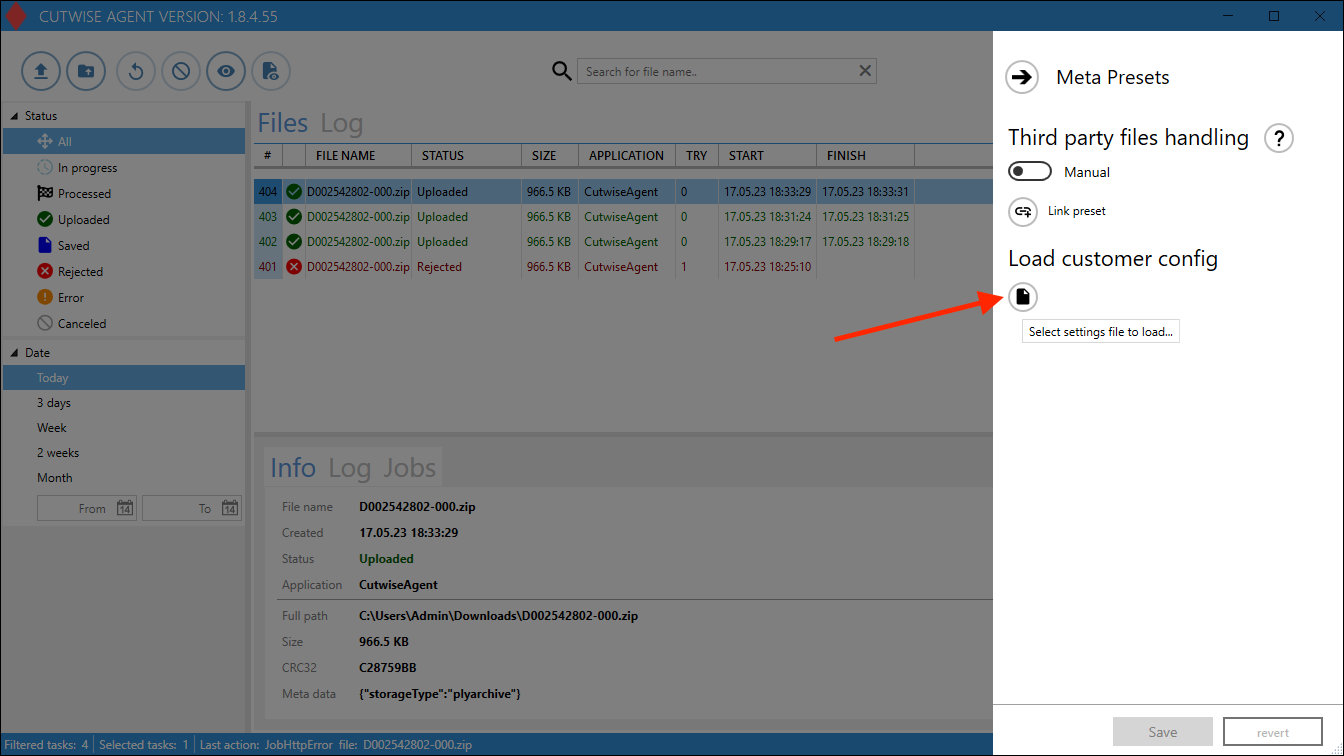
4. Click on the "Load customer config" button: |
|
5. In the menu that appears, download this config file: appsettings_Vision360.json The setup is complete. Then you can upload files with the extension .mp4 (girdle or pavillion) | |
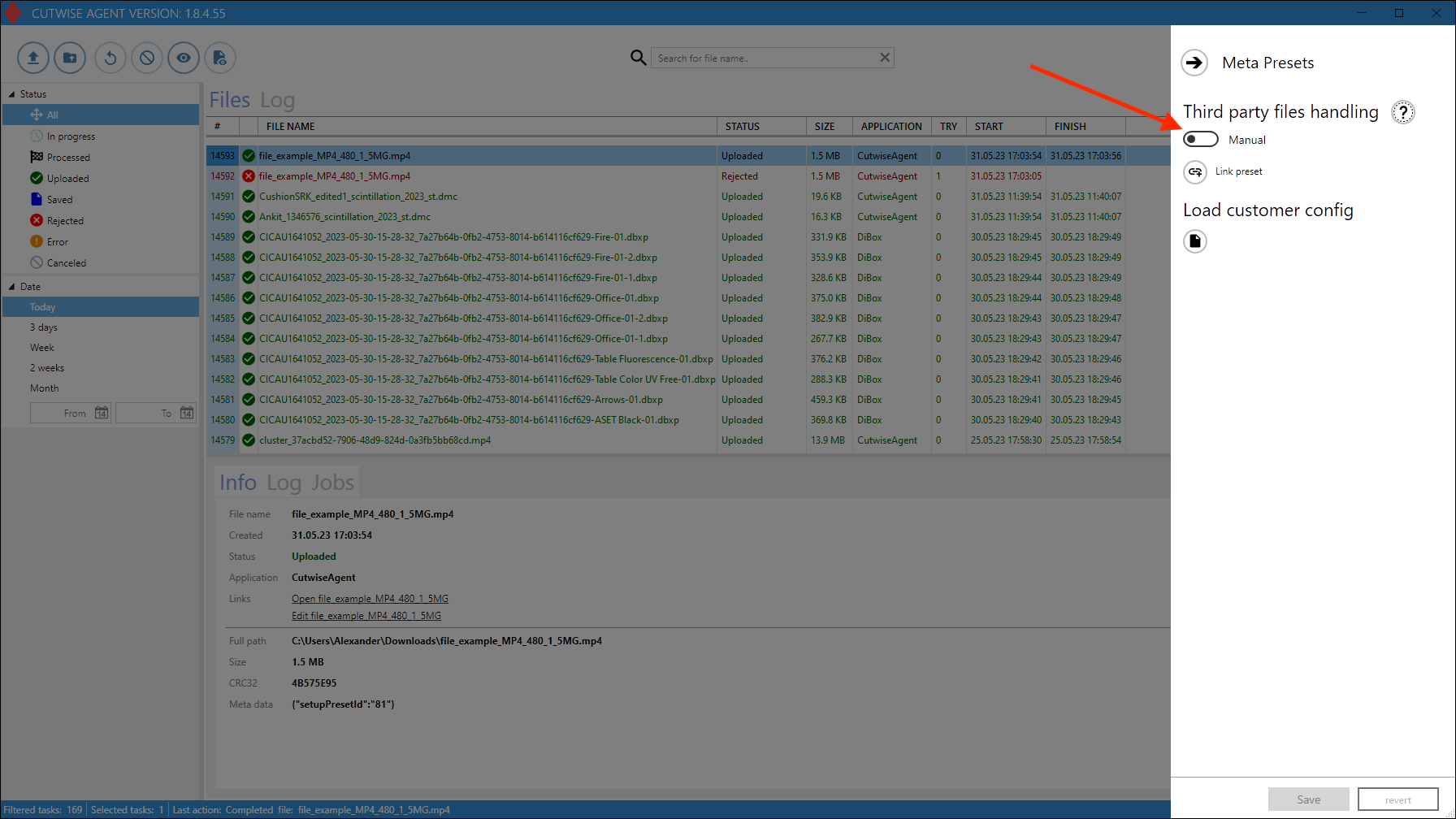
6. Check that the Third party files handling set as "Manual". Or, in Automatic Mode, you need "Link preset" and system automatically set one of choosen preset for uploaded video (girdle or pavillion). And click on the “Save” button. |
|
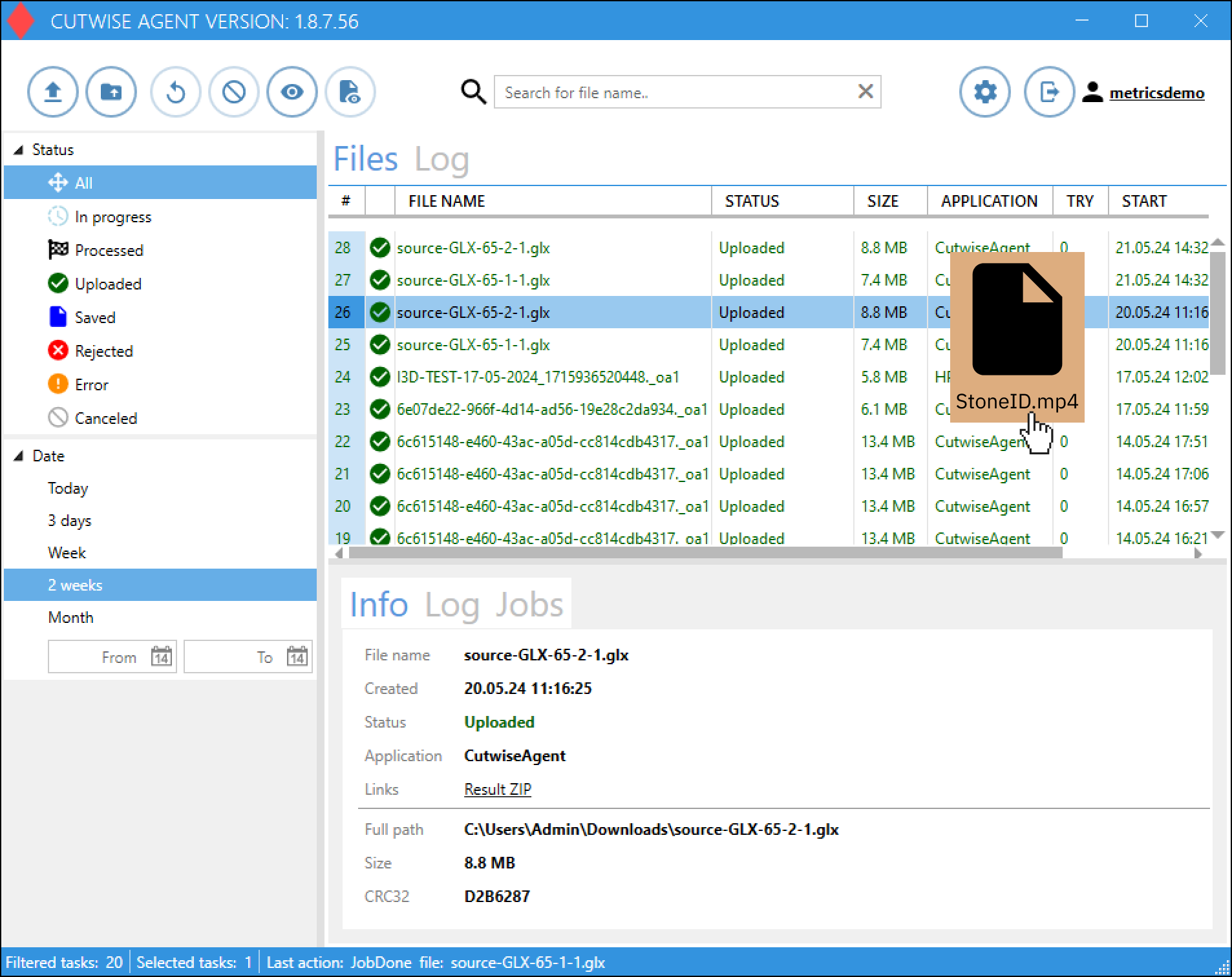
7. Get the .mp4 files from your system (girdle or pavilion). 8. Rename the .mp4 file as <stone ID>.mp4, where <stone ID> is the stone ID of the stone, you want to create on Cutwise. 9. Drag n drop the file into the Cutwise Agent interface (or use the monitoring folder). |
|
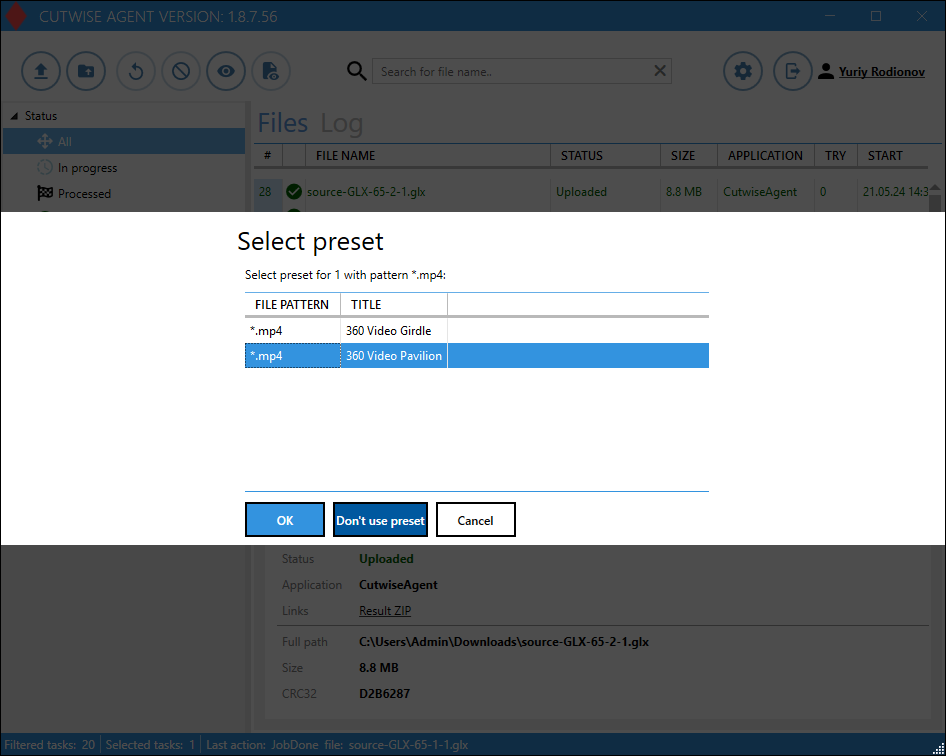
10. After dragging the file and only for "manual" mode, select the desired preset (girdle or pavillion) in the window that appears and click OK button |
|
11. See the result on Cutwise, for example: |