
...
| Panel | ||||||
|---|---|---|---|---|---|---|
| ||||||
|
Model building
Light dazzle correction
To improve the model building process, we implemented a mechanism to include contours with light dazzle from the model building. It results in improving of model building quality.
Some examples:
...
...
...
...
...
...
...
...
Sometimes clients faced following message during attempt of scan&build models containing contours with light dazzle:
Model was not built for such cases.
Now contours with light dazzle are corrected during scanning. For example, compare contours for the same photo with light dazzle below:
...
Before
...
After
...
...
...
...
...
...
Algorithms of allocation
23. Algorithms
...
Introducing the new allocation algorithms: "23. Single", "23. Next" and "23. FixedForm" (please refer to page Algorithms comparison to understand meanings of algorithms):
- The new algorithms are up to 7 times faster than their previous versions:
- Important optimizations were made to make operations faster.
- New technologies and methods were used to improve the algorithm's efficiency. - The average cost of solutions has slightly improved:
- These improvements have resulted in noticeably faster performance without sacrificing quality or stability. - Users are strongly advised to update their program and start using the new algorithms to fully benefit from its enhanced productivity.
The table provides the average algorithm execution times on modern rough models, measured in seconds. These results were obtained using an Intel Core i7-7700K processor.
Allocation algorithms roadmap
New algorithms find the best cost-effective solution considering the specified price list. However, user needs may differ.
Upcoming adjustments:
Performance-driven solutions
- Why? Sale price depends on performance, not just diamond size
- What? The algorithms will provide solutions with best performance in addition to the maximum price solutions,
More diverse solutions
- Why? Some customers rely on external price lists for evaluation, inaccessible to algorithms
- What? Algorithms will provide more diverse solutions in terms of cut and grade, if the user desires, even if it requires additional time.
Continuous improvements for user-centric solutions
- Addressing customers needs
- Providing personalized solutions for enhanced decision-making
- Optimizing algorithm efficiency for improved productivity
Allocation - Diversity levels of Cut, Grade and Clarity
...
While new global allocation algorithms prioritize finding the most price-effective solution based on a given price list, it's important to recognize that user requirements are diverse.
The value of a particular diamond to a company depends on various factors beyond its carat price alone, including:
- The current liquidity of similar diamonds and fashion trends.
- The diamond performance.
- The specific preferences of the individual buyer.
- Some customers rely on external price lists for evaluation, which are inaccessible to the algorithms.
The algorithms are unable to consider all these factors when searching for the optimal solution.
We offer users the ability to customize modern algorithms for obtaining more diverse solutions in terms of cut, grade, and clarity. So users can access more choices and improve decision-making.
Of course, it's important to note that additional solutions searching might require a slightly longer processing time. However, you have the ability to customize the balance between algorithmic speed and solution diversity.
Our latest update introduces three distinct levels of diversity: cut diversity, grade diversity, and clarity diversity. You have the flexibility to choose which diversity levels to use based on your specific needs and preferences. Upon installing this update, default values will be set, with cut diversity at 20%, grade diversity at 10%, and clarity diversity at 5%. Rest assured, your current settings will be saved even if you exit the program, allowing you to continue next time with your customized levels of diversity. In the old algorithms, diversity levels are inactive and not used. We recommend you to explore and use this new feature wisely.
What do Diversity values N% mean?
The values refer to three parameters: Cut, Grade, and Clarity. When you assign higher values to any of these parameters, you will receive a greater number of diverse solutions based on that particular parameter. However, keep in mind that increasing the values will also result in longer algorithm processing time.
While searching for solutions, these three parameters have an impact on the price of the solution, along with the weight. The algorithms aim to explore all possible combinations of these parameters. The algorithms optimize their search to find the best outcome with minimal computational efforts. At any given time, there exists a globally best solution, referred to as GBS. If the predicted final price of "Cut," "Grade," and "Clarity" parameters specific combination is lower than the GBS price, calculations using that parameter combination are halted to save time. Therefore, only solutions that have the potential to surpass the already found GBS are computed until the end. This behavior corresponds to a Diversity level of 0%.
Due to this time optimization, you may receive only one combination without any choice. Use Diversity to obtain a greater number of options
If you set Cut Diversity to N%, after finding GBS, the algorithms initiate searches for solutions with a price higher than [GBS_Price * (100% - N%)] for each diamond cut. The search doesn't start from scratch but utilizes the intermediate results obtained during the search for GBS. Consequently, for each Cut, a solution will be obtained if it differs from the best solution by less than N%.
The same principle applies to Grade and Clarity Diversity as well.
If you set Clarity Diversity to 100%, you will get the best solution in every Clarity, but it may take a long time
You can view the Diversity levels values in the Alloc field tooltip of the solution.
It's important to note, Diversity levels have a significant effect on the speed of the algorithm. The default settings of Diversity levels slow down the algorithm by approximately two times when working with 10 cuts. To indicate the potential productivity impact, Diversity scales are logarithmic and have color differentiation. It is not recommended to use values above 30%. If you always choose the most expensive solution, we recommend setting the Diversity levels to 0% and regularly updating the price lists to ensure accurate targets for the algorithms.
Smart Cuts. Updates
New Emerald_3x4_GRID SmartCut
A new cut Emerald_3x4_GRID SmartCut was added.
Emerald_3x4_GRID is an upgrade of the Emerald_3x4 SmartCut via a GRID Performanceware appraiser.
The GRID Performanceware appraiser contains grades based on Cutwise Brilliance metric for approx. 600000 Pa1-Pa2-Pa3-Pa4-Ca1-Ca2-Ca3 Emerald slopes combinations.
Emerald_3x4_GRID has 3 preconfigured Profiles: Max_Mass, Commercial, and High_Performance.
The previous Emerald_3x4 SmartCut was based on the rectangular appraiser and SweetLine. It could produce solutions with large black zones in some cases.
Emerald_3x4_GRID could filter these bad parameter combinations using GRID Performanceware appraiser.
The Emerald_3x4_GRID cut optimization forms are updated and encrypted. These forms are now exclusively accessible by the allocation algorithms within HP Carbon.
For example, Emerald_Demo5 project
- Solution 1 is based on the Emerald_3x4 SmartCut Commercial profile.
- Solution 5 is based on the Emerald_3x4 SmartCut Commercial profile.
- Solution 12 is based on the Emerald_3x4_GRID SmartCut Commercial profile.
- Solution 16 is based on the Emerald_3x4_GRID SmartCut Commercial profile.
Typically Emerald_3x4_GRID gives solutions with approx. 2.5% smaller Carat Weight, but 5-10% higher Brilliance.
Updated parametrization for Princess.2S-Princess.5S SmartCuts
The global allocation by for DLL-cuts Princess.2S-Princess.5S was modified in the HPCarbon version 1.11.10. Previously, the main focus was on preserving the height of the chevrons, whereas the latest version ensures similar widths of the chevrons.
...
...
Furthermore, both the starting form and allocation cut forms was updated.
Updated profiles for Oval_WBT_C32_G64_P24_2023_MAY_18 SmartCut
А new cut Oval_WBT_C32_G64_P24_2023_MAY_18 is added.
This cut is based on the previous Oval_WBT_C32_G64_P24_2017_JUN_21 cut with following changes: the appraiser was re-designed to seamlessly integrate with the standard Smart Cut optimization process. Global allocation algorithms focus on the Absolute part of the appraiser and a comprehensive set of internal parameters, while SmartRecut algorithms operate on the main set of parameters, including both Absolute and Relative parts.
Finally, the Ultra_High_Performance, High_Performance, Commercial and Max_Mass profiles was specifically configured to yield desired results for different targets.
Seamless Technological Pipeline
...
Preplan
In diamond production, at each technological stage, manufacturers work with a diamond represented by a scan model and a virtual model of the plan they aim to achieve at the current stage. As a result of processing, an intermediate iteration occurs. After completing the physical processing of a stone at each stage, the intermediate iteration is scanned.
...
Algorithms of allocation
Algorithm 23. Cascade
The new algorithm 23. Cascade is available since version 1.12.10, designed for finding solutions comprising two diamonds, offers several advantages over its predecessor, the 13. Cascade-2M algorithm.
- In the search for solutions exclusively featuring the RBC cut on a large stone dataset, it operates at a speed 1.6 times faster than Cascade-2M, delivering approximately 1% more expensive solutions.
- In simultaneous execution across 10 distinct cuts, the new algorithm demonstrates a remarkable 4.5 times speed improvement and yields solutions priced approximately 1.4% higher.
- Due to a more efficient utilization of memory, the 23. Cascade algorithm can effectively handle complex diamond models with several tens of thousands of inclusions, a capability beyond the reach of 13. Cascade-2M.

Allocation - option "+ Brilliance based"
While new global allocation algorithms prioritize finding the most price-effective solution based on a given price list, it's important to recognize that user requirements are diverse.
The value of a particular diamond to a company depends on various factors beyond its carat price alone, including:
- The current liquidity of similar diamonds and fashion trends.
- The diamond performance.
- The specific preferences of the individual buyer.
- Some customers rely on external price lists for evaluation, which are inaccessible to the algorithms.
Let's focus on the "diamond performance," specifically the Brilliance characteristic.
The program now includes Brilliance Based Cuts, which utilize a GRID-appraiser built based on the Brilliance characteristic. The preforms for these cuts undergo quality control that excludes low Brilliance and have assigned Brilliance values in the program. Modern algorithms can utilize these values.

The "+ Brilliance Based" option is available in the "23. FixedForm" and "23. Single" algorithms. It allows users to obtain a range of solutions from optimal mass to optimal Brilliance. The SmartRecut algorithm is automatically launched with a single preset for all these solutions. Brilliance Based solutions are marked with shine icons in the label field. The "+ Brilliance Based" option only affects Brilliance Based Cuts

The option “+ Brilliance based” is disabled if no such cut is selected. Note! The only cut that currently supports this option is Princess.3S_Performanceware.

To ensure the algorithms can select Brilliance Based solutions, they need to calculate them in addition to the standard solutions. This may take a bit longer, but the additional processing time is insignificant compared to the overall duration.
When searching solutions with high Brilliance, the algorithms consider the Brilliance of the preform. Notably, the "23. Single" algorithm modifies the initial preform. The SmartRecut algorithm also modifies the initial preform in both cases, including "23. FixedForm." Consequently, the algorithms can only provide an approximate estimation of the final Brilliance. We assume that solutions obtained from preforms with high Brilliance have a higher probability of achieving high Brilliance in the end.
To evaluate and compare the optical properties of the final solutions, you can use CutWise.

There are two types of Brilliance Based solutions:
1) At the final stages of the regular algorithm, when the approximate local position of the diamond is known, the algorithm calculates additional preforms. These preforms are slightly smaller than the optimal ones in that specific position, but they have significantly better Brilliance.
Solutions obtained through this approach, after SmartRecut, can have nearly identical mass compared to the best solution or even exceed it. However, they have a significantly higher probability of achieving greater Brilliance.
2) For the combination of Cut+Grade+Clarity that has reached a sufficient price to be included in the solutions list, an additional variation of the FixedForm algorithm is launched, which uses only elite preforms.
As a result, two solutions are obtained - the solution based on the preform with the highest Brilliance and the solution with the best mass among the elite unmodified forms. These solutions do not undergo any parameter modifications until SmartRecut, which ensures their higher and more reliable Brilliance. However, their mass may be noticeably lower in the "23. Single" algorithm.

There is video explaining principles and main ideas of applying option "+ brilliance based" for cut Princess.3S_Performanceware:
Include Page HPCDPUB:Video | Performance based appraisers: Performanceware HPCDPUB:Video | Performance based appraisers: Performanceware
Improvements for algorithm of manual allocation "Change Cut To..."
The "Change Cut To" menu is now available from the scene's context menu.

- Cutbook has been remastered for that command menu item and opens much faster now.
- It now features two synchronized lists with a segment for selection tabs, ensuring that the full names of the cuts are clearly visible.
- The positions of the splitter and scroll bars are remembered within the running program.
- The current cut is highlighted in dark blue, the used ones in light gray, and the one under the cursor is bordered.

Smart Cuts. Updates
Princess.3S.Performanceware cut
Cut Princess.3S_Performanceware is implemented on the base of cut Princess.3S. This is the first cut that works with the "Brilliance based" technology, see above.
Seamless Technological Pipeline. Preplan concept.
Preplans segment
Preplans are separated into a single section in the solutions list. The 'Cut' column will indicate 'Preplan' for them.

Reports improvements
Interactive features of the Remaining Depth chart
In the I3D Report, implemented interactive features within the Remaining Depth chart.
Users can now easily toggle the visibility of associated lines and marks by clicking on the respective legend items. Selections are saved and persist across program relaunches, providing a seamless experience.
This update introduces a more intuitive and dynamic interaction, allowing users to focus on specific lines of data that are of interest.
By default, only the Max Line (Blue) is enabled, while Girdle Zone Min and Max are disabled.
Sample: Plan+Preplan+Bruted.ox2z

Introduced an "Info" button to display an image containing graphical explanations of distances on the chart. The image updates based on the selection made in the legend items.

Export SVG images
In Export Report Data, the capability to export images in the SVG (Scalable Vector Graphics) format has been introduced. This format offers high-quality vector images that can be scaled to any size without loss of quality.
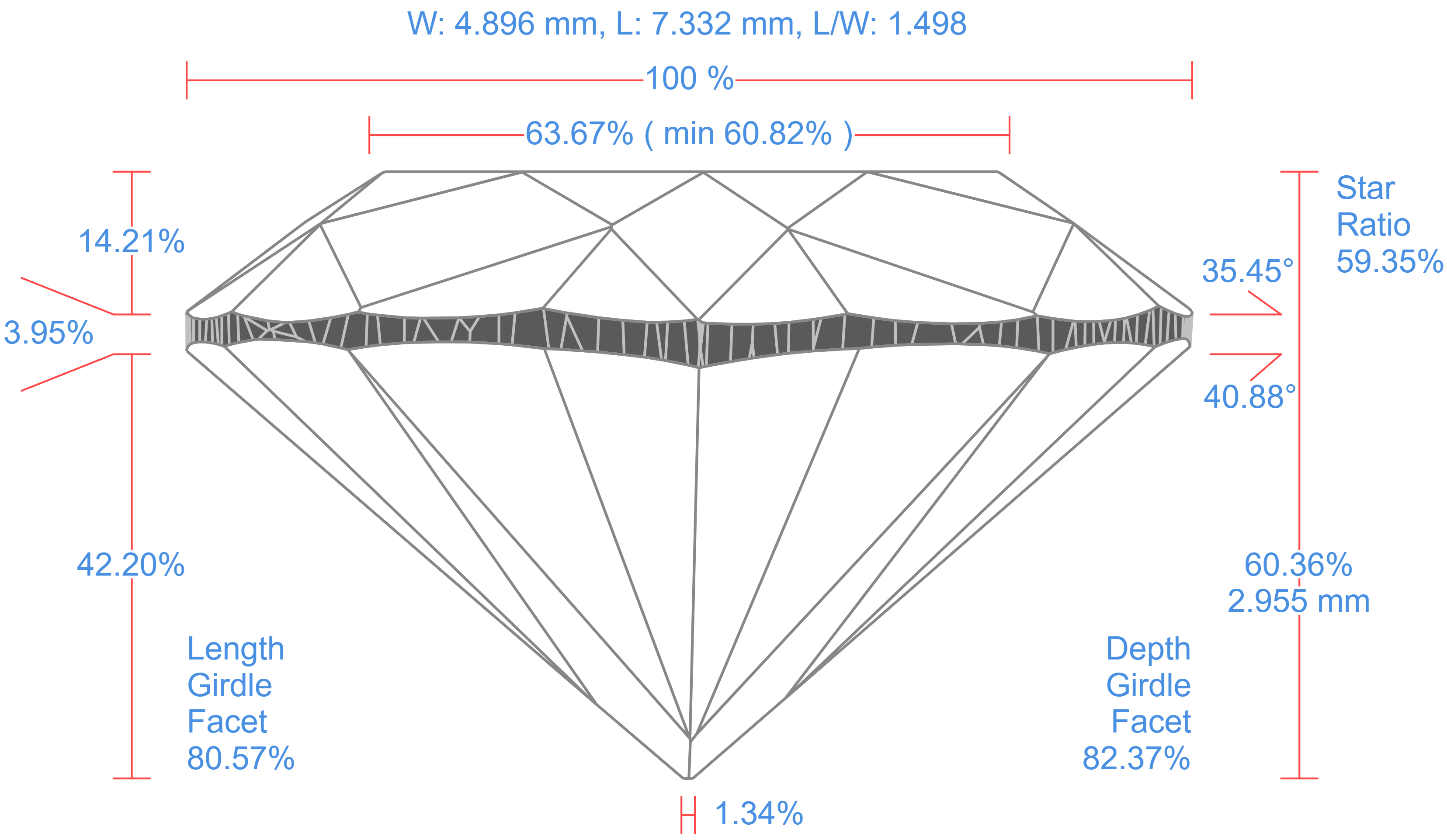
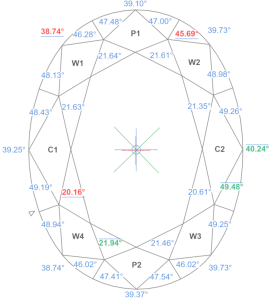
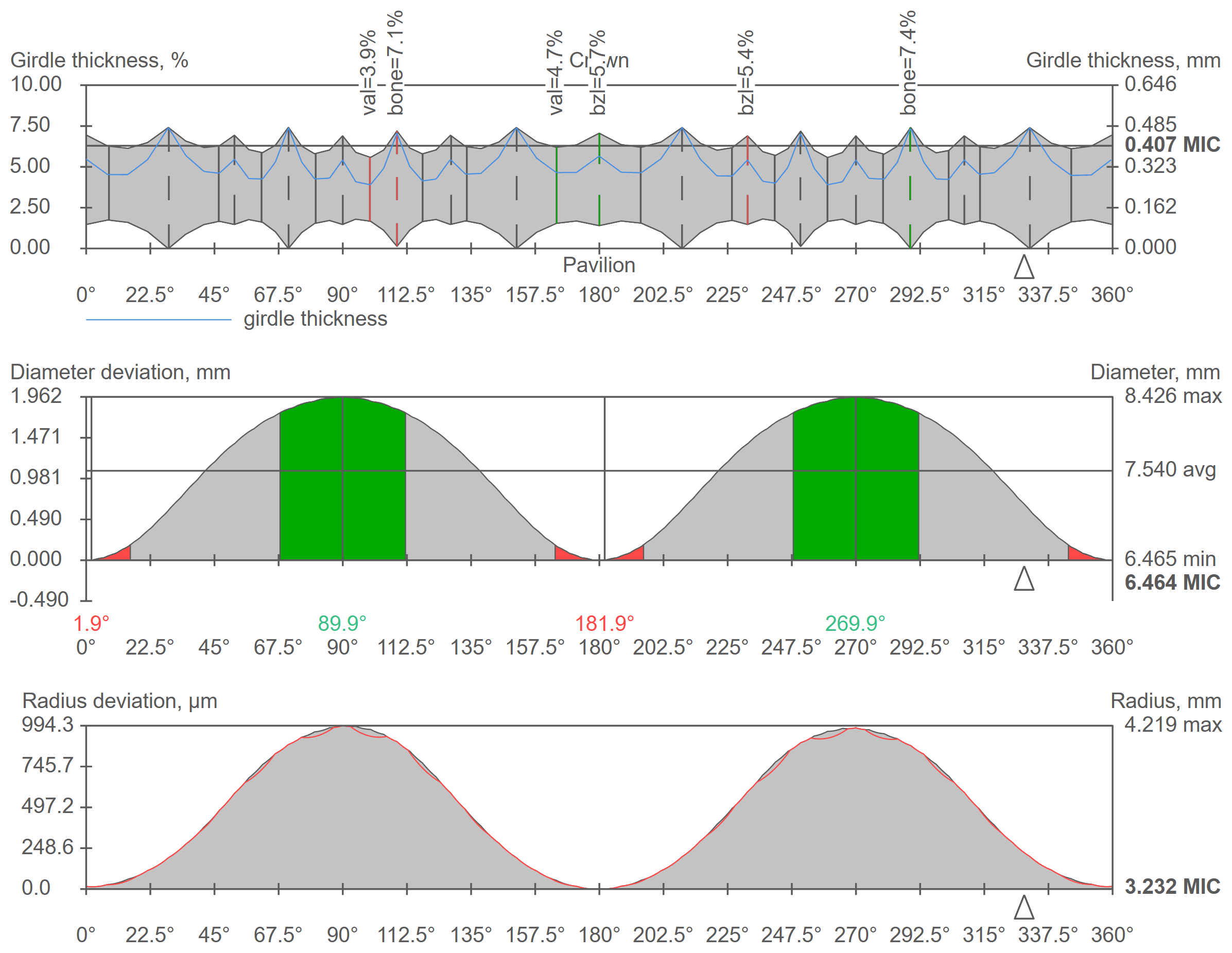
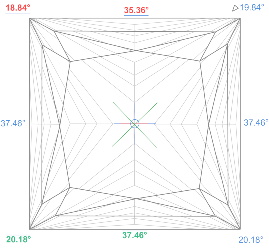
Additionally, the image format for export can now be configured in the General Settings dialog.
I3D Mini View / I3D Report UX/UI improvements
In the I3D Mini View / Report, the quality of UX/UI has been improved, specifically:
- the zoom works without modifiers, just with the mouse wheel, and the strength factor of zoom buttons has increased
- navigation buttons have been moved up for quick access
- the empty space between the scene and the table has been eliminated

Quality Control improvements and news
Quick sandwich tool
A quick sandwich tool has been added, which makes it possible to separate a smaller peace of inclusion. This may increase plan weight with the same clarity.
Please look at the video with demo of tool advantages and settings:
Include Page Video | Quick Sandwich - Tool to separate part of inclusion Video | Quick Sandwich - Tool to separate part of inclusion
The quick sandwich tool is available in two places:
- the scene's context menu

- the inclusion list

Additionally, there is an option to apply the quick sandwich to all inclusions near the active diamond.
For detailed customization, a modal window can be opened to input the desired offset.
The result of the quick sandwich applying is an separated inclusion with parallel to the diamond plane.
Quality Control (QC). Safe buffer of inclusions
- Added context menu to scene.
Unified Safe buffer elements in all menus (in the scene, list, and panel header).
in the scene in the list in the panel header 


User interface updates
Inclusion selection tool
Now the selection with inclusion can be removed.
For that purposes, you need to click on an empty space in the scene with the inclusion selection tool active.
Also, for convenience, you can use the SHIFT modifier instead of the tool on the panel.

Zoom/move upgrade
Zoom has significantly improved:
- On the 3D scene, the zoom targets the area under the cursor, if there is a diamond underneath.
- On 2D it simply zooms under the cursor.
On the 2D scene, you can move around using the combination 'Left click + SHIFT + Mouse Move'.
Additionally, the scroll bars that appear when zooming in can be disabled in the menu item View -> Show Scroll Bars.

By double-clicking on the scene, you can reset all transformations (zoom and movements) made with the mouse.
Interactions with diamond
Diamond facets and edges are highlighted upon mouse hover.

This feature is disabled by default, so you need to click on View -> Enable bone highlighting / Enable facet highlighting accordingly.

When the feature is enabled, some commands are available in the scene's context menu:

- Set the orientation of the diamond by facet
- Create a bounding plane by facet or edge
- Create a sawing plane by facet or edge

Since it's now possible to manually set sawing planes, we've added the ability to modify and delete them.

Fixed problems and improvements
- Excluded the usage of Stone ID for file names in Cutwise export packages due to compatibility issues with the Cutwise server unpacker.
- Fixed the issue of the 'Upload to Cutwise' button remaining inactive when opening a new project before obtaining a link to an uploaded project.
- Aqua preplans are now considered in the Recognition process in HP Carbon.
- Fixed an issue where Automatic actions or Report Buttons' actions were unintentionally triggered for all shapes when the current shape is AnyCut.

The algorithm for calculating Remaining Depth Blue Line has been reworked. This fixed critical bugs in the old implementation. The purple line in the figure shows the behavior of the new version of the algorithm compared to the old one.

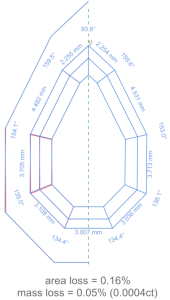
- For all cutting types, when dealing with asymmetrical cuts featuring an unsmooth girdle, illustrations depicting symmetry show facets with their angles and girdle lengths, while symmetry axes are omitted.

Bookmarks for images:
"PLOT_ACTUAL_LENGTH_AXIS_ASYM";
"PLOT_ACTUAL_LENGTH_AXIS_ASYM_CROWN";
"PLOT_LENGTH_AXIS_SYM_COR";
"PLOT_LENGTH_AXIS_SYM_COR_CROWN";
"PLOT_ACTUAL_WIDTH_AXIS_ASYM";
"PLOT_ACTUAL_WIDTH_AXIS_ASYM_CROWN";
"PLOT_WIDTH_AXIS_SYM_COR";
"PLOT_WIDTH_AXIS_SYM_COR_CROWN";
"PLOT_BOTH_AXES_SYM_COR";
"PLOT_BOTH_AXES_SYM_COR_CROWN";
These parameters are also outputted to separate bookmarks: angles in GIRDLE_INTERNAL_ANGLE_DEG_..., and lengths in GIRDLE_SIDE_LENGTH_MM_... - Fixed sawing preplan creation for solutions with multiple sawing layers.
Previously, the consideration of all sawing layers was incomplete; now, it has been fixed.
- Added the "Crown + Pavilion" option in G1 Blocking mode.
Additionally, aligned the process of creating blocking preplans with the faceting stages, enabling separate preplan creation for Crown, Pavilion, as well as Crown + Pavilion.
- Fixed rare program crashes during
- Facet Marking transfer to semipolished model;
- MEC algorithm
- SmartRecut algirithm in streaming mode
Recognition
Moreover, a specialized tool is required to transfer accumulated data through a technological pipeline into a new scan. The accumulated data includes the original plan, solutions, inclusions, cavities, and previous scans.
...
Notably, the Recognition algorithm has become more reliable and accurate in the latest version of HP Carbon due to information about the expected result.
...
...
Sawing Preplan
In the HP Carbon 1.11.10, a new type of preplan for Sawing has been introduced.
This enhancement allows users to create a Sawing preplan for a diamond in solution, comprising two diamonds and a sawing layer.
Galahad Autostop
Objective
For precise angle adjustments using the Compass, it is essential to have well-polished reference facets with angles within the Compass's operational range of up to 5 degrees. This eliminates the need for additional utilization of dop clicks and fine-tuning. During the blocking procedure, these reference facets are created using the conventional Dry polishing technique.
Additionally, we require a new procedure to execute the first reference facet and establish the facet sequence.
Autostop pipeline
We recommend following the outlined pipeline for Autostop.
 It is essential to perform the "Correction of Actual Model," which involves three key steps: scanning, Recognition, and setting the newly created scan as the Main Scan.
1. Processing orders
Initially, the operator establishes processing orders separately for Crown and Pavilion within the Facet Types.
2. Safe Processing orders
Ensure minimal risk of cutter error by recommending a secure choice for the 1st facets in the processing orders for Crown and Pavilion.
If the cutting depth of the 1st facet in a processing order for Crown or Pavilion is less than 20 microns, it is considered unsafe. In response, an evaluation is carried out on the symmetrical facet to the first one within the same facet group of the processing order. The identified facet is subsequently reassigned as the new initial facet.
The confirmation of the safety of the 1st facet is now integrated into the Facet Types. This validation becomes active during the saving process that occurs after the creation or modification of the processing orders.
...
Before
...
After
...
...
3. Create a preplan
Firstly, a cutter has to create a preplan (Simplified Plan) for blocking of the target Plan both the Crown and Pavilion. This process is carried out based on the facet processing orders in the "Generate Next Stage" panel, specifically in the Blocking mode.
Please ensure that the option "Align facet azimuths with the dop click" is specified, as it is turned on by default. Additionally, specify the depth allowance with the default minimum set at 100 microns.
The resulting preplan model takes into account the specified depth allowance.
Steps 4 to 7 for the Crown must utilize the preplan as the Galahad plan.
4. Galahad - 1st facet for Crown
4.1. Fix Semipolished diamond in dop
4.2. 1st facet for Crown
Create a faceting stage for 1st facet for Crown
Please choose the "First facet" option in the "Facet processing mode" control.
Create the appropriate faceting stage for the 1st facet in the Facet Types processing orders for the Crown by clicking the "Generate Stage" button in the "Generate Next Stage" panel. Please save the file to store recent changes in the Faceting Stages.
Make the 1st facet for Crown
Manufacture of the 1st facet in the Facet Types processing orders for Crown. The initial facet should be created by a cutter using visual judgment.
Then make a HP scan of semipolished diamond with 1st facets on Crown.
5. Galahad - 1st facet for Pavilion
Repeat the step 4.2 for Pavilion.
Please select the "Pavilion" option in the "Facet Types processing order".
6. Compass Autostop - adjust 1st facet for Crown
To achieve the desired azimuth and slope of the first facet for the Crown, adjustments will be made with depth allowance in Compass Autostop. This process requires utilizing the Recognition of the Scan data from the previous stage, resulting in a model with the accurate azimuth and slope of the first facet.
7. Galahad Autostop - Crown
Making all facets in the processing order for Crown, except the first one, of the preplan.
Please select the "Exclude first facet" option in the "Facet processing mode" control.
Generate the stage and save the file.
8. Compass Autostop - Crown
Finalizing the model from the previous stage based on the initial Plan without making any adjustments to the facet azimuths during the processing stage.
Please select the initial Plan, activate the "Do not align facet azimuths with the dop click" option, and ensure that the option "All facets" in the "Facet processing mode" control is specified. Create the faceting stage and save the file which will be used in Compass Autostop.
9. Repeat steps 6-8 for Pavilion
Faceting Report Updates
An addition has been made to present the number of dop clicks from the first facet in the processing sequence (absolute), as well as from the preceding facet (relative).
Given that the dop handle for setting the azimuth can rotate in both clockwise and counter-clockwise directions, an indicative sign has been added to the count of DOP clicks: "+" signifies an increase in azimuths, while "-" denotes a decrease.
The calculations regarding the number of dop clicks have been conducted under the premise that the switch between facets by azimuth can be accomplished with a minimal count of clicks, taking into account the direction of handle rotation.
Furthermore, the display of the processing stage is introduced, showing whether it is Polished or Blocking.
...
Reports improvements
Global Maximum Distance in Remaining depth mode and chart in I3D Report
I3D report incorporates the "Global Maximum" line (BlueLine) into the "Remaining Depth" mode within the I3D Report, displaying the distance to the furthest areas of a scan as a whole.
Improvements of GUI for Remaining depth mode and chart
- The chart is automatically shown after activation of the Remaining depth mode by radio-button. Box
is eliminated.
- The chart labels for azimuths now include distance Remaining depth for min and max values:
- The chart is automatically shown after activation of the Remaining depth mode by radio-button. Box
- The crosses indicating min and max values have been enlarged and made more contrasting by being highlighted in bold on the plot:
- A standard triangle has been added to the chart representation of the scanner Door:
- Introduced dynamic scaling for the vertical axis of the Remaining Depth chart, extending the range of maximum values.
In the positive range, it expands in 50-micron steps, and in the negative range, it expands with a -5-micron increment while ensuring rounding.
If the values fall within the range of -75 to 150 microns, the scale remains unaltered at -75 to 150 microns.
- Introduced dynamic scaling for the vertical axis of the Remaining Depth chart, extending the range of maximum values.
Quality Control improvements and news
Quality Control (QC). Safe buffer of inclusions
Functionality has been implemented to prevent inclusions from entering the interior of a diamond.
An inclusion can enter the diamond if it is located too close to the diamond model. To prevent this, the use of a Safe inclusion buffer is proposed. The Safe inclusion buffer is a copy of the inclusion model displaced by a certain distance (Safe distance) towards the relevant diamond (active diamond). To check if the diamond is at a safe distance from the inclusions, the following steps need to be taken. For each inclusion located near the diamond, create a Safe inclusion buffer and initiate Bound Swim. The resulting solution will be considered "safe", i.e. all inclusions are further away from it than the Safe distance.
Two methods for selecting inclusions to create the Safe distance have been implemented: manual and automatic.
Manual method
To create a Safe buffer for a specific inclusion, select the "Create Safe buffer for active diamond" option from the inclusion's context menu.
Choose the desired Safe distance.
As a result, the inclusion will now have a Safe buffer.
Automatic method
In this method, all inclusions located at a distance from the diamond equal to 2 * Safe distance are automatically selected to create Safe buffers.
Select the option "Create Safe buffers for inclusions near the active diamond" from the menu in the panel header.
Choose the desired Safe distance.
As a result, multiple inclusions will now have Safe buffers. Here are two examples of such inclusions.
Additionally, we have incorporated a convenient option for removing previously created Safe buffers all at once.
Quality Control (QC). Remove inclusions outside the scan
When working with inclusions, the main focus is on the inclusions that are located within the scan. On the contrary, inclusions located outside the scan can be disruptive, and the operator may want to remove them. For this purpose, an automatic removal of inclusions located outside the scan has been implemented.
To remove inclusions, select the menu item "Remove inclusions outside the scan". All inclusions located outside the main scan will be removed.
The image shows the inclusions before and after removal.
...
...
Fixed problems and improvements
- In the inclusion mode, the option for multiple selections was reinstated.
Now you can delete multiple inclusions simultaneously:
- Fixed bug with wrong orientation of some cuttings like below two semi-trapeziums.
- I3D Report
- In Full I3D Report, the tables of Average Parameters for each cutting have been extended to incorporate data from the corresponding I3D Mini View tables in both Polish and Comparative modes.

- In Full I3D Report, fixed overlay of captions in Model views.

- Fixed appearance of the Remaining Depth mode in both 4K and FullHD.
- In Full I3D Report, the tables of Average Parameters for each cutting have been extended to incorporate data from the corresponding I3D Mini View tables in both Polish and Comparative modes.
In the Inclusion filter, fixed the message if both check boxes (inside and outside) are unchecked. Was "filter failed", now "filter turned off".
The filter worked wrong in case of Sandwich (shell was wrongly hidden).
- Fixed recurring Cutwise exports caused by occasional reconnection issues in the Cutwise Agent client.
- Implemented detailed Cutwise export process logging for enhanced transparency and troubleshooting.
Enforced crash guards in the Solution List and the method selector in Scan & Build mode.
- Fixed: The Cutwise Agent memory overconsumption within 24 hours issue.
- In Galahad Polished mode, implemented a feature to automatically save and restore the user-selected facet type.
- In the Comparative I3D Mini View, if one of the compared models is a preplan, the comparison is executed in Frozen mode.
Fixed: The width and length calculations for specific Heart shapes, along with their orientations in the reports (diamond_82007.ox2z):
Removed the need for confirming file replacements and introduced the full installation mode in the Report Templates installer.