
This panel The 'Stage Control' tool ('Hardware' tab, right panel) allows controlling the stage in 4 dimensions.
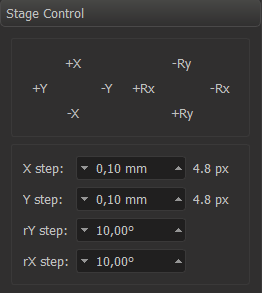

The stage can be moved or rotated by pressing the buttons. Step size (single button press) can be entered into the edit boxes below or can be selected from the corresponding dropdown list.
Linear steps are entered in millimeters. They are automatically re-calculated on zoom ratio changeIf you selected the 'Auto' in the dropdown list, steps will be automatically recalculated when changing of the zoom ratio, to maintain the same pixel size of the step in pixels.
Angle values are entered in degrees and not changed with zoom.
Advanced
In the configuration file (e.g. msaconfig.xml) stage the default step size can be configured as follows:.
| Code Block | ||
|---|---|---|
| ||
 <config>
    <id>com.octonus.dm.StageControlGUI/0.1<2</id>
    <values>
      <section name="Steps"> <!-- setup stage move step on single button press -->
        <section name="Moving"> <!-- X/Y step -->
           <key name="XStep" value="550"/> <!-- pixels! -->
           <key name="Y="Auto" value="true"/> <!-- is auto step -->
        </section>
        <section name="Focus">
           <key name="Step" value="550"/> <!-- pixels! -->
           <key name="RxAuto" value="10true"/> <!-- is auto step -- degrees! >
        </section>
        <section name="Rotation"> <!-- Rx/Ry step -->
           <key name="RyStep" value="10"/> <!-- degrees! -->

        </section>
      </section>
    </values>
  </config>
|
Actual step size (if it's set as 'Auto') in mm will be calculated depending on pixels size, taking into account current zoom level.